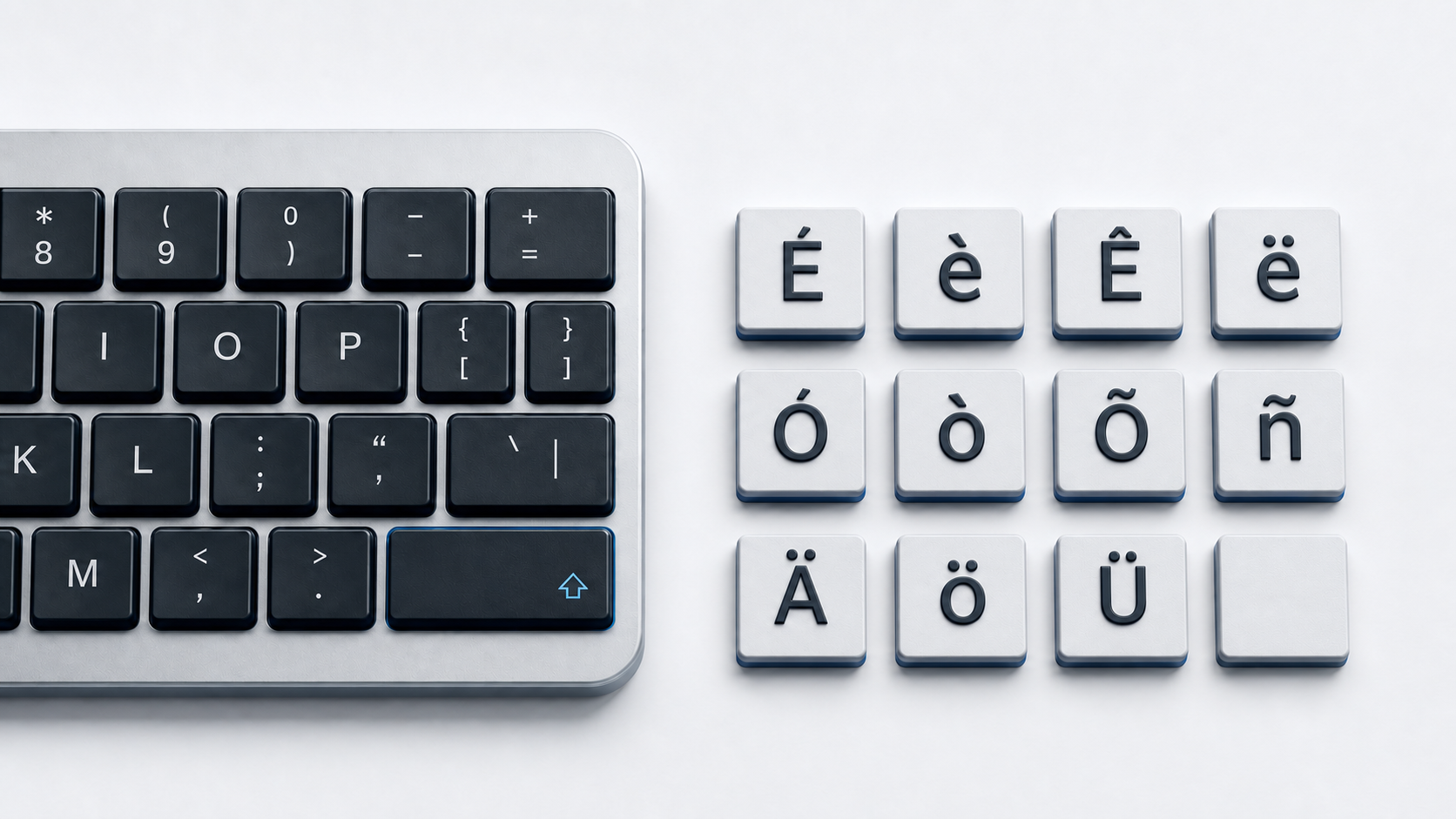
Copy the exact N accent character you need from the panel above. For ñ or Ñ in Word and Outlook on Windows, Microsoft documents Ctrl-Shift-~, followed by n or N; for the other variants, copy and paste or use Word's Unicode conversion with the listed code point.
Choose the right N accent mark
The common precomposed forms in this guide are ñ and Ñ with tilde, ń and Ń with acute, ǹ and Ǹ with grave, ň and Ň with caron, and ņ and Ņ with cedilla. Unicode assigns a separate code point to every uppercase and lowercase character. The names shown in the copy panel follow the Unicode character names.
Spanish N with a tilde is also called enye. The other forms belong to different language and transcription contexts, so choose the character required by the name, language, or source text instead of selecting one only because it looks close.
Understand precomposed and combining forms
A precomposed character uses one code point, such as U+00F1 for ñ. An accented N can also be represented as a base N followed by a combining mark, such as U+006E plus U+0303. These sequences can render alike while remaining different sequences in raw data.
Unicode Normalization Form C composes eligible sequences into precomposed forms. For ordinary copying, search, and data entry, the single precomposed values in the panel are a predictable starting point. When identical-looking strings fail a binary comparison, inspect the code points and normalize the text rather than assuming the glyphs are different.
Type N accent marks in Microsoft Word
For ñ and Ñ in Word or Outlook on Windows, press Ctrl-Shift-~, release the keys, and type n or N. Microsoft scopes that accent shortcut to Word and Outlook, so it will not work in every Windows text field.
Word also converts a hexadecimal Unicode value when the code appears immediately before the insertion point. Type 00F1 then Alt-X for ñ, 0144 then Alt-X for ń, 01F9 then Alt-X for ǹ, 0148 then Alt-X for ň, or 0146 then Alt-X for ņ. Use the uppercase code point from the panel when you need a capital letter.
Copy an N accent mark in Windows
Character Map provides a visible selection route when the destination app has no appropriate shortcut. Open Character Map, locate the required N character, select it, copy it, and paste it into the destination. Microsoft does not document a numeric Alt shortcut for every N variant, so Character Map is the reliable route.
Type N accent marks on Mac
Apple documents the accent menu and Keyboard Viewer rather than one universal sequence for every character. Hold N in an app that supports the accent menu and choose an offered variant. If the character is not offered, open Keyboard Viewer to inspect the active input source and its dead keys, or copy the exact precomposed character from this page.
The familiar Option-N dead key can produce the tilde form on compatible layouts, but the active input source and app determine what is available. Do not assume the menu exposes acute, grave, caron, and cedilla forms on every Mac keyboard configuration.
Type N accent marks on iPhone or iPad
Touch and hold N on the onscreen keyboard, then slide to an accented character when it appears. The alternatives shown depend on the active keyboard. If the required form is absent, copy it from the panel instead of changing the text to a different N variant.
Type ñ on Chromebook
Google documents Alt+N as a modifier-key route for ñ. It separately documents AltGr+N on the US International keyboard. Those two combinations type ñ only. Confirm the named keyboard before using its AltGr mapping, and copy any other N variant.
Insert an N accent mark in Google Docs or Slides
In Google Docs or Slides, choose Insert, Symbols, and Special characters, then search, draw, or use a Unicode value to find the character. Google's cited special-character flow covers Docs and Slides. Google Sheets has no equivalent direct insertion route, so copy the character into the cell instead.
Use N accent marks in HTML
A UTF-8 document can contain every character directly. WHATWG also defines named references including ñ, Ñ, ń, Ń, ň, Ň, ņ, and Ņ.
Numeric references work for all ten forms. For example, ǹ is ǹ or ǹ. WHATWG does not define &ngrave; or &Ngrave;, so use the direct UTF-8 character or a numeric reference for ǹ and Ǹ.
For reusable methods across other letters, use the accented letters guide. The umlaut letters guide covers the two-dot A, O, and U family. If Windows produces an unexpected character, check the active Windows keyboard layout.
Fix the wrong N accent output
- 1.Match the copied glyph and code point to the language or source text.
- 2.Check whether a shortcut is limited to Word, Outlook, or a named keyboard layout.
- 3.Confirm the active Mac, iPhone, or Chromebook input source.
- 4.Use Character Map, Character Viewer, a special-character picker, or direct copy when the needed form is unavailable.
- 5.Inspect and normalize Unicode sequences when identical-looking strings behave differently in search or code.
Common questions
Which character is Spanish N or enye?
Lowercase ñ is U+00F1 and uppercase Ñ is U+00D1. They are the N-with-tilde forms; an acute, grave, caron, or cedilla form is a different character.
Is a precomposed character the same raw data as N plus a combining mark?
No. Eligible forms can be canonically equivalent, but the underlying code-point sequences differ until software applies normalization.
Do I need an HTML character reference?
No. Correctly encoded UTF-8 HTML can contain the character directly. Named and numeric references are alternative source representations.
Official references
- Unicode Latin-1 Supplement chart
- Unicode Latin Extended-A chart
- Unicode Latin Extended-B chart
- Unicode Combining Diacritical Marks chart
- Unicode Normalization Forms
- Microsoft accent shortcuts for Word and Outlook
- Microsoft Unicode insertion guidance
- Apple guide to accent marks on Mac
- Apple guide to onscreen keyboard accents on iPhone
- Apple guide to onscreen keyboard accents on iPad
- Google Chromebook input methods
- Google Docs special-character guide
- WHATWG named character references