
Screen flickering on your Galaxy Z Fold 6 is especially jarring on that large inner display, where it can appear as flashing, blinking, or horizontal lines. This can be caused by a software glitch, a problematic display setting, or a hardware issue related to the unique folding mechanism. Let's get it sorted.
Start with a free monitor test to check the panel with fullscreen test patterns. What you see there tells you whether to blame the display, the cable, or the source.
Force Restart Your Phone
This is the quickest fix for a temporary software hiccup. Press and hold the Volume Down button and the Side/Power button together for about 10 seconds. Release them when you see the Samsung logo appear. I'd start with this one, as it clears the phone's temporary memory and often resolves random display glitches immediately.
Disable Adaptive Brightness
The phone's light sensor can sometimes cause flickering as it tries to adjust. Open Settings and go to Display. Toggle off Adaptive brightness. After turning it off, manually adjust your brightness slider to a comfortable level and see if the flickering stops.
Turn Off Eye Comfort Shield
This feature, which reduces blue light, can sometimes interact poorly with the display's refresh rate. Go to Settings > Display > Eye comfort shield and toggle it off. If the flickering is subtle and color-tinted, this setting is a likely culprit.
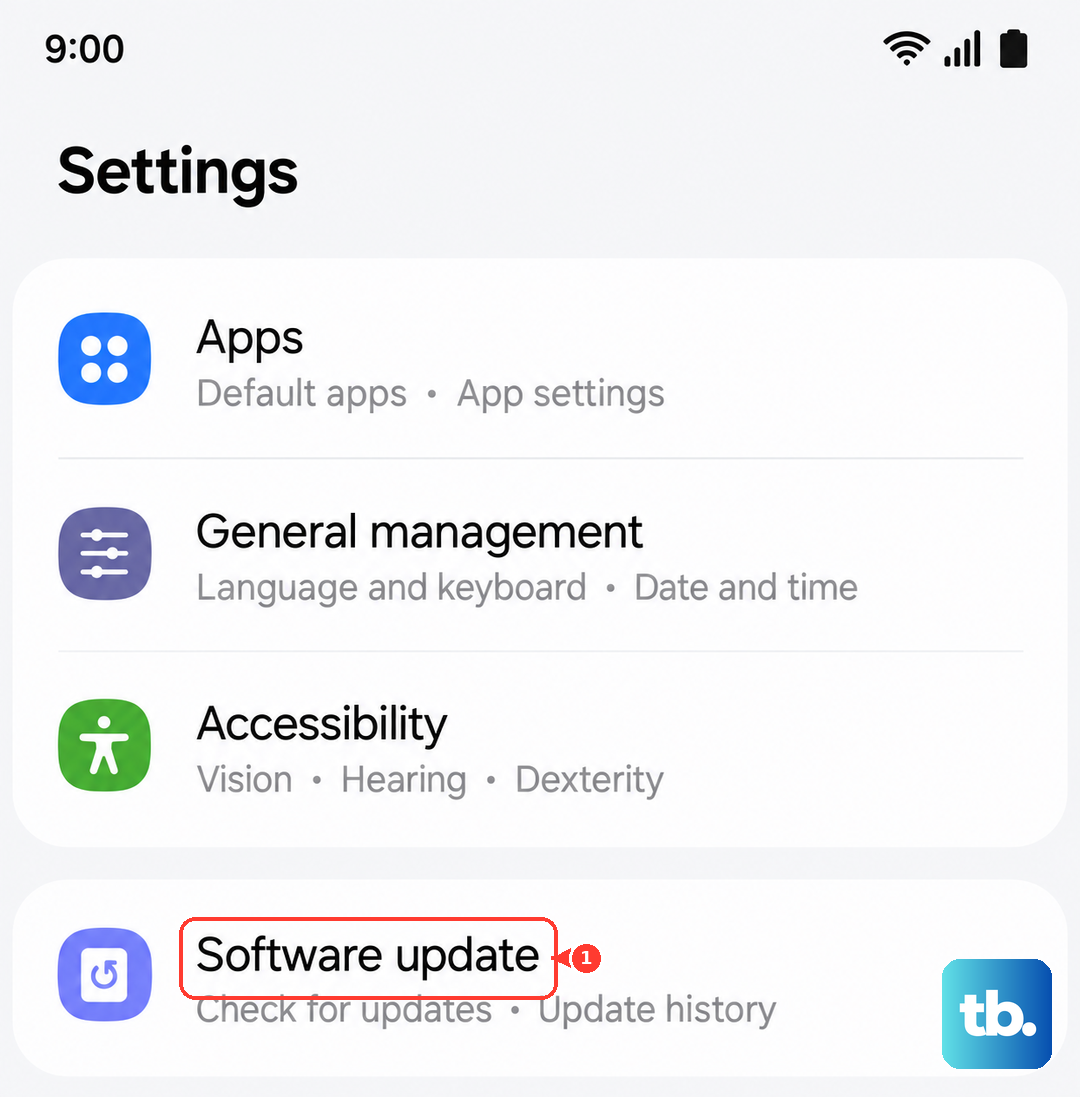
Check for Software Updates
Samsung regularly releases updates that fix display-related bugs. Navigate to Settings > Software update and tap Download and install. Given the Z Fold 6's complex dual-screen setup, keeping the software current is crucial for display stability.
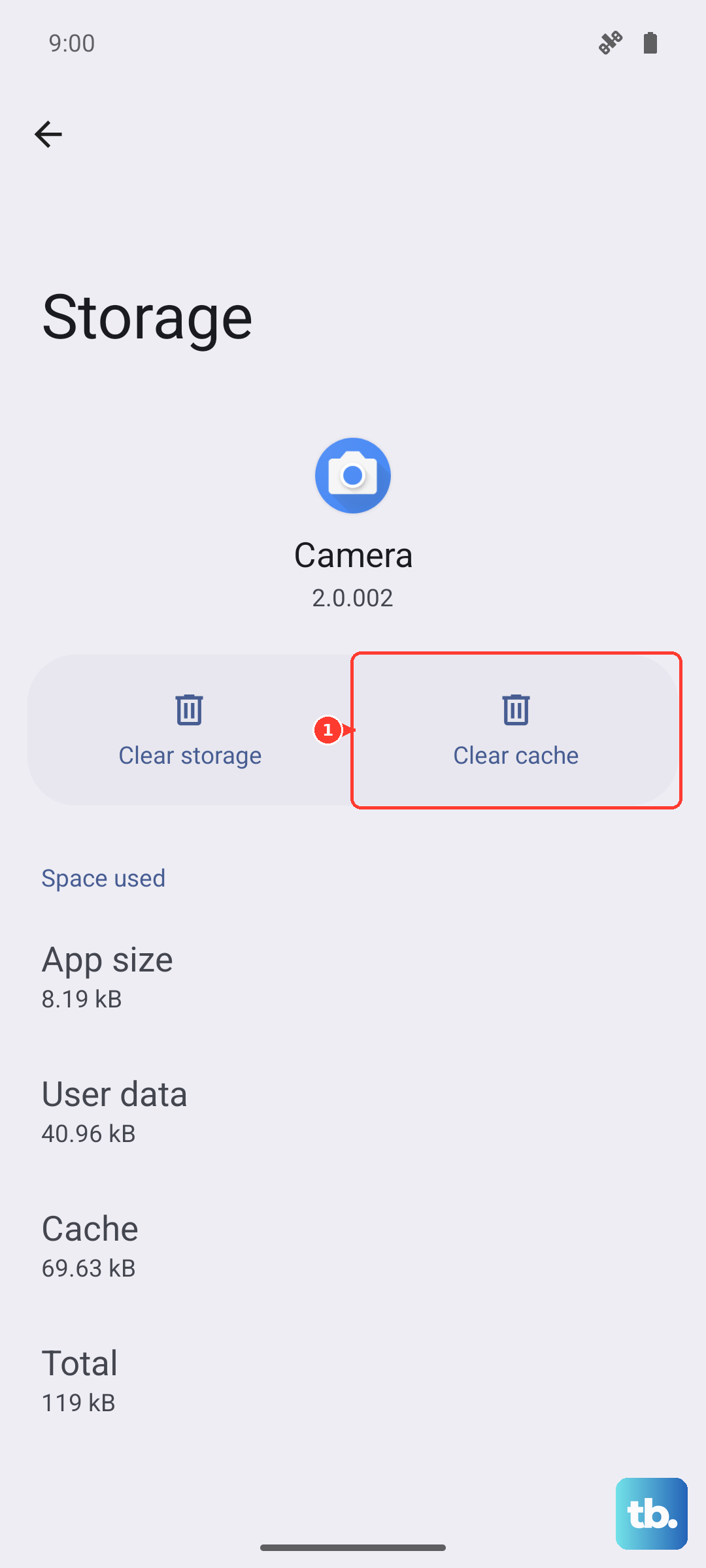
Close Background Apps and Clear Cache
A specific app might be causing trouble. Swipe up from the bottom and hold to see your recent apps, then swipe each one away to close it. If you suspect a particular app, you can also clear its cache by going to Settings > Apps, selecting the app, then Storage > Clear cache.
Try Safe Mode
Booting into Safe Mode disables all third-party apps. Press and hold the power button until the power menu appears, then tap and hold the Power off icon. Tap Safe mode to restart. If the flickering stops in Safe Mode, a downloaded app is the cause. You'll need to uninstall apps one by one to find the offender.
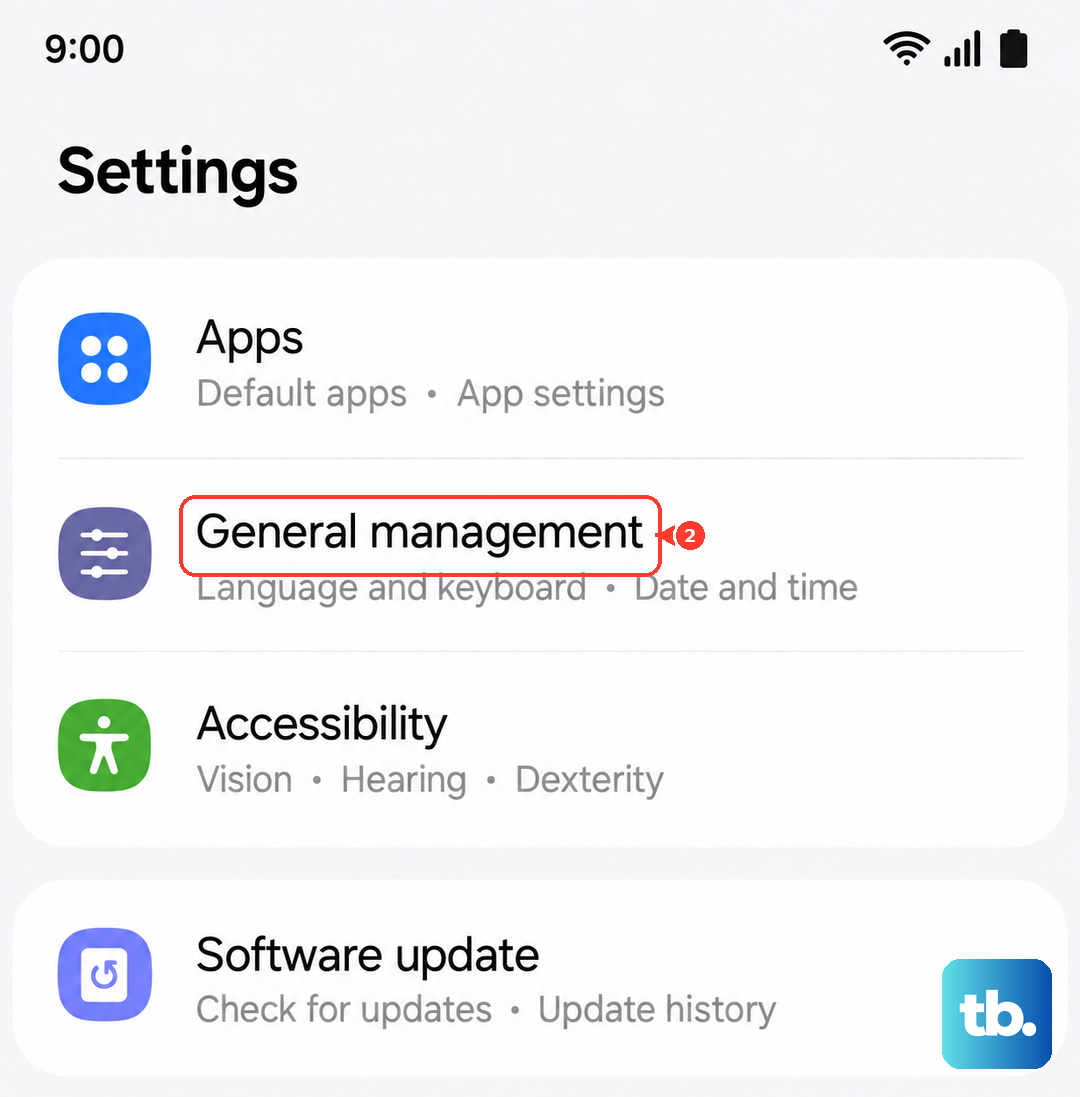
Reset All Settings
This resets your display, network, and sound settings to default without touching your personal data. Go to Settings > General management > Reset > Reset all settings. You'll need to re-enter Wi-Fi passwords and reconfigure things like ringtones, but it can fix deep-seated configuration conflicts causing the screen to act up.
Inspect for Physical Issues
With a folding phone, physical stress is a real factor. Carefully examine the inner screen along the crease for any new distortions, pressure marks, or dead pixels. Check if the flickering is worse when opening or closing the hinge. Also, ensure there's no debris in the hinge mechanism, as trapped particles can put pressure on internal display cables.
Avoid placing any heavy objects on the phone when it's folded, as this can stress the inner display. If you see any visible damage or the flickering correlates with hinge movement, it's likely a hardware issue.
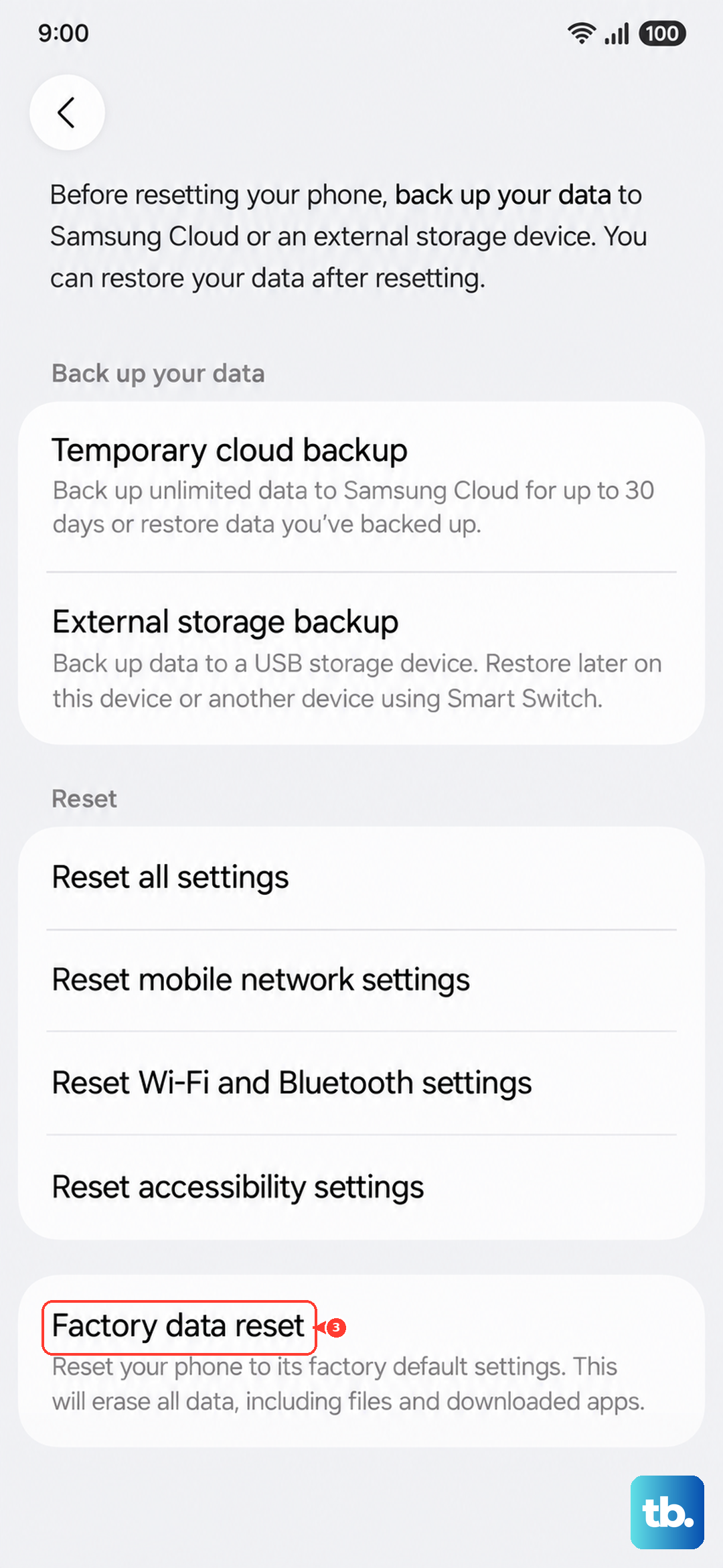
Consider a Factory Reset
As a last resort before seeking repair, back up all your important data. Then, go to Settings > General management > Reset > Factory data reset. This erases everything and reinstalls the OS fresh. If the flickering persists on a completely clean phone, the problem is almost certainly hardware-related.
For hardware issues, especially those near the hinge or crease, you'll need to contact Samsung Support. Using only Samsung-approved screen protectors on the inner display can also prevent unexpected touch and display behavior that might mimic flickering.