
Factory resetting your Galaxy Z Fold 6 is the most definitive way to clear out persistent software glitches or prepare it for a new owner. It completely erases all your apps, accounts, photos, and settings, returning the phone to the state it was in when you first opened the box. I'd only recommend this after trying simpler fixes, but when you need it, the process is straightforward if you follow the steps carefully.
Back Up Everything Before You Start
Your first and most important step is to secure your data. For your Z Fold 6, you have a couple of solid options. Head to Settings > Accounts and backup. From here, you can use Samsung Cloud or Google One to back up your app data, settings, and call history.
For a more complete backup, including your home screen layout and all files, I'd use Samsung's Smart Switch app. You can back up directly to a microSD card if your model supports it, or to a computer. Double-check that your photos and videos are safely synced to Google Photos or another cloud service you trust.
Remove Your Samsung and Google Accounts
This step is crucial to avoid getting locked out by Factory Reset Protection (FRP). Go to Settings > Accounts and backup > Manage accounts. Tap on your Samsung account, then select Remove account and confirm. Do the same for your primary Google account.
Make sure you know the password for these accounts, as you'll need them to sign back in after the reset. If you're selling the phone, this ensures the next person can set it up without any issues linked to your identity.
Perform the Reset from Your Settings Menu
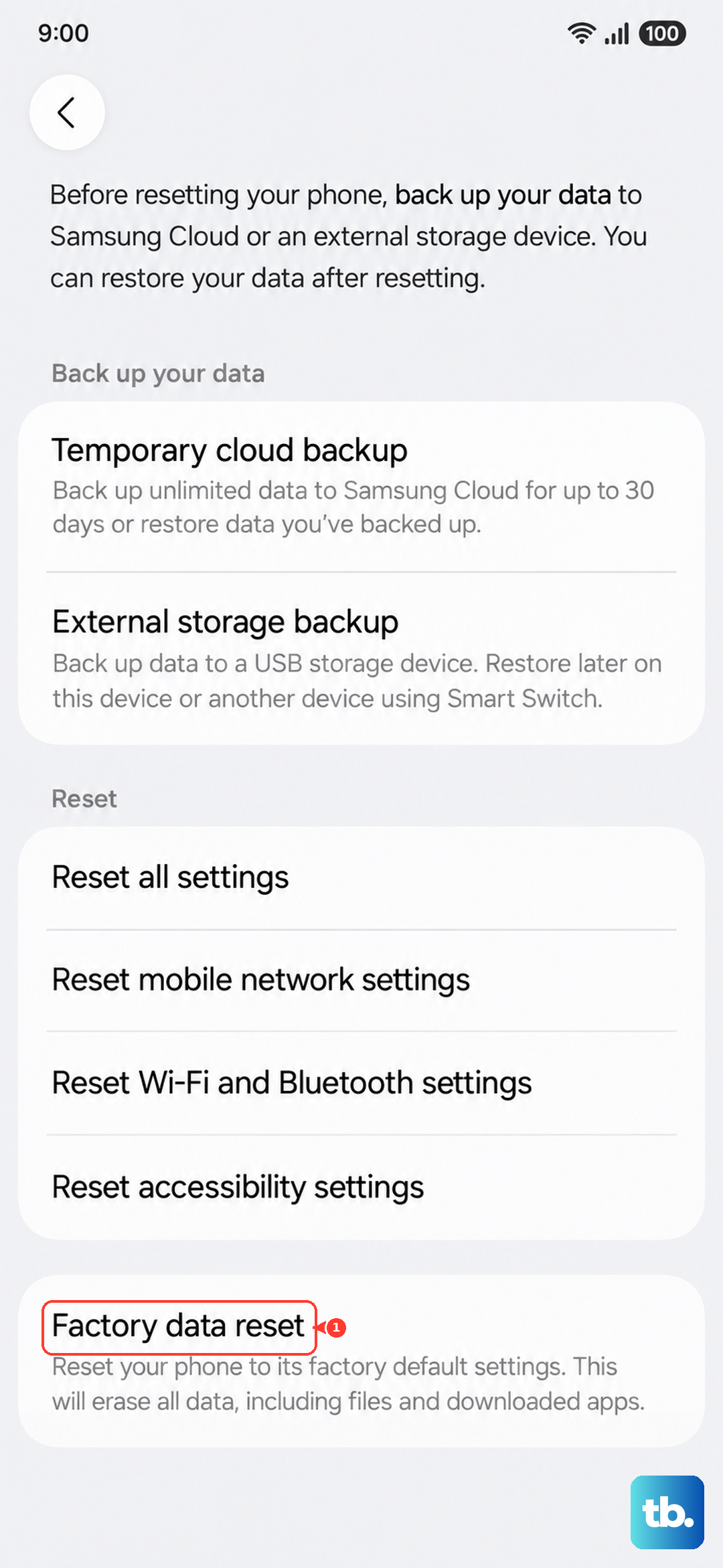
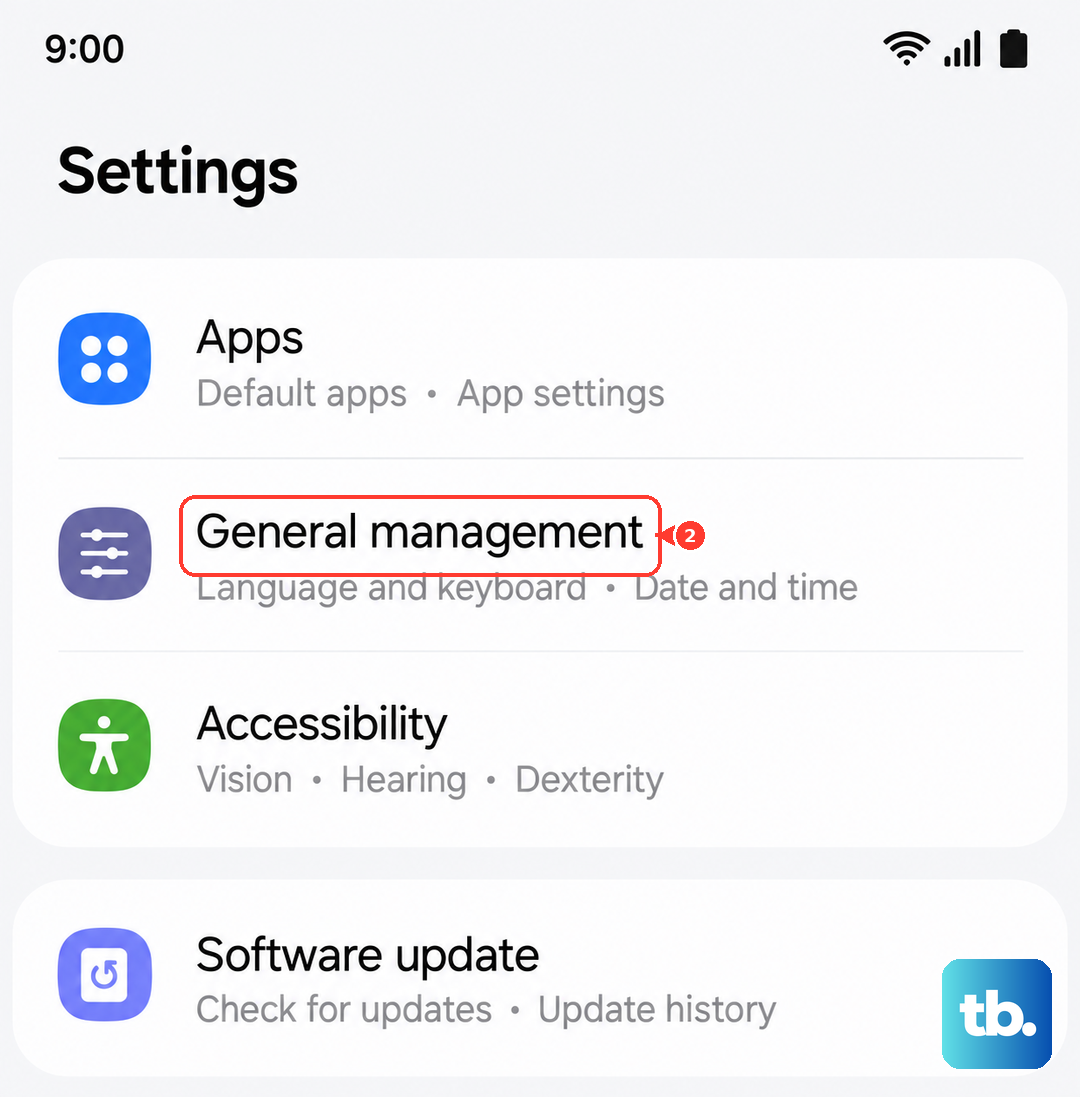
This is the standard method when your phone is functioning normally. Open Settings and navigate to General management > Reset > Factory data reset. You'll see a detailed list of everything that will be deleted, including your personal files and downloaded apps.
Scroll down and tap Reset. On the final warning screen, tap Delete all. You'll be asked to enter your PIN, pattern, or password for security. Once confirmed, the phone will restart and begin the wiping process, which can take several minutes before it lands on the initial setup screen.
Use Recovery Mode If Your Phone Won't Boot
If your Z Fold 6 is frozen, stuck in a boot loop, or won't turn on properly, you can reset it using the hardware buttons. First, ensure the phone is powered off. Connect it to a charger if the battery is critically low.
Press and hold the Volume Up button and the Side (power) button simultaneously. Release both buttons when you see the Samsung logo or feel a vibration, and you'll enter the Android Recovery menu. Use the Volume Down button to highlight Wipe data/factory reset, then press the Side button to select it.
Confirm by selecting Factory data reset again. Once it's complete, you'll be back at the main recovery menu. Select Reboot system now with the Side button. Your phone will restart as if it were brand new.
Consider a Reset Without Full Data Loss
Before doing a full factory reset, see if a more targeted option solves your problem. Go to Settings > General management > Reset. Here, you'll find other useful options.
You can choose Reset settings, which restores all system settings to default without touching your personal data. Reset network settings is great for fixing Wi-Fi or Bluetooth issues, and Reset accessibility settings can help if certain display or sound features are misbehaving.
Setting Up Your Z Fold 6 After the Reset
Once the reset is complete, you'll be guided through the standard Android setup. Connect to a Wi-Fi network and then sign back into your Google and Samsung accounts. When prompted, choose to restore your data from the Samsung Cloud or Google One backup you made earlier.
Take your time reconfiguring your home screens and app folders, especially for the unique inner and outer displays. This is also a good opportunity to only reinstall the apps you truly need, which can help if performance was your main concern.
When a Factory Reset Is the Right Call
A factory reset is your best tool for dealing with severe, unexplained software problems like constant app crashes, significant battery drain that persists after updates, or system-wide lag. It's also the only way to truly wipe your personal information before selling or recycling the device.
For less severe issues, try clearing the system cache first. You can do this from the same Recovery Mode menu by selecting Wipe cache partition instead of the factory reset option. This clears temporary system files and can resolve many minor glitches without any data loss.