
You're expecting a notification on your Galaxy Z Fold 6, but your screen stays dark and silent. Missing alerts for messages, emails, or app updates is a common headache that can usually be fixed without much fuss. The solutions below are tailored specifically for the Z Fold 6 running One UI 6.1.1.
Check Do Not Disturb and Focus Modes
This is the quickest fix. Swipe down from the top of your screen to open the Quick Settings panel. Look for the Do Not Disturb or Moon icon and make sure it's turned off. Also, check if any Modes, like Sleep or Work, are active, as they can silence specific apps.
You can dig deeper in Settings > Modes and Routines to see which ones are running and what notification rules they've applied. I'd start here, as it's the most common reason notifications go quiet.
Review App-Specific Notification Settings
Android and One UI give you granular control. Open Settings > Notifications > App notifications. Find the app that's not alerting you, like Gmail or Messages, and tap on it.
Ensure the toggle at the top is on. Then, check that the specific notification categories within the app, such as "New mail" or "Chat messages," are also enabled and set to make a sound or pop up on your screen.
Disable Adaptive Notifications
Samsung's Adaptive Notifications feature tries to learn which alerts you ignore and will eventually silence them. If it's being too aggressive, you can turn it off. Go to Settings > Notifications > Advanced settings and look for "Adaptive notifications."
Toggle it off. This tells your phone to stop trying to be smart and just deliver every notification as it comes in.
Adjust Battery Optimization for Key Apps
To save battery, Android can restrict what apps do in the background, which includes checking for new messages. For critical apps, you should change this. Go to Settings > Apps, select the problematic app, and tap Battery.
Change the setting from "Optimized" to "Unrestricted." This gives the app permission to run background processes freely, which is essential for timely notifications.
Clear the App's Cache and Data
A corrupted cache can break an app's notification system. Head back to Settings > Apps, select the app, and tap Storage. Hit "Clear cache" first. If that doesn't work, you can try "Clear data."
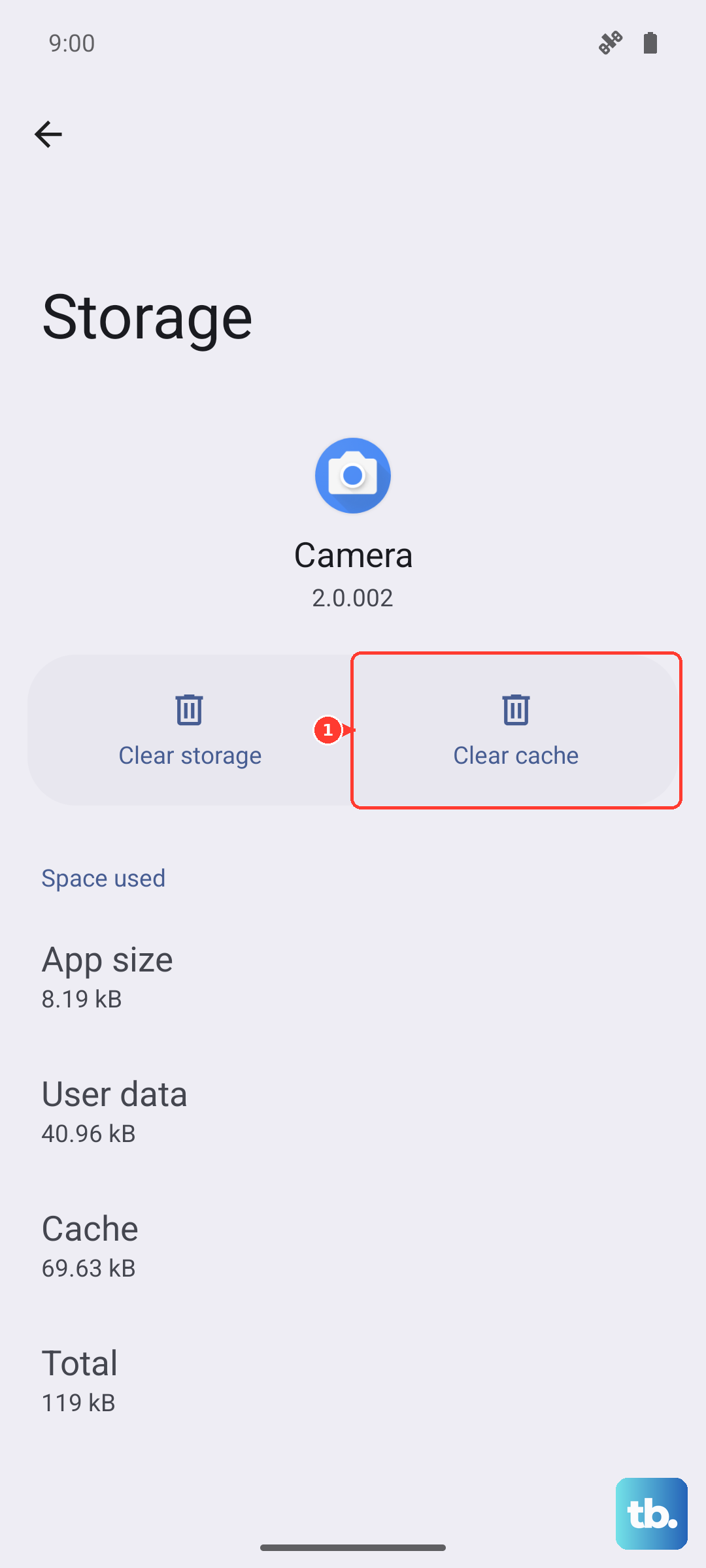
Be aware that clearing data will reset the app to its default state, so you might need to log back in. Your messages or emails stored on servers will sync back, but local settings will be lost.
Check for Software Updates
Software bugs are a frequent cause of notification glitches. Samsung regularly releases updates with fixes. Go to Settings > Software update and tap "Download and install."
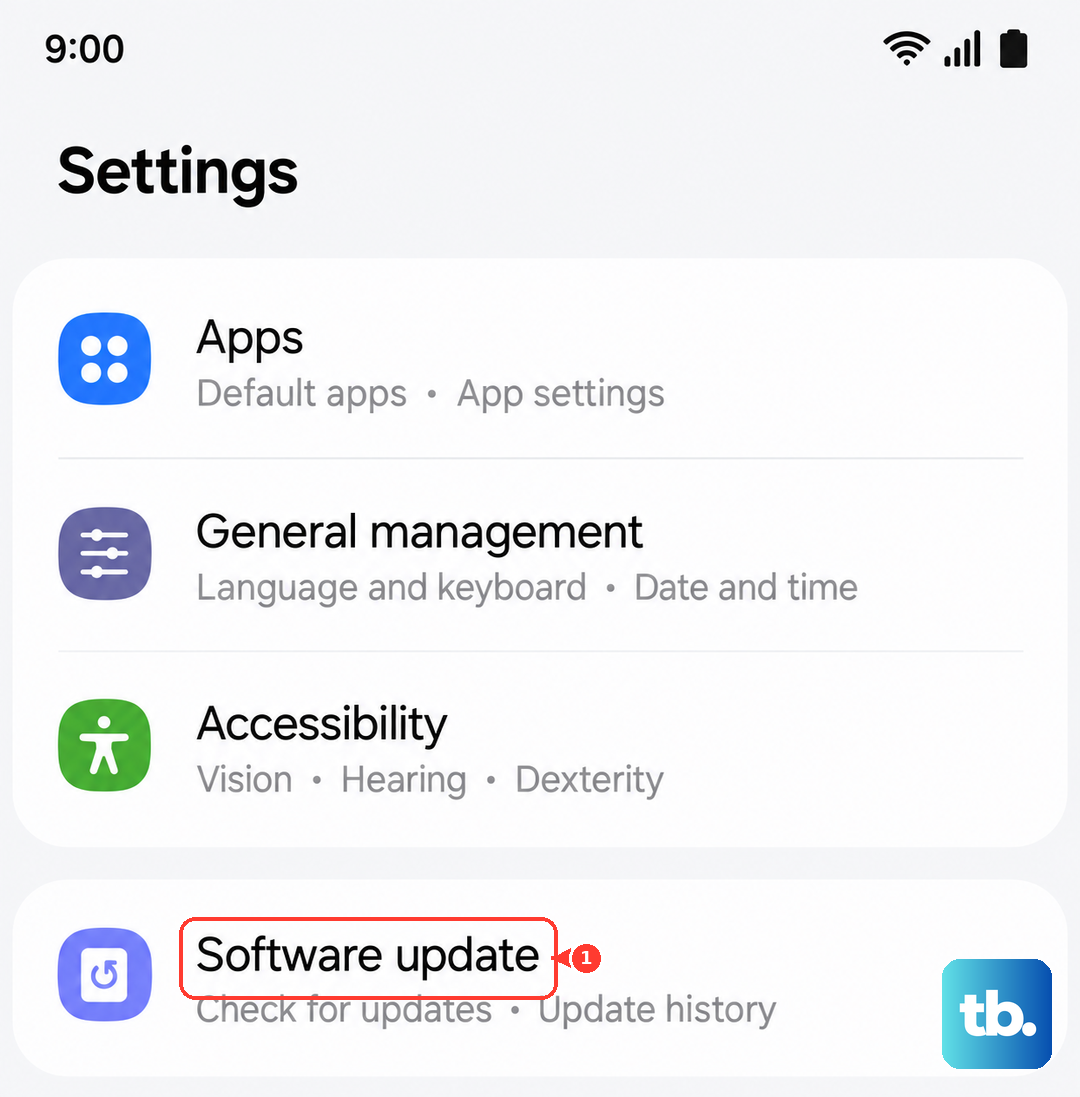
Make sure your phone is connected to Wi-Fi and has at least a 50% charge before proceeding. Keeping your Z Fold 6 updated is one of the best ways to maintain stability.
Reset App Preferences
This resets all your app-related settings, like notifications, default apps, and background data restrictions, back to factory defaults without deleting any personal data. It's a powerful middle-ground fix.
Navigate to Settings > Apps, tap the three-dot menu in the top right, and select "Reset app preferences." Confirm the action. You'll then need to re-grant notification permissions for your apps as they request them.
Ensure Notification Services Are Running
Some system services manage notifications. Go to Settings > Apps, tap the three-dot menu, and select "Show system apps." Search for and select "Notification" from the list.
Tap Battery and ensure "Allow background activity" is enabled. Then, go back and tap Storage and hit "Clear cache." Finally, force stop the service and restart your phone to refresh it.
Perform a Network Settings Reset
If your missing notifications are specifically for online services like WhatsApp or Slack, a network glitch could be the culprit. This reset clears your Wi-Fi, Bluetooth, and cellular network settings.
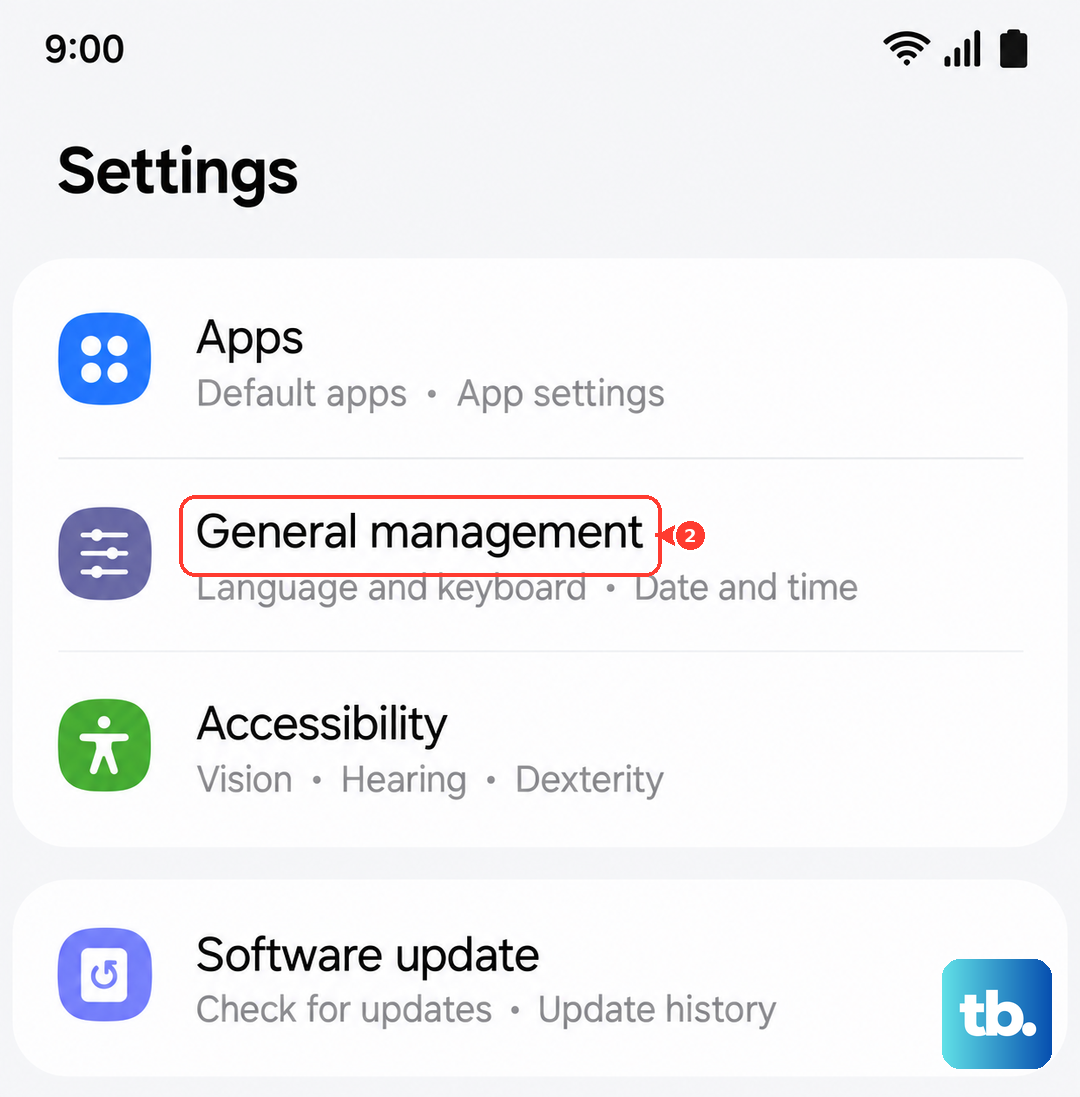
Go to Settings > General management > Reset and select "Reset network settings." You'll need to reconnect to your Wi-Fi networks and re-pair Bluetooth devices afterward, but it can resolve deep-seated connection issues.
Boot Into Safe Mode
Safe Mode temporarily disables all third-party apps. If notifications work fine in Safe Mode, you know a downloaded app is causing the conflict. To enter Safe Mode, press and hold the power button until the power menu appears.
Then, tap and hold the "Power off" option on your screen until you see a prompt to reboot to Safe Mode. Tap to confirm. Once in Safe Mode, test your notifications. To exit, just restart your phone normally.
Consider the Hinge and Display Behavior
The Z Fold 6's unique form factor can affect notifications. When the phone is folded shut, notifications will only appear on the cover screen. Some users have reported that if the inner display's screen protector is lifting near the crease, it can cause touch issues that might affect system stability.
Also, check your "Continue apps on cover screen" setting in Settings > Advanced features > Labs. If an app is set to continue from the inner screen to the cover screen, its notification behavior might change.