
When your Galaxy Z Fold 6's volume buttons stop responding, it can feel like you've lost a key part of the phone's basic controls. You press them, but there's no change in sound, no haptic feedback, and no response. The good news is that most of the time, this is a temporary glitch you can fix yourself without a trip to the service center.
I'd start with the simplest solutions first. They often clear up the problem in just a few minutes.
Remove Your Phone Case
Begin by taking off your case. Cases, especially third-party ones or those that are slightly misaligned, can sometimes press against the buttons or restrict their movement just enough to make them feel unresponsive. With the Z Fold 6's unique hinge design, a case that's not sitting perfectly can be a common culprit.
Perform a Force Restart
A force restart is a great way to clear out any minor software bugs that might be causing the buttons to freeze. This won't delete any of your personal data or settings.
For the Galaxy Z Fold 6, press and hold the Volume Down button and the Side/Power button simultaneously for about 10 to 12 seconds. Keep holding them until you see the Samsung logo appear on the screen, then release. The phone will boot up normally.
Clean Around the Buttons
Dust and pocket lint are frequent offenders with foldable phones. The hinge mechanism on the Z Fold 6 can attract debris over time, and some of it can work its way into the button areas. Take a can of compressed air and give short, gentle bursts around the volume rocker and the hinge area.
For any sticky residue, you can lightly dampen a cotton swab with a bit of isopropyl alcohol (90% or higher is best). Wipe carefully around the button edges and let it dry completely before testing the buttons again.
Check Your Sound Settings
It's worth a quick look in your settings to make sure nothing was accidentally changed. Open the Settings app and go to Sounds and vibration. Scroll down and ensure that the option for Use volume keys for media is toggled on.
While you're there, test the on-screen volume slider to confirm your speakers are working. You can also pull down the Quick Settings panel from the top of the screen and adjust the volume slider there.
Test the Buttons in Different Modes
The Z Fold 6 can behave differently depending on whether it's open or closed. Test your volume buttons in both positions. Unfold the phone to use the large inner display and try adjusting the volume while playing a video on YouTube.
Then, fold it closed and try again with the cover screen. If the buttons work in one orientation but not the other, it could point to a software issue related to the phone's posture detection.
Try Different Apps and Media
Open a few different apps that use sound, like Spotify, Samsung Music, or the Gallery app playing a video. Try the volume buttons in each one. Sometimes, a bug in a single app can make it seem like the hardware is broken.
If the buttons work perfectly in your music app but don't adjust your ringtone volume from the home screen, the issue is likely software-based and not a broken button.
Enable and Use Sound Assistant
Samsung's Sound Assistant is a powerful tool that gives you more control and can sometimes help reset the system's connection to the physical buttons. You can find it by going to Settings > Advanced features > Sound Assistant.
Turn it on and explore its options. You can use its separate volume sliders for different audio types. After toggling some settings and using the on-screen controls, try your physical volume buttons again.
Update Your Software
Software bugs in Android or One UI can occasionally cause input issues like this. Samsung regularly releases updates that include fixes for such problems. Connect to Wi-Fi and go to Settings > Software update > Download and install.
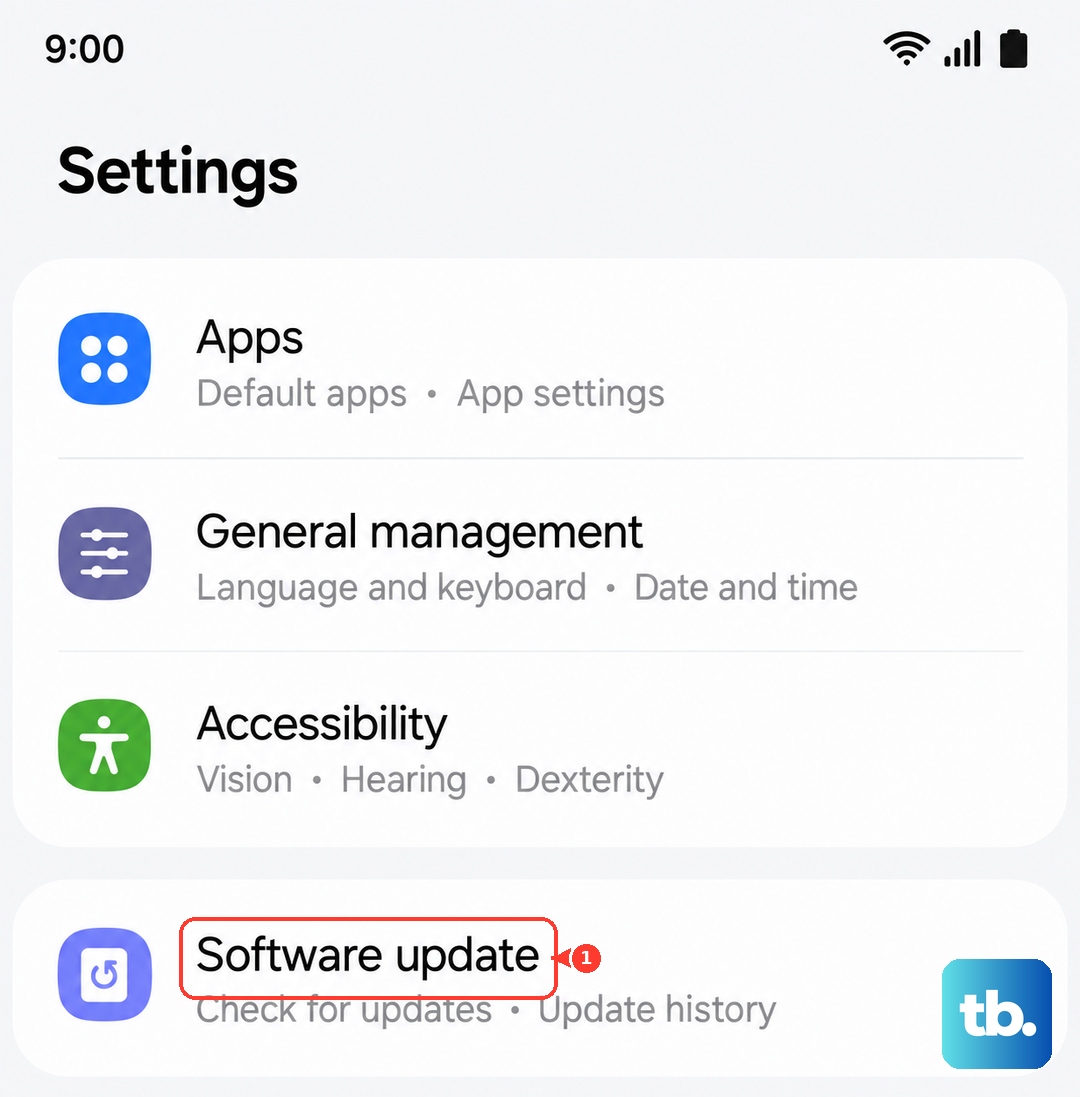
If an update is available, let it install. The phone will restart, and it's a good idea to test the volume buttons immediately after the update completes.
Boot Into Safe Mode
Safe mode starts your phone with all third-party apps disabled. This helps you figure out if a recently downloaded app is causing a conflict. To boot the Z Fold 6 into Safe Mode, press and hold the Side/Power button until the power off menu appears.
Then, press and hold the "Power off" icon on the screen until it changes to a "Safe mode" prompt. Tap it to reboot. If your volume buttons work perfectly in Safe Mode, you know a downloaded app is the problem. You'll need to uninstall apps one by one to find the culprit.
Check for Physical Damage or Obstructions
Take a close look at the volume rocker itself. With the phone unfolded, look along the hinge's spine where the buttons are located. Check for any visible dents, cracks, or debris lodged in the mechanism.
Gently press the button up and down, feeling for the normal tactile click. If it feels mushy, sticks in one position, or makes a gritty sound, there may be physical damage or an obstruction inside.
Reset All Settings
If you're still stuck, a settings reset can help. This will revert all your system settings (like Wi-Fi passwords, Bluetooth pairings, and display preferences) back to default without touching your personal photos, messages, or apps. Go to Settings > General management > Reset > Reset all settings.
Enter your PIN if prompted and confirm. After the phone restarts, you'll need to reconfigure your preferences, but it often clears persistent software glitches.