
If your new Galaxy Z Flip 7 battery seems to disappear faster than expected, you're not imagining things. The phone runs Android 16 out of the box, and while the software is fairly polished, a few settings and habits can make a big difference. Let's walk through what's actually going on and how to fix it.
Start with the most obvious check. Open Settings > Battery > Battery Usage. This shows which apps have been sipping power over the last 24 hours or the last 7 days. If one app is using 30% or more, that's your likely culprit. A recent update to that app might be misbehaving. Try force stopping it, clearing its cache, or uninstalling it temporarily to see if the drain slows down.
Force Restart First
Before digging into settings, try a quick force restart. Hold down the Volume Down and Side key together for about 10 to 15 seconds until the phone restarts. This clears out any temporary glitches in the system that could be draining battery in the background. It takes less than 30 seconds and often fixes random drain after an update or a new app install.
Tweak the Display
The Z Flip 7 has a bright 6.7-inch main screen and a cover display. On an OLED panel, dark mode actually saves real power. Go to Settings > Display and turn on Dark Mode. You can also set it to turn on automatically at sunset. While you're there, lower the brightness slider to something comfortable, and set the screen timeout to 30 seconds. Every minute the screen stays on when you're not looking is wasted battery.
If you're using the always-on display feature, consider turning it off or setting it to show only on tap. That cover screen can chew through power if it's lighting up every time you get a notification.
Manage Background Activity
Android 16 gives you fine control over what runs behind the scenes. Head to Settings > Apps > tap an app, then Battery. For apps you don't need real-time updates from, set it to Restricted. This prevents them from waking the phone or running in the background. Social media apps are often the worst offenders here.
Also check Settings > Location. Turn location off for apps that don't need it. You can set each app to Allow only while using the app instead of All the time. Similarly, go to Settings > Connections and toggle off Bluetooth and Wi-Fi when you're not using them. Constant scanning drains battery even if you're not connected.
Fix the Charging Itself
A known issue with early Z Flip 7 units is that the phone may stop charging before reaching 100%. If you plug it in and it gets stuck at 90% or 95%, just unplug the USB-C cable and plug it back in. That usually pushes it over the line. Samsung is working on a software fix, but for now this workaround works reliably.
If you're using wireless charging, make sure the phone is centered on the pad. The Z Flip 7 supports up to 15W wireless charging, but only with Samsung's official charger. Third-party Qi pads may not align well or deliver full speed, especially with the phone's compact shape. If charging stops intermittently, do a quick soft reset by pressing and holding Volume Down + Side key until the Samsung logo appears.
Update Software and Apps
Samsung has already pushed updates to address some battery drain issues on the Z Flip 7. Open Settings > Software Update and tap Download and Install. If an update is available, install it and let the phone sit on the charger for an hour to let it settle. Also update all your apps from the Galaxy Store or Play Store. An outdated app can cause a runaway process in the background.
Reset Your Settings as a Last Resort
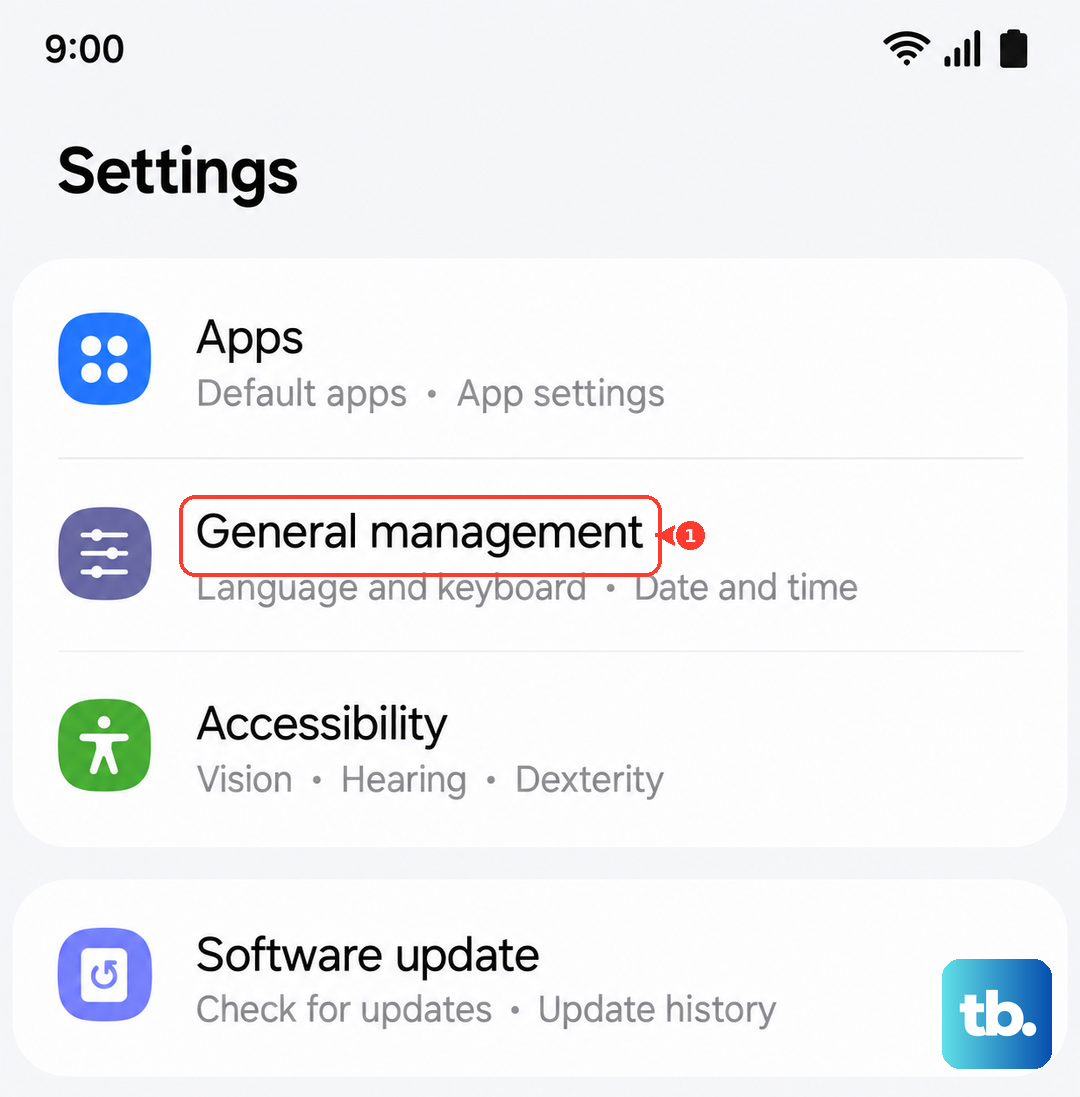
If you've tried everything and the drain is still excessive, you can reset all settings without losing your data. Go to Settings > General Management > Reset > Reset All Settings. This clears Wi-Fi passwords, Bluetooth pairings, and home screen layouts, but it doesn't delete your photos or accounts. It can flush out a bad configuration that's causing the battery to work overtime.
Battery drain on the Z Flip 7 is usually fixable with a few targeted changes. Start with the force restart and the battery usage check, then work through the display and background settings. The charging quirk should resolve with a simple unplug-replug, and a software update may already be waiting for you.