
When your Samsung Galaxy Z Flip 6 won't update, you might see an error message, a download that gets stuck, or the update option just won't appear. It's a common hiccup, but you can usually get past it with a few specific checks.
Free Up Storage Space on Your Z Flip 6
Your phone needs breathing room to download and install a new software package. Head to Settings > Device care > Storage to see how much space you have left. I'd recommend having at least 5-6 GB free. You can quickly clear space by going to the same storage menu and tapping Clean now, or by offloading large apps you don't use often.
Check Your Wi-Fi Connection
Software updates for the Z Flip 6 require a stable Wi-Fi connection and won't download over cellular data. Make sure you're connected and test the speed by opening a webpage in Samsung Internet. If it's slow, try restarting your router. Avoid public networks, as they often block large downloads like system updates.
Force Restart Your Phone
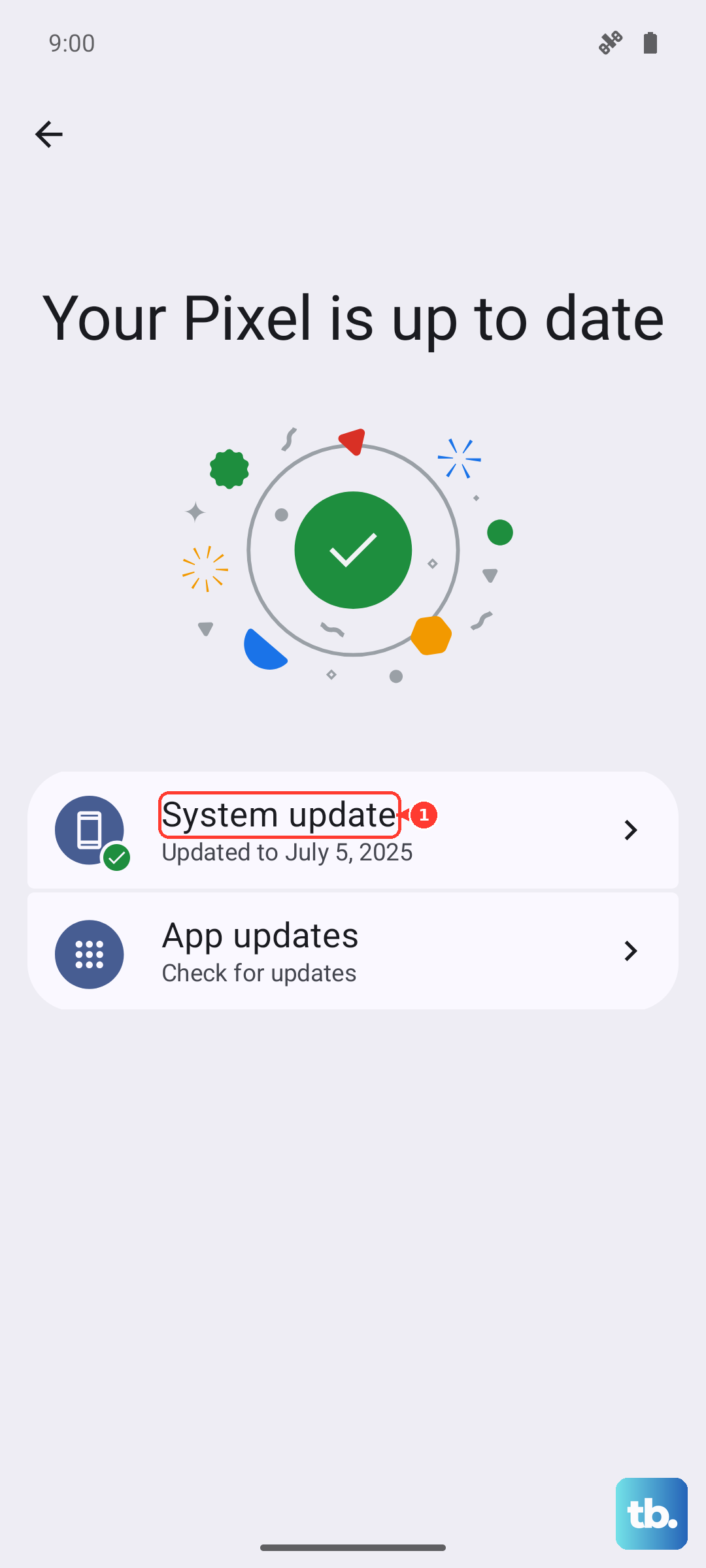
This is the quick fix that solves a lot of weird glitches. Press and hold the Volume Down button and the Side button (the power button) together for about 10 seconds. Let go when you see the Samsung logo appear. Once it boots back up, go to Settings > Software update and try checking for the update again.
Delete a Stuck Update File
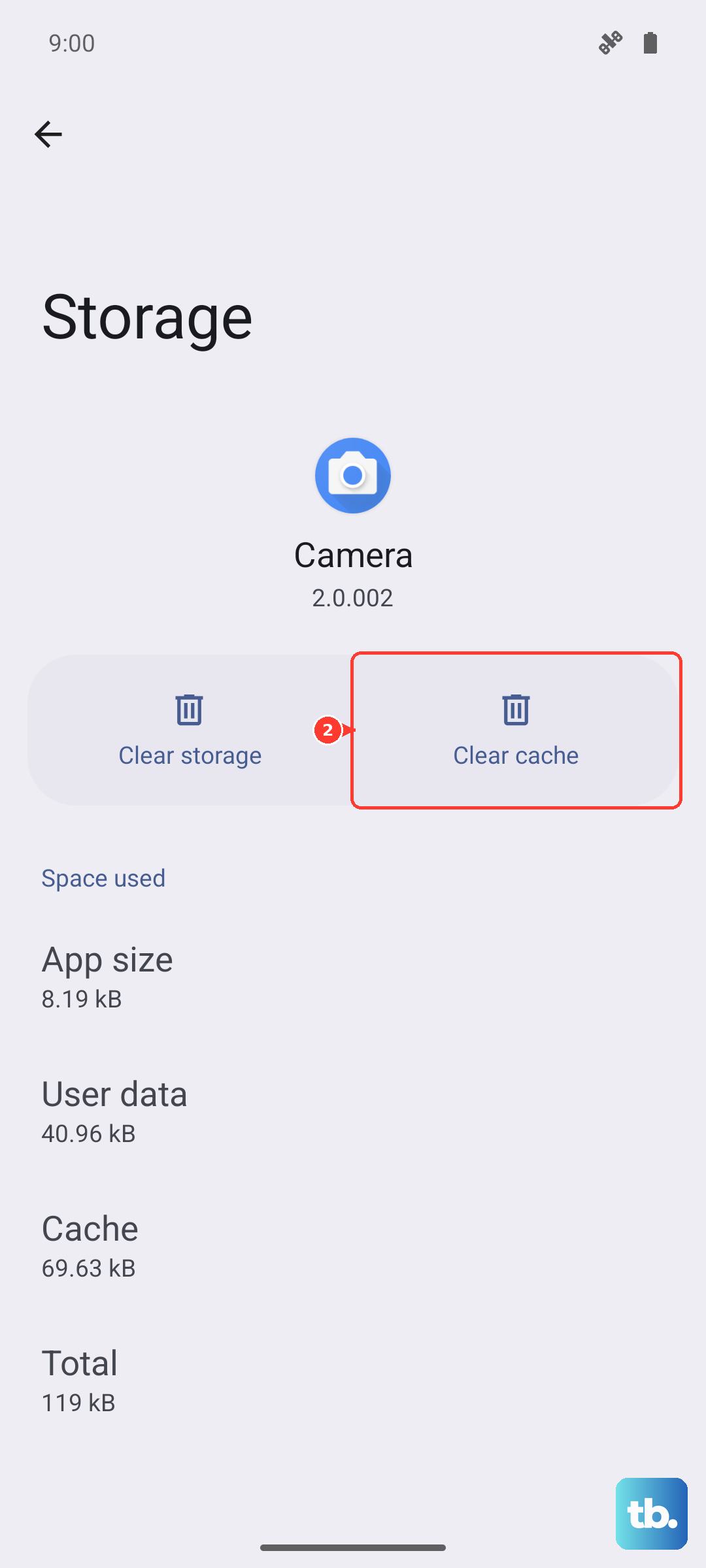
Sometimes a partial or corrupted download is blocking a fresh attempt. Go to Settings > Apps, tap the three-dot menu in the top right, and select Show system apps. Scroll down and find Software update, tap it, then tap Storage, and finally Clear cache and Clear data. This wipes the update app's temporary files. Head back to Software update to start a clean download.
Reset Your Network Settings
If there's a deeper issue with your phone's network configuration, this will clear it. Go to Settings > General management > Reset > Reset network settings. This will forget all your Wi-Fi networks and Bluetooth pairings, so you'll need to reconnect to your Wi-Fi afterward. Once you're reconnected, try the update process again.
Update Using a Computer
If the over-the-air update just won't cooperate, using Samsung's official software on a PC or Mac can bypass the problem. On your computer, download and install Samsung Smart Switch. Connect your Z Flip 6 to the computer with a USB-C cable, open Smart Switch, and if an update is available, you should see an option to install it. This method is often more reliable.
Check Samsung's Update Schedule and Servers
Updates for Samsung phones roll out in stages by carrier and region. Just because you see news about an update doesn't mean it's available for your specific model yet. You can also check if there's a widespread server issue by visiting Samsung's official community forums or status pages to see if other users are reporting problems.
Try Updating at a Different Time
When a major One UI update first launches, the servers can get slammed with download requests. If you're getting network errors, try again early in the morning or late at night. The reduced load often makes the download go through smoothly.
Ensure Your Z Flip 6 is Compatible
While the Z Flip 6 will receive updates for several years, it's always good to confirm. Go to Settings > About phone > Software information to see your current One UI and Android version. You can compare this to Samsung's official update roadmap for your model to see if you're expecting an update.
Check for App Interference
Certain apps, like VPNs, firewalls, or aggressive battery savers, can interfere with the update process. Try temporarily disabling any VPN apps or putting your phone into Safe mode. To boot into Safe mode, press and hold the power button, then tap and hold the "Power off" icon on your screen until the Safe mode prompt appears. In Safe mode, try checking for the update again.