
Your Samsung Galaxy S25 Edge GPS acting up is a real pain when you're trying to navigate somewhere new or tag a location. The good news is that most GPS problems on this phone are software-related and pretty easy to fix. I'll walk you through the solutions that work on the S25 Edge specifically.
Toggle GPS and Force Restart
Start with the fastest fixes. Swipe down twice from the top of the screen to open Quick Settings, then tap the Location icon to turn it off. Give it about 30 seconds, then tap it again.
If that doesn't do it, try a forced restart. This clears out temporary glitches without losing any data. On the Galaxy S25 Edge, press and hold both Volume Down and the Side (power) buttons simultaneously for about 10 seconds. Keep holding until the Samsung logo appears, then let go.
Check Location Settings and Permissions
Your GPS might be on but still not working because the location mode isn't set optimally. Open Settings > Location and make sure the toggle is on. Then tap Location Services and select High Accuracy. This mode uses GPS, Wi-Fi, and mobile networks together for the best fix.
Also check individual app permissions. Go to Settings > Apps, tap the app that's having GPS trouble (like Google Maps or Waze), then tap Permissions. Make sure Location is set to Allow all the time or While using the app.
Turn Off Power Saving Mode
Power saving features on the S25 Edge can limit GPS to save battery. If you're running low on juice and have Battery Saver on, that's probably the culprit. Go to Settings > Battery and turn off any power saving modes. Then try your GPS again.
Toggle Airplane Mode
This one resets all wireless radios in the phone, including the GPS hardware. Swipe down to Quick Settings and tap the Airplane Mode icon. Wait 10 15 seconds, then tap it again to turn it off. Your device will re-establish all connections fresh.
Update Apps and System Software
Outdated software can cause weird GPS bugs. Open the Google Play Store, tap your profile icon, then Manage apps & device > Updates available. Install any pending updates for Google Maps, Waze, or any navigation apps. Also check for system updates in Settings > Software update > Download and install.
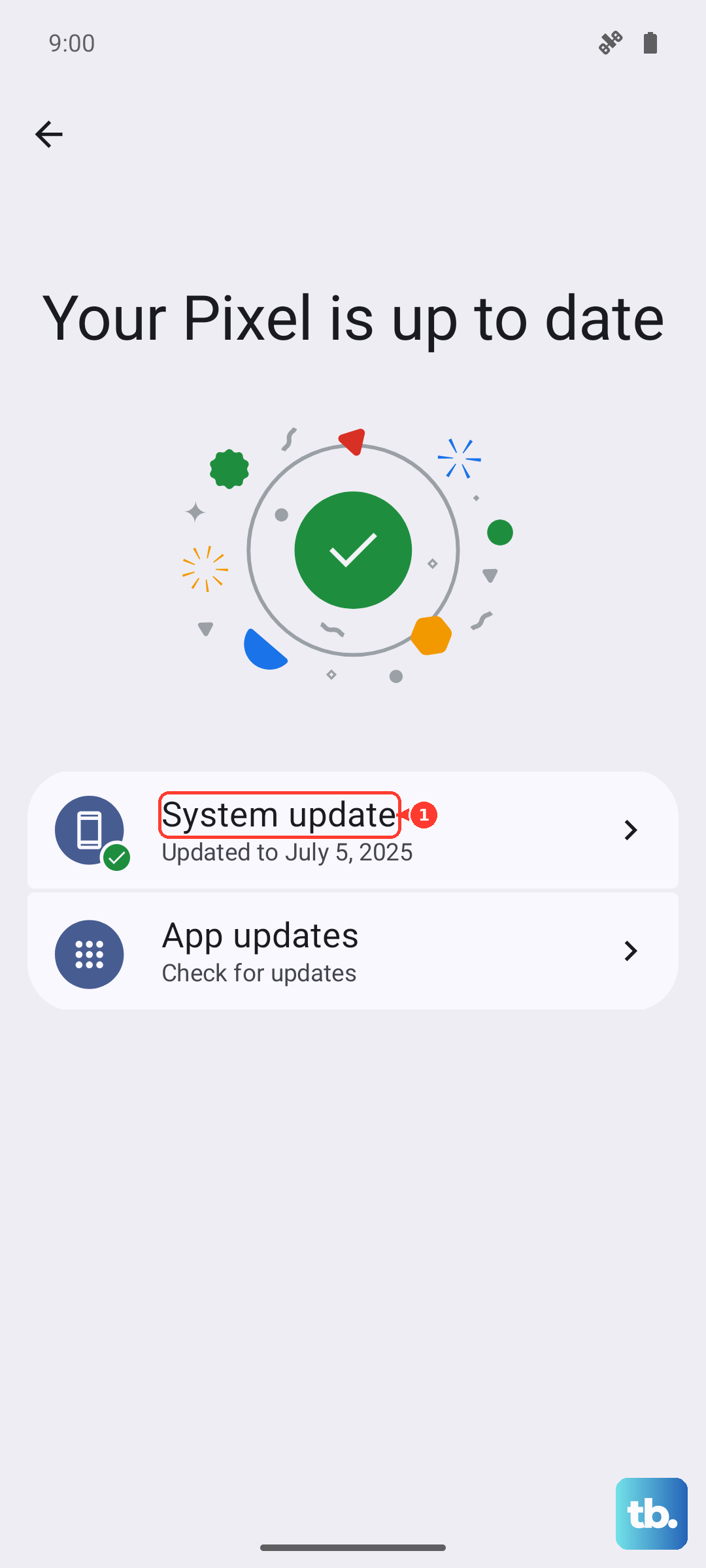
Your S25 Edge came with Android 15 out of the box, and Samsung has pushed several updates since release. Keeping it current matters for GPS reliability.
Clear App Cache
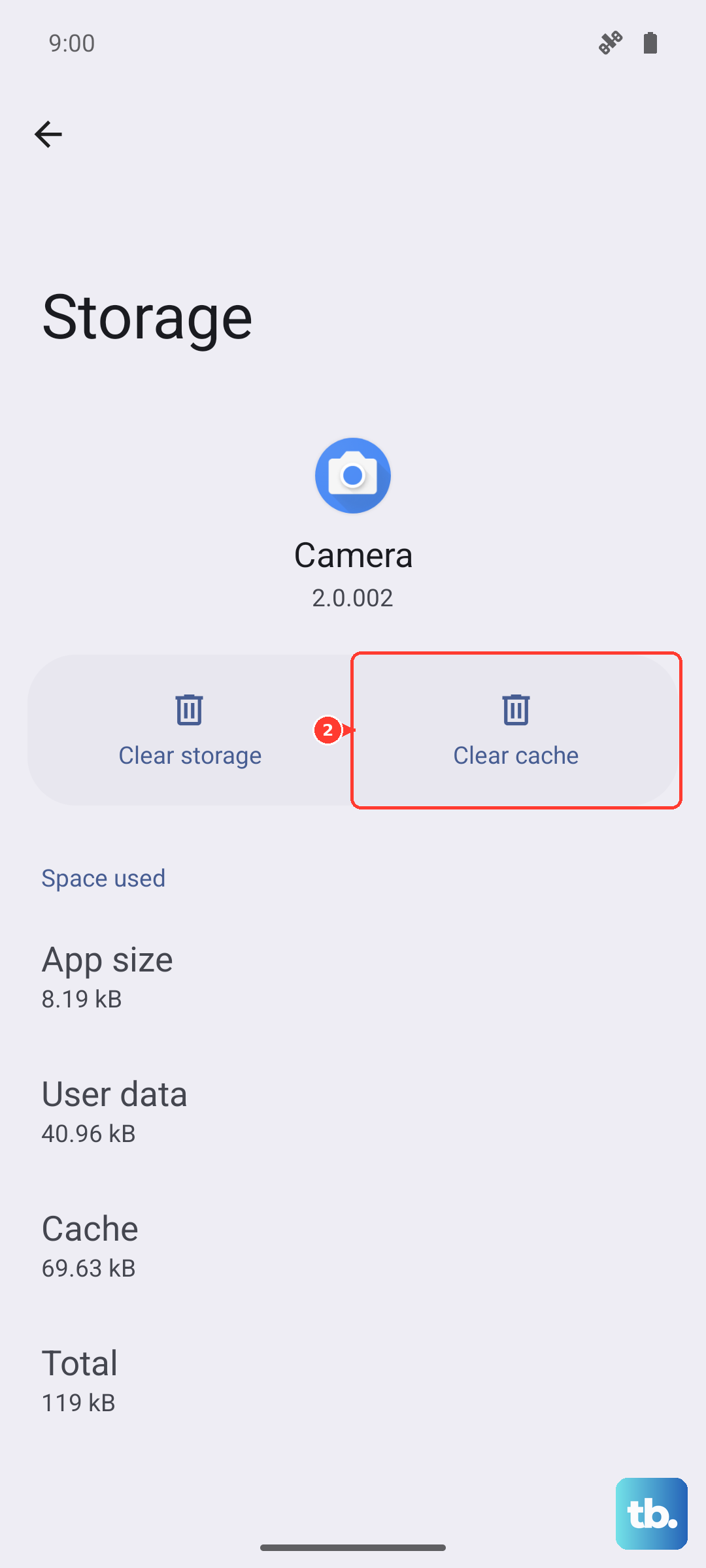
If a particular app like Google Maps shows a wrong location or won't lock on, its cache might be corrupted. Go to Settings > Apps > Google Maps > Storage. Tap Clear cache. If that doesn't help, tap Clear data just know that'll reset your app preferences and signed-in accounts.
Check for Physical Obstructions
The S25 Edge has a glass back and metal frame, but thick cases can still interfere with the GPS antenna. If you're using a heavy-duty or magnetic case, try removing it temporarily. Also move away from tall buildings, dense tree cover, or underground areas. GPS needs a clear view of the sky to lock onto satellites.
Test in Safe Mode
Safe mode helps you figure out if a third-party app is causing the GPS issue. Press and hold the Side button to bring up the power menu. Tap and hold Power off until the Safe Mode prompt appears. Tap Safe mode to restart. Test your GPS in safe mode. If it works fine, some app you've installed is the problem. Restart normally to exit safe mode, then uninstall recently added apps one by one until you find the culprit.
Clear System Cache
Your phone stores temporary system files that can sometimes get corrupted. To clear them, turn off the Galaxy S25 Edge completely. Press and hold both Volume Up and the Side button until the Samsung logo appears, then release. Use the volume keys to navigate to Wipe cache partition and press the Side button to select it. Confirm, then reboot. This won't delete any personal data.
Check If It's a Hardware Problem
You can test whether your GPS hardware is working by using a dedicated app. Download GPS Test from the Play Store. Open it and look at the satellite screen. If your phone sees several satellites and locks onto them but navigation still doesn't work, it's a software issue. If it can't find any satellites at all even outdoors with clear sky, you may have a hardware problem.
Most GPS issues on the Galaxy S25 Edge get solved by one of these steps. Start with the simplest and work your way through. Nine times out of ten, it's just a setting or a glitch that a forced restart clears up.