
Hold down the volume down button and the side/power button together for about 10 seconds. Keep holding them until you see the Samsung logo appear on the screen. This force restart is the quickest way to clear a temporary software glitch that's freezing the touchscreen.
I'd start with this one. It works for most unresponsive screen issues on the Z Flip 6, especially if the problem started after opening or closing the phone. The phone will reboot and you can test the touch response right away.
Clean the Screen Thoroughly
Turn the phone off and wipe the inner display with a soft, slightly damp microfiber cloth. Pay special attention to the crease area, as oils and debris can accumulate there and interfere with the touch sensors. Make sure the screen is completely dry before turning the phone back on.
Avoid using any harsh cleaners or sprays directly on the screen. If you use a screen protector, check for any bubbles or lifting edges along the crease, as these can also cause touch detection problems.
Check for Software Updates
Go to Settings > Software update > Download and install. Samsung frequently releases updates that fix bugs, including touchscreen responsiveness issues. Make sure your phone is connected to Wi-Fi and has sufficient battery before starting the update.
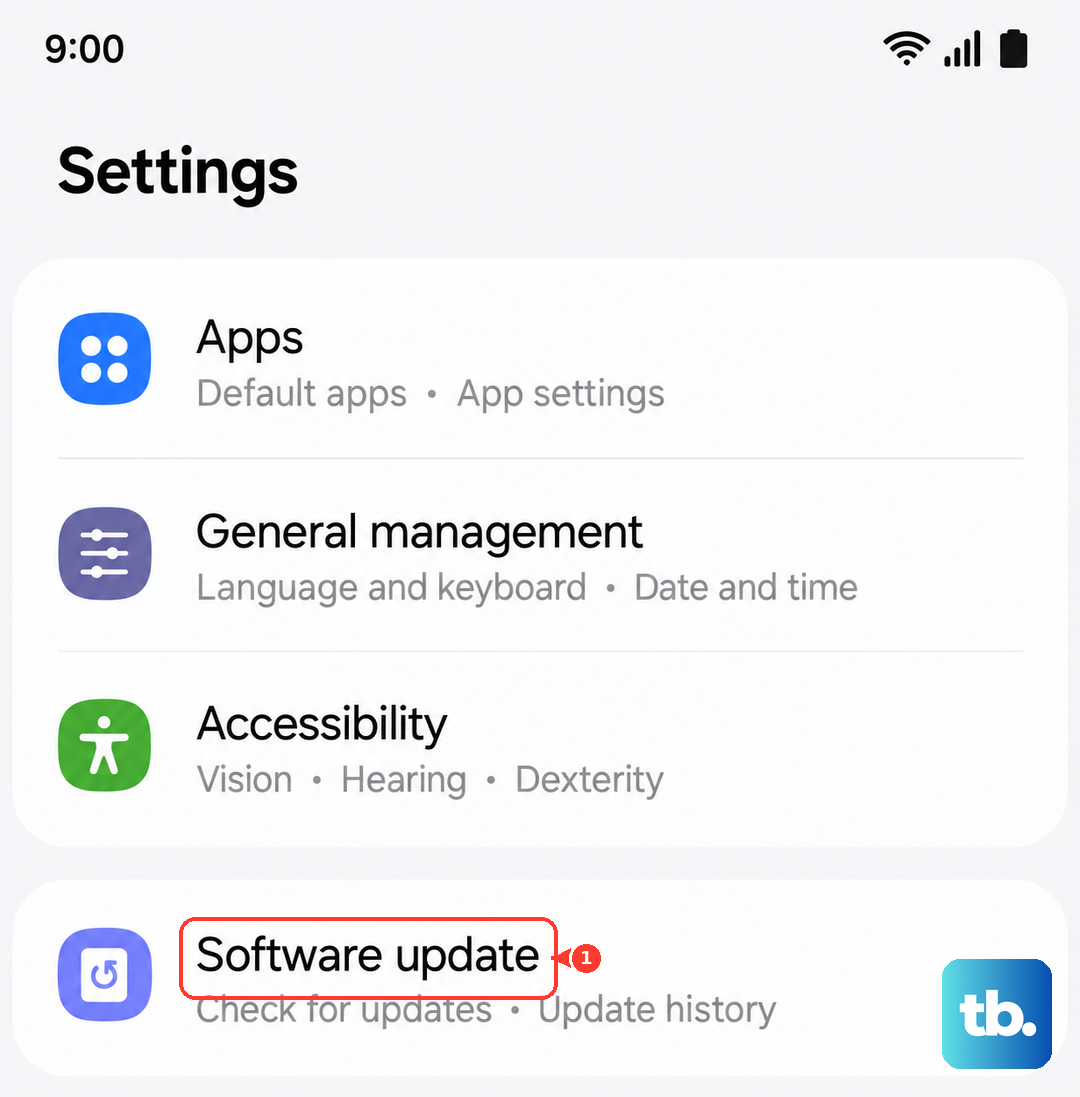
If an update is available, install it and restart your phone. I've seen updates specifically address performance for the foldable display on previous models, so it's a good step to take.
Boot into Safe Mode
Turn off your Galaxy Z Flip 6. Press and hold the side button until you see the Samsung logo, then immediately press and hold the volume down button. Keep holding it until the phone finishes restarting and you see "Safe mode" in the bottom left corner.
In Safe Mode, all third-party apps are disabled. If the touchscreen works perfectly here, a recently downloaded app is likely causing the conflict. You can then restart normally and uninstall apps one by one to find the culprit.
Calibrate the Touchscreen
Samsung has a hidden diagnostic menu you can use to test and calibrate the touchscreen. Open the Phone app and dial *#0*#. This will launch the service menu. Tap on "Touch" to run the diagnostic.
The test will have you draw lines across the screen to check for dead zones. Follow the on-screen instructions. If the test fails or shows unresponsive areas, it points to a deeper software or hardware issue.
Check Your Flex Mode Hinge
Open and close the phone a few times, stopping at different angles in Flex Mode. Sometimes, if the hinge sensors or software get confused about the phone's position, it can affect touch input. Try using the touchscreen both fully open and partially folded.
If the screen only becomes unresponsive at a certain angle, it might be related to the hinge mechanism. The hinge can feel stiff when new, but it shouldn't cause the screen to stop working.
Reset All Settings
This resets your network, display, and accessibility settings to default without deleting your personal data. Go to Settings > General management > Reset > Reset all settings. You'll need to enter your PIN or password to confirm.
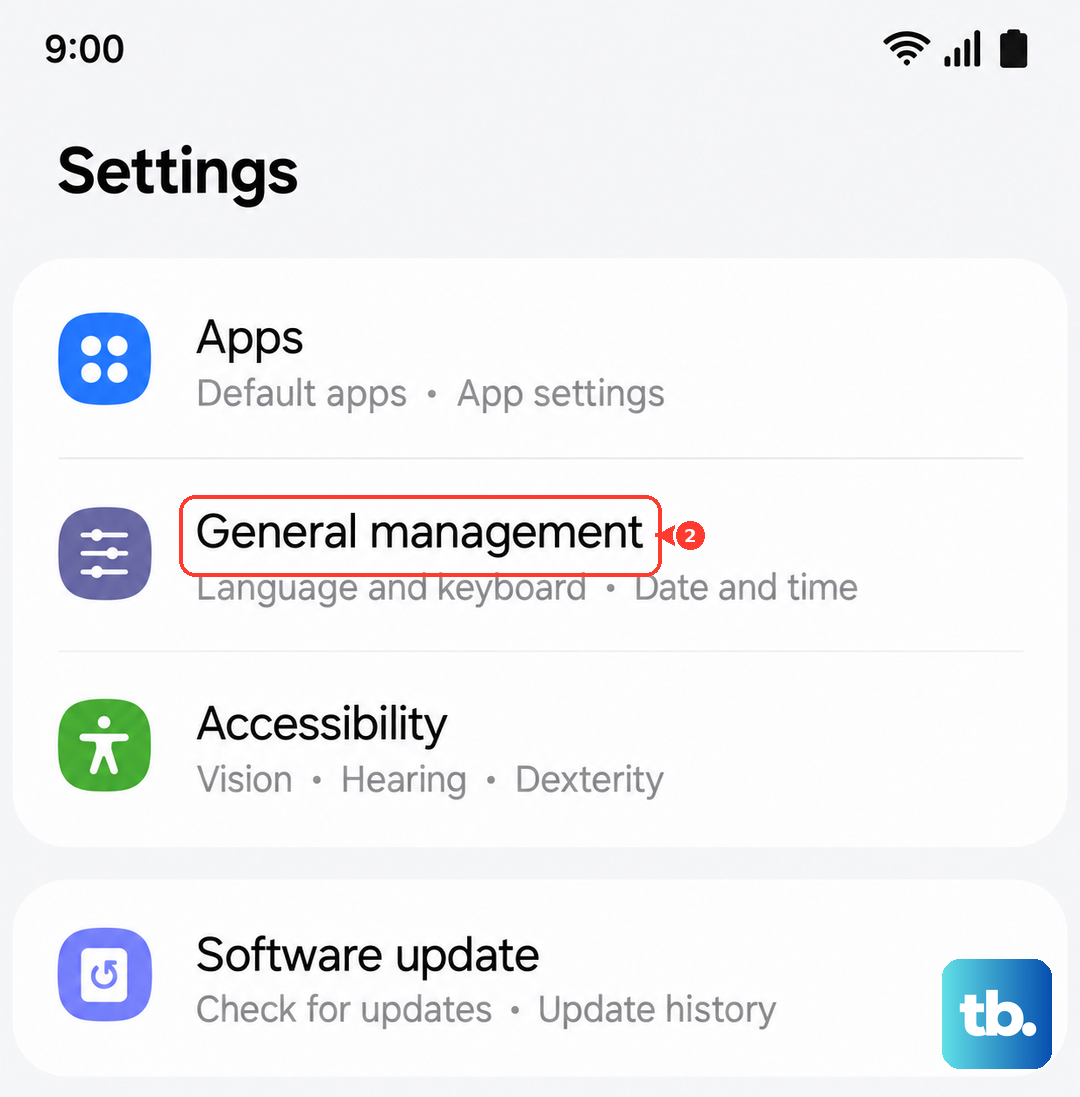
After the reset, you'll have to reconfigure things like Wi-Fi passwords and display brightness, but it can fix conflicts caused by a changed setting that's interfering with the touchscreen driver.
Consider a Factory Reset
Back up all your important data first. Then, go to Settings > General management > Reset > Factory data reset. Tap "Reset" and follow the prompts. This will erase everything and return the phone to its original out-of-the-box state.
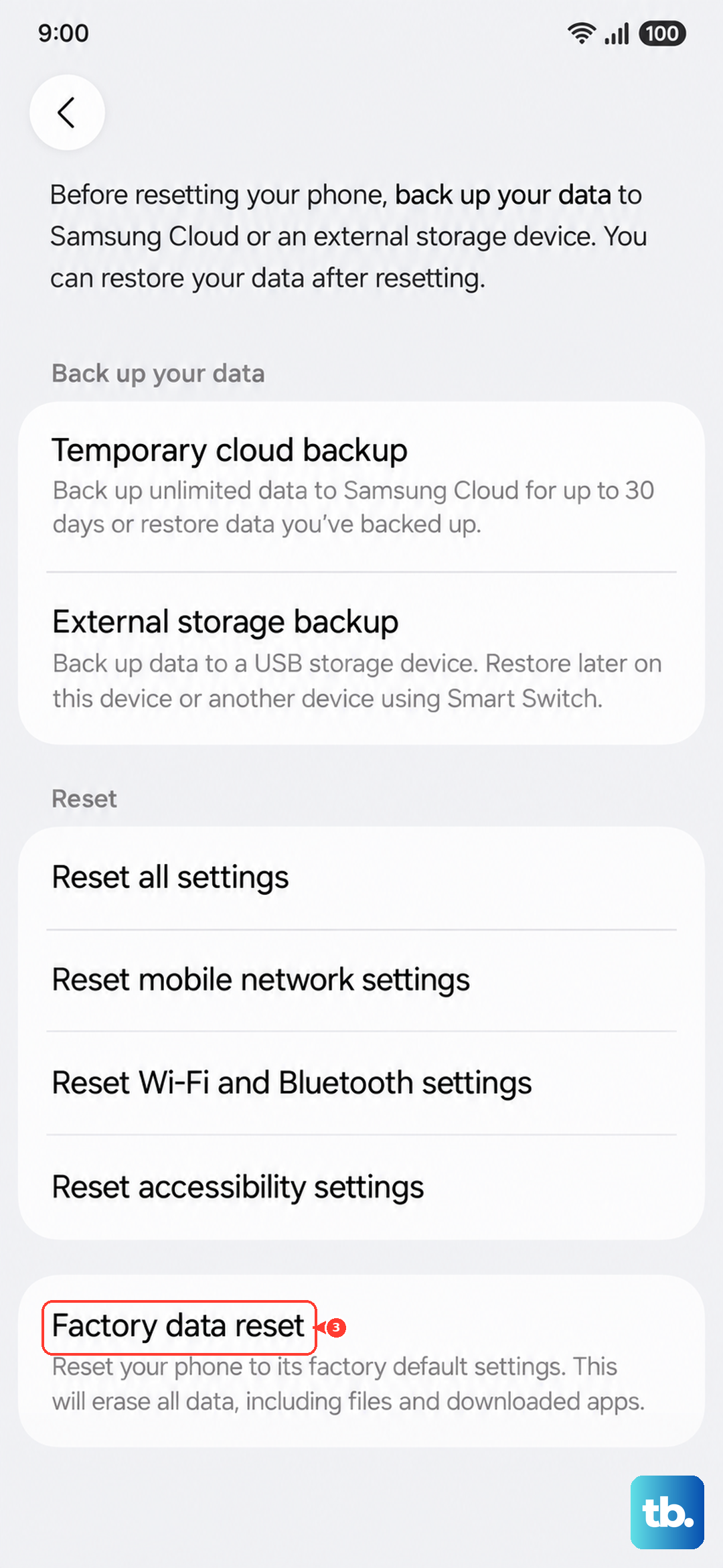
Only do this if none of the other software fixes worked. If the touchscreen is still unresponsive after a factory reset, the issue is likely physical. In that case, it could be related to the display assembly or a loose internal connector, especially given the folding design.