
If your Samsung Galaxy S24 feels sluggish online, it's usually a quick settings fix. The most common culprit is a network setting that needs a refresh, and I'd start there.
Head to Settings > General Management > Reset. Tap on "Reset network settings" and confirm. This will wipe your saved Wi-Fi networks, Bluetooth pairings, and mobile data preferences, but it often clears up weird connection bugs instantly.
Check Your Mobile Network Mode
Your S24 might be stuck on a slower network type. Go to Settings > Connections > Mobile networks. Tap on "Network mode" and make sure it's set to "5G/LTE/3G/2G (auto connect)" for the fastest available speed.
If you're in an area with spotty 5G, switching to "LTE/3G/2G (auto connect)" can sometimes provide a more stable and consistent connection. It's worth trying if your 5G signal keeps dropping.
Manage Your Data Usage with Data Saver
Samsung's Data Saver is great for conserving your monthly plan, but it can also throttle background data for apps you actually want running. Go to Settings > Connections > Data Usage and tap on "Data Saver".
You can toggle it off completely for maximum speed, or tap "Allow apps while Data Saver is on" to manually select which apps (like your email or music streamer) can use data in the background without restriction.
Use Intelligent Wi-Fi Features
Your S24 has smart features to manage Wi-Fi. Go to Settings > Connections > Wi-Fi, then tap the three-dot menu and select "Intelligent Wi-Fi".
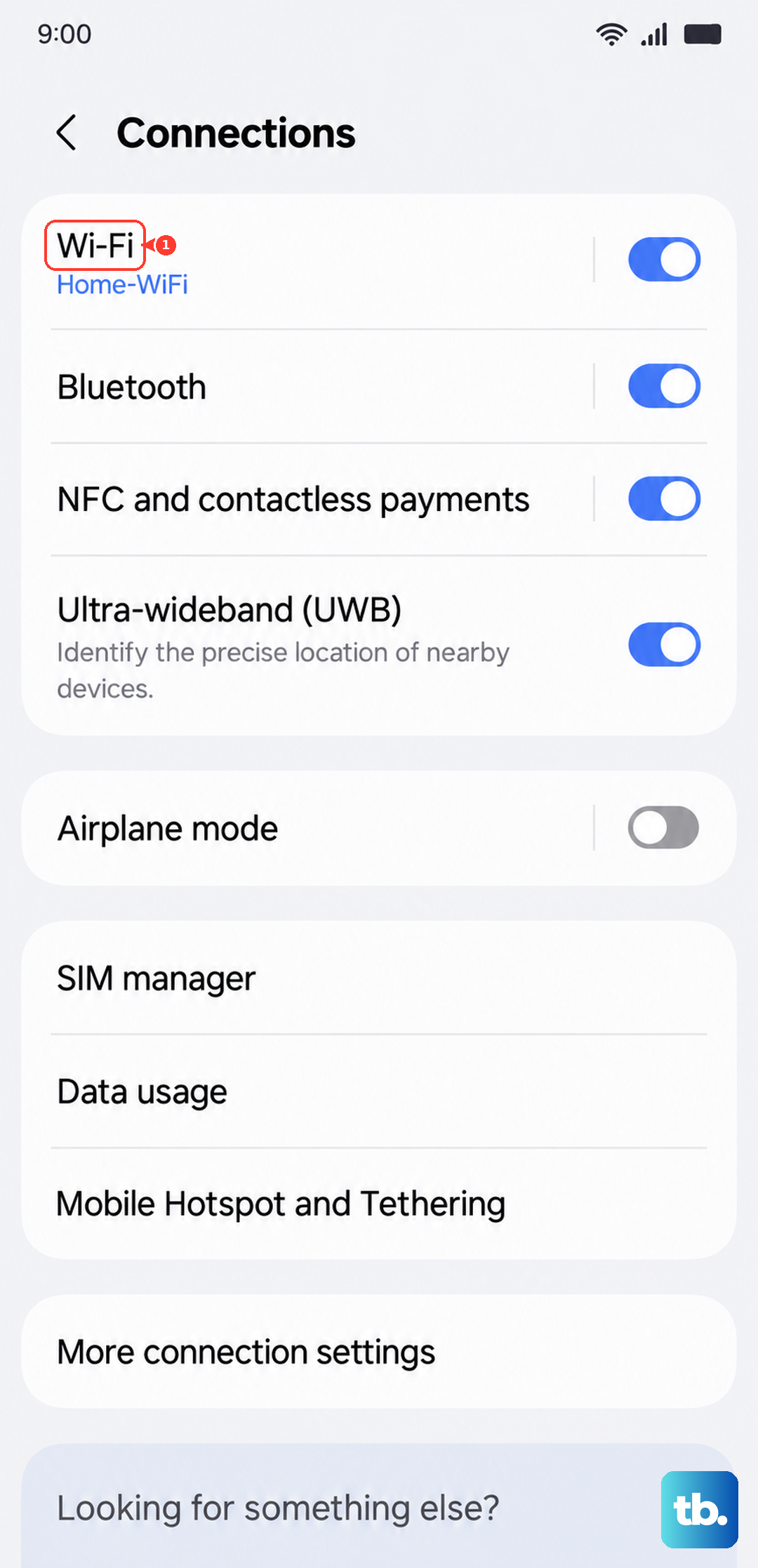
Here, you can enable "Switch to mobile data". This tells your phone to automatically use your cellular connection if the Wi-Fi signal becomes too weak, preventing those frustrating loading wheels. You can also toggle off "Wi-Fi power saving mode" if it's enabled, as this can limit performance.
Clear the Cache for Key Services
Corrupted cache data in system services can slow things down. Go to Settings > Apps. Tap the filter icon and select "Show system apps".
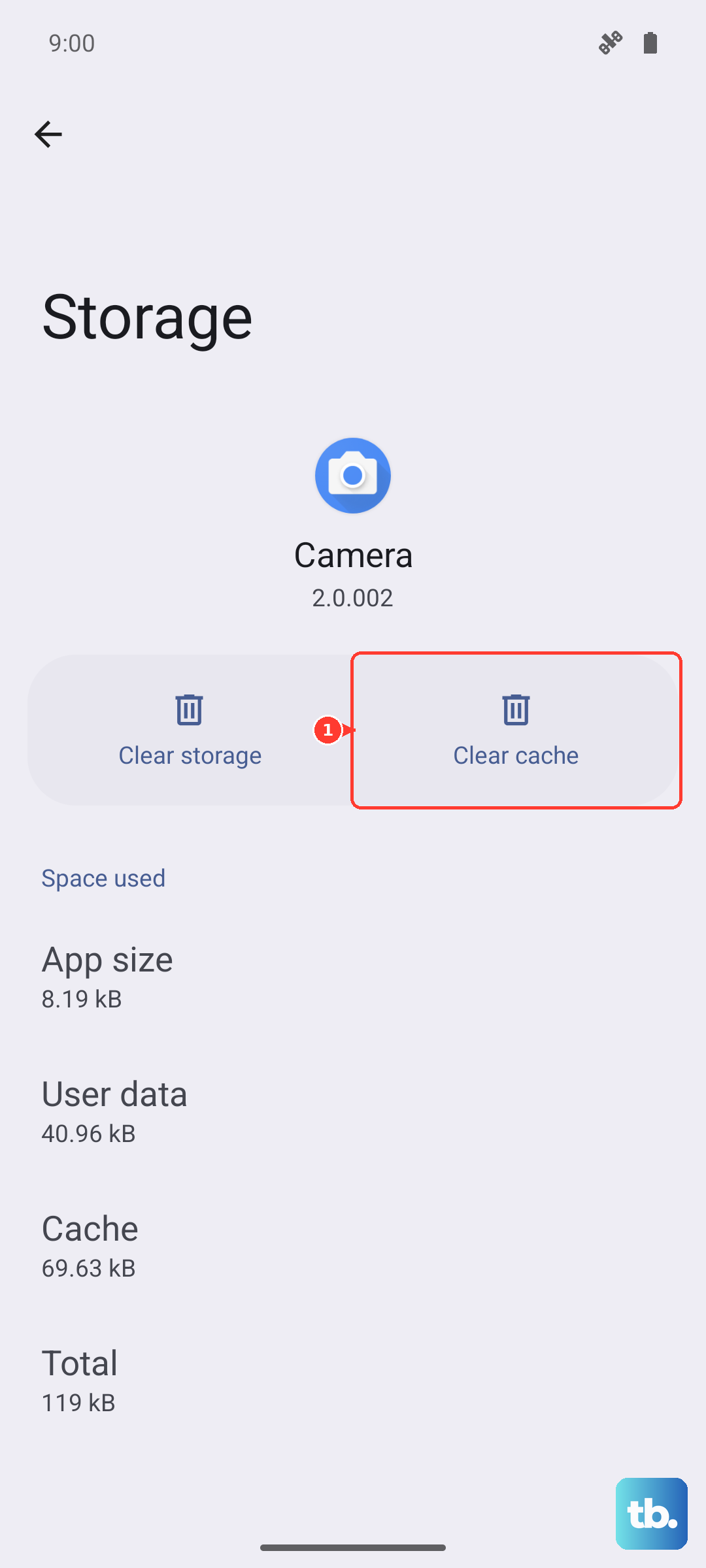
Find "Google Play services" and tap on it. Go to Storage and tap "Clear cache". Do the same for "Carrier Services" if you see it. This clears temporary files without deleting your personal data.
Check for Software Updates
New updates for One UI often include connectivity improvements and bug fixes. Go to Settings > Software update and tap "Download and install".
Make sure you're connected to Wi-Fi before starting the download. Keeping your S24 updated is one of the easiest ways to ensure it's running optimally, including its network performance.
Disable VPN or Proxy Connections
If you're using a VPN, it will almost always slow down your connection due to the encryption and rerouting of traffic. Try temporarily disabling any VPN app you have running.
Also, check for a configured proxy. Go to Settings > Connections > Wi-Fi. Tap the gear icon next to your connected network, scroll down, and tap "View more". Make sure the "Proxy" setting is set to "None".
Perform a Forced Restart
A simple reboot can clear out temporary glitches affecting the modem or network stack. Press and hold the Volume Down button and the Side key (power button) together for about 10 seconds.
Release the buttons when you see the Samsung logo. This is a clean restart and is different from just turning the screen off and on.
Review Background App Activity
Some apps might be consuming bandwidth in the background. Go to Settings > Apps, select an app, and tap "Mobile data". Here you can see its data usage and restrict background data usage for that specific app.
For a broader view, go to Settings > Battery and device care > Battery. Tap "Background usage limits". You can put unused apps to sleep here to prevent them from using any resources.
Try a Different DNS Server
Your internet service provider's DNS can sometimes be slow. You can change it on your S24 for a potential speed boost, but only for Wi-Fi networks. Go to Settings > Connections > Wi-Fi.
Tap the gear icon next to your network. Tap "View more", then change "IP settings" from DHCP to "Static". Scroll down and in the DNS 1 and DNS 2 fields, you can enter addresses like 1.1.1.1 (Cloudflare) or 8.8.8.8 (Google).
Test in Safe Mode
If the slowness started after installing a new app, boot into Safe Mode to see if a third-party app is the cause. Press and hold the Side key until the power menu appears.
Tap and hold the "Power off" option until you see the "Safe mode" prompt, then tap to confirm. If your internet is fast in Safe Mode, a recently downloaded app is likely interfering. You'll need to uninstall apps one by one to find the culprit.