
When your Galaxy A56's volume buttons stop working, it feels like you've lost a basic function of your phone. You press them, but nothing happens on screen, and there's no satisfying click. The good news is this is often a software hiccup or a simple obstruction that you can fix yourself without a trip to the repair shop.
I'd start by removing your phone case. It's the quickest thing to check. Sometimes, especially with thicker or worn-out cases, the plastic can press against the buttons just enough to keep them from moving freely.
Perform a Force Restart
A force restart is the go-to fix for many random glitches on Samsung phones, including unresponsive buttons. It clears the phone's temporary memory without touching your personal data. For your Galaxy A56, press and hold the Volume Down button and the Side (power) button together for about 10 seconds.
Keep holding until you see the Samsung logo appear on the screen, then let go. It uses the same method as the Galaxy S series, so it's a familiar process if you've owned other Samsung devices.
Check for Software Updates
Since your A56 runs on One UI 7 over Android 15, a bug in the current software could be causing the issue. Samsung regularly releases updates that fix these kinds of problems. To check, go to Settings > Software update > Download and install.
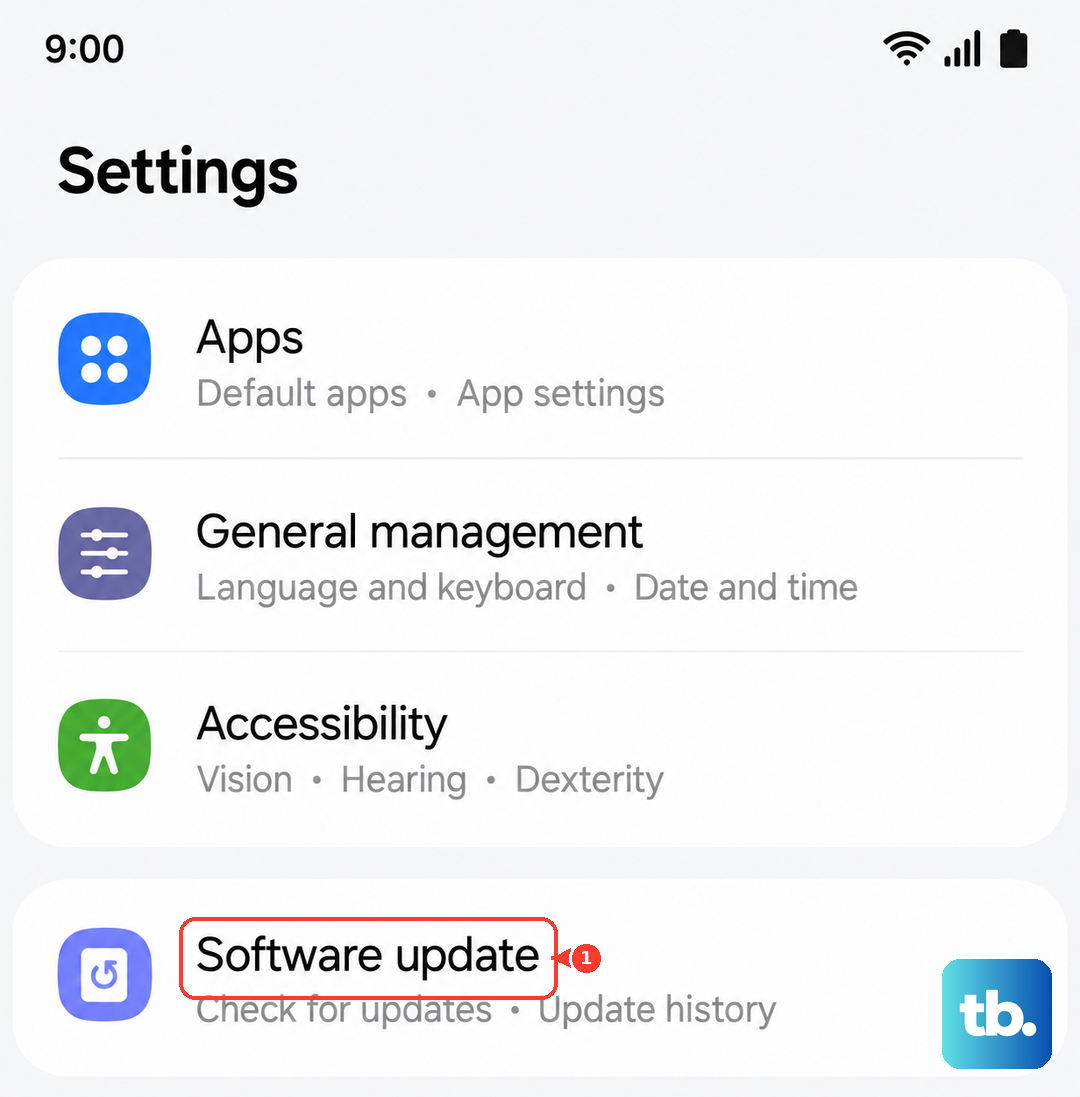
Make sure your phone is connected to Wi-Fi and has at least 50% battery, or better yet, plug it into its 25W charger. If an update is available, installing it could resolve the button problem immediately.
Clean the Buttons Thoroughly
Dust, lint, and pocket debris are common culprits. The volume rocker on the A56 can trap small particles that prevent the button from making proper contact inside. First, power off your phone. Then, take a can of compressed air and give short, controlled bursts around the edges of the volume button.
For any sticky residue, dampen a cotton swab with a tiny amount of isopropyl alcohol (90% or higher works best). Gently clean around the button, being careful not to let liquid seep inside. Let it dry completely for a few minutes before turning your phone back on.
Test the Buttons in Safe Mode
Booting into Safe Mode temporarily disables all third-party apps you've downloaded. If your volume buttons work perfectly in Safe Mode, then a recently installed app is likely interfering with the system. To enter Safe Mode, press and hold the power button until the power off menu appears.
Then, tap and hold the "Power off" option on your screen. You'll see a prompt to reboot into Safe Mode. Tap it. If the buttons work here, you'll need to uninstall apps one by one, starting with the most recent, to find the culprit.
Use the On-Screen Volume Controls
While you're figuring out the physical buttons, you can still control your volume. Pull down the notification shade twice to open the Quick Settings panel, and you'll see a volume slider there. You can also adjust media volume directly from within apps like YouTube or Spotify.
Another place to check is in Settings > Sounds and vibration. Here, you can adjust your ringtone, media, and notification volumes using sliders. Using these on-screen controls sometimes helps "wake up" the connection to the physical buttons.
Inspect for Physical Damage
Take a close look at the volume rocker. Has the phone been dropped recently? Even a small dent or misalignment near the button can cause internal damage. Gently press the button and feel for the normal tactile click. If it feels mushy, sticks down, or doesn't click at all, the mechanism inside might be damaged.
Also, check the USB-C port at the bottom. The Galaxy A56 has a known moisture detection feature. If the port gets wet, it can trigger warnings and sometimes affect other functions. Make sure the port is completely dry and free of lint.
Try a Factory Reset
This is a last resort, but if it's a deep-seated software issue, a factory reset can clear it. Warning: This will erase all data from your phone. You must back up everything important to your Samsung account or a computer first.
Once backed up, go to Settings > General management > Reset > Factory data reset. Follow the prompts. After the phone restarts and goes through setup, test the volume buttons immediately before restoring your apps.