
Missing calls on your Samsung Galaxy A55 can be really annoying, especially when you're expecting something important. The phone might be right next to you, but it stays completely silent. This usually comes down to a setting that got changed or a small software hiccup.
I'd start by checking the most obvious thing first. Pull down the notification shade from the top of your screen twice to see the full quick settings panel. Look for an icon that looks like a speaker with a slash through it or the word "Mute." If you see it, tap it to turn the sound back on.
You can also just press the volume up button on the side of the phone. If a volume slider pops up, tap the three-dot menu next to it. This lets you see separate sliders for media, notifications, and system sounds. Make sure the "Ringtone" volume is turned up.
Check Do Not Disturb and Modes
One UI has a feature called Modes and Routines, which includes Do Not Disturb. If this is on, it will silence all calls and notifications. To check, swipe down and look for a moon icon in your quick settings. If it's highlighted, tap it to turn it off.
You can also go into Settings > Modes and Routines. See if any mode like "Sleep" or "Driving" is currently active. These modes often have rules that silence calls. Tap on the active mode and make sure the rule for silencing calls is disabled, or just turn the whole mode off for now.
Verify Your Ringtone and Sound Settings
Sometimes the selected ringtone file can become corrupted. It's easy to test by just picking a different one. Go to Settings > Sounds and vibration > Ringtone. Choose a different default Samsung tone and then have a friend call you to test it.
While you're in the sound settings, scroll down a bit. Make sure "Vibration pattern" is set to something other than "None" if you want it to vibrate, and check that "Use volume keys for media" is turned off. You want the volume buttons to control your ringtone, not just your music volume.
Review App-Specific Notification Settings
The Phone app on your Galaxy A55 has its own notification controls. If these are off, calls won't ring. Go to Settings > Notifications > App notifications and find "Phone" in the list. Tap on it.
Inside the Phone app's notification settings, ensure the toggle at the top is on. Then, tap on "Incoming calls" as a notification category. Make sure "Pop-up on screen" is enabled and the sound is set to your ringtone. This is a common spot where settings get changed accidentally.
Disconnect Bluetooth Accessories
If your A55 is connected to a Bluetooth speaker, headphones, or your car, the call audio might be routing there instead of playing through the phone's speaker. The quickest fix is to swipe down and tap the Bluetooth icon to turn it off temporarily.
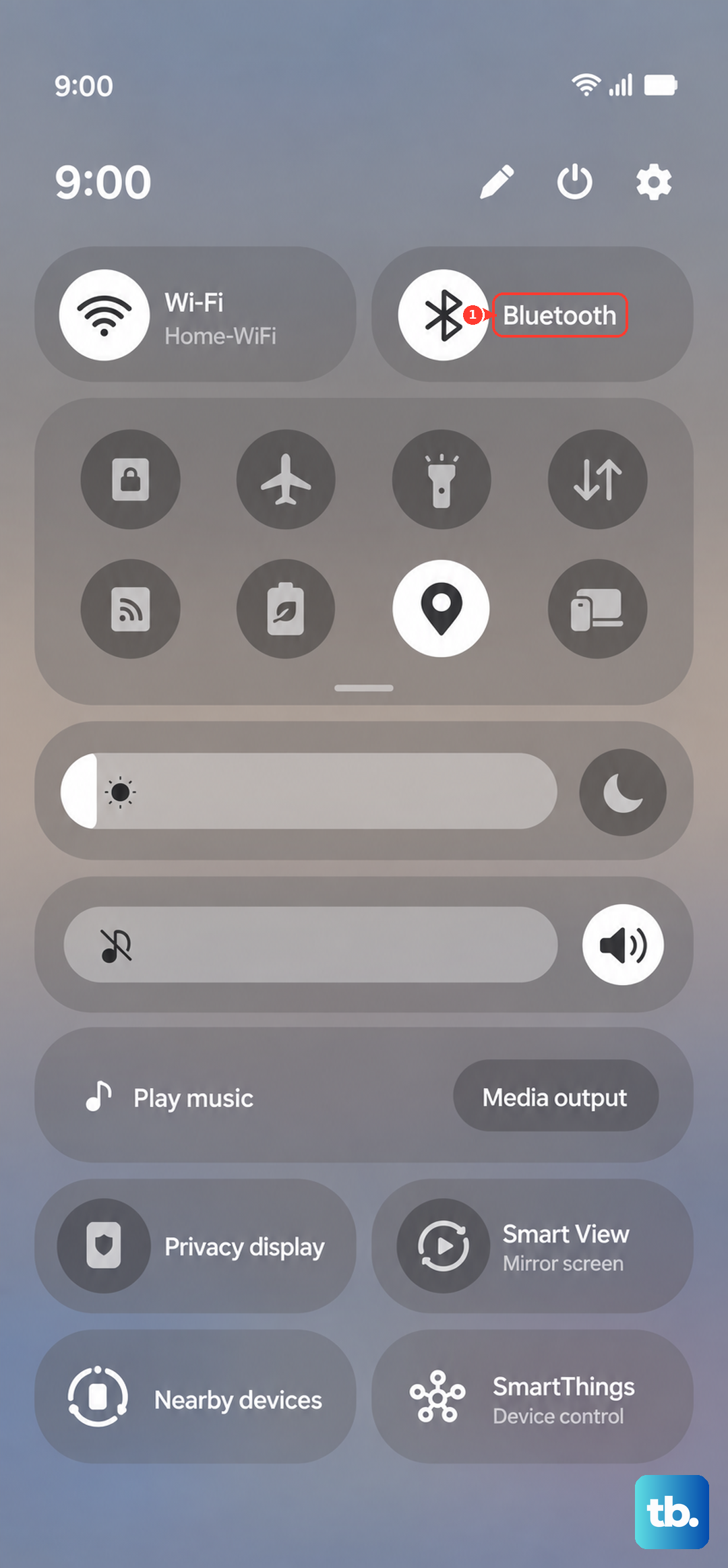
You can also go to Settings > Connections > Bluetooth and disconnect from specific devices. After you disconnect, try a test call. Some cars or headsets can be very aggressive about taking over call audio.
Check for Blocked Numbers and Call Forwarding
It's worth making sure you haven't accidentally blocked the person trying to reach you. Open your Phone app, tap the three-dot menu in the top right, and go to Settings > Block numbers. Review the list to see if any numbers are there that shouldn't be.
Call forwarding is another setting to glance at. In the Phone app settings, tap on "Call forwarding." If any of the options like "Always forward" or "When busy" are enabled with a number, your calls are being sent elsewhere. You can tap "Turn off" to disable all forwarding.
Restart Your Galaxy A55
A simple restart clears out temporary glitches that can affect the sound system. Press and hold the Side key and Volume Down button together for about 10 seconds until you see the Samsung logo. This is a soft reset and won't delete any of your data.
If the phone is completely unresponsive, you can force it. Keep holding those same two buttons for a full 30 seconds. It might feel like a long time, but this can force a reboot if the standard method doesn't work.
Update Your Software
Samsung regularly releases updates that fix bugs, including ones related to calling and sound. Connect to Wi-Fi, then go to Settings > Software update > Download and install. If an update is available, let it install completely. Your phone will restart during this process.
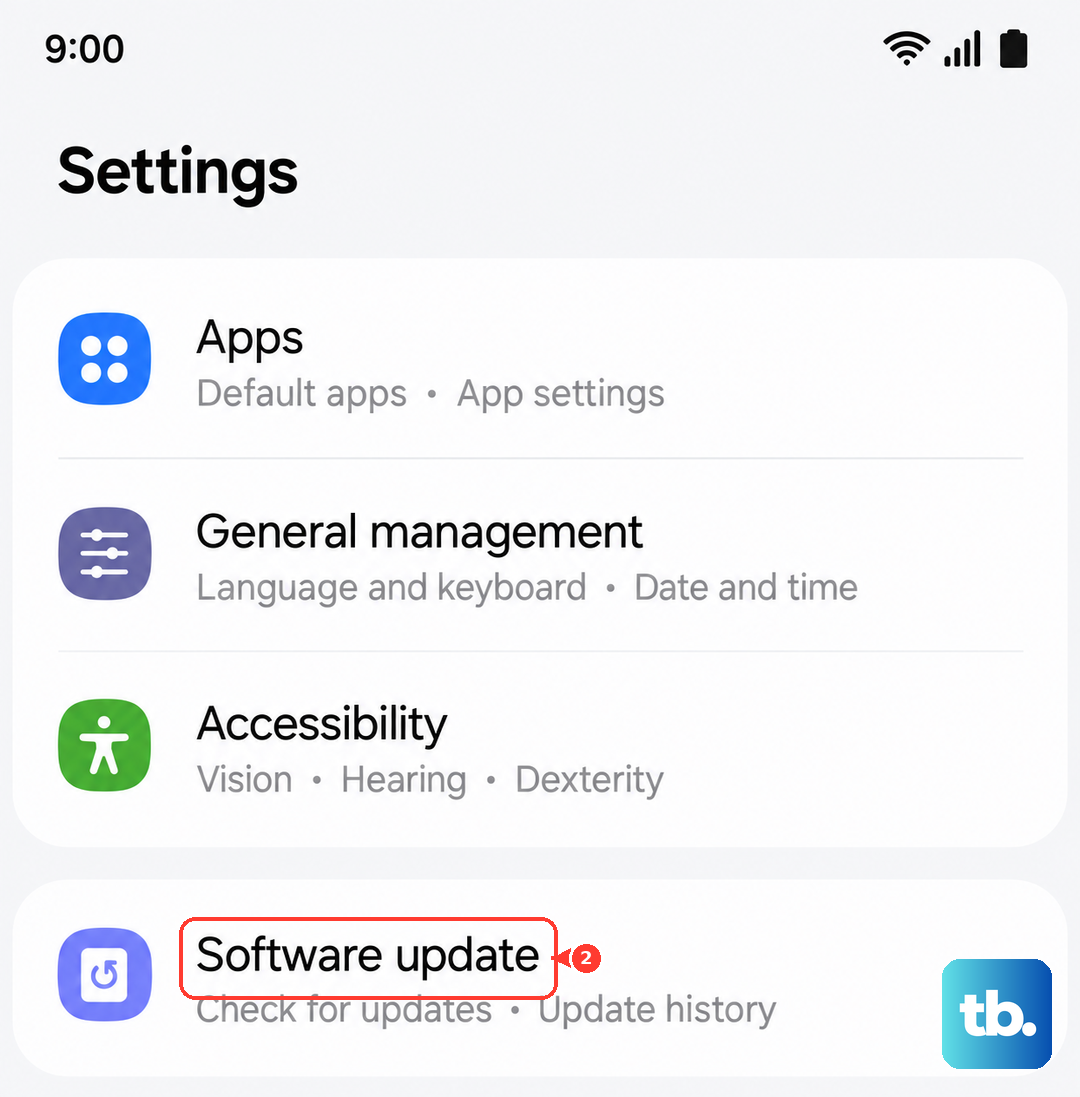
It's also a good idea to check the Galaxy Store for updates to system apps like "Phone" and "Contacts." Open the Galaxy Store, tap the menu icon, and go to "Updates." Install any available updates there as well.
Reset App Preferences or All Settings
If the problem started after you changed a bunch of settings, you can reset just the app preferences. This won't delete your personal data. Go to Settings > Apps, tap the three-dot menu, and choose "Reset app preferences." This resets notification settings and app permissions back to their defaults.
For a more thorough reset, you can try resetting all settings. Go to Settings > General management > Reset > Reset all settings. This will wipe your Wi-Fi passwords, Bluetooth connections, and all your personalized settings, but it leaves your photos, messages, and apps intact.
Check for Physical or Carrier Issues
Try making a call yourself. If you can't hear anything through the earpiece during an outgoing call, there might be a physical issue with the speaker. Use a can of compressed air to gently blow out any dust from the earpiece grill at the top of the phone.
It's also possible the issue is with your carrier or SIM card. You can try removing your SIM card, gently cleaning the gold contacts with a soft cloth, and reinserting it. If you have another phone handy, test your SIM card in it to see if calls ring there.