
You pick up your Galaxy Tab S11 Ultra to check something and realize you haven't heard a single notification in hours. Maybe you missed an important email or a message from someone. This is a common issue on the Tab S11 Ultra running Android 16, but it's usually fixable without too much trouble.
Start with a force restart if notifications have completely stopped. Press and hold the Power button and Volume Down button simultaneously for 10-15 seconds until the device restarts. This clears temporary glitches in the notification system without affecting your data. It's the fastest way to rule out a minor software hiccup.
Check Notification Permissions Per App
Android 16 gives you granular control over which apps can send notifications. Sometimes an update or a settings change can accidentally mute everything for a specific app.
Go to Settings > Apps and tap the app you're not hearing from. Tap Notifications and make sure "Show notifications" is toggled on. Scroll down and check that the individual notification categories (like Messages or Email) aren't turned off either. This is often the culprit after a system update.
Is Do Not Disturb or a Routine Blocking Notifications?
Do Not Disturb mode can turn on automatically through Bixby Routines or scheduled times. Swipe down twice from the top of the screen to open the quick settings panel and check if the Do Not Disturb icon is highlighted. If it is, tap it to disable it.
Also check Settings > Modes and Routines for any active routines that might be silencing notifications. A routine set to trigger during certain hours or locations could be muting your alerts without you realizing it.
Turn Off Battery Optimization for Messaging Apps
Android 16's battery management can be aggressive. If the system decides a messaging app is using too much power, it may restrict background activity and delay or block notifications.
Go to Settings > Apps and tap the app you're having issues with. Tap Battery and select "Unrestricted" instead of "Optimized" or "Restricted." This tells the system to let the app run freely in the background so it can deliver notifications promptly.
Clear the Notification System Cache
The notification system itself has its own cache that can get corrupted. Clearing it forces Android to rebuild the notification framework from scratch.
Open Settings > Apps, tap the three-dot menu in the top right, and select "Show system apps." Find and tap "Notification," then tap Storage and select "Clear data and cache." Restart your Tab S11 Ultra afterward. This doesn't delete your personal data or settings.
Force Stop the Notification Service
If clearing the cache didn't help, try force stopping the notification service entirely. Go back to the same "Notification" system app, tap "Force Stop," and then restart your tablet. This gives the service a clean restart and can resolve stuck states.
Update Your Software
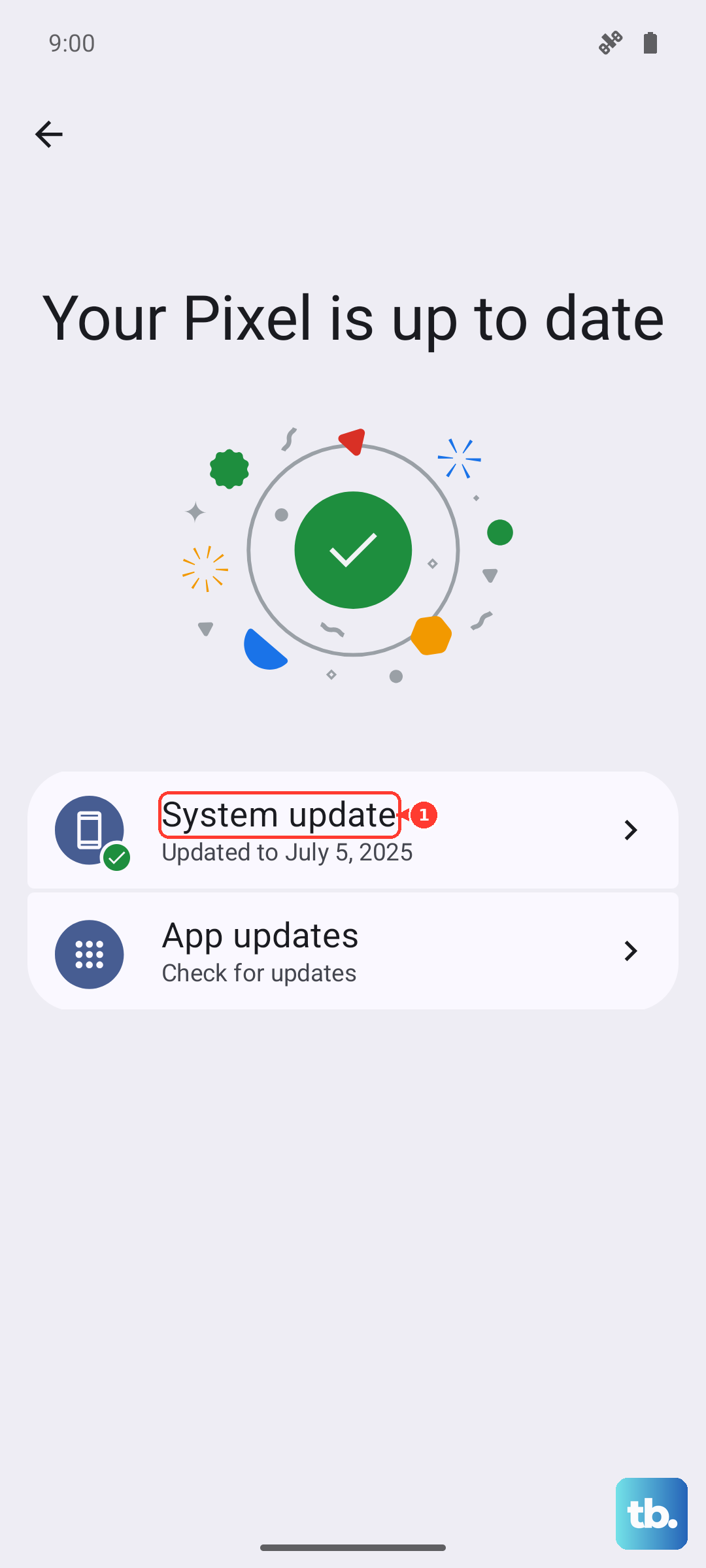
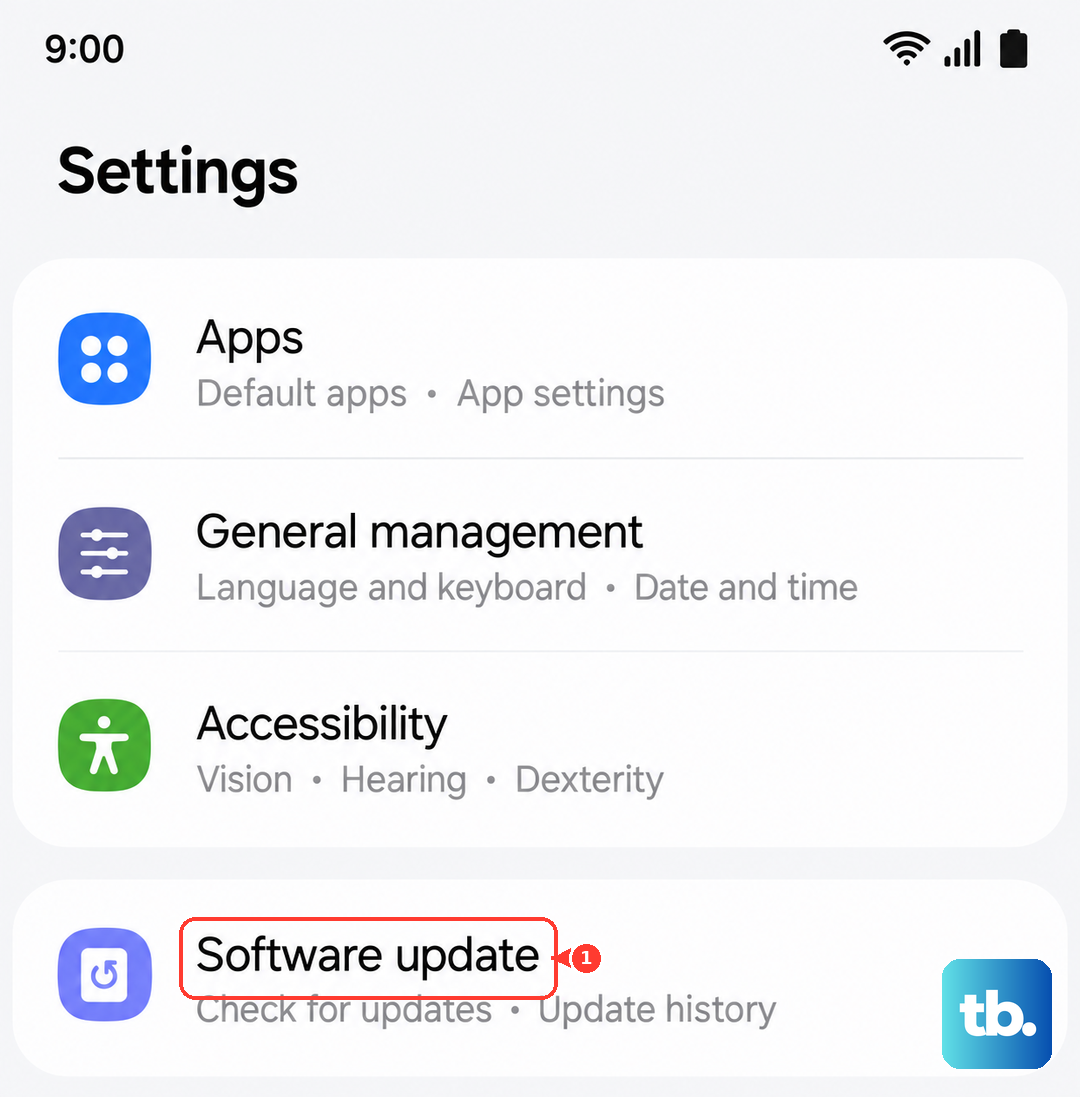
Samsung routinely releases patches for notification bugs on the Tab S11 Ultra. Go to Settings > Software Update and tap "Download and install." If there's an update waiting, install it and check if notifications start working again. Android 16 updates often include fixes for notification management.
Clear Badge Provider Data (Samsung-Specific)
The Tab S11 Ultra uses a system app called BadgeProvider to handle notification badges. If it gets confused, it can prevent notifications from appearing altogether. Go to Settings > Apps, show system apps, find "BadgeProvider," tap Storage, and select "Clear data and cache." Restart your tablet afterward.
Reset All Settings
If notifications still aren't coming through, resetting all settings can clear out any system-level misconfigurations. Go to Settings > General Management > Reset > Reset Settings. This won't delete your apps, photos, or accounts, but it will revert things like Wi-Fi passwords, Bluetooth pairings, and notification preferences to defaults.
One last thing: if your Tab S11 Ultra battery drained completely and then you charged it, the device might have taken a while to wake up properly. Samsung has noted that the charging indicator can take up to 10 minutes to appear when the battery is totally dead. Once it's charged, a force restart is a good idea to get notifications back on track.











