
Your Samsung Galaxy Tab S11 Ultra getting uncomfortably hot is a sign something needs attention. Tablets pack powerful processors into thin frames with no active cooling fans, so when heat builds up, it usually means the system is working too hard or something is interfering with heat dissipation. Here's how to track down the cause and cool things down.
Force a Restart and Let It Cool
If the tablet feels hot right now, the first thing to do is shut it down completely. Press and hold the Power button and Volume Down button simultaneously for 10-15 seconds until the device restarts. That force restart clears out any stuck processes that might be running the processor at full tilt.
After the restart, leave the tablet alone for 10-15 minutes on a hard, flat surface. Don't touch it, don't charge it, just let the passive cooling do its job. The aluminum frame on the S11 Ultra acts as a heat spreader, so placing it on a cool desk or table helps pull heat away.
If the tablet was so hot it shut itself off, that's thermal protection kicking in. It's annoying but it prevents permanent damage. Once it's cooled down to room temperature, you can move on to the other checks below.
Check What's Running in the Background
The S11 Ultra's processor is a beast, but certain apps can push it harder than necessary. Go to Settings > Battery and device care > Battery and look at the usage breakdown. If you see an app you haven't opened using a big chunk of the battery, that app is likely generating heat.
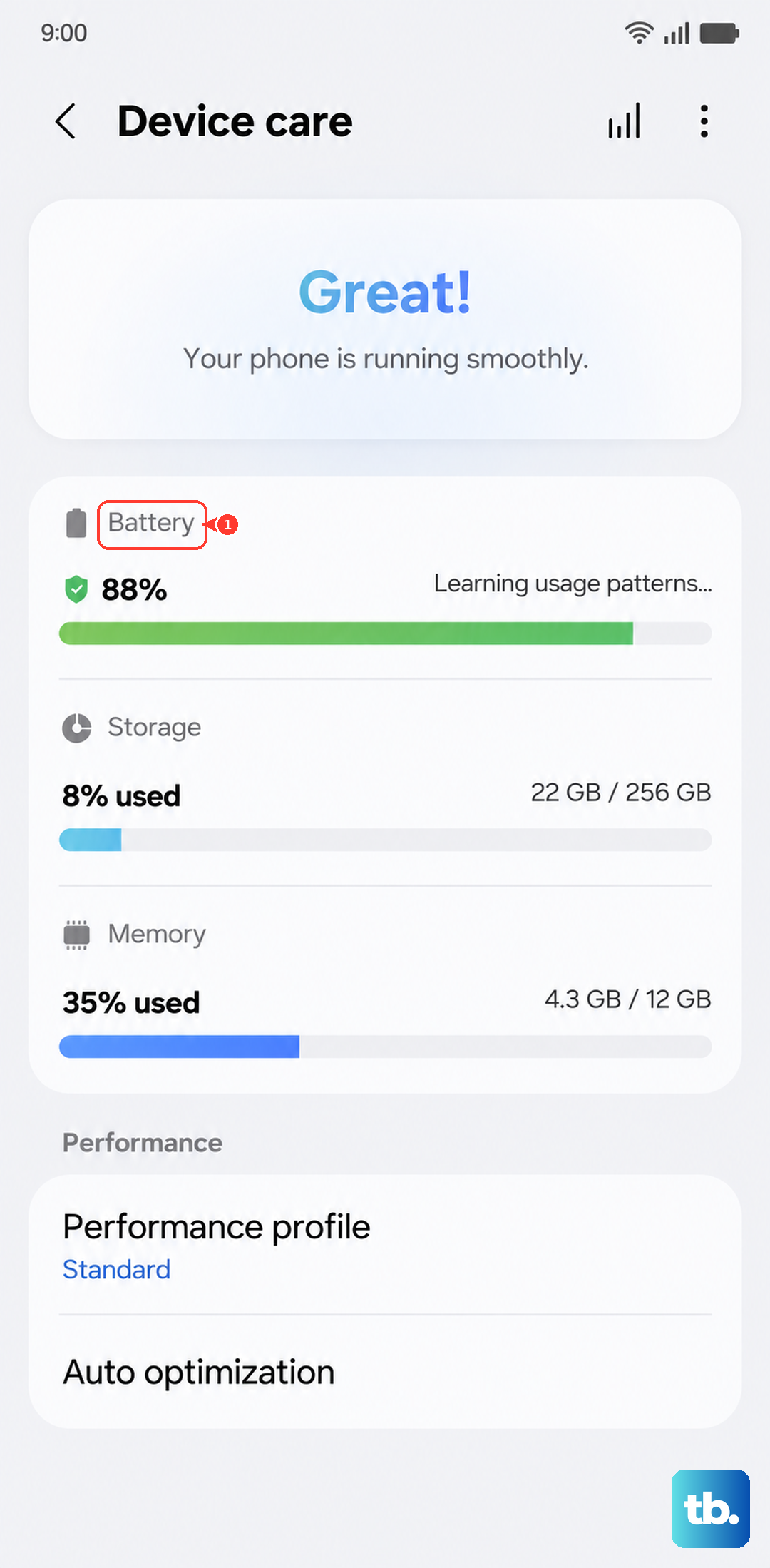
Tap into Device care and run the Memory and Storage diagnostics. Android 16 includes a built-in optimization tool that will flag apps consuming too many resources. From there, you can force stop any problem apps directly.
Streaming video or playing games in direct sunlight is a sure way to cook the tablet. If you were doing that, the fix is simple: move to a shaded spot or take a break every 20 minutes to let the device breathe.
Examine the Charging Setup
Overheating while charging is a common complaint with the Tab S11 Ultra, and there are a few known reasons for it. First, use a wall outlet directly. Avoid power strips, extension cords, or surge protectors, they can introduce voltage irregularities that make the charging circuit work harder and generate extra heat.
The tablet supports up to 45W wired charging and 15W Qi wireless charging. If you're using a third-party charger that doesn't match these specs, it might push the wrong voltage or run at a higher temperature than the official Samsung charger. Stick with the charger that came in the box, or a reputable brand that explicitly supports Samsung's Super Fast Charging 2.0 standard.
Wireless charging generates more heat than wired charging by nature. If the tablet feels hot on a wireless pad, switch to the cable for a while. The Qi coils lose some energy as heat, and a hot tablet combined with a hot charging pad can push temperatures too high.
Clean the USB-C Port
The Tab S11 Ultra has a known issue where the charging port can become faulty from lint or debris buildup. A dirty port can cause intermittent charging, which in turn makes the charging circuitry work harder and generate heat. Take a look at the USB-C port with a bright light.
If you see lint or dust packed inside, shut the tablet off and use a wooden toothpick or plastic pick to gently scrape it out. Don't use anything metal, you can short the pins. A can of compressed air aimed at the port can also dislodge loose debris, but make sure the tablet is off and the air is dry.
After cleaning, plug the cable back in and see if it clicks in firmly. A loose connection creates resistance, and resistance produces heat. If the port still feels loose after cleaning, it may need professional inspection.
Handle the Dead Battery Scenario
There's a specific problem with the Tab S11 Ultra where the battery can drain completely when the tablet is switched off, and then the device becomes unresponsive to charging. If your tablet died completely and now won't turn on or charge, plug it into the wall charger and leave it alone for at least 10 to 15 minutes.
Samsung has confirmed the charging indicator can take up to 10 minutes to appear when the battery is at zero. During that time, the tablet may feel warm as it starts pulling a charge. That's normal. Don't try to force restart it repeatedly, just let it sit. If after 20 minutes there's still no sign of life, try the force restart sequence (Power + Volume Down for 10-15 seconds) while it's still plugged in.
Once it boots, leave it plugged in until you see at least 20% battery. Jumping straight into heavy use right after a full drain can spike temperatures.
Remove the Case and Watch the Surface
Thick or poorly ventilated cases trap heat against the back of the tablet. The Tab S11 Ultra is designed to shed heat through its back panel, and a case that insulates it can easily add 5-10 degrees to the operating temperature. Pop the case off and see if the tablet runs cooler during normal use.
If the tablet sits on a soft surface like a bed, couch cushion, or blanket, the back can't dissipate heat effectively. Always use the S11 Ultra on a hard, flat surface when you're doing intensive tasks like gaming, video editing, or using Dex mode. Even a simple laptop stand or tablet kickstand improves airflow dramatically.
Adjust Display and Performance Settings
The S11 Ultra has a gorgeous high-refresh-rate display, but running it at 120Hz all the time generates extra heat from the GPU. Go to Settings > Display > Motion smoothness and switch to Standard (60Hz) if you're having overheating issues. You won't notice the difference in most apps, and the tablet will run noticeably cooler.
You can also dial back performance if you don't need maximum power. In Settings > Battery and device care > Battery > More battery settings, enable Battery protection to cap the charge at 85%. That reduces heat during charging and extends battery lifespan. For heavy gaming sessions, drop the graphics settings in the game itself rather than pushing the tablet to its limit for hours.
Update the Software
Samsung regularly pushes updates through Android 16 that include thermal management improvements. Go to Settings > Software update and check if a new version is available. Sometimes an app or background service that's poorly optimized gets fixed in a patch, and the overheating stops immediately after the update.
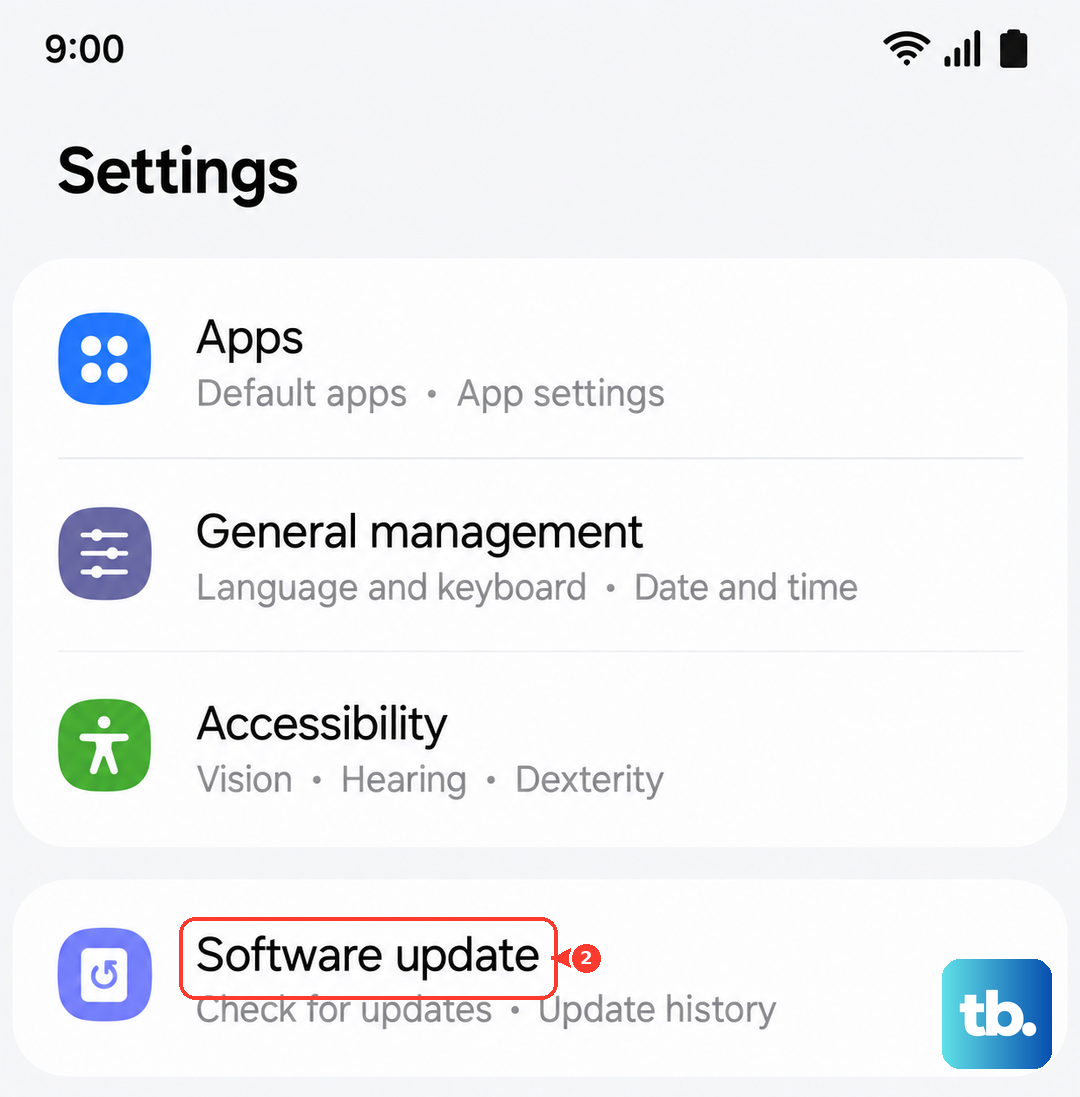
Also check the Galaxy Store for updates to Samsung's system apps. The Device care app itself receives updates that improve how it identifies and handles heat-generating processes. Keeping everything current is the easiest fix of all.











