
If you just got your hands on a Galaxy Tab S11 Ultra and the battery is dropping faster than expected, you're not imagining it. That massive 14.6-inch display and the powerful internals can chew through power quickly, especially if you push the brightness high or leave background apps running wild.
The good news is most of the drain comes from settings you can tweak in under a minute. Here's what to check first.
Check What's Draining the Battery
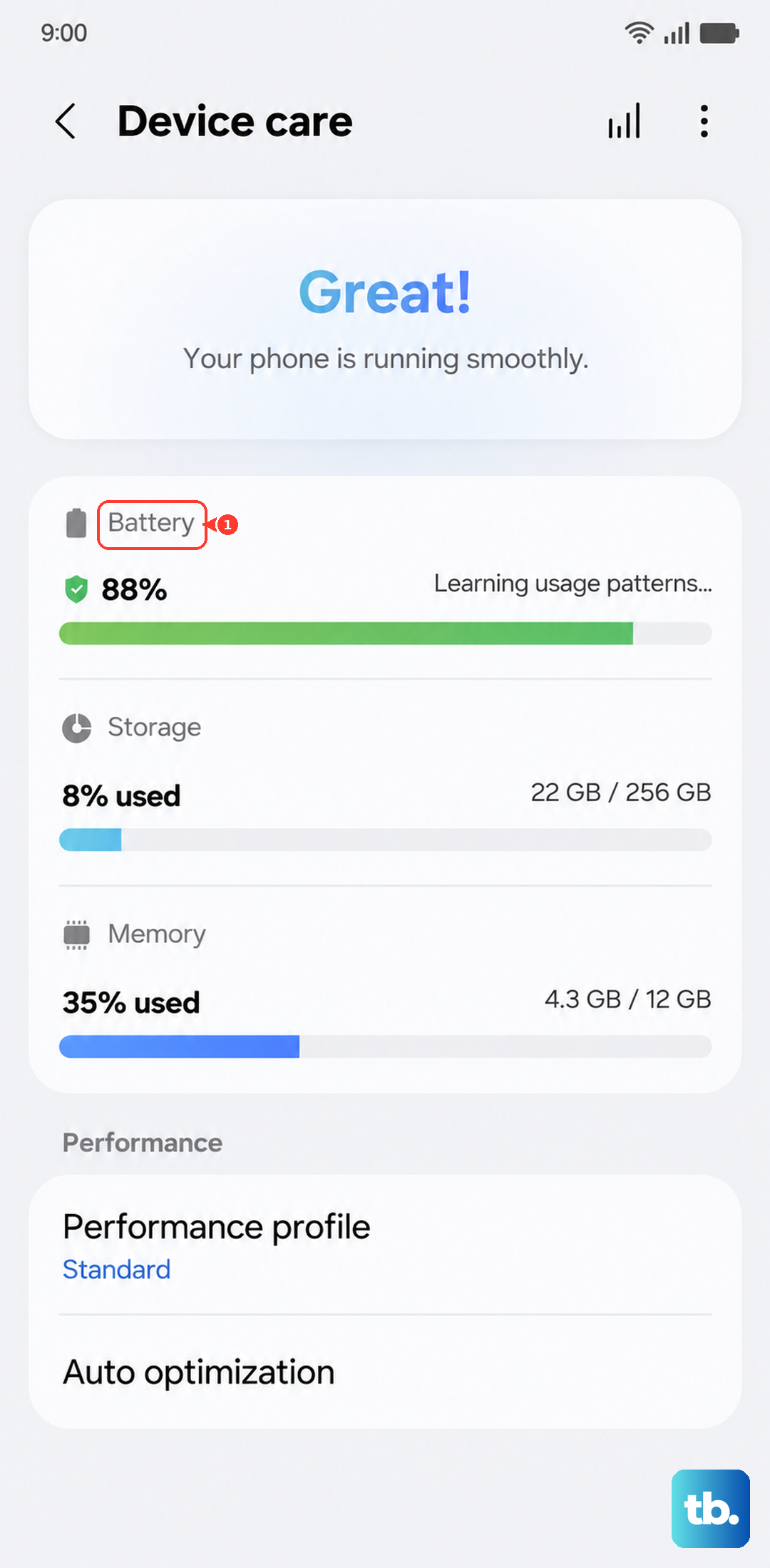
Before you start turning things off, take a look at what's actually using the power. Open Settings > Battery > Battery usage. You'll see a breakdown by app over the last 24 hours or the last 7 days. If one app is sitting above 20% and you barely used it, that's your starting point.
Samsung's Device Care menu also gives you a battery health reading. Head to Settings > Battery > Battery Health to check the estimated capacity. Anything under 85% on a new tablet this year would be unusual, but it's worth confirming.
Turn Down the Brightness and Use Dark Mode
The Tab S11 Ultra has an AMOLED display, which means it can save significant power when you use Dark Mode. Black pixels on AMOLED screens are literally turned off, so the darker the interface, the less energy it uses. Go to Settings > Display and toggle Dark Mode on. You can also schedule it to kick in at sunset.
While you're in Display settings, drag the brightness slider down to a comfortable level. Auto-brightness is fine, but the sensor sometimes pushes the brightness higher than you actually need, especially if you're in a well-lit room.
Set the Screen to Turn Off Faster
A 30-second screen timeout is your best friend for battery life. Go to Settings > Display > Screen timeout and pick 30 seconds or 1 minute at most. Every second the screen stays on when you're not looking at it is wasted power.
Disable Background App Refresh
Many apps refresh their content in the background whether you're using them or not. That's good for up-to-date notifications, but bad for battery life. Go to Settings > Apps > tap any app that's consuming a lot of battery > Battery > Background usage limits and set it to Put to sleep or Deep sleeping.
Samsung also has a global setting for this. Open Settings > Battery > Background usage limits and toggle on Put unused apps to sleep. This automatically manages apps you haven't opened in a while.
Turn Off Location Services for Apps That Don't Need It
GPS is a known battery hog, and plenty of apps request location access without a real reason. Go to Settings > Location and toggle it off entirely if you don't need maps or location-based reminders. Otherwise, scroll down to App permission and switch any unnecessary apps from Allow all the time to Allow only while using the app or Deny.
Disable Always On Display
The Always On Display on the Tab S11 Ultra looks great, but it keeps the screen partially lit whenever the tablet is idle. You can turn it off in Settings > Lock screen and AOD > toggle Always On Display off. If you still want some information visible, choose Tap to show instead of Always on.
Kill Unused Connections
Bluetooth and Wi-Fi scanning constantly hunt for nearby devices and networks, even when you're not actively using them. Swipe down from the top of the screen to open the quick settings panel and tap the Bluetooth icon to turn it off if you're not using a keyboard, earbuds, or mouse. Do the same for Wi-Fi if you're on the go.
For the scanning itself, go to Settings > Connections > Location > Improve accuracy and toggle Wi-Fi scanning and Bluetooth scanning off. These run in the background even with Wi-Fi and Bluetooth turned on.
Reduce Animations and Motion Effects
Animations look smooth, but they use GPU cycles that drain battery. You can reduce them in Settings > Accessibility > Vision enhancements > toggle Remove animations on. This doesn't affect functionality, it just makes transitions snappier and lighter on power.
Turn Off Bixby and Unnecessary Samsung Services
Bixby, Samsung's voice assistant, listens for wake words by default, which keeps the microphone and related hardware powered up. Open Settings > Advanced features > Bixby and toggle off Wake with "Hi, Bixby". You can also disable Bixby Routines if you don't use them.
Samsung Health tracks steps and activity in the background unless you explicitly stop it. If you're not using it, head to Settings > Apps, find Samsung Health, and tap Force stop or Disable.
Update Your Apps and Software
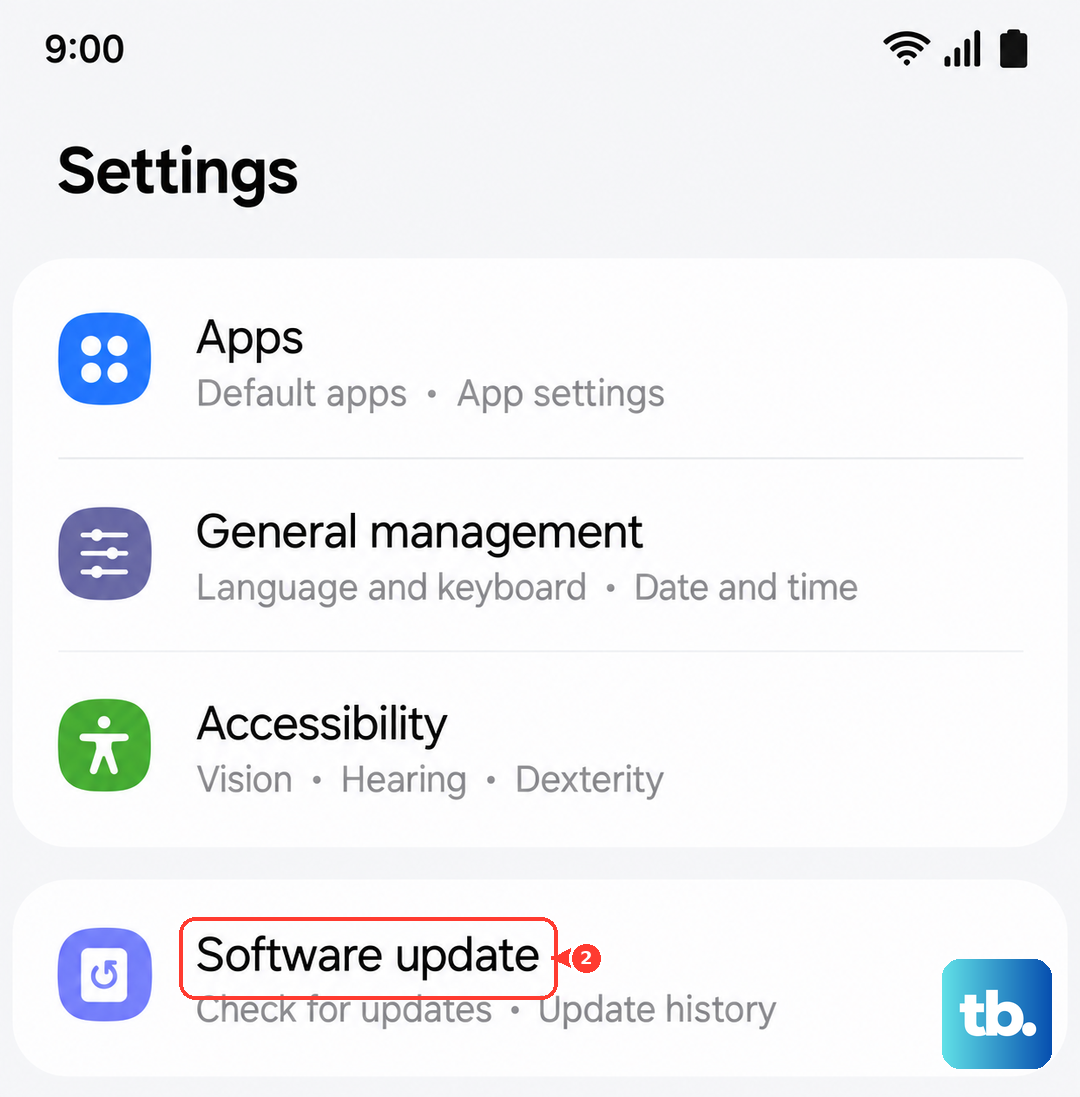
Outdated apps and firmware can have battery-draining bugs that get patched in later versions. Open the Galaxy Store and the Play Store separately and check for updates. Then go to Settings > Software update > Download and install to make sure you're on the latest version of Android 16 with Samsung's One UI 7.x.
Check the Charging Port and Cable
This is a known issue on the Tab S11 Ultra. The USB-C charging port can get finicky and cause intermittent charging, which makes the battery drain faster because it never actually reaches a full charge. Look closely at the port with a flashlight. If you see any lint or debris, gently clean it out with a plastic toothpick or a can of compressed air.
Also, check your charging cable for fraying or bent connectors. A damaged cable can cause the tablet to think it's charging when it's not, or it may charge so slowly that you lose ground while using it. Stick with a 45W USB-C charger and a high-quality cable for the best results.
Do a Force Restart If the Tablet Freezes or Won't Charge
Sometimes the battery drains completely and the tablet becomes unresponsive, even when you plug it in. This is another known issue. The fix is straightforward: press and hold the Power button and Volume Down button together for 10 to 15 seconds. You'll feel a vibration or see the Samsung logo, and the tablet will reboot.
After a full drain, the charging indicator may take up to 10 minutes to appear. Don't panic if the screen stays black for a while. Leave it plugged into a wall outlet directly, not a power strip or extension cord, and wait.
When the Battery Drains While the Tablet Is Off
A few users have reported that the Tab S11 Ultra battery can drain completely even when the device is switched off. If you notice this happening, try this: power the tablet on, let it charge to 100% while on, then turn it off again. If the drain persists after doing that a couple of times, a factory reset may be needed, but that's rare on a device this new.











