
Apps crashing on your Galaxy Tab S11 Ultra can really kill the momentum, whether you're in the middle of a note-taking session, streaming a show, or jumping between apps for work. The Tab S11 Ultra runs Android 16, and while it's a powerful tablet, app crashes can still happen for a handful of common reasons. Let's walk through the fixes that tend to work best on this device.
Start with a Force Restart
Before diving into settings or reinstalling anything, give the tablet a proper force restart. This clears out any temporary software hiccups that might be tripping up your apps. On the Tab S11 Ultra, press and hold the Power button and the Volume Down button at the same time for 10 to 15 seconds. The screen will go black and the Samsung logo should pop up, meaning the tablet is rebooting.
This is especially useful if the tablet recently had its battery drain completely. The Tab S11 Ultra can sometimes get a bit confused after a full discharge, and a force restart usually sorts it right out.
Free Up Storage Space
The Tab S11 Ultra has plenty of internal storage, but it fills up fast if you're saving large files, installing lots of apps, or keeping high-res videos locally. When storage gets tight, apps don't have enough room to write temporary data, and they crash as a result.
Head to Settings > Device care > Storage to see what's taking up space. If you're below 10% free, it's time to clean house. Delete apps you don't use, move photos and videos to cloud storage, and clear out downloaded files you no longer need. Samsung's built-in storage cleaner can also help you find and remove junk files in a few taps.
Clear Cache and Data for Problem Apps
Corrupted cache files are a really common cause of crashes, especially on apps you use daily. The good news is this is an easy fix that doesn't require uninstalling anything.
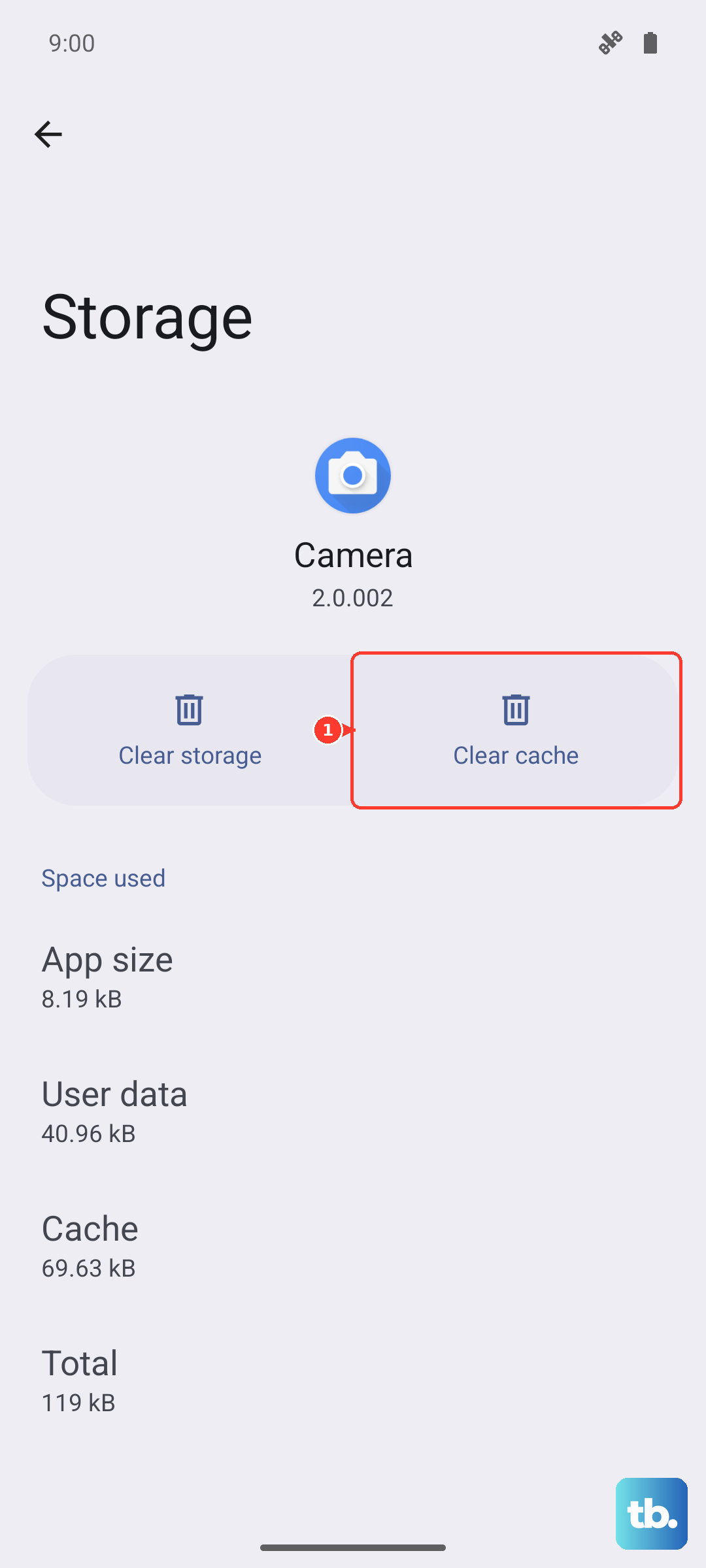
Go to Settings > Apps and find the app that's crashing. Tap on it, then tap Storage. You'll see two options: Clear cache and Clear data. Start with clearing the cache only. If the crash continues, go back and clear the data as well. Just know that clearing data will reset the app to its fresh-install state, so you might lose any saved preferences or offline files.
Is Your Internet Connection Stable?
Many apps rely on a steady connection to function, and a weak or intermittent signal can cause them to freeze or crash. If the crashes only happen when you're using online features, this is likely the culprit.
Try switching between WiFi and mobile data to see if the problem follows the connection. If you're on WiFi, restart your router or forget the network and reconnect. The Tab S11 Ultra also supports Wi-Fi 7, so make sure your router is compatible to get the best possible signal stability.
Update Your Apps and Android 16
Outdated software is another frequent cause of crashes. Developers push updates specifically to fix bugs, and running an old version can leave you stuck with issues that have already been resolved.
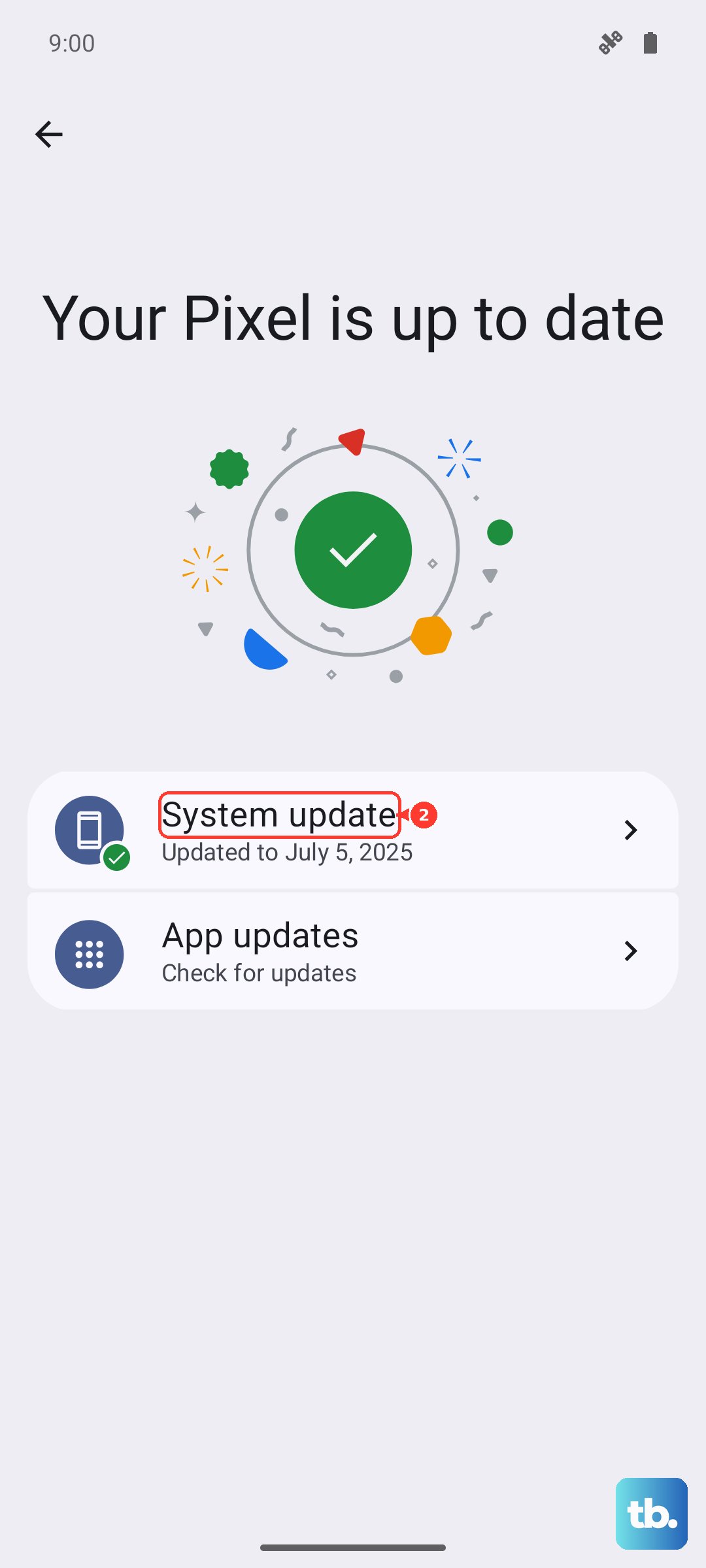
Open the Google Play Store, tap your profile icon, and go to Manage apps & device. From there, you can update all apps at once. While you're at it, check for Android system updates by going to Settings > Software update > Download and install. Android 16 is still relatively new, and Samsung often releases stability patches that can fix app-related bugs.
Force Stop the App
If an app is currently frozen or keeps crashing when you open it, force stopping it can give you a clean slate. Go to Settings > Apps, find the problematic app, and tap Force stop. This kills the app process entirely, including any background activity that might be causing the crash. After that, try launching the app again.
This is a quick fix that works well for apps that crash immediately on launch, since it clears whatever was hanging from the previous session.
Uninstall and Reinstall the App
Sometimes an app's installation files get corrupted, and no amount of cache clearing will fix it. In that case, uninstall the app and download a fresh copy from the Google Play Store. On the Tab S11 Ultra, you can long-press the app icon and select Uninstall, or go through Settings > Apps to remove it.
Reinstalling gives you a clean version of the app with no leftover corrupted data. Make sure you're signed into any accounts you need before you uninstall, so you don't lose access to important settings or saved content.
Factory Reset as a Last Resort
If apps are crashing across the board and none of the above steps have helped, a factory reset can resolve deeper system conflicts. Keep in mind that this will erase everything on the tablet, so back up your photos, documents, and app data before proceeding.
Go to Settings > General management > Reset > Factory data reset. Follow the prompts to confirm, and the tablet will wipe itself clean and restart fresh. This is usually the final step before contacting Samsung support, and in most cases it clears up persistent crashing issues completely.











