
If the Bluetooth on your Galaxy Tab S11 Ultra has stopped connecting to your headphones, keyboard, or speaker, you're in the right place. These issues are common on tablets running Android 16, but most of them have a straightforward fix. Let's walk through the solutions that usually get things working again.
Check the basics first
Make sure the device you're trying to pair is charged and actually in pairing mode. Keep it within 30 feet of your Tab S11 Ultra, and verify Bluetooth is turned on in your quick settings panel.
Test your tablet with another Bluetooth accessory if you have one handy. This helps you figure out if the problem is with the tablet or the specific device you're trying to connect.
Toggle Bluetooth and force restart the tablet
The first real fix to try is a quick power cycle. Turn off Bluetooth from the notification shade, wait about 10 seconds, and turn it back on.
If that doesn't do it, a force restart often clears up temporary glitches. On the Tab S11 Ultra, press and hold the Power button and the Volume Down button together for about 10 to 15 seconds. The tablet will restart on its own, and you can try pairing again after it boots up.
Forget and re-pair your accessories
Sometimes the Bluetooth connection data gets corrupted. Go to Settings > Connections > Bluetooth. Tap the gear icon next to the device that's giving you trouble and select Unpair.
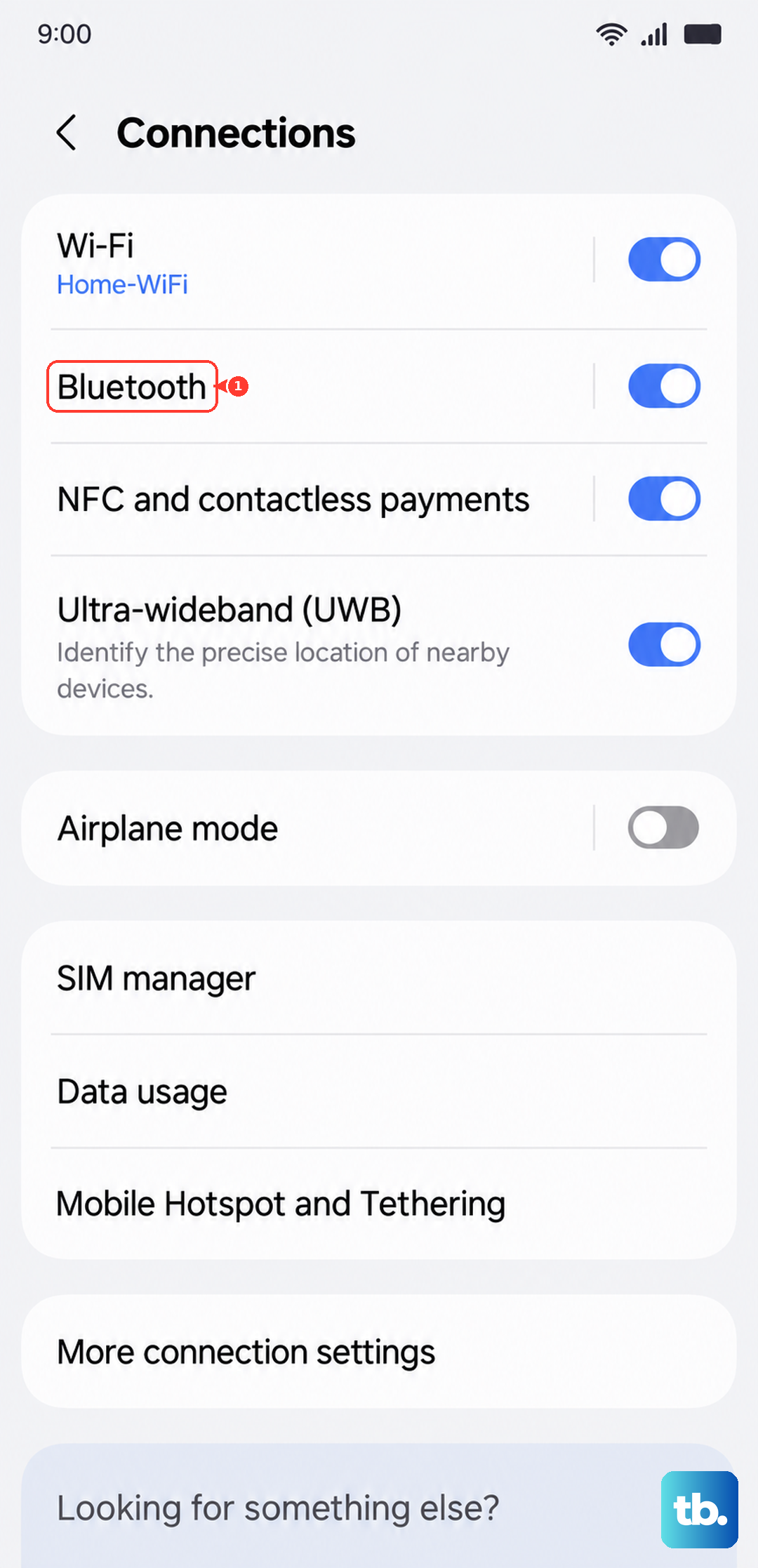
Put your accessory back into pairing mode and connect from scratch. This clears out any bad handshake data between the two devices.
Clear the Bluetooth system cache
Corrupted system cache files can break Bluetooth functionality. Go to Settings > Apps, tap the sort icon and turn on Show system apps. Find Bluetooth, tap Storage, then hit Clear Cache.
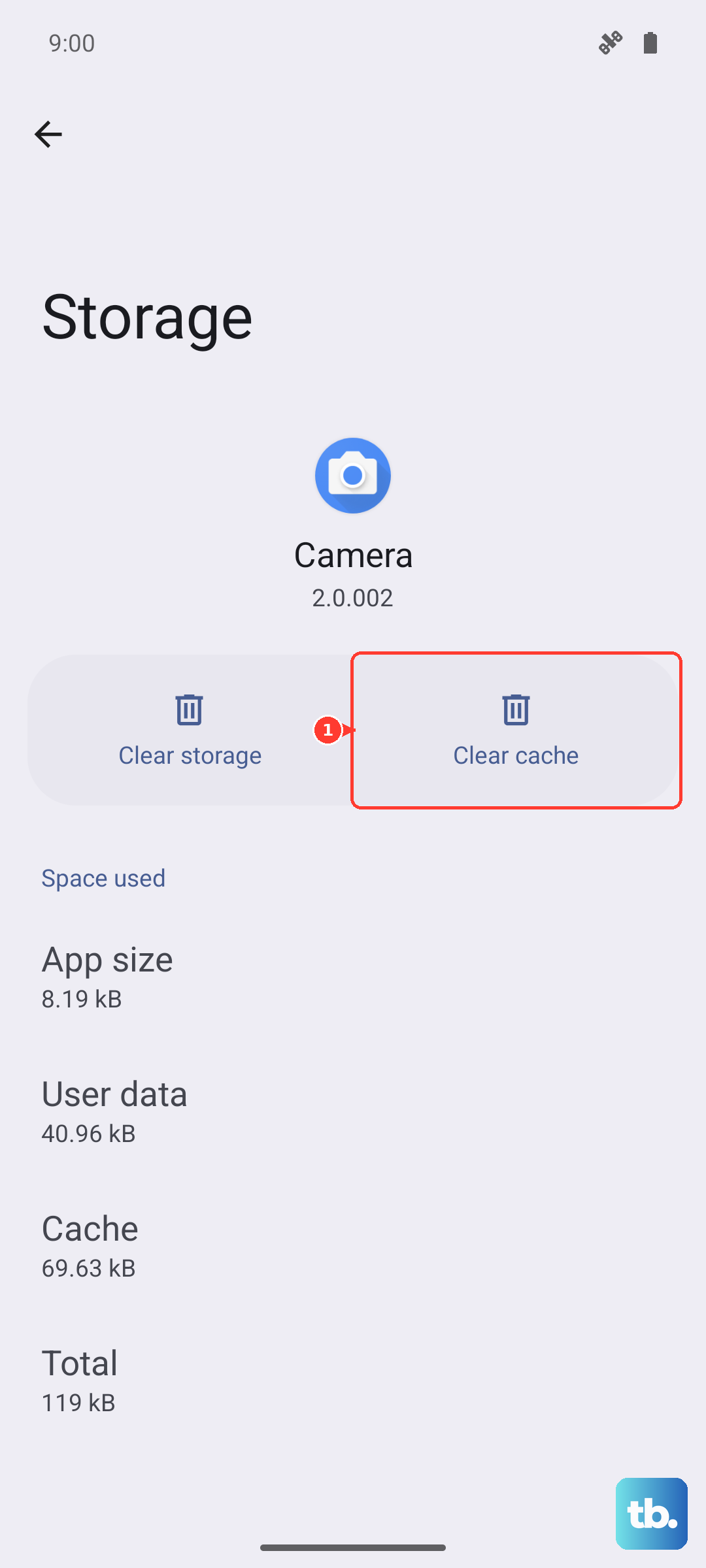
This step is completely safe and doesn't delete your paired device list. I'd try this before moving on to more aggressive resets.
Reset network settings
This resets Wi-Fi, mobile data, and Bluetooth back to factory defaults. You will need to re-pair every Bluetooth device and re-enter Wi-Fi passwords afterward.
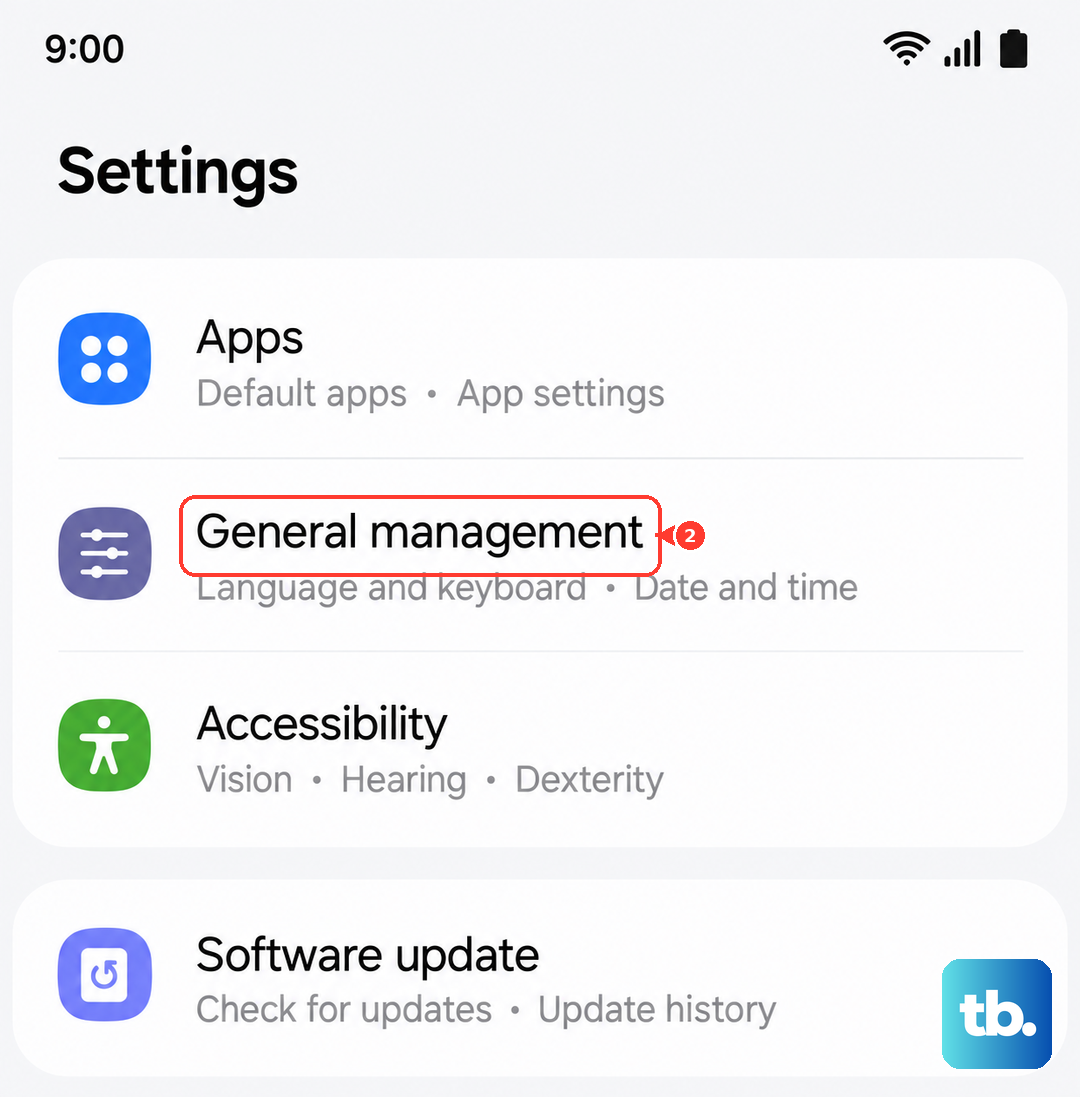
Go to Settings > General management > Reset > Reset network settings. Enter your PIN or pattern to confirm the reset.
Install the latest software updates
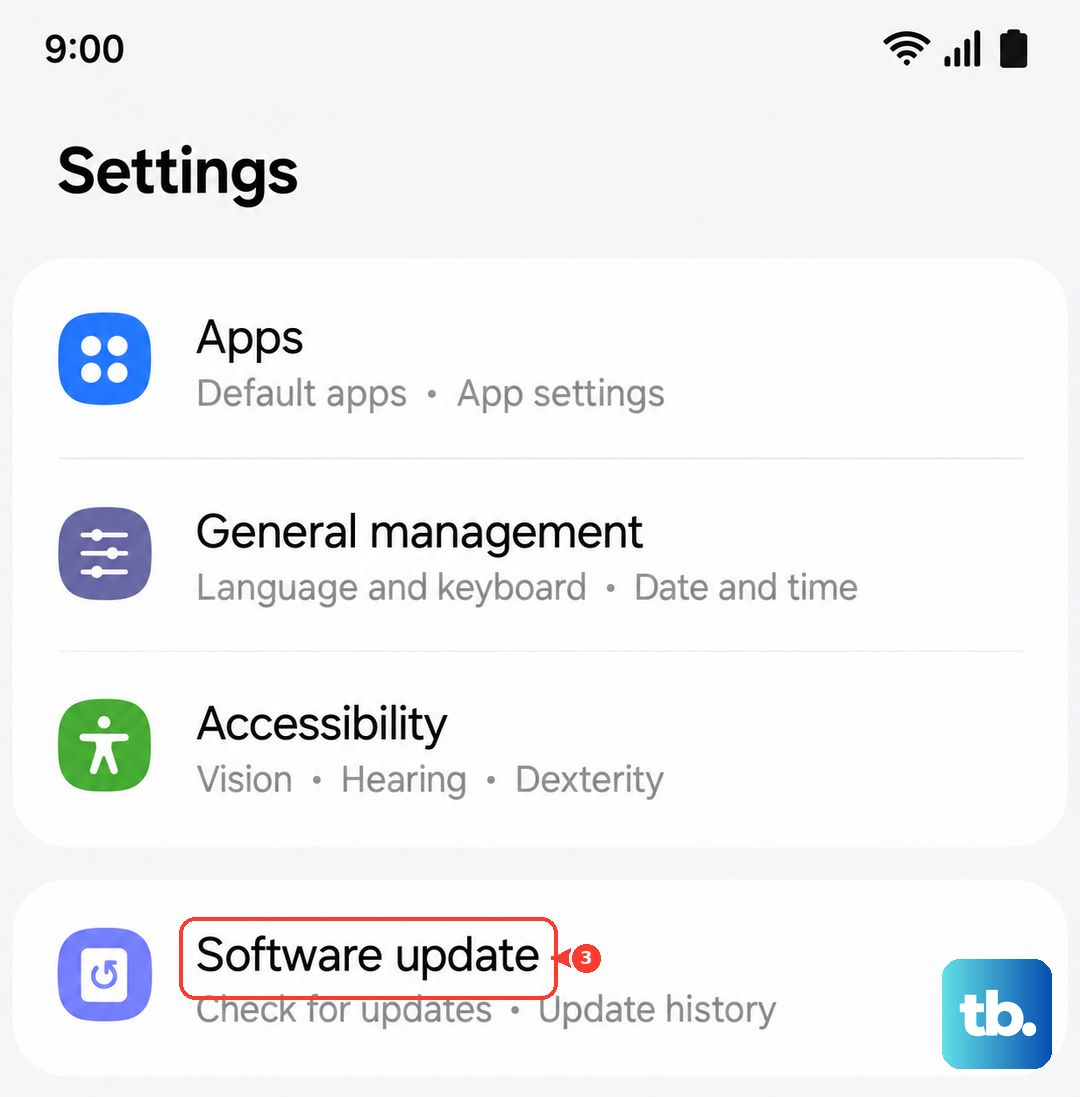
Samsung regularly fixes Bluetooth bugs in monthly security patches and major One UI updates. Check for updates by heading to Settings > Software Update > Download and install.
Also check if your Bluetooth accessory needs a firmware update through its companion app, like Galaxy Wearable for Samsung buds or watches.
Boot into Safe Mode
If Bluetooth works fine sometimes but cuts out randomly, a third-party app could be interfering. Press and hold the Power button, then tap and hold the Power off icon on the screen. Select Safe Mode to restart the tablet with only system apps running.
If Bluetooth is stable in Safe Mode, a downloaded app is the culprit. Restart the tablet normally and uninstall any recently installed apps until you find the one causing the conflict.
Check your tablet's battery and charging
The Tab S11 Ultra has a known quirk where it can become unresponsive if the battery drains completely. If your tablet died overnight and Bluetooth won't turn on now, plug it directly into a wall outlet (not a power strip or extension cord).
Let it charge for 10 to 15 minutes even if nothing appears on the screen. Then try the force restart with Power and Volume Down to wake up the Bluetooth radio.
Factory reset as a last resort
A factory reset wipes the tablet clean and fixes deep software conflicts that block Bluetooth. Back up all your important data first because this erases everything.
Go to Settings > General management > Reset > Factory data reset. Follow the prompts to complete the reset, then test Bluetooth before restoring any apps.
When it's likely a hardware issue
If Bluetooth still doesn't work after a factory reset, the hardware might be failing. The Bluetooth antenna or the main board on the Tab S11 Ultra could have a physical defect.
Given the known charging port problems on this model, it's worth having a technician take a look to rule out a broader hardware fault. If your tablet is still under warranty, reach out to Samsung for a repair or replacement.











