
If your Samsung Galaxy Tab S11 Ultra has stopped vibrating for notifications, keyboard taps, or S Pen interactions, try these fixes. Most of them take just a minute or two and don't require any technical know-how.
Force Restart the Tablet
Start with a force restart. This clears temporary glitches in Android 16 that can mess with haptic feedback.
Press and hold the Power button and Volume Down button simultaneously for 10-15 seconds. Keep holding until the tablet restarts. This is different from a normal restart, it forces the system to reload everything from scratch.
Check the Sound and Vibration Settings
Open Settings and tap Sounds and vibration. Make sure Vibrate while ringing is toggled on if you use the tablet as a phone replacement. Then tap Sound mode and select Sound, if it's set to Mute or Vibrate only, some haptic feedback may be disabled.
While you're there, tap System sounds and vibration and turn on Keyboard vibration and Touch vibration. Without these enabled, you won't feel any haptics when typing or tapping the screen.
Adjust Vibration Intensity and Pattern
In Sounds and vibration, tap Vibration intensity. Increase all three sliders, for calls, notifications, and touch interactions. The Tab S11 Ultra has a strong haptic motor, but if the intensity is set too low, you might not feel it.
Next, tap Vibration pattern and try a different pattern. Sometimes switching patterns can kick the motor back into action, especially after a system hiccup.
Check App-Specific Notification Settings
If haptics only fail for certain apps, the issue is in that app's notification settings. Go to Settings > Apps, select the app (like Samsung Notes, Chrome, or Gmail), then tap Notifications. Make sure notifications are allowed and that Vibrate is enabled for each notification category.
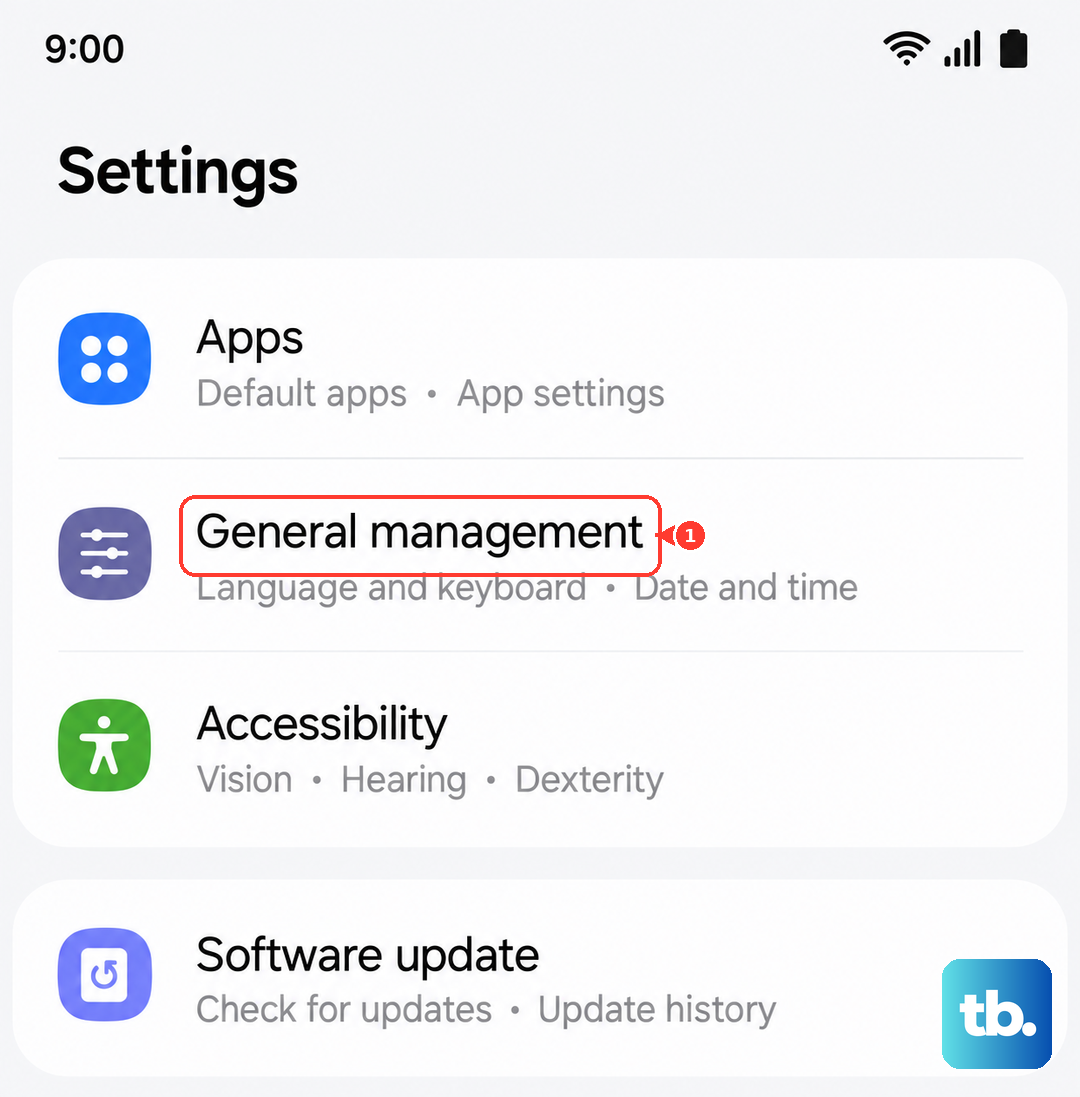
For the Samsung Keyboard, go to Settings > General management > Keyboard list and default > Samsung Keyboard > Keyboard settings and enable Key-tap vibration. The S Pen also has its own haptic settings, check Settings > Advanced features > S Pen and turn on S Pen vibration.
Install Any Software Updates
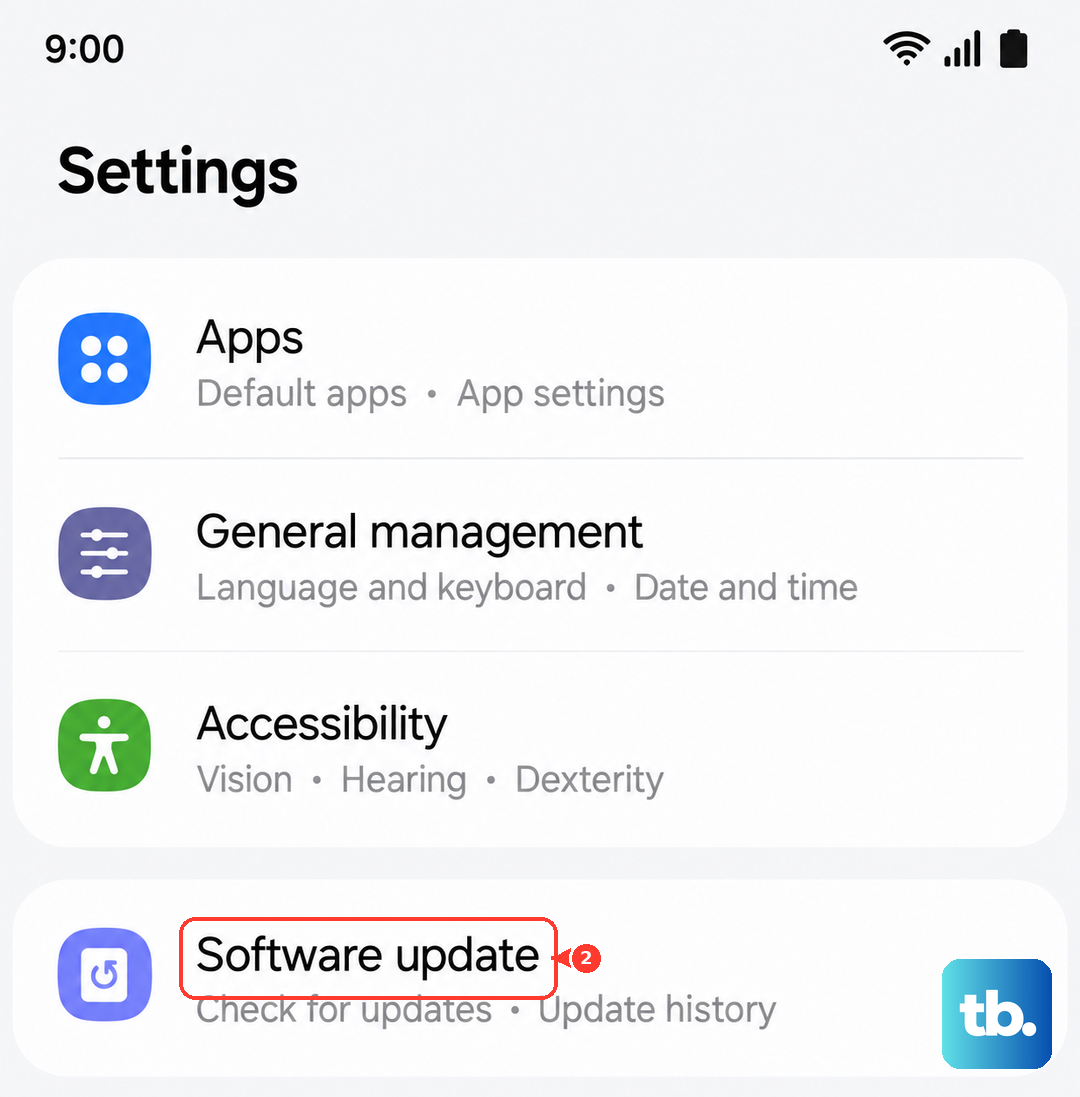
Outdated firmware can cause haptic feedback to stop working. Open Settings, scroll to Software update, and tap Download and install. The Tab S11 Ultra runs Android 16, so if there's a bug in the haptic driver, a patch usually fixes it quickly.
Test in Safe Mode
Safe Mode loads only the system's built-in apps. If haptics work in Safe Mode, a third-party app is the culprit.
To enter Safe Mode, press and hold the Power button until the power menu appears, then tap and hold Power off until the Safe Mode prompt shows up. Tap Safe mode. Once in Safe Mode, test haptics in different apps. If it works, restart the tablet normally and uninstall apps one by one to find the one causing the conflict.
Remove Custom Themes
Custom themes can override system sound and vibration settings. Long-press an empty area on the home screen and tap Themes. Go to My Stuff, select the Default theme, and apply it. This reverts any theme-related changes that might have disabled haptics.
Reset All Settings
This option resets system settings without deleting your data. Go to Settings > General management > Reset > Reset all settings > Reset settings. Confirm and wait for the tablet to reboot. You'll need to re-enable Wi-Fi and Bluetooth, but your apps and files stay intact.
Check for Physical Blockage
The haptic motor sits inside the tablet. If the Tab S11 Ultra has been in a case or near magnets, sometimes debris can dampen vibration. Remove any thick or magnetic case and test haptics again. Also gently clean the charging port, dust buildup there (while not directly related) can cause system instability that affects haptics, based on the device's known issues.
Drain and Recharge the Battery
The Tab S11 Ultra can become unresponsive after a full battery drain, which sometimes impacts system functions like haptics. Let the battery drain completely until the tablet shuts off. Then plug it into a wall outlet (not a power strip) using the original charger and cable. The charging indicator may take up to 10 minutes to appear, that's normal. Let it charge to at least 30% before powering back on. After this full discharge cycle, force restart the tablet again. This recalibrates the power management and can restore haptic feedback.











