When Bixby or Google Assistant stops responding on your Galaxy S26, it can feel like you've lost a helpful companion. The voice assistant that's supposed to simplify tasks suddenly goes silent. Here's how to get it listening and talking again.
Verify Your Voice Assistant is Enabled
First, confirm which assistant you're using and that it's actually turned on. On the S26, you can have Bixby, Google Assistant, or both configured.
For Bixby, open the Bixby app or go to Settings > Advanced features > Bixby. Make sure "Voice wake-up" is enabled. For Google Assistant, open the Google app, tap your profile picture, go to Settings > Google Assistant, and ensure "Hey Google" is turned on.
Check for Microphone Blockages
The S26 has multiple microphones for noise cancellation and voice pickup. If they're covered, your assistant can't hear you.
Check the small pinhole at the top of the phone and the ones near the bottom charging port. A phone case or a screen protector that's slightly misaligned can sometimes cover these. Gently clean them with a soft, dry brush or a blast of compressed air.
Restart Your Galaxy S26
A quick restart clears out temporary software glitches that can affect the microphone or voice services. Press and hold the Volume Down button and the Side/Power button together for about 10 seconds until you see the Samsung logo.
This force restart method works even if the screen is frozen. Give the phone a minute to fully boot up, then try your wake word again.
Retrain Your Voice Model
If your assistant hears you but doesn't activate, it might need a refresher on your voice. Background noise or a change in your voice can confuse it.
For "Hey Google," go into the Google Assistant settings and look for "Voice Match." You'll find an option to retrain the model. For Bixby, you may need to turn "Voice wake-up" off and back on in its settings, which will prompt you to go through the setup phrases again.
Update Your Software
The Galaxy S26 runs the brand-new One UI 8.5 on Android 16. Early software versions often have bugs that get patched later. A system update could directly fix voice assistant issues.
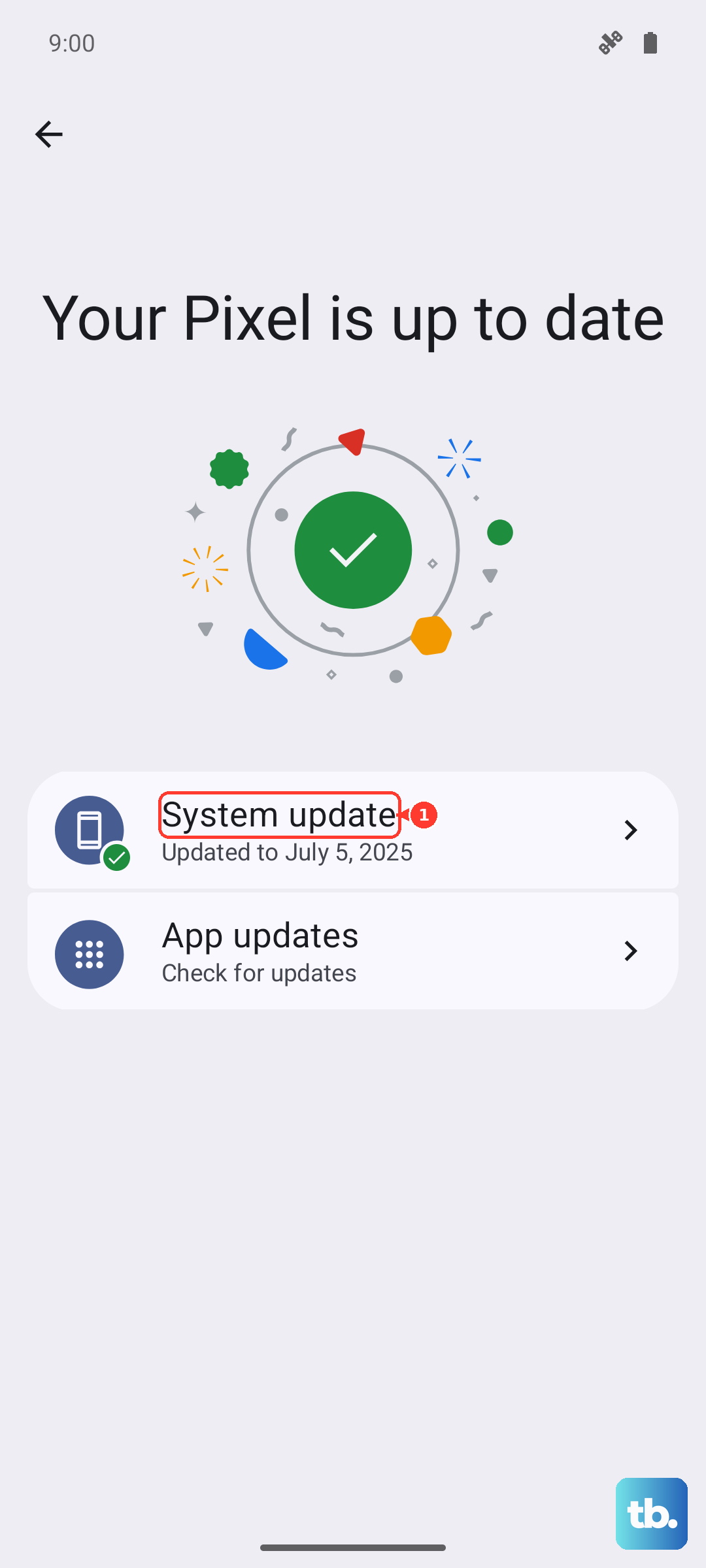
Go to Settings > Software update and tap Download and install. I'd check this frequently, as Samsung will be pushing updates to stabilize this new OS.
Review App Permissions and Battery Settings
Voice assistants need the right permissions to run in the background. Go to Settings > Apps, select your assistant app (Google or Bixby), and tap Permissions.
Ensure the Microphone permission is allowed. Also, check Battery settings. If the app is set to "Restricted" or "Optimized," it might be put to sleep. Try setting it to "Unrestricted" for testing.
Check for Conflicting Modes and Features
Certain modes on your phone can intentionally disable voice wake-up. Open the Settings and look for "Modes and routines." If you have a Driving, Sleep, or Work mode active, it might be configured to silence the assistant.
Also, look in Settings > Accessibility for any sound detection features. Like on iPhones, some accessibility sound services can take exclusive control of the microphone.
Test with a Different Assistant
To rule out a problem with a specific app, try switching your default assistant. Go to Settings > Apps > Choose default apps > Digital assistant app.
If Bixby isn't working, set Google Assistant as the default and see if "Hey Google" functions. This tells you if the issue is app-specific or a broader system microphone problem.
Clear the Assistant App's Cache
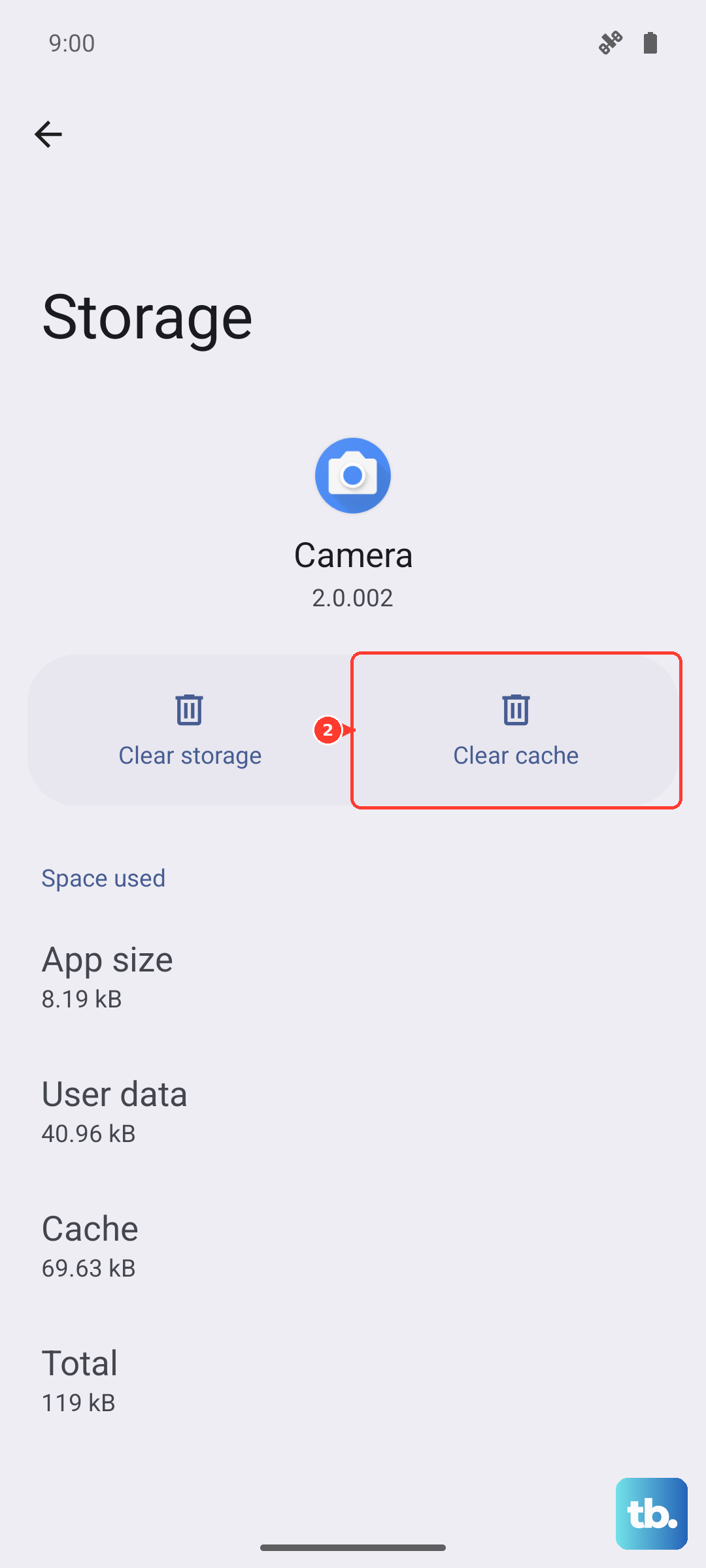
Corrupted temporary data can cause all sorts of weird behavior. Clearing the cache is safe and won't delete your personal data or settings.
Go to Settings > Apps, find your voice assistant app, and select it. Tap Storage and then Clear cache. After doing this, restart your phone and test the voice wake-up again.
Reset All Settings
If you've tried everything else, this can resolve deeper configuration conflicts. It resets all your preferences, like Wi-Fi passwords, wallpaper, and sound settings, back to default but leaves your personal files and apps intact.
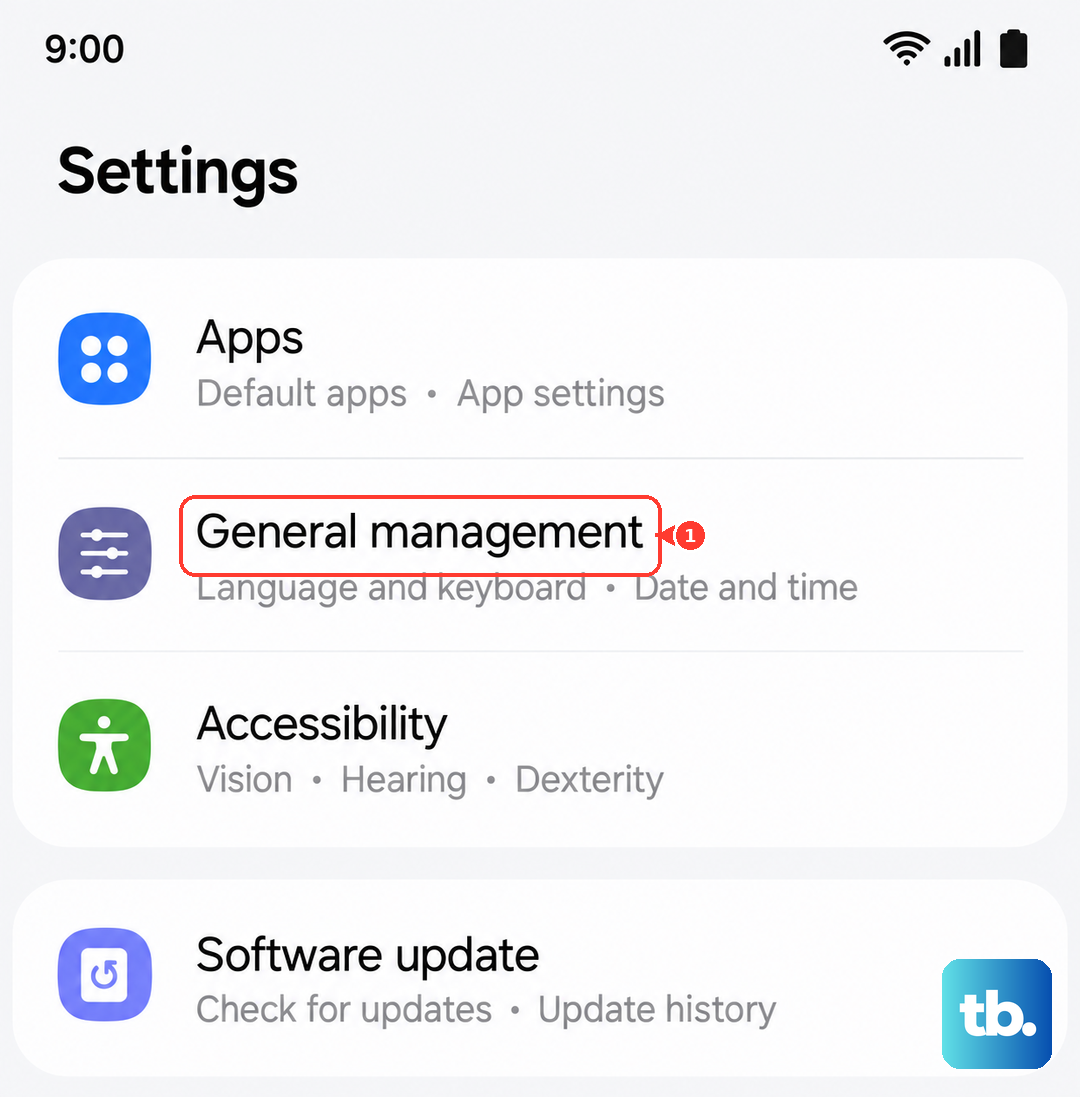
Go to Settings > General management > Reset > Reset all settings. You'll need to reconfigure your preferences afterward, but it often clears up persistent glitches.