
If your Galaxy S26 Ultra has gone silent, missing vibrations for calls and notifications, it's a surprisingly common hiccup. The good news is it's usually a quick software or settings fix, not a sign of a broken phone.
Start With a Force Restart
Before diving into settings, give your phone a fresh start. Press and hold the Volume Down button and the Side/Power button together for about 10 seconds. Keep holding until you see the Samsung logo appear on the screen, then let go.
This force restart clears out any temporary glitches in One UI 8.5 that might be stopping the vibration motor from responding. I'd try this one first, as it often solves the problem in seconds.
Check Your Sound and Vibration Mode
Your phone might simply be in a mode that disables vibration. Swipe down from the top of your screen to open the Quick Settings panel and look at the sound mode icon. If it shows a speaker with a slash or a bell with a slash, tap it to cycle back to "Sound" mode.
For a more detailed check, go into Settings > Sounds and vibration. Here, make sure the "Sound mode" is set to "Sound" and not "Vibrate" or "Mute". It sounds counterintuitive, but sometimes the "Vibrate" mode can get buggy on a new device.
Verify the Core Vibration Toggles
Head back to Settings > Sounds and vibration. Look for the "Vibrate while ringing" option and make sure it's switched on. If it's already on, try turning it off, waiting a moment, and then turning it back on.
Just below that, tap on "Vibration intensity". You'll find separate sliders for call vibration, notification vibration, and touch feedback. If these have somehow been turned all the way down, you won't feel a thing. Crank them up to see if that's the issue.
Inspect App-Specific Notification Settings
If the problem is only with texts from a specific person or alerts from one app, the issue is isolated. Open Settings > Apps, select the app in question (like Messages or WhatsApp), and tap "Notifications".
Inside, ensure notifications are turned on for the app. Then, tap into specific notification categories, like "New messages". Look for the "Vibrate" option and make sure it's enabled. Some apps have their own internal vibration settings that override the system.
Update Your Software
The Galaxy S26 Ultra is brand new, and early software builds can have bugs. Samsung is likely pushing out updates to smooth things over. Go to Settings > Software update and tap "Download and install".
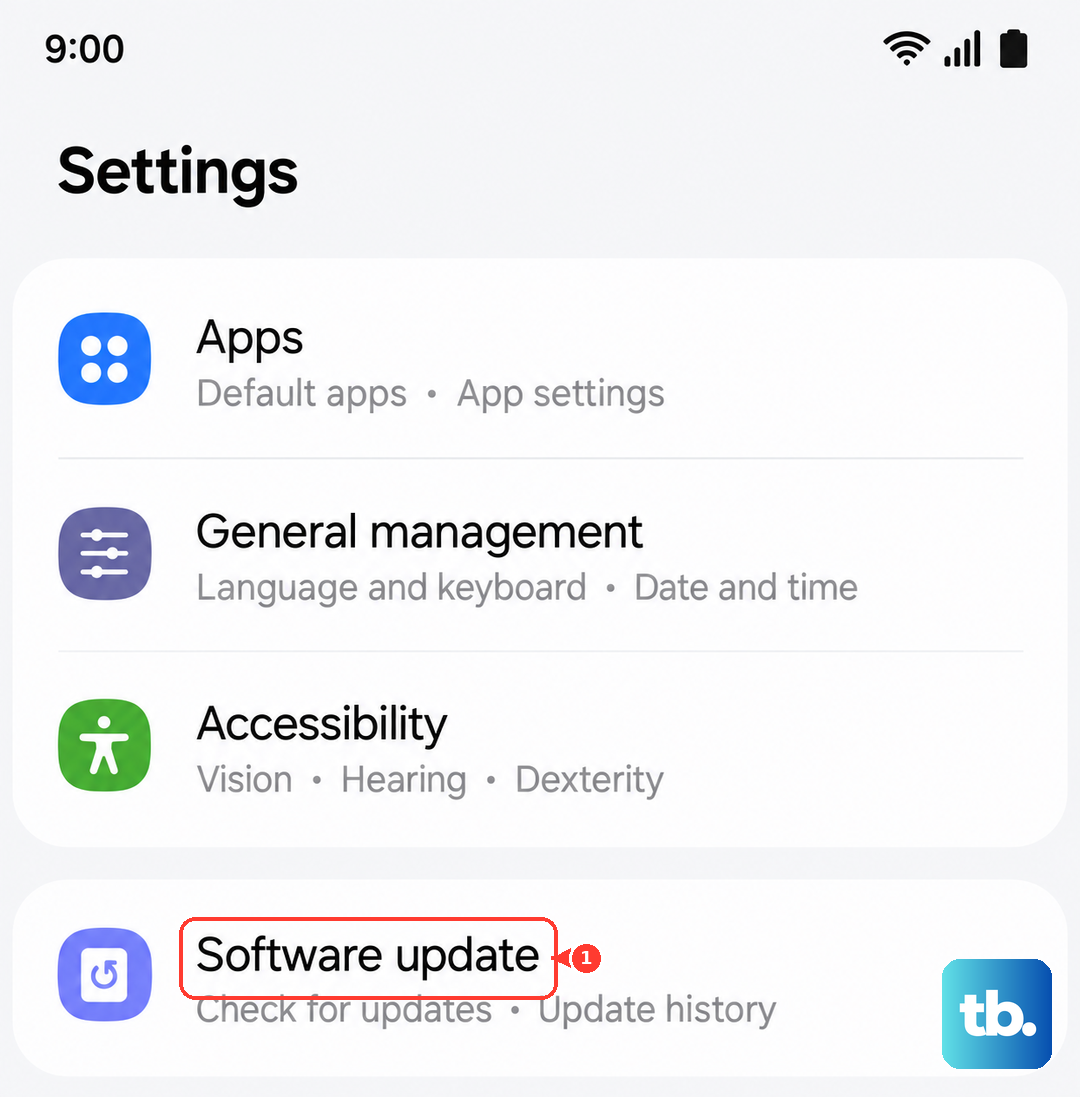
If an update is available, install it. A software update is one of the most reliable ways to fix a system-level problem like a non-functional vibration motor. Make sure your phone is connected to Wi-Fi and has a good charge before starting.
Test in Safe Mode
This step checks if a third-party app you installed is causing a conflict. To boot into Safe Mode, first turn off your phone. Now, press and hold the Side/Power button until you see the Samsung logo, then immediately press and hold the Volume Down button. Keep holding both until the phone finishes starting up.
You'll see "Safe mode" in the bottom-left corner. In this mode, all downloaded apps are disabled. Test if your phone vibrates now. If it does, a recently installed app is the culprit. Restart normally to exit Safe Mode and try uninstalling apps one by one to find the offender.
Reset All Settings
If you're still not getting any buzz, a settings reset can help. This won't delete your photos, messages, or apps. Go to Settings > General management > Reset and tap "Reset settings".
Confirm the action. This will revert all your sound, display, and connection settings back to their factory defaults, which can clear out any incorrect configuration causing the vibration to fail.
Run a Hardware Diagnostic
Samsung includes a hidden diagnostic menu. Open your Phone dialer and type *#0*#. This will launch a service menu. Tap the "Vibration" test button.
If your phone vibrates strongly during this test, the hardware motor is working perfectly and the problem is definitely software-related. If there's no vibration at all here, even with the diagnostic command, it could point to a physical issue.
Check for Interference from Themes
Custom themes from the Galaxy Store can sometimes modify system behaviors in unexpected ways. Long-press on an empty area of your home screen and tap "Themes". If you're using a custom theme, try applying the default "Samsung" theme temporarily to see if vibration returns.
Some third-party themes have bugs, especially ones that are newly released or not optimized for One UI 8.5. Switching back to the default theme is a good way to rule this out.