
When your brand new Samsung Galaxy S26+ suddenly stops ringing, it can leave you feeling completely disconnected. This is a surprisingly common hiccup, especially with fresh devices running early software like One UI 8.5. The cause could be anything from a simple toggle you accidentally switched to a network setting that needs a refresh.
I'd start with the quick checks below, as they resolve the majority of these silent phone issues in just a minute or two.
Start With These Quick Fixes
First, pull down the notification shade twice to see your full Quick Settings panel. Look for the Airplane Mode icon and make sure it's off. If it was on, turn it off and wait a moment for the network to reconnect.
Next, give your S26+ a quick restart. Press and hold the Volume Down button and the Side/Power button together for about 10 seconds until you see the Samsung logo. This clears out any temporary software glitches that might be blocking calls.
Finally, check your signal bars. If you're seeing one bar or an "X," you might simply be in a poor coverage area. Try moving to a different room or near a window to see if your signal improves.
Check Do Not Disturb and Focus Modes
One UI has several modes designed to silence your phone, and they can sometimes be more aggressive than you intend. Swipe down and check for the Do Not Disturb or a Focus mode icon (like "Work" or "Sleep") in your quick settings.
If you see one active, tap it to turn it off. For more control, go into Settings > Notifications > Do Not Disturb. Here, you can review the schedule and see if specific exceptions for calls are turned off.
Also, look at the "Allowed notifications" section to ensure calls from your contacts or all calls are permitted to break through the silence.
Review Call Blocking and Spam Protection
Samsung's built-in spam protection is great for stopping robocalls, but it can sometimes be overzealous. Open your Phone app, tap the three-dot menu in the top right, and go to Settings > Caller ID and spam protection.
You can temporarily toggle "See caller and spam ID" off to see if that's the culprit. Also, tap on "Block numbers" to review your blocked list. A number might have been added there by mistake, preventing their calls from coming through.
If you're using a carrier-specific spam app (like T-Mobile's Scam Shield or Verizon's Call Filter), check its settings as well, as it operates independently from Samsung's system.
Investigate Call Forwarding and Barring
Call forwarding is a useful feature, but if it's accidentally enabled, it sends all your calls straight to another number or voicemail without your phone ever ringing. To check, open the Phone app and tap the three-dot menu.
Go to Settings > Supplementary services > Call forwarding. Make sure all the options, like "Always forward" or "When busy," are set to "Turn off" or are forwarding to your own number.
While you're there, also check "Call barring." This is a less common setting, but if "All incoming calls" is barred, it will block everything. Ensure these are all disabled unless you have a specific reason to use them.
Reset Your Network Settings
This is a powerful step that fixes a wide range of connectivity woes. It will wipe your saved Wi-Fi passwords, Bluetooth pairings, and mobile network configurations, forcing your S26+ to start fresh.
Go to Settings > General management > Reset > Reset network settings. Tap to confirm. Your phone will reboot, and you'll need to reconnect to Wi-Fi and Bluetooth devices afterward.
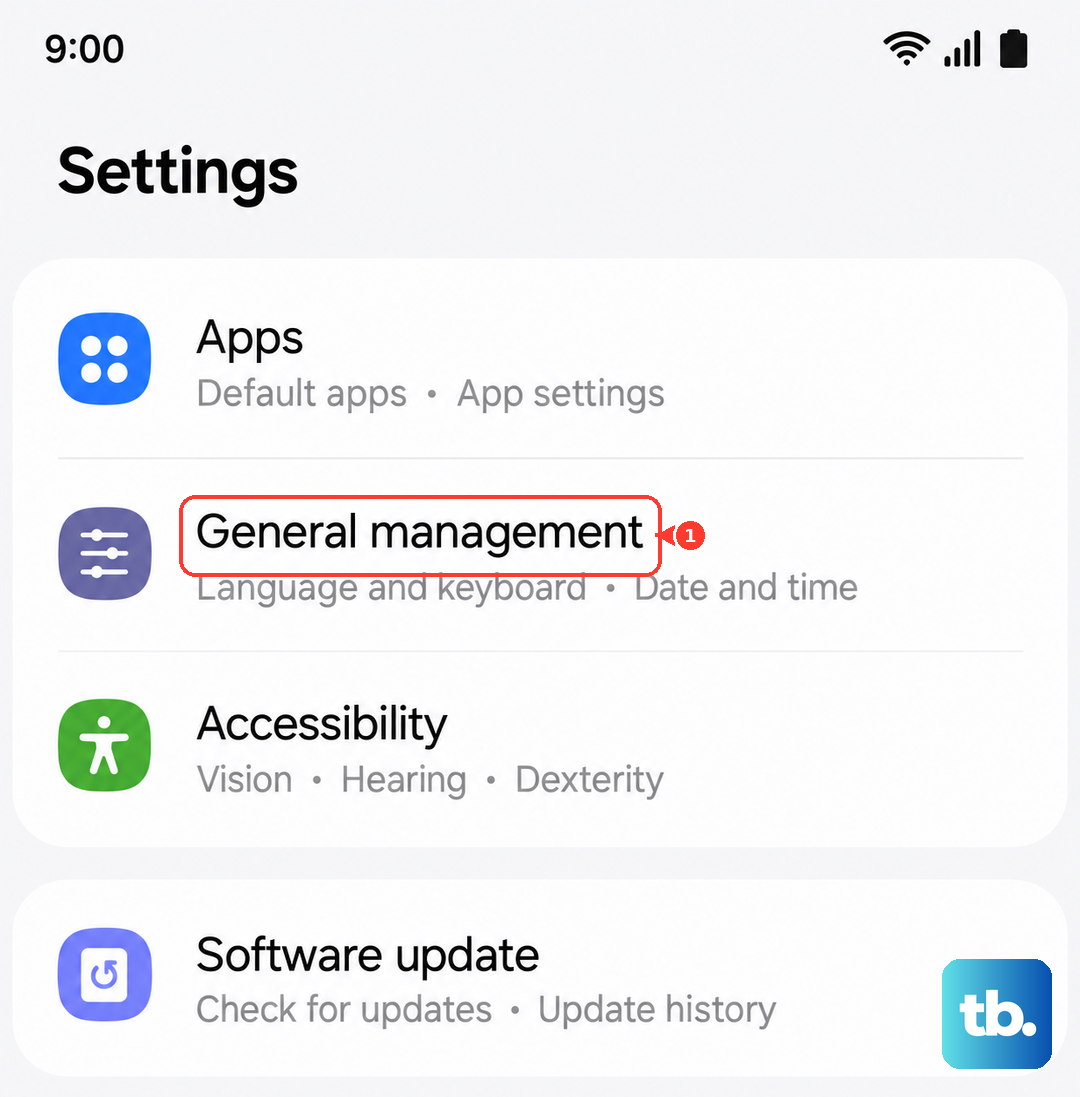
This often resolves persistent calling issues related to a corrupted network profile, especially after a major software update like the move to Android 16 and One UI 8.5.
Examine Your SIM Card
A loose, dirty, or faulty SIM card can directly cause call reception problems. First, power off your S26+ completely. Then, use the SIM ejector tool that came in the box to pop out the SIM tray.
Carefully remove the SIM card, give the gold contacts a gentle wipe with a soft, dry cloth, and re-seat it firmly in the tray. Push the tray back in until it clicks. Power your phone back on and see if the issue is resolved.
If you have access to another compatible phone, you can test your SIM card in it. If calls work fine in the other device, the problem is likely with your S26+'s software or settings.
Update Your Software
Since the Galaxy S26+ is a new device, Samsung is actively releasing updates to squash bugs in One UI 8.5. An early software glitch is a very plausible reason for call problems.
Navigate to Settings > Software update > Download and install. If an update is available, connect to Wi-Fi and let it install. These updates frequently include stability improvements and patches for network-related issues reported by early users.
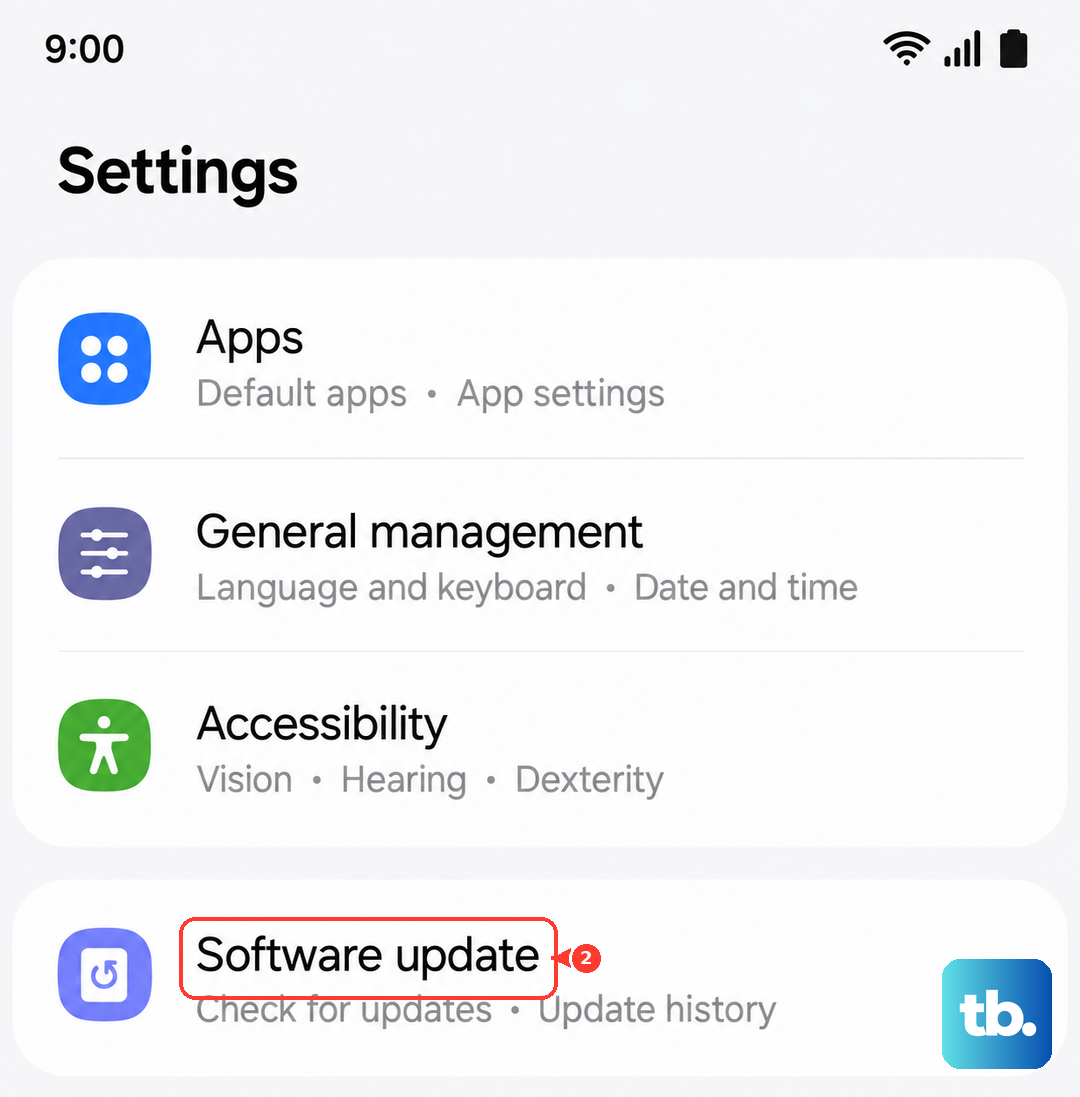
Make sure you're periodically checking for updates, as Samsung often rolls them out in stages rather than notifying everyone at once.
Clear the Phone App's Cache and Data
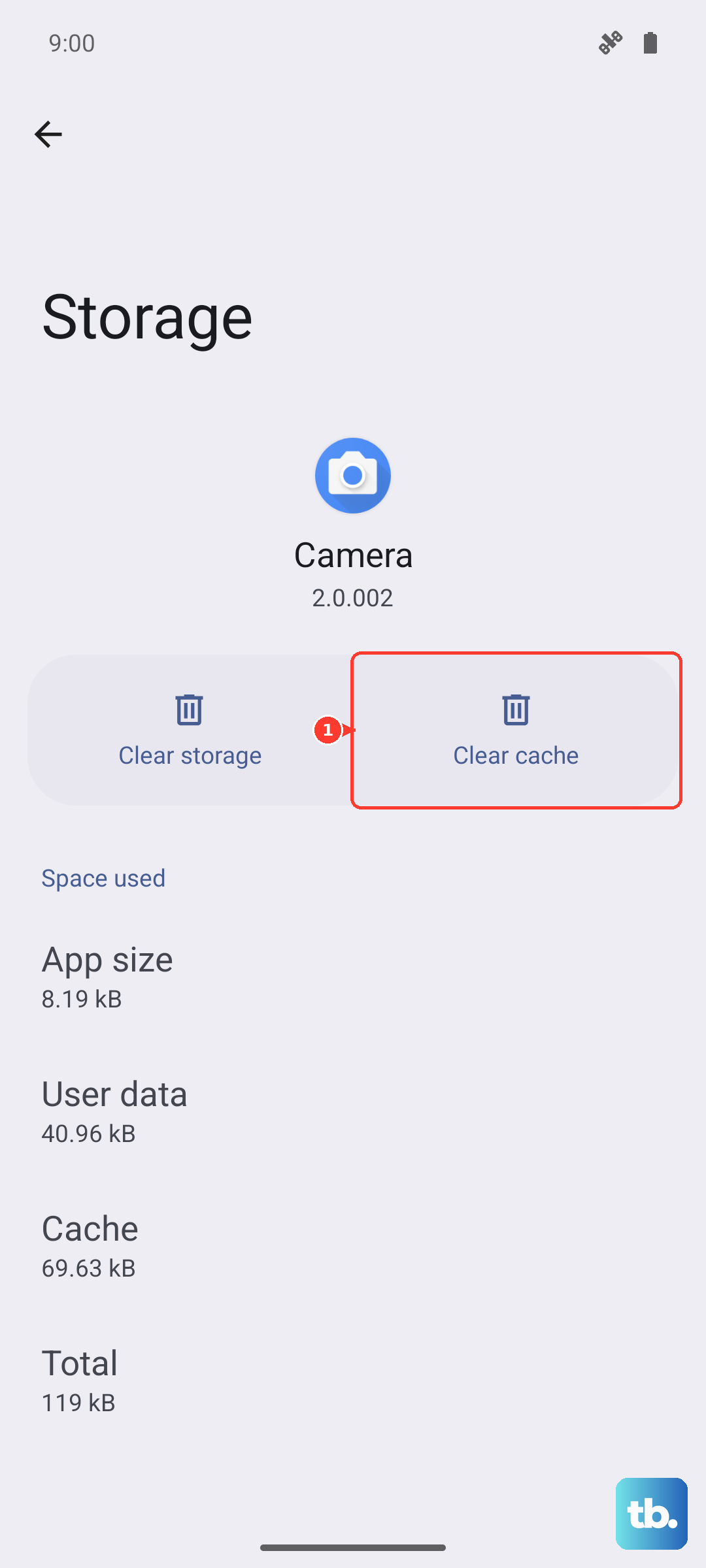
The Phone app itself can accumulate corrupted temporary files. Clearing this cache is safe and won't delete your call history or contacts. Go to Settings > Apps, then find and tap on "Phone" in the list.
Tap Storage > Clear cache. If the problem persists, you can go back and tap "Clear data." Be aware that clearing data will reset the Phone app's settings to default, so you may need to re-configure any custom call screening or blocking rules you had set up.
Check for Problematic Third-Party Apps
An app with broad permissions, especially one that manages calls or contacts, could be interfering. Think about any apps you installed around the time the problem started, like dialer alternatives, call recorders, or powerful task automation tools.
Try booting your S26+ into Safe Mode. Press and hold the power button until the power menu appears, then tap and hold the "Power off" icon until you see the Safe Mode prompt. This temporarily disables all downloaded apps.
If you can make and receive calls normally in Safe Mode, a third-party app is the culprit. Start by uninstalling your most recently downloaded apps one by one until the problem goes away.
Perform a Factory Reset
This is your last resort before contacting support, as it will erase everything on your phone. Before you begin, it's absolutely critical to back up all your data using Samsung Cloud or by transferring files to a computer.
Once backed up, go to Settings > General management > Reset > Factory data reset. Scroll down and tap "Reset." After the process completes, set up your phone as new initially to test calling functionality.
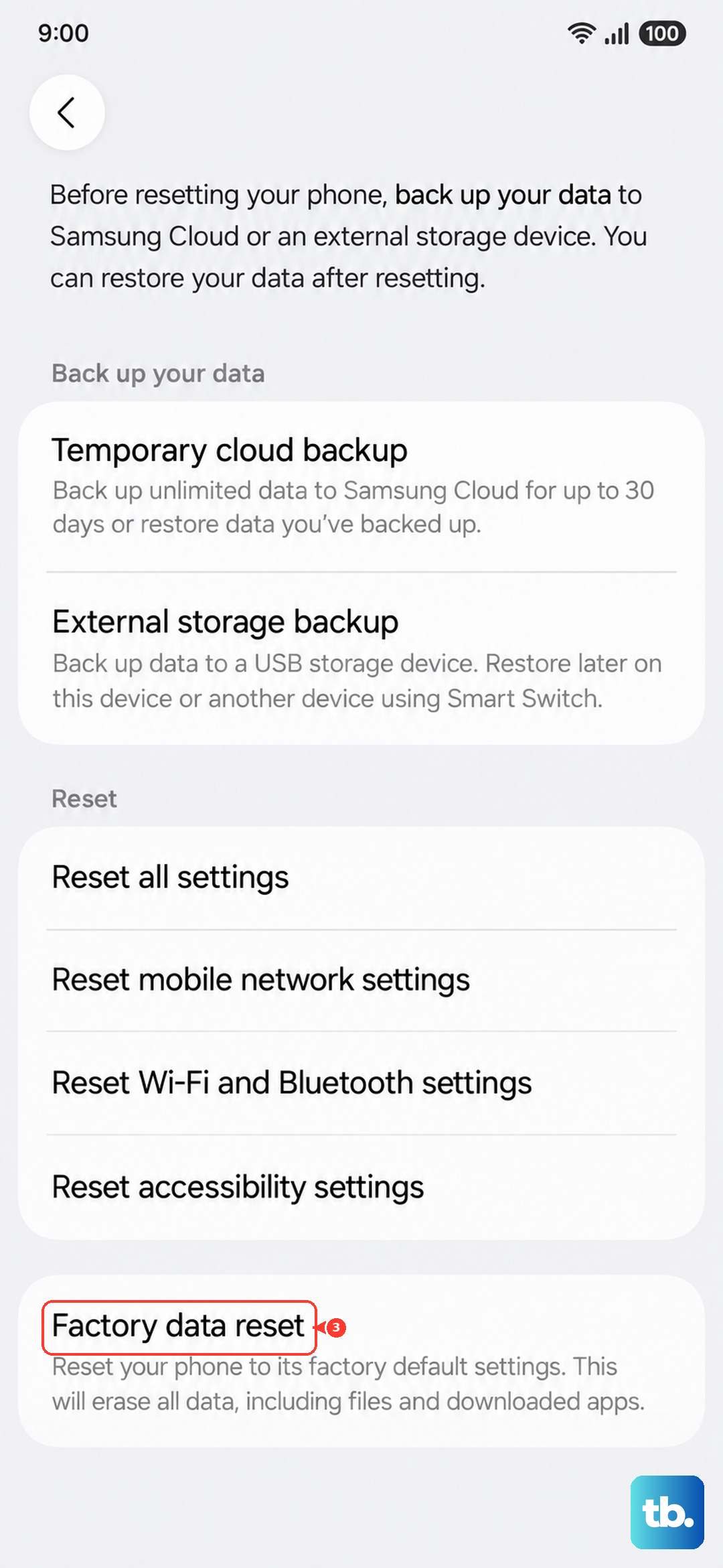
If calls work on a fresh setup, the issue was with your previous software configuration. You can then choose to restore your backup, but be mindful that you could be restoring the problematic setting or data.