
When the predictive text on your Samsung Galaxy S26 starts suggesting nonsense or stops working entirely, it can really slow you down. This is a common software hiccup, especially with a brand new device like the S26 running the latest One UI 8.5. The good news is, you can almost always fix it yourself with a few quick adjustments.
Toggle Predictive Text Off and On
This is the quickest fix and often the most effective. It's like giving the feature a quick refresh. Pull down the notification shade and tap the settings gear icon. From there, go to General Management > Language & Input > On-Screen Keyboard.
Tap on Samsung Keyboard. Now, tap Smart typing and find the Predictive text switch. Turn it off, wait a second, and then turn it back on. I'd try typing a sentence right after to see if the suggestions have improved.
Clear the Keyboard's Cache
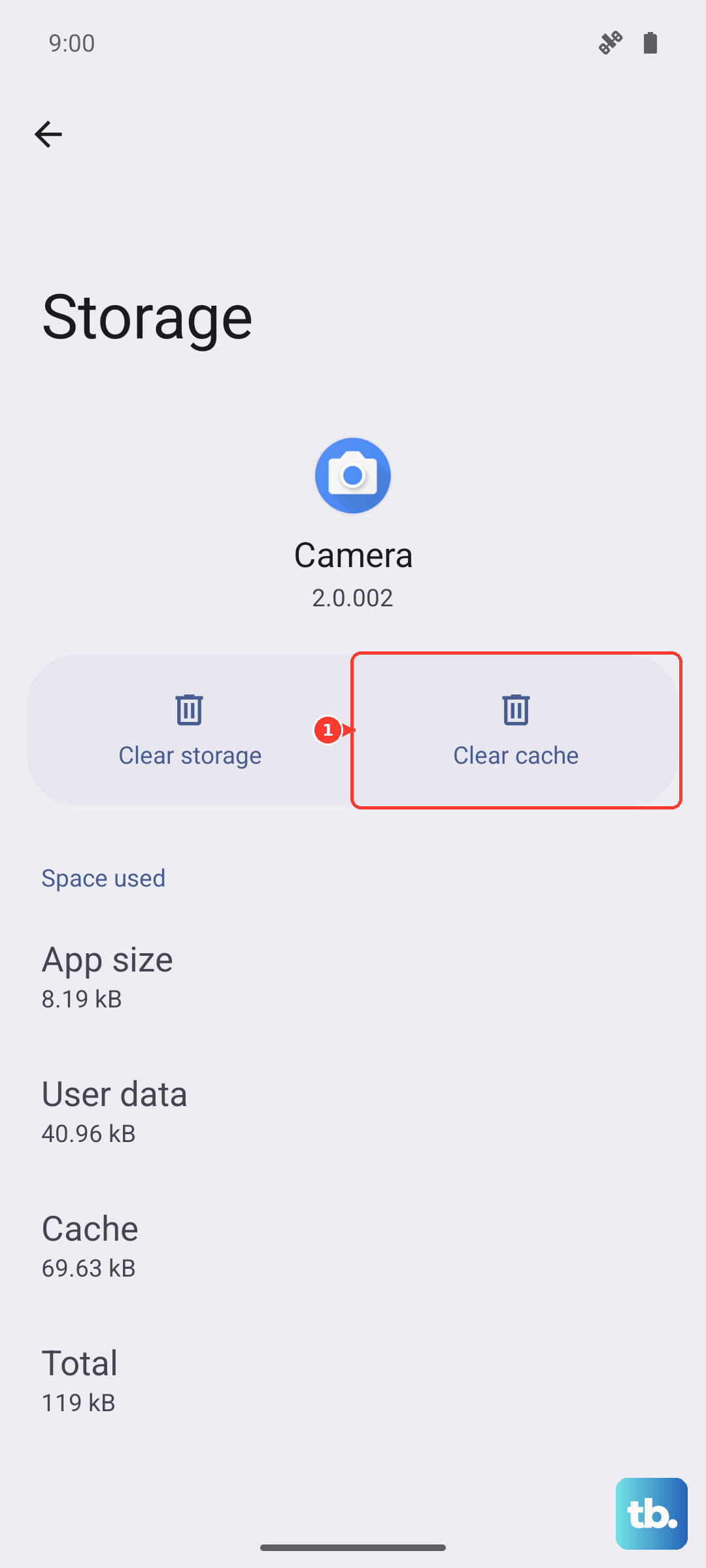
Your keyboard stores temporary data to run faster, but this cache can get corrupted. Clearing it forces the app to rebuild this data from scratch. Head back to Settings and tap Apps.
You might need to tap the three-dot menu in the top right and select Show system apps to find it. Scroll down and tap on Samsung Keyboard. Tap Storage, then tap Clear Cache. This won't delete any of your personal settings or saved words.
Check Your Keyboard Language Settings
If your phone's system language is set to English (US) but your keyboard is set to English (UK), the predictions can get confused. Go to Settings > General Management > Language & Input > On-Screen Keyboard > Samsung Keyboard.
Tap Languages and types. Make sure the language listed here matches your primary system language. You can also tap Manage input languages, tap the three-dot menu, and select Check for an update to download the latest language model.
Update the Samsung Keyboard App
Since the Galaxy S26 is so new, Samsung is likely pushing frequent updates to the keyboard app to iron out bugs. Open the Google Play Store and tap your profile icon in the top right. Go to Manage apps & device and look under "Updates available."
If you see Samsung Keyboard listed, tap update. You can also search for "Samsung Keyboard" directly in the Play Store to check its page for an update button. An update often resolves prediction issues introduced with a new OS version.
Reset the Keyboard to Default Settings
If predictions are still wrong, a deeper reset can help. This will erase your personalized keyboard settings, like your saved words and layout preferences, so it's a more significant step. Navigate to Settings > General Management > Language & Input > On-Screen Keyboard > Samsung Keyboard.
Scroll all the way to the bottom and tap Reset to default settings. Confirm your choice. After the reset, you'll need to go back into the Smart typing menu and re-enable Predictive text, as it sometimes turns off after a reset.
Check for a Full System Update
Early software bugs are a known possibility with the S26's One UI 8.5. A broader system update from Samsung can contain fixes for the keyboard and other system components. Go to Settings > Software update and tap Download and install.
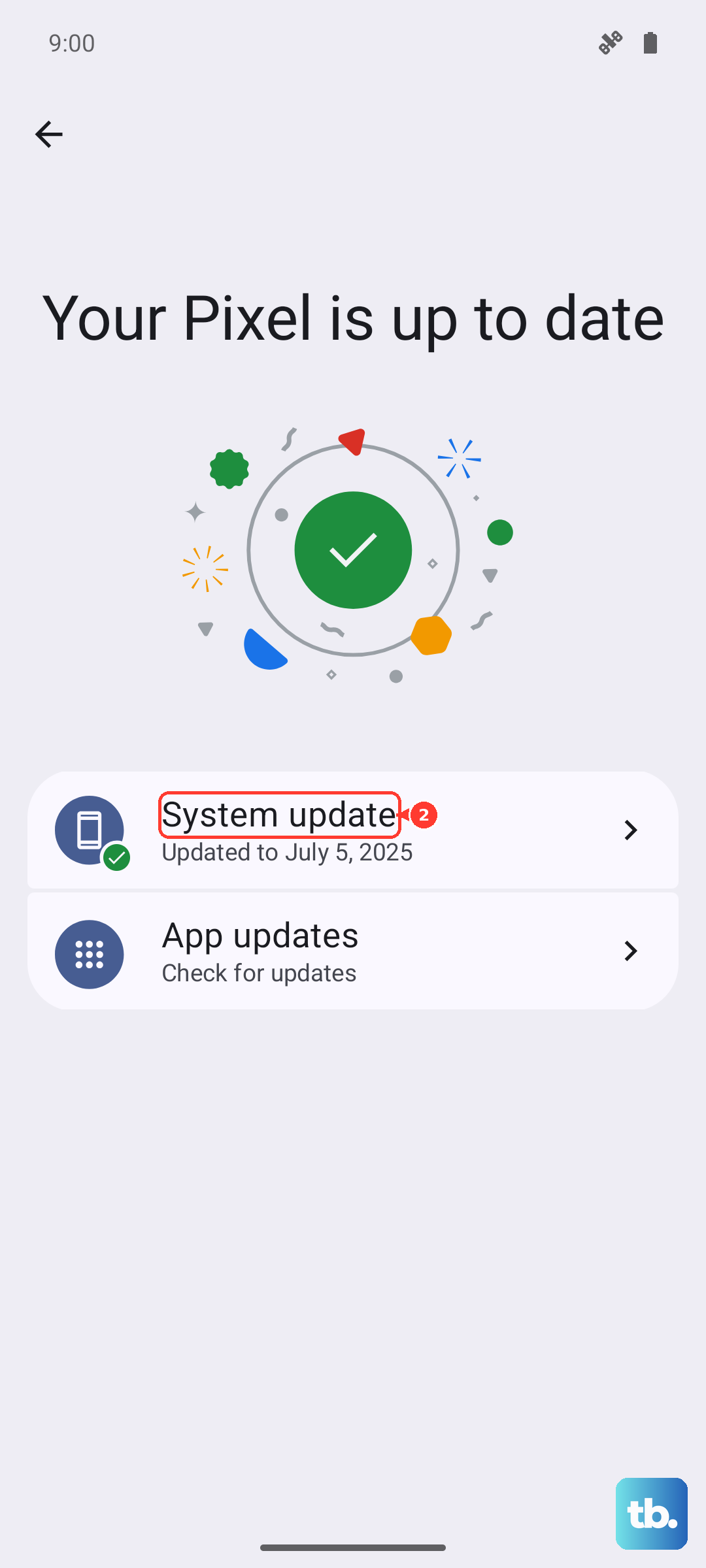
Let it check for updates. If one is available, it's a good idea to install it while connected to Wi-Fi. After the update completes, give your phone a fresh restart by holding the Volume Down and Side key together for about 10 seconds. This can clear up lingering glitches.