
When your Galaxy S23's keyboard starts suggesting bizarre words or stops predicting altogether, it can slow you down to a crawl. The issue usually stems from corrupted data in the keyboard app or a minor software hiccup. Let's jump straight into the quickest fix that works for most people.
Head to your phone's Settings, then go to General Management > Language & input > On-screen keyboard > Samsung Keyboard. Tap on Smart typing and toggle the Predictive text switch off, wait a second, and then turn it back on. This simple refresh often gets predictions working again immediately.
Clear the Keyboard's Cache and Data
If toggling didn't help, the next step is to clear out the temporary files the keyboard stores. Go to Settings > Apps. Tap the three-dot menu in the top right and select Show system apps. Find and select Samsung Keyboard.
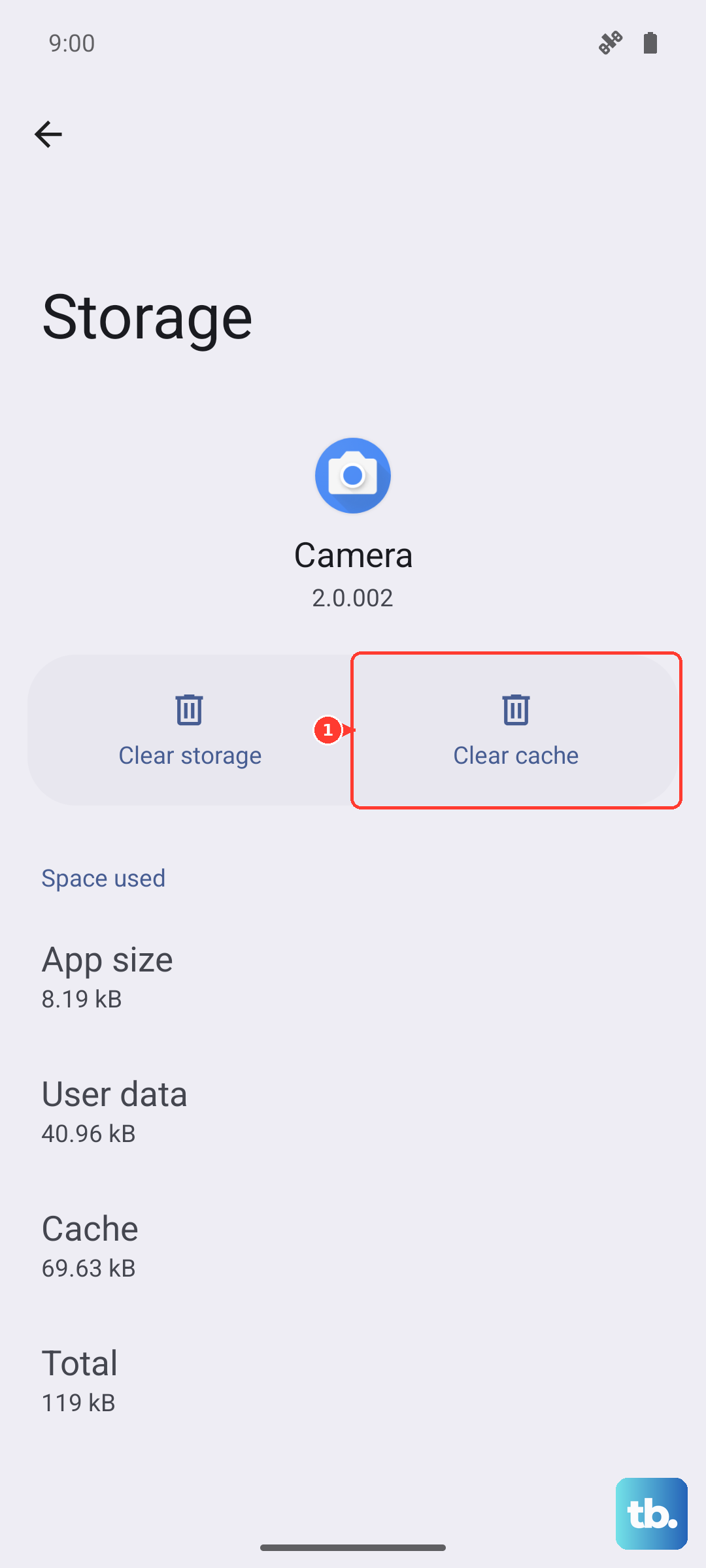
Tap on Storage and then hit Clear Cache. This removes temporary junk without affecting your personal settings. If the predictions are still wrong, come back to this same menu and tap Clear Data. Be aware, this will reset the keyboard to its default state and erase any custom words you've saved.
Update Everything on Your Phone
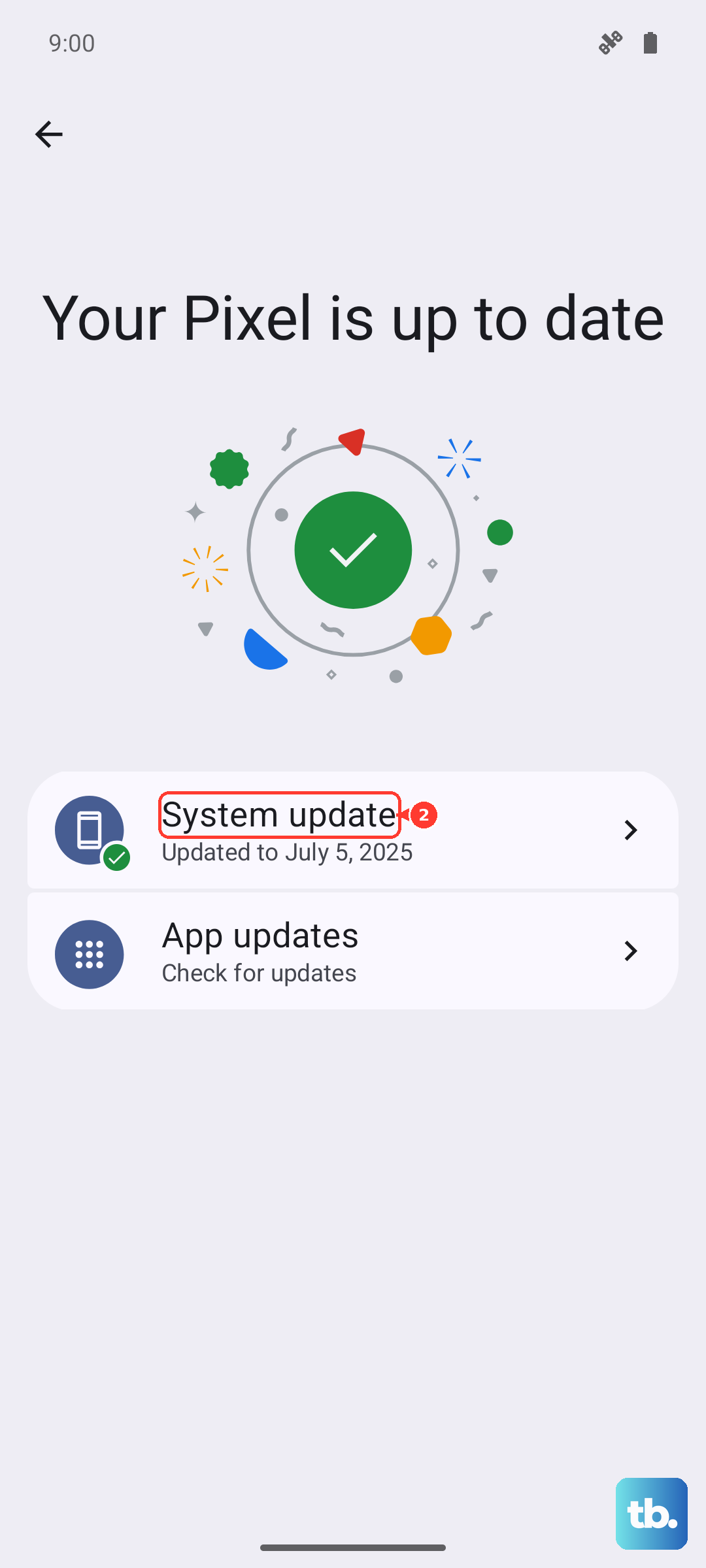
Outdated software is a common culprit, especially with the move to One UI 6 and Android 14. Samsung has released updates that specifically address various bugs. First, check for a full system update by going to Settings > Software update > Download and install.
Next, make sure the keyboard app itself is current. Open the Google Play Store, tap your profile icon, and go to Manage apps & device. Look for "Samsung Keyboard" in the updates list. Finally, update your language pack within the keyboard settings under Languages and types > Manage input languages.
Perform a Force Restart
A simple restart can clear out a temporary glitch that's affecting the keyboard service. For a more thorough refresh, use the force restart method. Press and hold the Volume Down button and the Side (power) button together for about 10 seconds.
You'll see the Samsung logo appear as the phone reboots. This is different from a normal restart as it fully clears the device's active memory. Once it's back on, try using the keyboard to see if predictions have improved.
Boot Into Safe Mode
If the problem started after installing a new app, a third-party app could be interfering. Booting into Safe Mode temporarily disables all apps you downloaded. To enter Safe Mode, press and hold the Side button until the power menu appears.
Then, tap and hold the "Power off" option on your screen. You'll get a prompt to reboot into Safe Mode. Tap it. If the keyboard works perfectly in Safe Mode, you know a downloaded app is the cause. You'll need to uninstall recent apps one by one to find the offender.
Reset the Keyboard to Default Settings
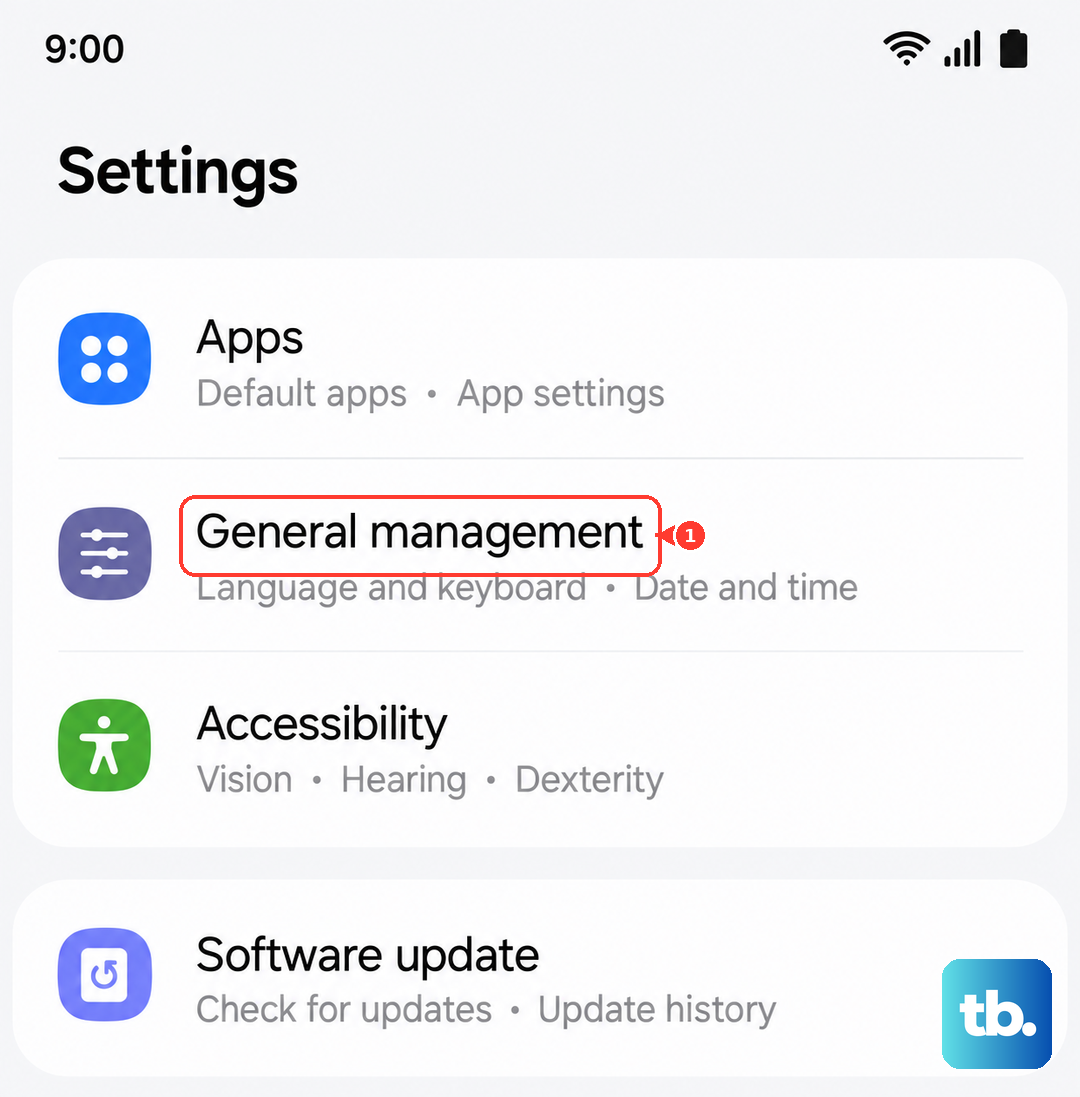
If you've tweaked a lot of settings, something might have gotten misconfigured. Resetting the keyboard wipes all your preferences clean. Go to Settings > General Management > Language & input > On-screen keyboard > Samsung Keyboard.
Scroll down and tap Reset settings. Confirm your choice. This will revert your keyboard layout, theme, and all typing preferences back to how they were when you first got the phone. You'll have to re-enable features like swipe typing, but it often resolves persistent prediction errors.