
When your Samsung Galaxy S26 Ultra stops syncing email, it's more than an annoyance. Missing important messages or being unable to send replies can halt your day. Since this is a brand new device running One UI 8.5, early software bugs are a possibility, but most sync problems have a simple fix.
Before we get into the specific steps, let's cover a few quick checks. Make sure you have a solid internet connection, either via Wi-Fi or 5G. It's also worth checking your email provider's status page online to rule out a widespread service outage. Finally, double-check that you're using the correct email address and password.
Restart the Email App
This is often the fastest fix for a temporary glitch. Close the Samsung Email app completely and relaunch it. Swipe up from the bottom of your screen and hold to enter the recent apps view. Find the Email app and swipe it all the way up off the screen. Wait a moment, then tap the app icon to open it fresh.
Check Your Sync and Fetch Settings
Your S26 Ultra controls how often it checks for new emails. If these settings are too conservative, you might not see messages in real-time. Open the Samsung Email app, tap the three-line menu icon, and go to Settings. Select your email account, then tap Sync settings.
Here, make sure "Sync Email" is turned on. You can also adjust the "Sync schedule." For the most frequent updates, choose "Push" if your provider supports it. Otherwise, set it to "Every 15 minutes" or "Automatically." I've found the "Automatically" setting on One UI is usually the most reliable for balancing battery life and timely updates.
Toggle Airplane Mode
A quick network reset can clear up transient connection issues that block email sync. Swipe down twice from the top of your screen to open the full Quick Settings panel. Tap the Airplane mode icon to turn it on. Wait about 15 seconds, then tap it again to turn it off. Your phone will reconnect to cellular and Wi-Fi networks.
Switch Between Wi-Fi and Mobile Data
Sometimes the problem is with one specific network. If you're on Wi-Fi and emails aren't syncing, try turning Wi-Fi off to force the phone to use your mobile data. You can do this from the Quick Settings panel. If sync starts working on mobile data, you know the issue is with your Wi-Fi network, and you may need to restart your router.
Verify Background Data Permissions
The Email app needs permission to use data in the background. Go to Settings > Apps, then find and tap "Email." Select Mobile data and ensure "Allow background data usage" is enabled. Also, go back and check Battery settings within the app info. Make sure it's not set to "Restricted," which would prevent background syncing.
Update the Email App and One UI
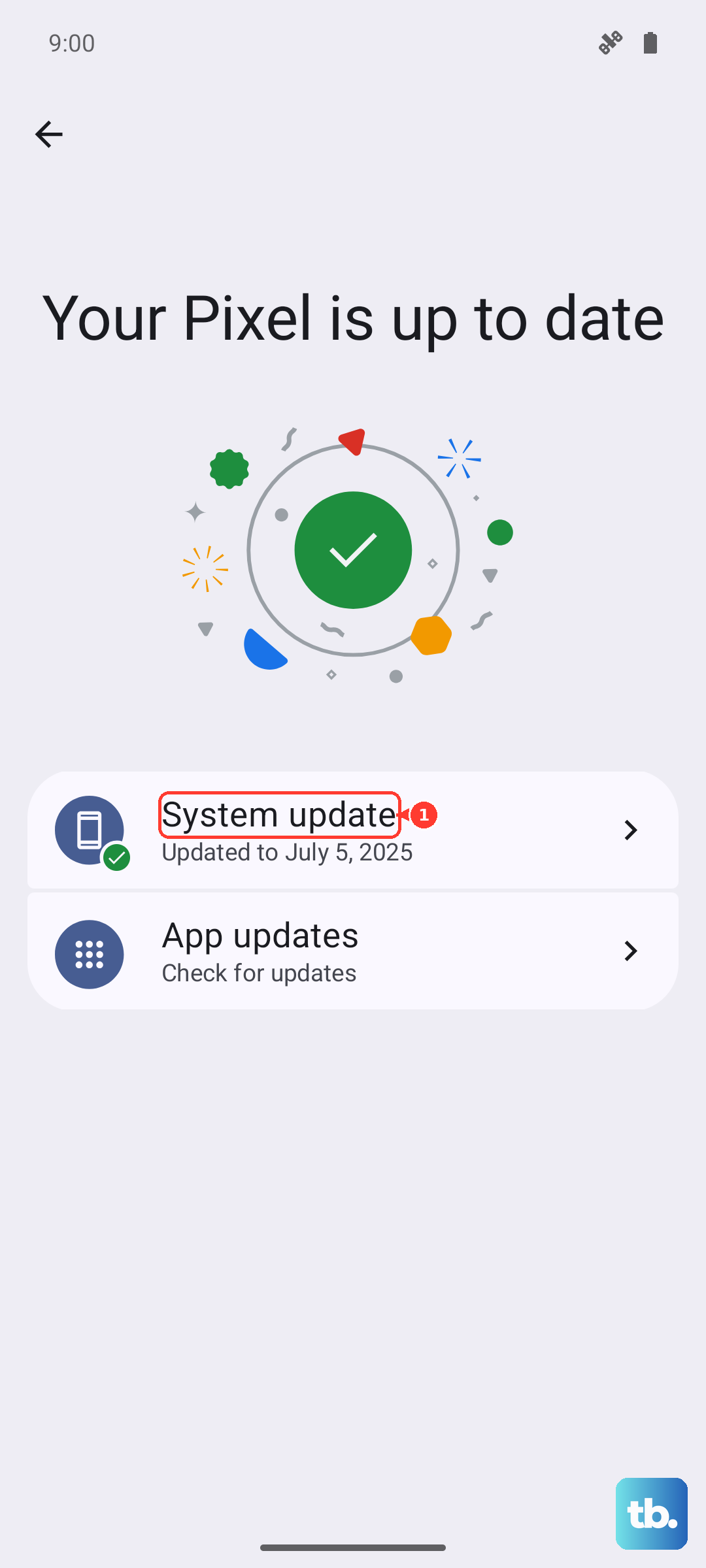
Since the S26 Ultra is new, Samsung is likely pushing out app and system updates to fix bugs. Open the Galaxy Store and check for updates to the Samsung Email app. More importantly, go to Settings > Software update and tap "Download and install." An update to One UI 8.5 or Android 16 could resolve the underlying sync issue.
Re-add Your Email Account
This refreshes the connection between your phone and the email server, which often solves persistent sync failures. Open the Email app, go to Settings, select your problematic account, and tap "Remove account." Confirm the removal, then go through the setup process again from scratch. Be precise when entering your password.
Check for a VPN Interference
If you use a VPN for privacy or work, it can sometimes interfere with email protocols. Try temporarily disabling your VPN. Go to Settings > Connections > More connection settings > VPN. If a VPN profile is connected, tap on it and select "Disconnect." Test your email sync without the VPN active.
Disable Battery Optimization for Email
Android's battery optimization is aggressive and can sometimes stop apps from syncing in the background. Navigate to Settings > Apps, select "Email," and then tap Battery. If the app is set to "Optimized," change it to "Unrestricted." This tells your S26 Ultra to let the Email app run normally in the background.
Clear the Email App's Cache
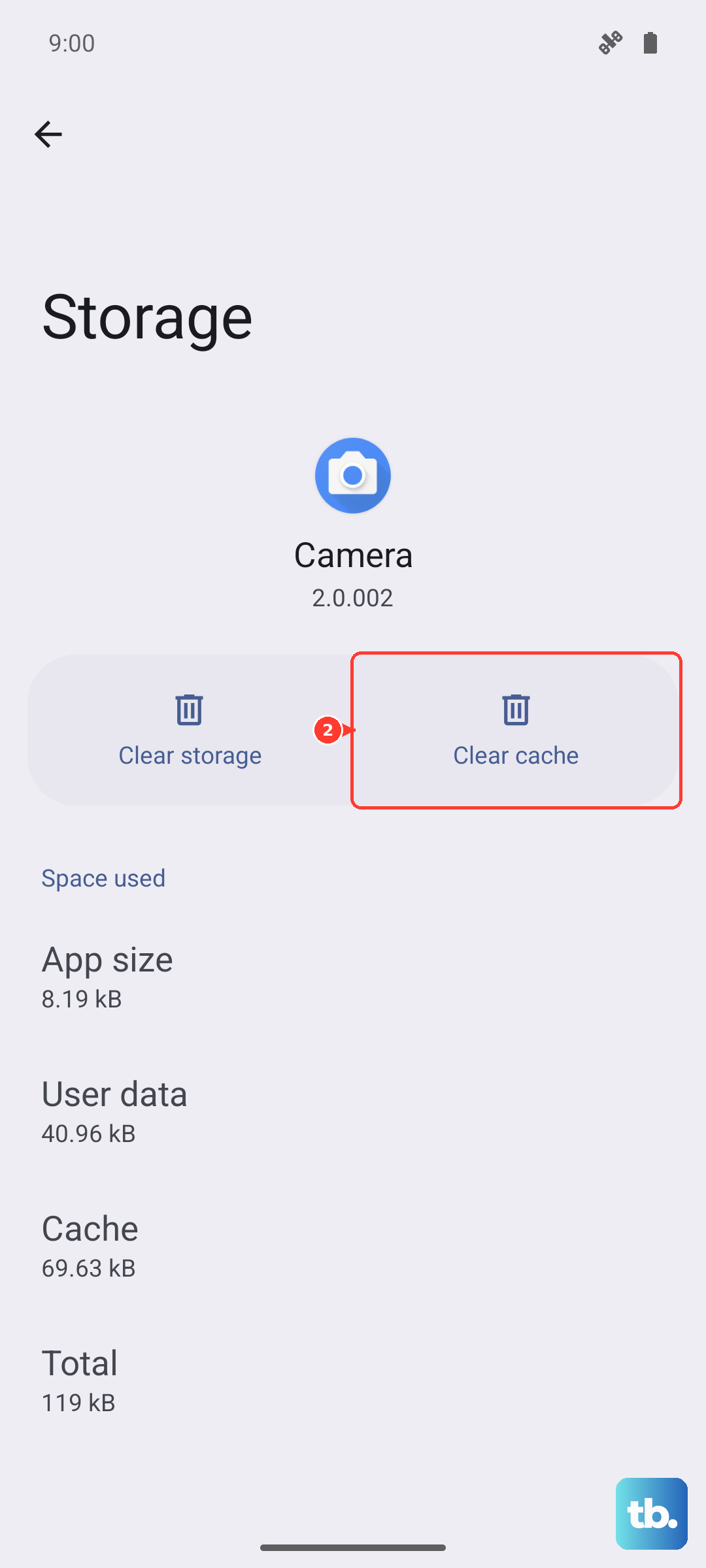
Corrupted cached data can cause all sorts of app misbehavior. Clearing it is safe and won't delete your emails or accounts. Go to Settings > Apps, find "Email," and tap on it. Select Storage, then tap "Clear cache." Do not tap "Clear data" unless you're prepared to set up your accounts again.
Ensure Automatic Date and Time is On
Incorrect date and time settings can break secure connections to email servers. Your phone needs to be synchronized. Go to Settings > General management > Date and time. Make sure "Automatic date and time" is switched on. This uses your network's time, which is essential for proper communication with email services.
Review Your Notification Settings
If emails are actually arriving but you're not being alerted, the issue is with notifications, not sync. Go to Settings > Notifications > App notifications. Find and select "Email." Ensure notifications are turned on for this app. You can also tap "Notification categories" to make sure alerts are enabled for new messages specifically.
Perform a Force Restart
A soft reset can clear out system-level glitches that a simple app restart can't fix. Press and hold the Volume Down button and the Side/Power button simultaneously for about 10 seconds. Release when you see the Samsung logo appear on the screen. This is different from a standard power off and on.
Reset All Network Settings
This is a more thorough step if network issues are suspected. It will reset Wi-Fi, mobile data, and Bluetooth connections without deleting your personal data. Go to Settings > General management > Reset. Tap "Reset network settings" and confirm. You'll need to re-enter Wi-Fi passwords afterward, but it can resolve deep-seated connection problems affecting email.