When your Samsung Galaxy S26+ volume buttons stop responding, you press them and nothing happens. There's no click, no volume change on the screen, and it feels like the phone is ignoring you. I've seen this happen a lot with new devices, and since the S26+ is fresh with One UI 8.5, a software hiccup is a strong possibility. The good news is you can almost always fix this without a trip to the repair shop.
Let's start with the quickest fix that works for many people.
Perform a Force Restart
A force restart clears out any temporary software glitches that might be freezing your buttons. This is my go-to first step because it takes ten seconds and doesn't delete any of your photos or messages. On the S26+, you press and hold the Volume Down button and the Side/Power button together for about ten seconds.
Keep holding them until you see the Samsung logo appear on the screen, then let go. Once the phone boots back up, try the volume buttons immediately. If they were stuck due to a software freeze, this usually wakes them right up.
Check Your Phone Case
It sounds too simple, but a case is often the culprit. Take your S26+ out of its case completely. Some cases, especially rigid ones or those that have gotten a little warped, can press against the buttons just enough to keep them from moving properly.
With the case off, press the volume rocker a few times. Feel for the distinct click. If they work now, you know the case was blocking them. You might need a different case, or you can check if the current one has any debris trapped inside it near the button cutouts.
Clean the Volume Rocker
Dust and pocket lint love to cram themselves into the tiny gap around the volume buttons. Over time, this gunk can build up and physically stop the button from being pressed. Grab a can of compressed air and give the area around the volume rocker a few short bursts.
Hold the phone at an angle so the debris blows out, not further in. For any sticky residue, you can dip a cotton swab in a tiny amount of isopropyl alcohol (90% or higher is best), wring it out so it's just damp, and gently clean around the button's edge. Let it dry for a minute before testing the buttons again.
Update Your Software
Since the Galaxy S26+ runs the new One UI 8.5, there could be an early bug affecting the button drivers. Samsung is usually quick to patch these things. Go to Settings > Software update and tap Download and install.
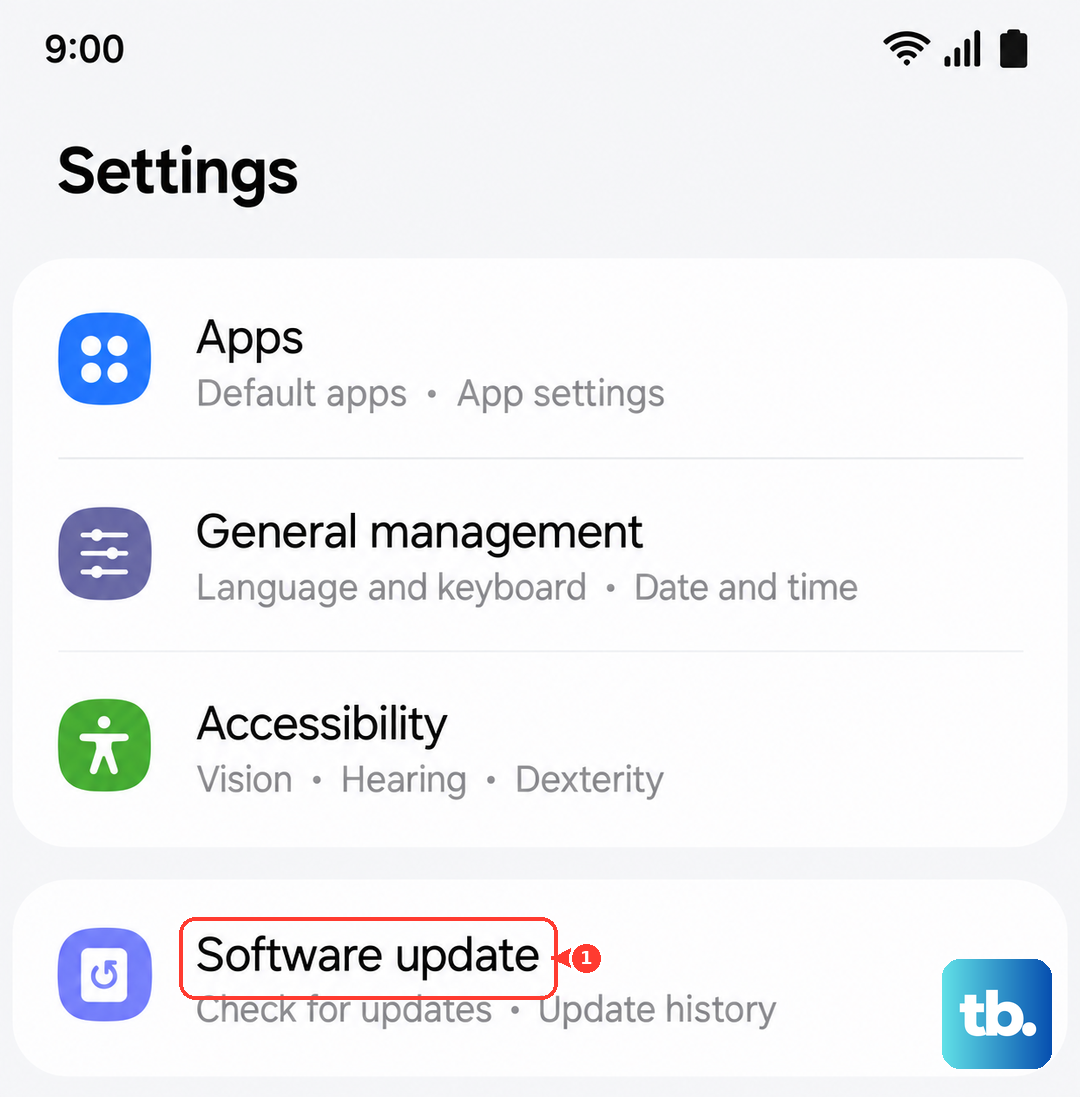
Make sure you're connected to Wi-Fi and, if possible, plug in your charger. Installing the latest patch can resolve a surprising number of weird glitches, including unresponsive hardware. After the update completes, check if your volume buttons have come back to life.
Test in Safe Mode
If a recently downloaded app is causing a conflict, it could interfere with basic functions like the volume buttons. Booting into Safe Mode temporarily disables all third-party apps. To enter Safe Mode on the S26+, press and hold the Side/Power button until the power menu appears.
Then, tap and hold the "Power off" option on your screen. You'll see a prompt to reboot to Safe Mode; tap it. Once the phone restarts, you'll see "Safe mode" in the bottom corner. Try your volume buttons now. If they work perfectly in Safe Mode, you know a downloaded app is the problem.
You'll need to restart your phone normally to exit Safe Mode. Then, think about any apps you installed just before the problem started and try uninstalling them one by one.
Check Accessibility and Sound Settings
Some accessibility features can remap or change how buttons behave. It's worth a quick look to make sure nothing is turned on by accident. Head to Settings > Accessibility > Interaction and dexterity.
Look for any options like "Assistant menu" or other button customization settings and ensure they're turned off. Also, go to Settings > Sounds and vibration. While you're there, try adjusting the volume sliders on the screen to make sure the phone's audio system itself is working.
Try the Buttons in Different Apps
Sometimes the issue isn't with the buttons, but with a specific app. Open your Samsung Music app or YouTube and try to adjust the volume while media is playing. Then, try it while on a call or while the phone is just on the home screen.
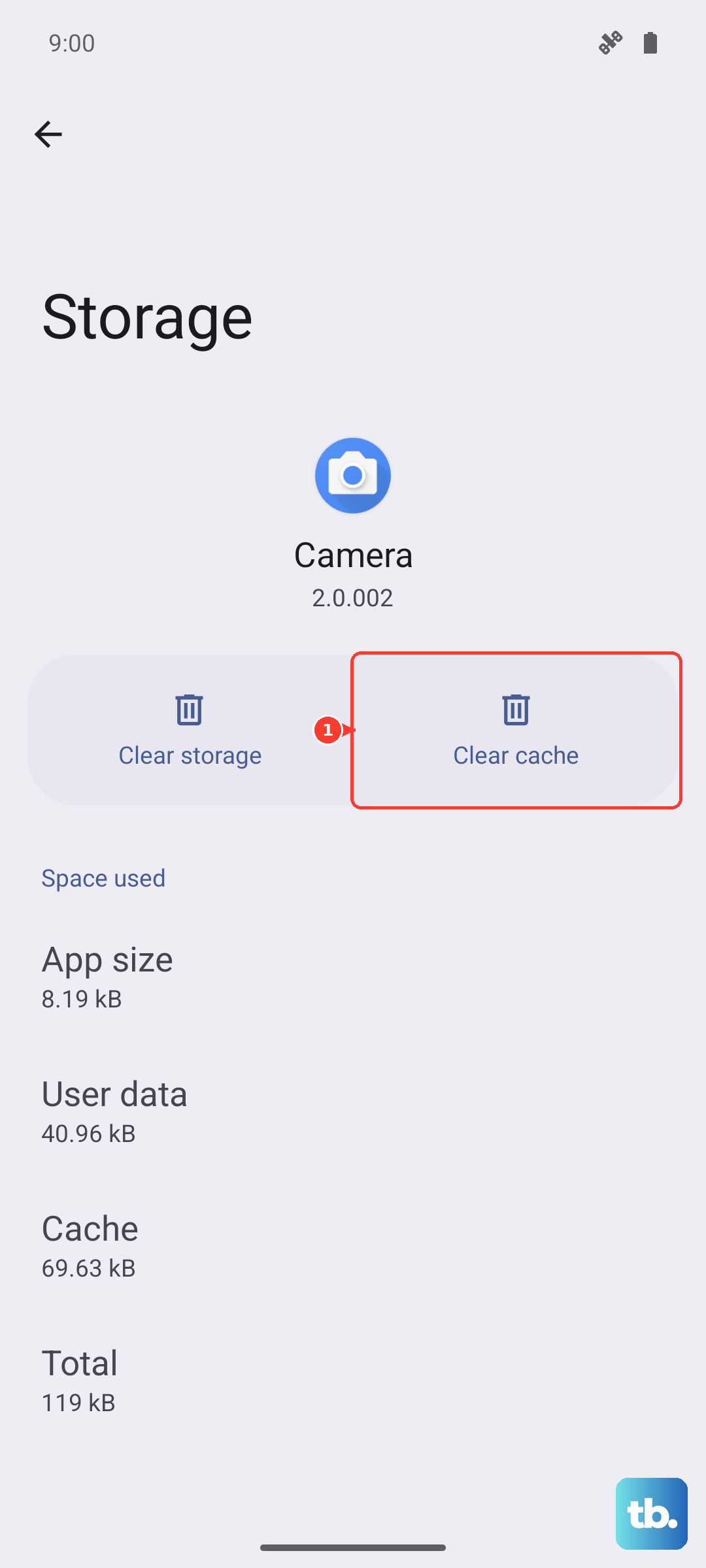
If the buttons work in one app but not another, the problem is isolated to that app. Try clearing that app's cache (go to Settings > Apps, select the app, then Storage > Clear cache) or checking for its own updates in the Galaxy Store or Play Store.
Reset All Settings
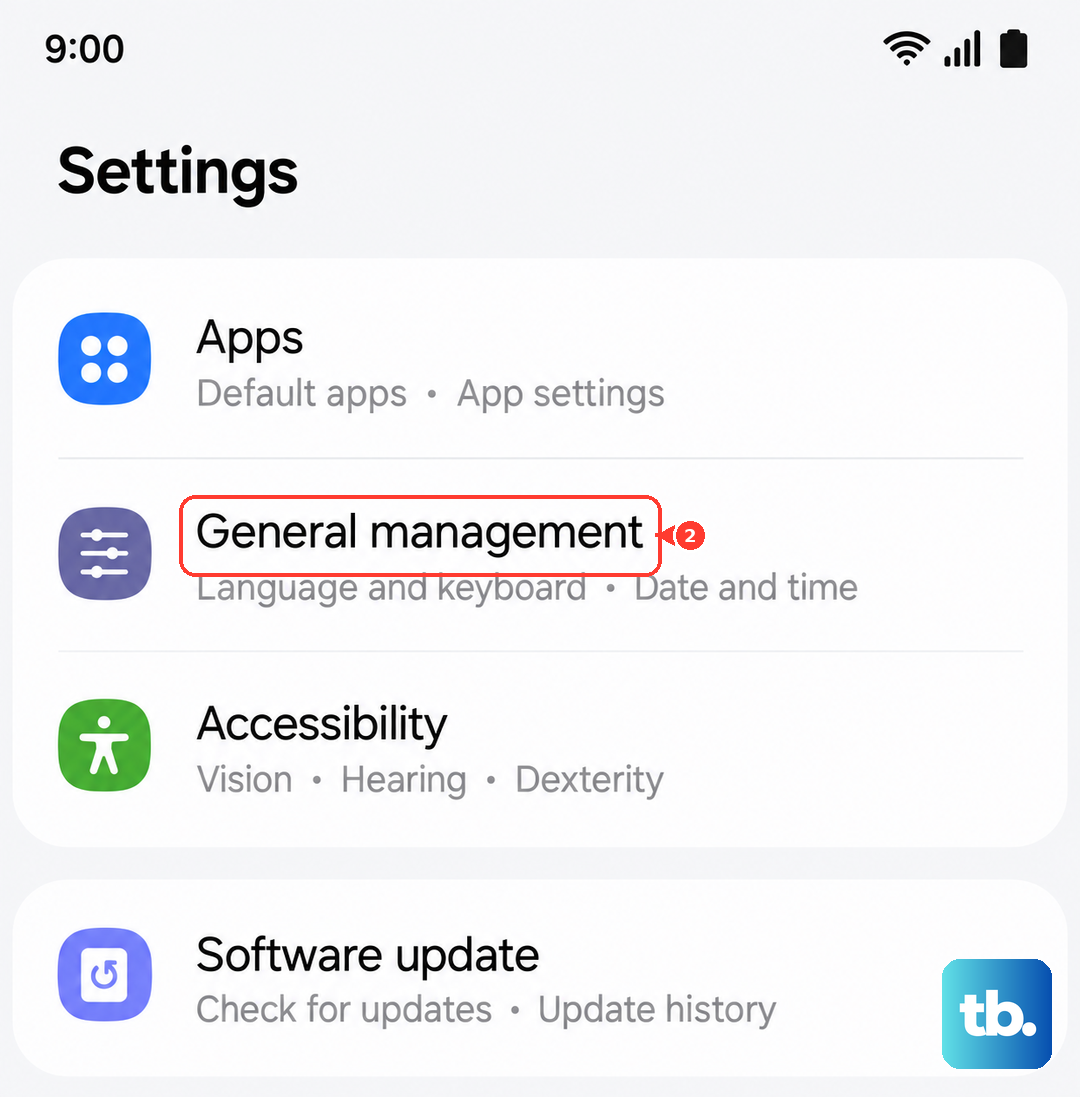
This is a more thorough step than a force restart but less drastic than a full factory reset. It will revert all your system settings, like Wi-Fi passwords, Bluetooth pairings, and display preferences, back to default, but it won't touch your personal files or apps.
Go to Settings > General management > Reset > Reset all settings. Enter your PIN if prompted and confirm. After the phone reboots, you'll need to reconfigure your settings, but this can clear out any corrupted configuration that was stopping the buttons from working.