Seeing a "Not registered on network" message on your Samsung Galaxy S26+ is a total roadblock. You can't make calls, send texts, or use mobile data. This error means your phone's unique identifier, the IMEI, isn't being recognized properly by your carrier's towers. Before you worry about hardware, start with the simplest fix.
Grab your phone and press and hold the Volume Down button and the Side/Power button together for about 10 seconds. Keep holding until you see the Samsung logo appear on the screen. This force restart can clear out temporary software glitches that are preventing a proper network handshake. It's the quickest thing to try and often works.
Toggle Airplane Mode On and Off
Swipe down twice from the top of your screen to open the full Quick Settings panel. Look for the Airplane Mode icon and tap it to turn it on. Wait for about 15 seconds, then tap it again to turn it off. This cycle forces your phone's cellular radio to disconnect and then reconnect to the network from scratch. It's a faster version of a restart that specifically targets wireless connections.
Check and Reseat Your SIM Card
Power your S26+ off completely. Use the SIM ejector tool that came in the box to pop open the SIM tray on the bottom edge. Carefully remove the SIM card and take a look at the gold contacts. If you see any dust or debris, gently wipe the contacts with a soft, dry cloth. Blow a quick breath into the SIM tray slot to clear it out, then firmly reseat the card and push the tray back in. Power the phone on and see if it registers.
Verify Your Carrier Account Status
Sometimes the issue isn't your phone at all. An unpaid bill, an expired prepaid plan, or a carrier-side service suspension will show the exact same error. I'd recommend using another device to log into your carrier's website or app. Check that your account is active and in good standing. You can also try calling customer service from a different phone to confirm there are no outages in your area.
Reset Your Network Settings
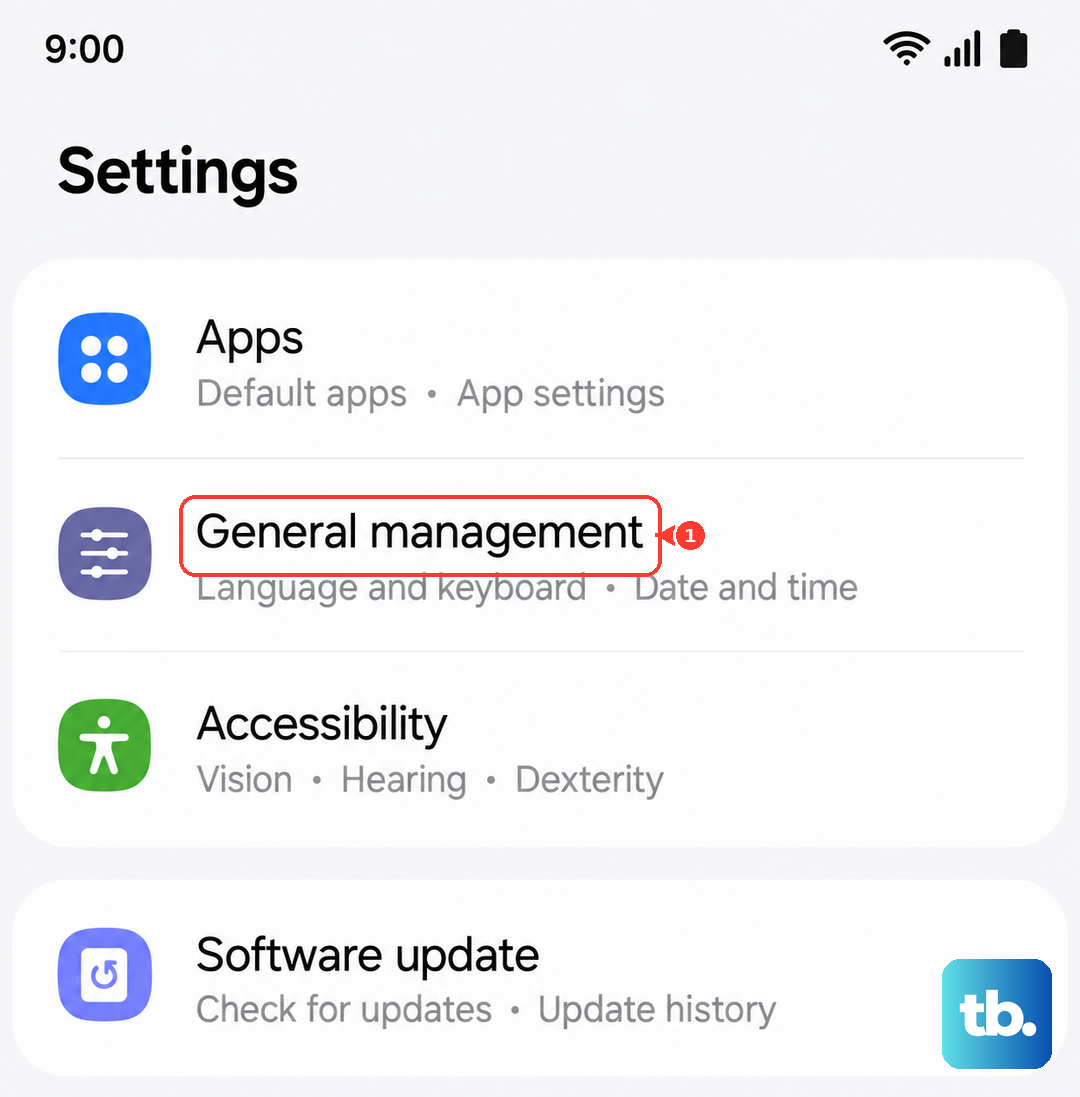
This step clears all your saved Wi-Fi networks, Bluetooth pairings, and cellular configurations. It's a clean slate for connectivity. Go to Settings > General management > Reset > Reset network settings. Tap to confirm and enter your PIN if prompted. Your phone will restart. After it boots up, you'll need to reconnect to Wi-Fi and re-pair Bluetooth devices, but it often resolves persistent network registration bugs.
Manually Select Your Network Operator
Your phone might be stuck trying to register with a specific network band that's having issues. You can manually choose your carrier. Head to Settings > Connections > Mobile networks > Network operators. Tap "Search networks" and wait for the list to populate. Select your carrier's name from the list. This bypasses the automatic selection process and can force a successful registration.
Update Your Phone's Software
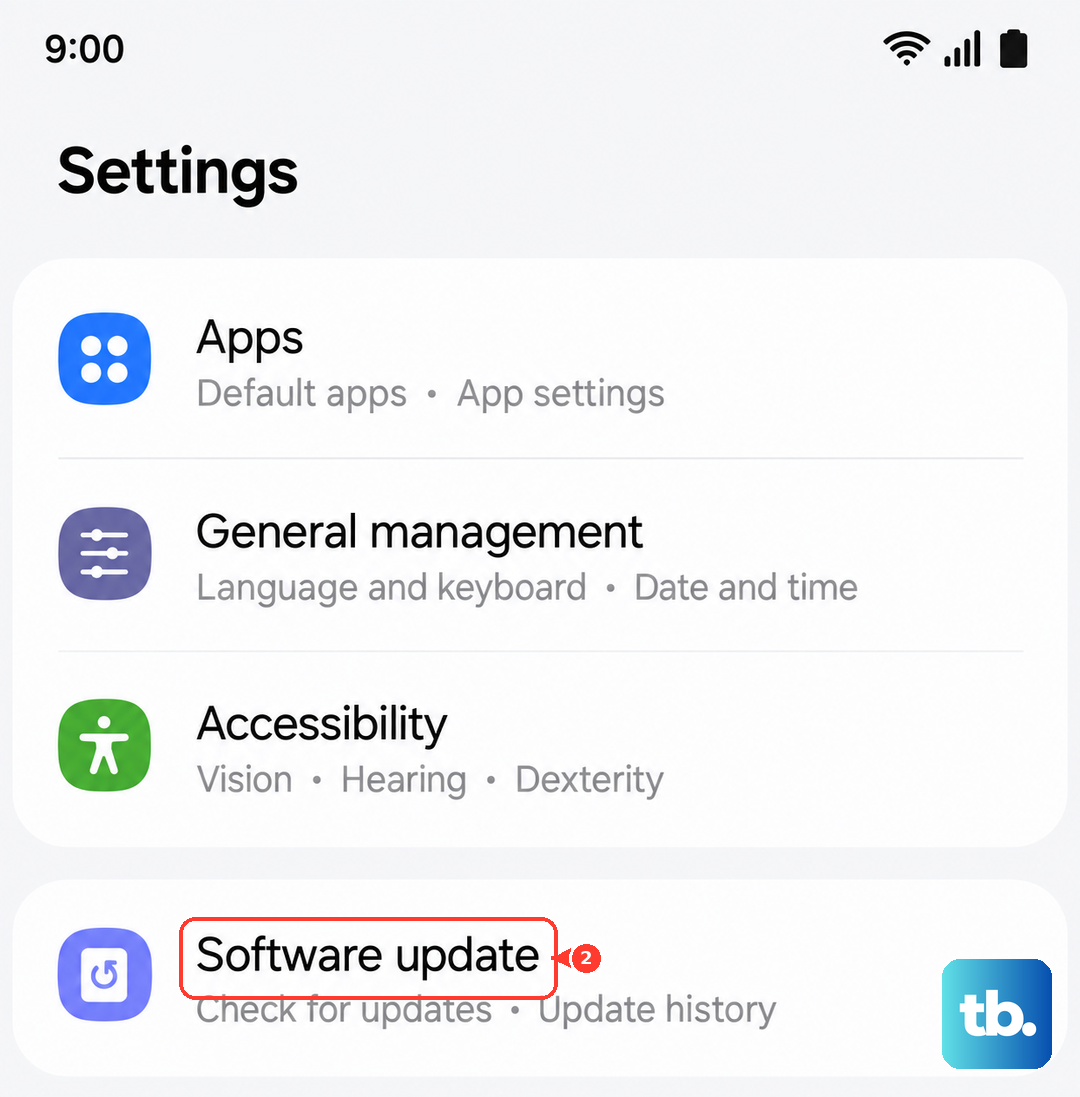
Since the S26+ is new with One UI 8.5, early software bugs affecting cellular connectivity are a real possibility. Samsung releases patches to fix these kinds of issues. Go to Settings > Software update > Download and install. If an update is available, connect to Wi-Fi and let it install. The phone will restart. Keeping your device updated is one of the best ways to prevent and fix network problems.
Change the Network Mode
If 5G coverage is spotty where you are, forcing your phone to use LTE might help it register more reliably. Navigate to Settings > Connections > Mobile networks > Network mode. Instead of "5G/LTE/3G/2G (auto connect)", try selecting "LTE/3G/2G (auto connect)". This tells your phone to skip 5G for now. If it connects on LTE, you know the issue is related to the 5G network in your location.
Clear the Phone Services Cache
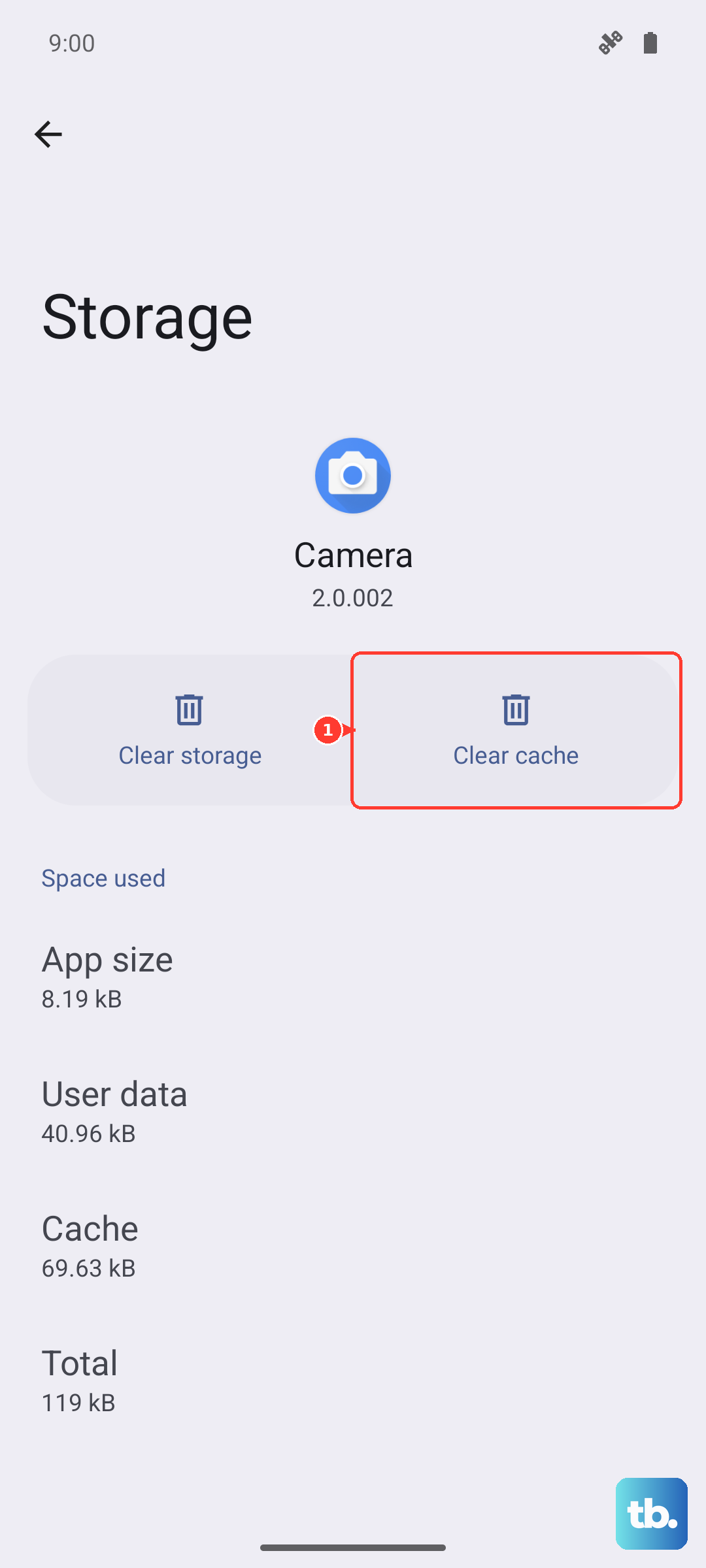
The app that manages your calls and network registration can accumulate corrupted temporary data. Go to Settings > Apps, then tap the filter icon and choose "Show system apps". Scroll down and find "Phone Services". Tap on it, then go to Storage > Clear cache. This doesn't delete any personal data like your call log or contacts. Restart your phone afterward to let the app rebuild its cache cleanly.
Try a Different SIM Card
At this point, it's worth testing if the problem is with your SIM card itself. If you can borrow a known-working SIM card from a friend or family member (on any carrier), pop it into your S26+. If their SIM card registers on the network without any error, then your original SIM is likely faulty or damaged. You'll need to contact your carrier for a replacement SIM. If the borrowed SIM also fails, the issue is with your phone.
Perform a Factory Reset
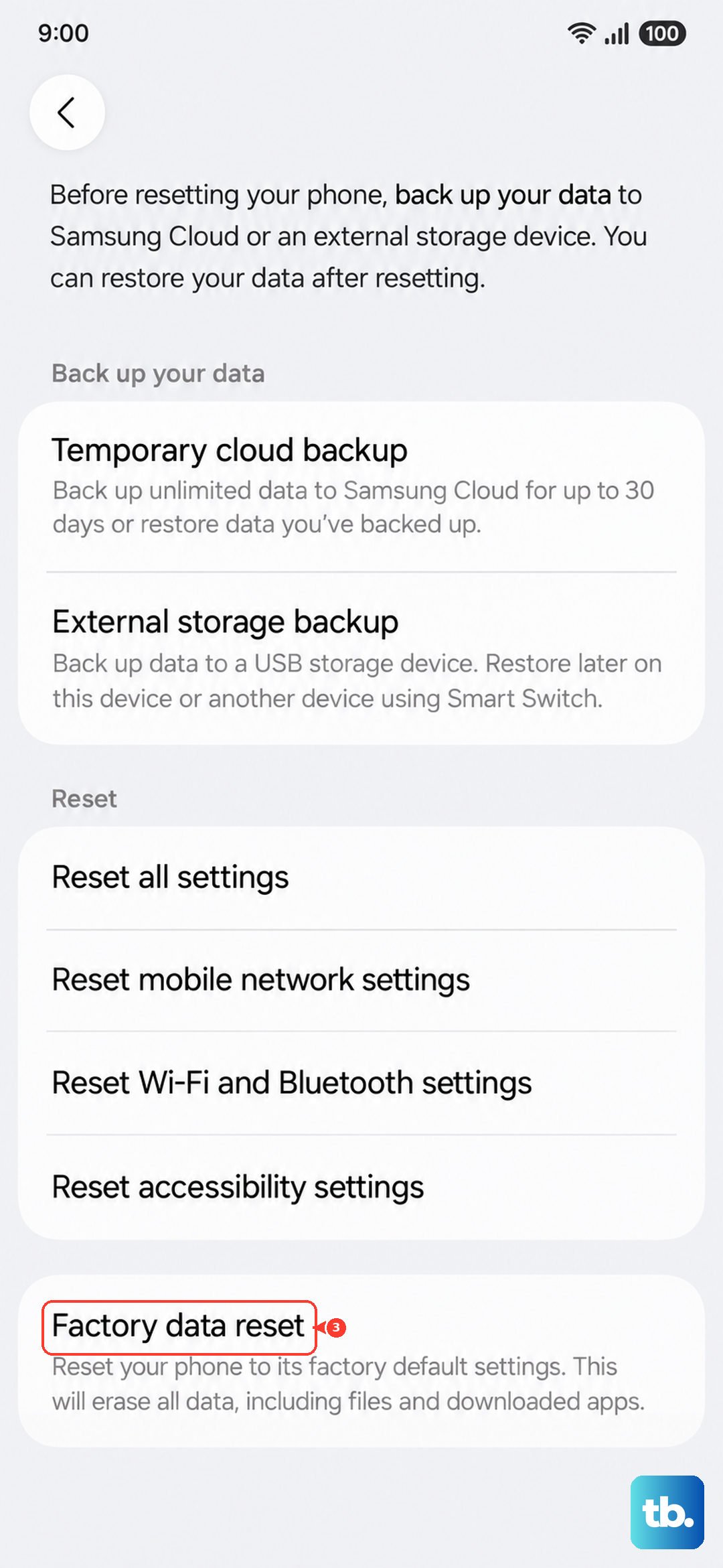
This is your last resort before looking at hardware. A factory reset will erase everything on your phone, so make absolutely sure you have a recent backup of your photos, messages, and app data. You can back up to your Samsung account or Google Drive. Once backed up, go to Settings > General management > Reset > Factory data reset. Follow the prompts to erase the device. After it restarts, set it up as new without restoring a backup immediately to see if the network error is gone.