If your Samsung Galaxy S26 camera won't open, is black, or takes blurry photos, start by closing all apps and restarting your phone. Press and hold the Volume Down button and the Side/Power button together for about 10 seconds until you see the Samsung logo. I've found this clears up most temporary software glitches that can freeze the camera app.
A browser based camera test is the fastest way to check whether the camera works at all. It shows a live preview along with the detected resolution and frame rate.
Key Points
- Restart and Update Your Phone: A force restart is the quickest way to fix a frozen camera app.
- Check for Software Updates: One UI 8.5 is brand new, so early bug fixes are crucial.
- Clear the Camera App's Data: This resets the app to its default settings without deleting your photos.
- Check for Physical Obstructions: A case or screen protector can block the lenses or sensors.
- Scan for Conflicting Apps: Other camera or flashlight apps can interfere with the main camera.
- Boot Into Safe Mode: This helps determine if a downloaded app is causing the crash.
- Reset All Settings: This reverts system settings to default without touching your personal data.
- Check Camera Permissions: The app needs permission to access the camera and microphone.
- Consider a Factory Reset: A last resort to rule out deep-seated software corruption.
Give your phone a full minute to reboot completely before trying the camera again. This simple step fixes a surprising number of issues, especially on a new device like the S26 where background processes might still be settling.
Check for Software Updates
Since the Galaxy S26 ships with the brand new One UI 8.5, it's essential to check for updates immediately. Early software builds often have bugs that Samsung patches quickly after release. Go to Settings > Software update and tap Download and install.
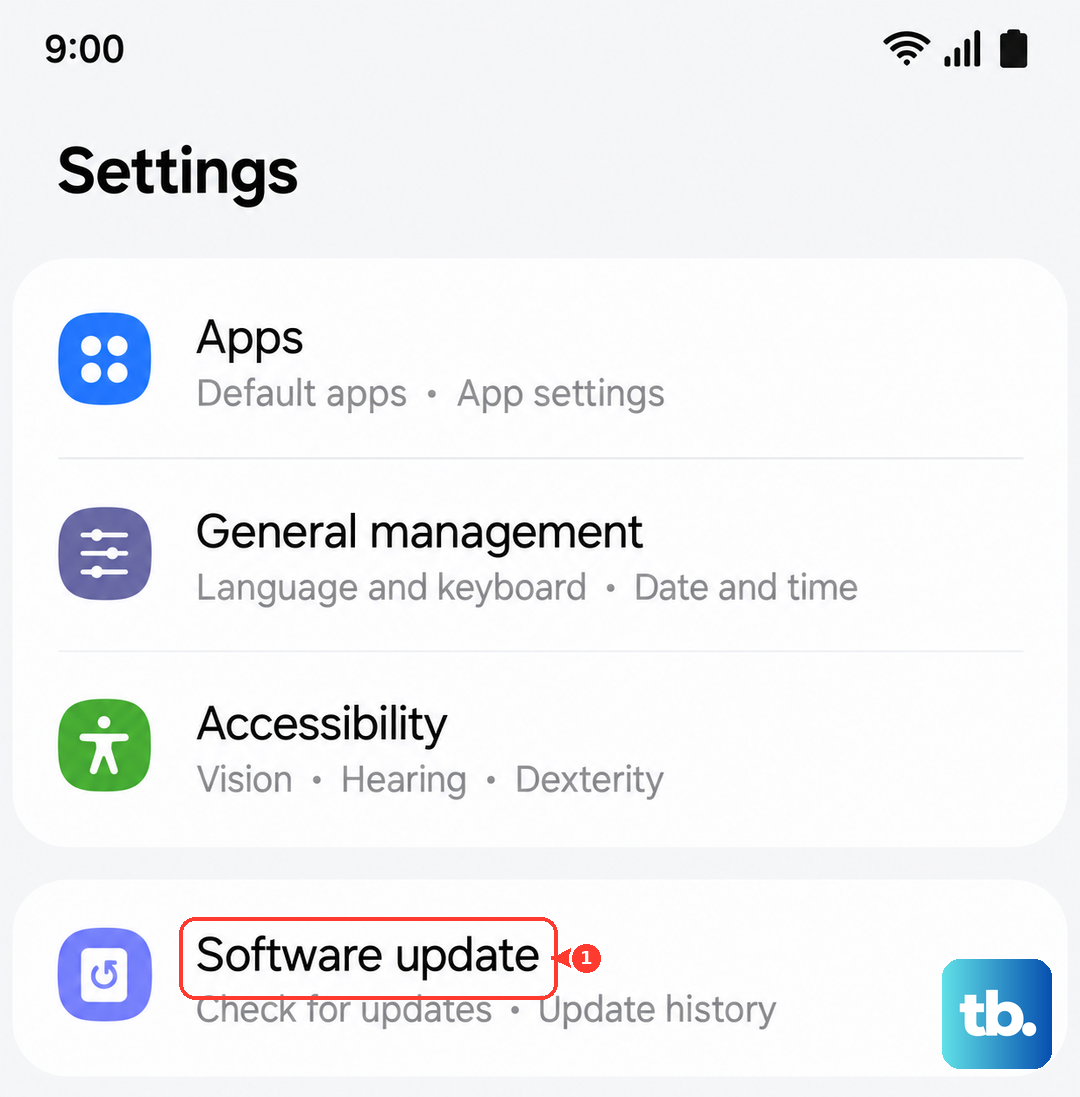
Install any available updates and let your phone restart. I'd make a habit of checking this weekly for the first few months, as camera performance and stability improvements are common in these early updates.
Clear the Camera App's Cache and Data
If the camera app opens but is buggy or laggy, clearing its cached data can help. Go to Settings > Apps, then find and tap on Camera. Select Storage and tap Clear cache first.
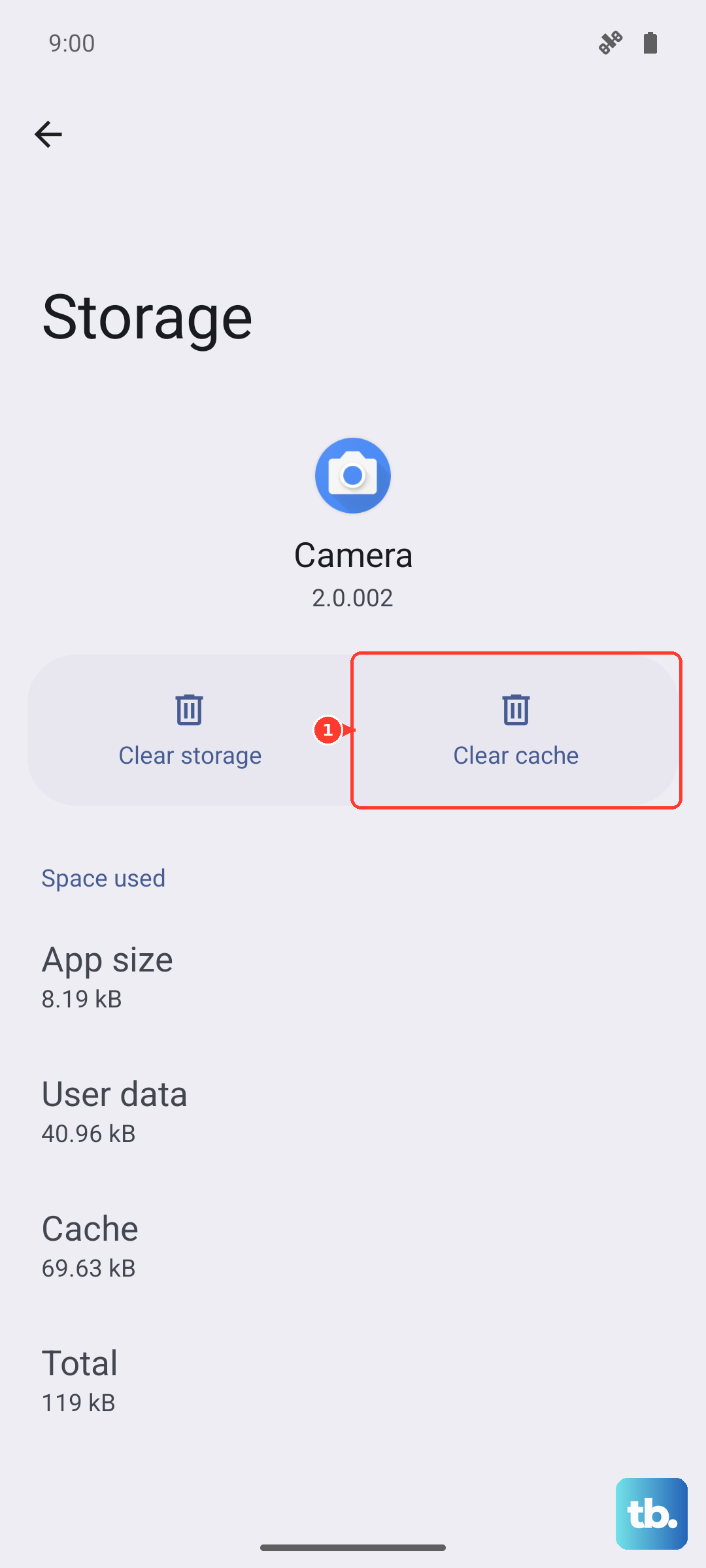
If the problem persists, go back and tap Clear data. This will reset the camera app to its default settings, so you'll lose any custom modes or settings within the app, but your photos and videos in the Gallery are safe.
Inspect for Physical Blockages
Take a close look at all the camera lenses on the back of your S26. Make sure there's no plastic shipping film you forgot to remove. Also, check if your phone case is properly aligned and isn't overlapping any of the lens openings, even slightly.
Gently clean the lenses with a dry, soft microfiber cloth. Fingerprints and smudges are the most common cause of blurry or hazy photos. Avoid using any liquids or abrasive materials on the lenses.
Identify Conflicting Applications
Other apps that use the camera hardware can sometimes cause conflicts. Think about any social media, banking, or QR scanner apps you've installed recently. Try uninstalling them one at a time to see if the stock camera app starts working again.
Also, check if any app with camera access is behaving oddly. Go to Settings > Privacy and security > Permission manager > Camera to see the list. You can revoke permission for any app you don't trust.
Boot Into Safe Mode
Booting into Safe Mode temporarily disables all third-party apps. To enter Safe Mode, press and hold the Side/Power button until the power off menu appears. Then, press and hold the Power off option on your screen until you see a prompt to reboot to Safe Mode. Tap it.
If your camera works perfectly in Safe Mode, you've confirmed a downloaded app is the problem. Restart your phone normally and begin uninstalling recent apps until you find the culprit.
Reset All Settings
This is a more thorough step that won't delete your photos or apps. It resets all your system settings like Wi-Fi passwords, Bluetooth connections, and display preferences back to factory defaults. Go to Settings > General management > Reset > Reset all settings.
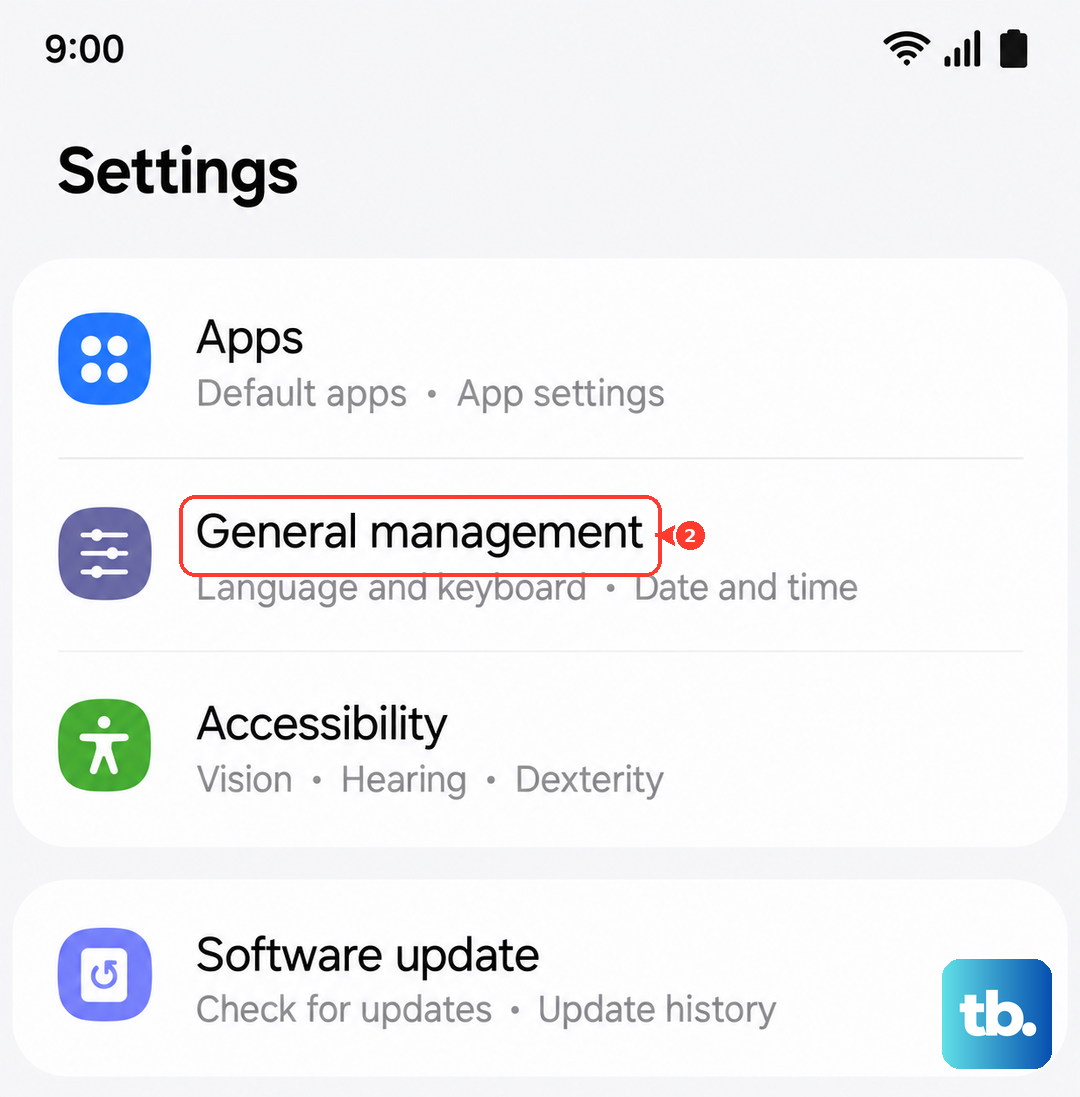
Enter your PIN if prompted and confirm. After your phone restarts, you'll need to reconfigure your settings, but this can resolve conflicts caused by a misconfigured system option related to the camera.
Verify Camera Permissions
It sounds basic, but sometimes permissions get revoked. Open your Settings and go to Apps > Camera > Permissions. Make sure the Camera permission is set to Allow.
While you're there, check the Microphone permission too, as some camera modes require it for video recording. If an app can't access the hardware it needs, it may simply show a black screen or close immediately.
Perform a Factory Reset
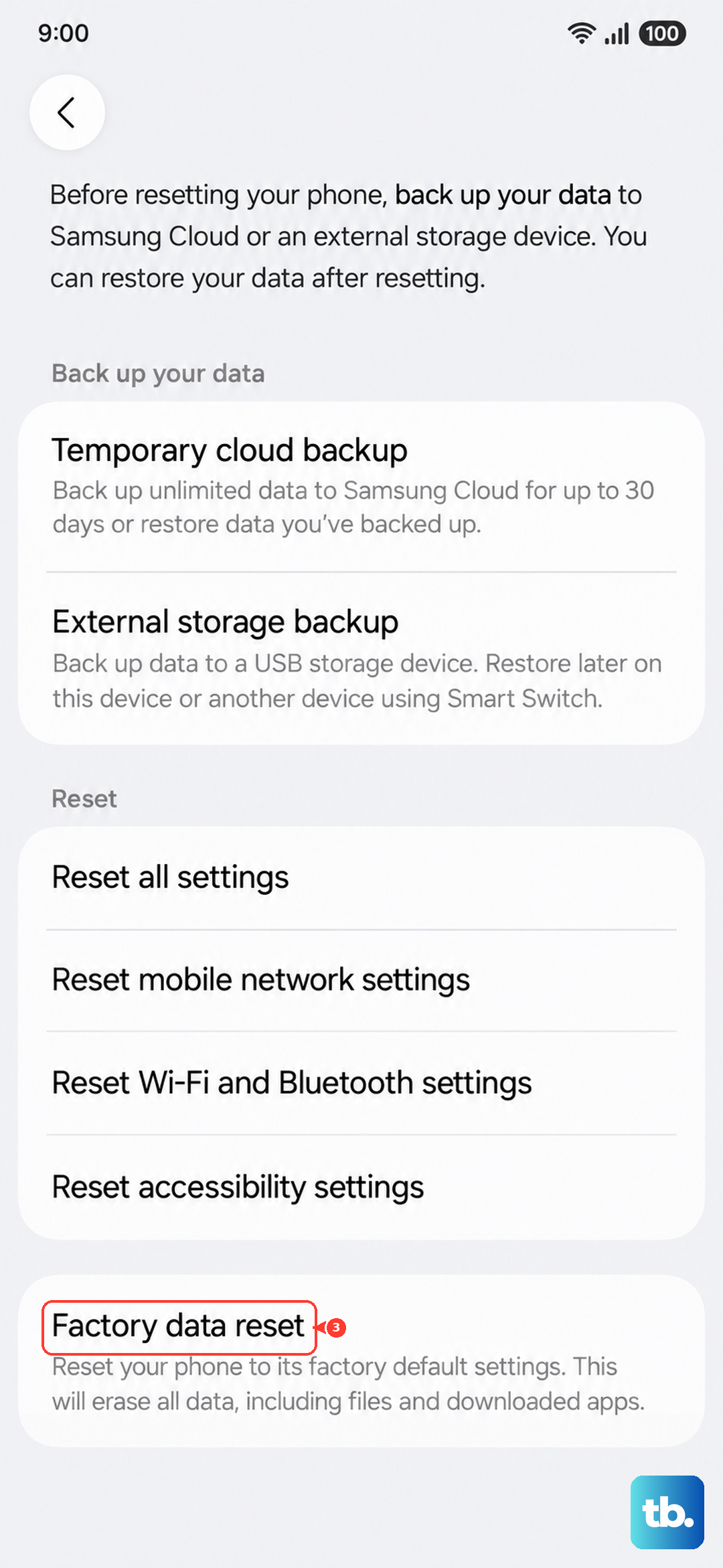
If nothing else has worked, a factory reset is the final software step. This will erase all data from your phone, so you must back up everything important first. Use Samsung Cloud or a computer to save your photos, messages, and app data.
Once backed up, go to Settings > General management > Reset > Factory data reset. Follow the prompts to erase your device. After it restarts, set it up as new and test the camera immediately before restoring your backup, to see if the issue was software corruption.