
When your headphones stop working with your Samsung Galaxy S25, it can ruin everything from your workout playlist to a video call. The audio might cut out, sound distorted, or not play through the headphones at all. Let's get it sorted.
A browser based quick headphone test makes this easy to confirm. If both sides play test tones correctly there, the headphones are fine and the problem is in the device or app.
Restart Your Galaxy S25
Press and hold the Volume Down button and the Side button for about 10 seconds until you see the Samsung logo. This force restart clears out temporary software glitches that often cause audio routing problems. It's the first thing I'd try.
Check the Physical Connection
If you're using wired headphones, make sure the USB-C plug is fully inserted into the port. A loose connection is a common culprit. For wireless models, ensure they're charged and powered on. Testing the headphones with another device quickly tells you if the problem is with the phone or the headphones themselves.
Clean the USB-C Port
Lint and pocket debris can easily get packed into the charging port, blocking a proper connection for wired audio. Gently use a wooden toothpick or a soft-bristled brush to clean it out. A blast of compressed air can also help dislodge particles without risking damage to the delicate pins inside.
Forget and Re-Pair Your Bluetooth Headphones
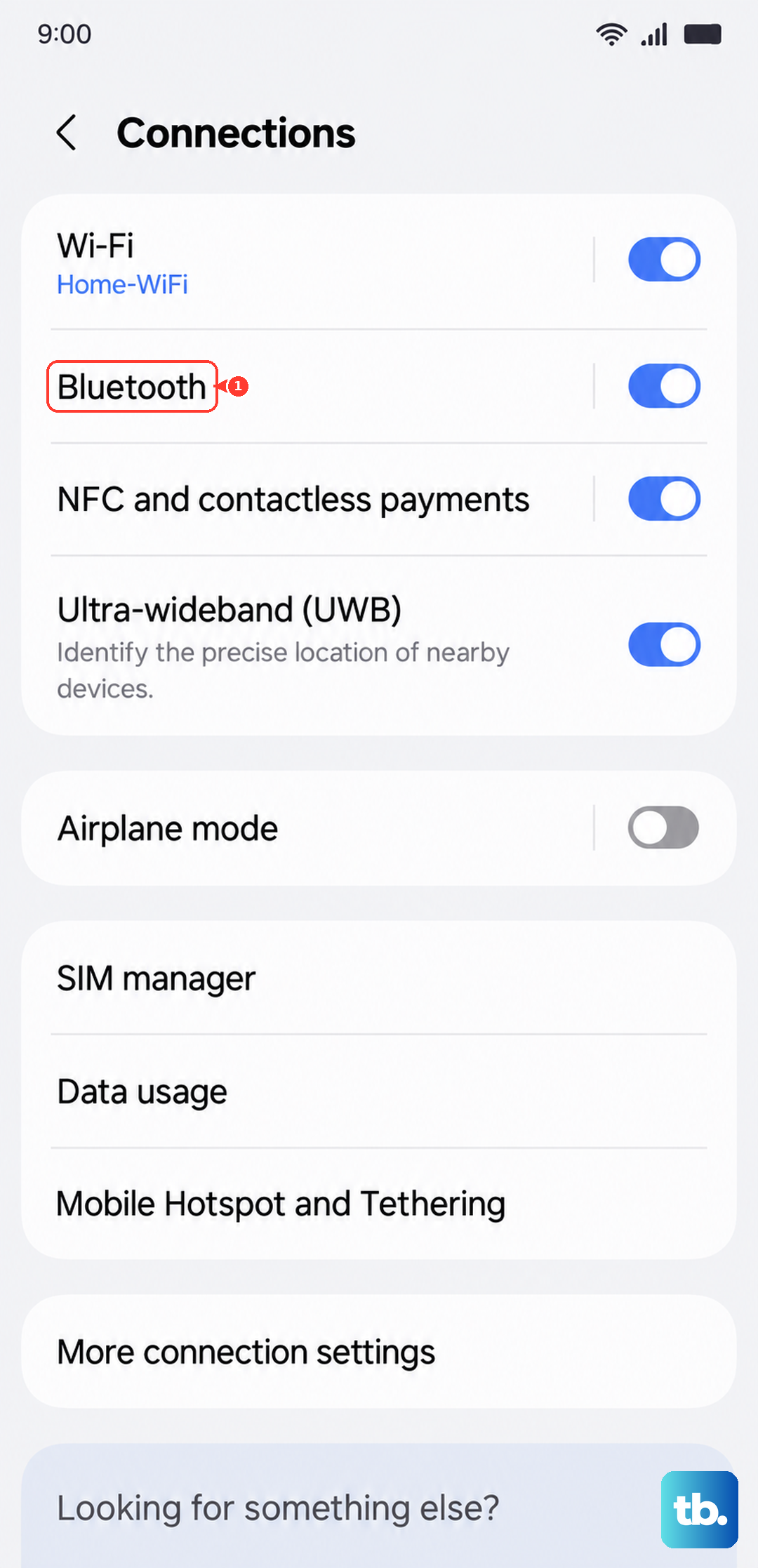
Go to Settings > Connections > Bluetooth. Tap the gear icon next to your headphones' name, then select Unpair or Forget. Put your headphones back into pairing mode and select them from the available devices list on your phone. This creates a fresh connection profile, which solves most pairing and stability issues.
Verify the Audio Output
Your S25 might be sending sound to the wrong place. Pull down the Quick Settings panel and tap the media output icon (it looks like a triangle with circles). Make sure your headphones are selected here, not the phone speaker or another Bluetooth device like a smartwatch.
Check for Software Updates
Audio and Bluetooth bugs are frequently addressed in updates. Navigate to Settings > Software update > Download and install. If an update is available, install it. This is particularly important for Samsung-branded earbuds like the Galaxy Buds, as they receive firmware updates through your phone.
Toggle Bluetooth Off and On
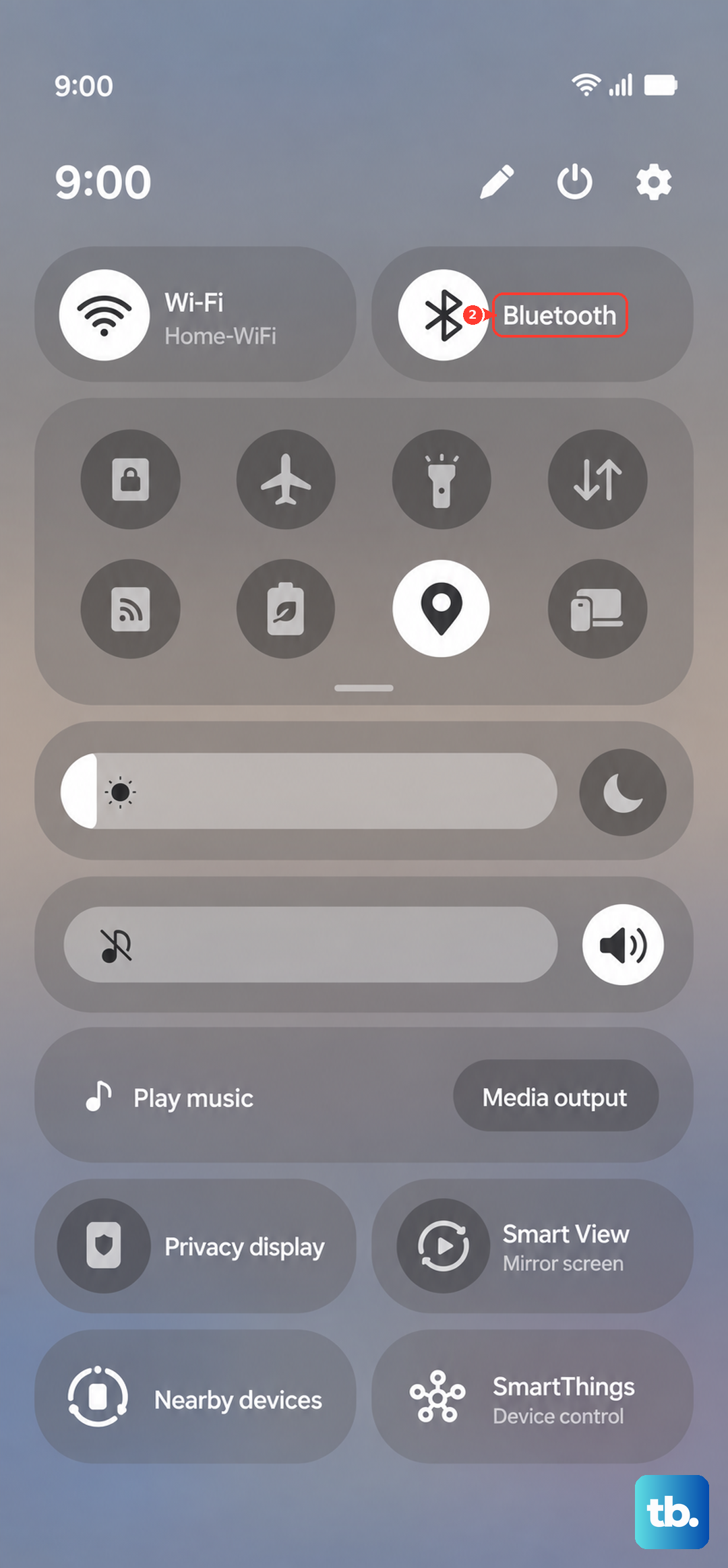
Swipe down from the top of your screen to open the Quick Panel and tap the Bluetooth icon to turn it off. Wait a few seconds, then tap it again to turn it back on. This simple refresh of the Bluetooth radio can resolve minor connection hiccups instantly.
Adjust Sound and Vibration Settings
Sometimes a sound setting gets changed accidentally. Go to Settings > Sounds and vibration > Volume. Make sure the media volume slider is up. Also, check Settings > Sounds and vibration > Sound quality and effects to ensure no equalizer or adapt sound setting is causing distortion.
Reset All Settings
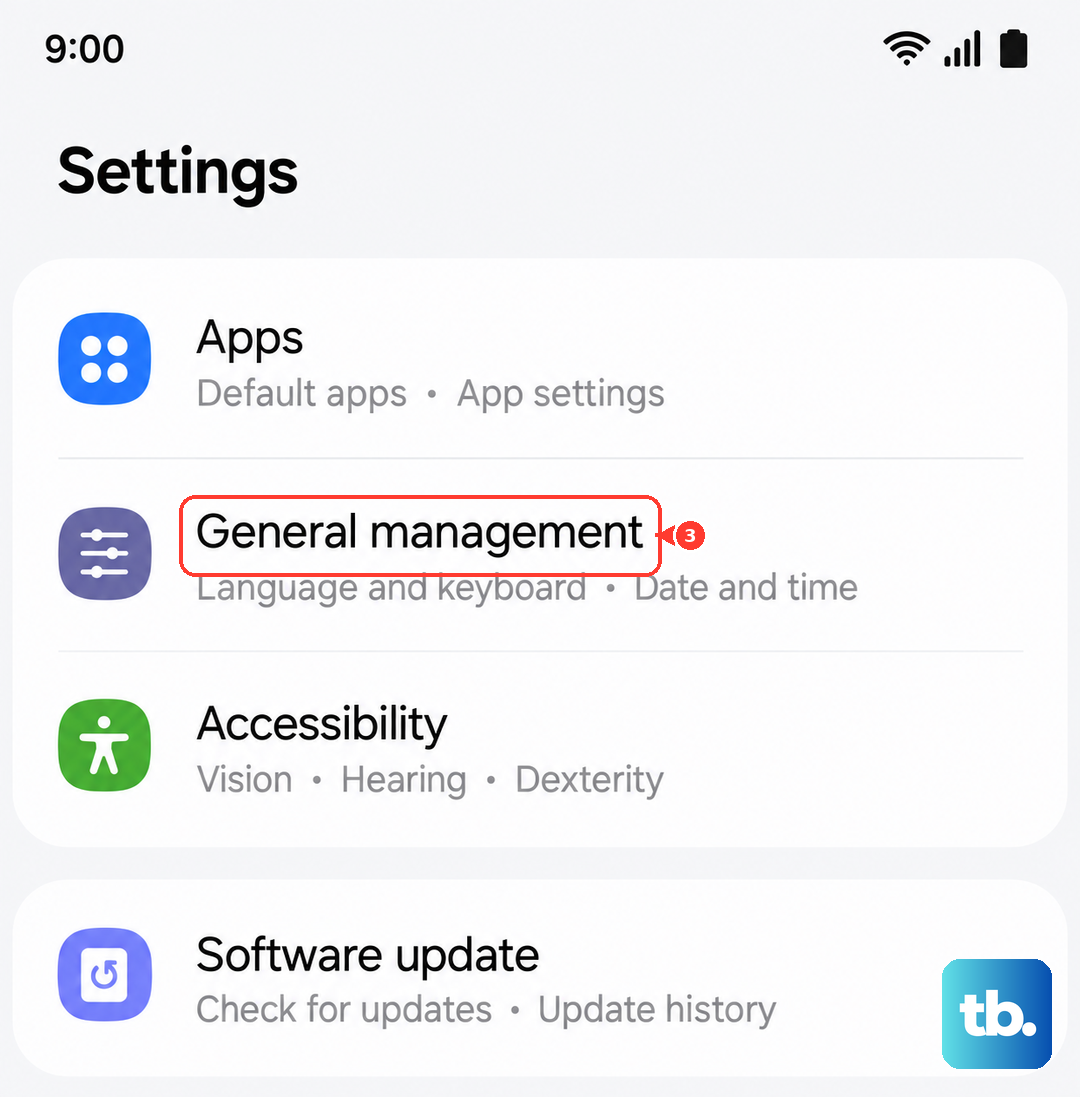
If the problem is deeply rooted in a system setting, this will help. Go to Settings > General management > Reset > Reset all settings. This will revert all your network, sound, and display settings back to default. You'll need to re-pair Bluetooth devices and adjust your preferences again, but it won't delete your personal data.
Check for Moisture Detection Errors
The Galaxy S25 can sometimes show a false "Moisture detected" warning in the USB-C port, which will disable audio output through wired headphones. If you see this alert, dry the port thoroughly with compressed air and leave the phone in a dry place for 30 minutes. Avoid using a hairdryer, as excessive heat can cause damage.