
When your Samsung Galaxy S24 won't download a picture or video someone sent you, it can feel like you're missing out on the conversation. This is usually a problem with your mobile data connection, a setting in the Messages app, or a temporary software hiccup.
Let's walk through the most effective ways to get those MMS messages flowing again on your S24.
Start With a Quick Restart
Before diving into settings, give your phone a fresh start. Press and hold the Volume Down button and the Side button together for about 10 seconds. You'll see the Samsung logo appear as the phone restarts. This simple step clears out minor glitches that can block MMS downloads.
Check Your Mobile Data Connection
MMS messages don't download over Wi-Fi alone. They require an active mobile data connection. Swipe down from the top of your screen to open the Quick Settings panel and make sure the Mobile Data icon is turned on. If you're in a weak signal area, try moving to a different location.
Also, ensure you haven't hit a data limit set by your carrier or in your phone's settings, as this can block multimedia downloads.
Enable MMS Auto-Retrieve
Your phone might be set to wait for your permission before downloading MMS, which can cause delays or failures. Open the Samsung Messages app and tap the three-dot menu in the top right. Go to Settings > Multimedia messages.
Here, make sure the Auto download toggle is switched on. If you're traveling, you might also need to enable Auto download while roaming, but be mindful of potential charges.
Verify Your APN Settings
Incorrect Access Point Name (APN) settings are a common culprit. These tell your phone how to connect to your carrier's multimedia service. The settings are usually configured automatically, but they can sometimes get corrupted.
Go to Settings > Connections > Mobile networks > Access Point Names. If the list is empty or looks wrong, you'll need to get the correct APN details from your carrier's website or customer support and enter them manually.
Clear the Messages App Cache
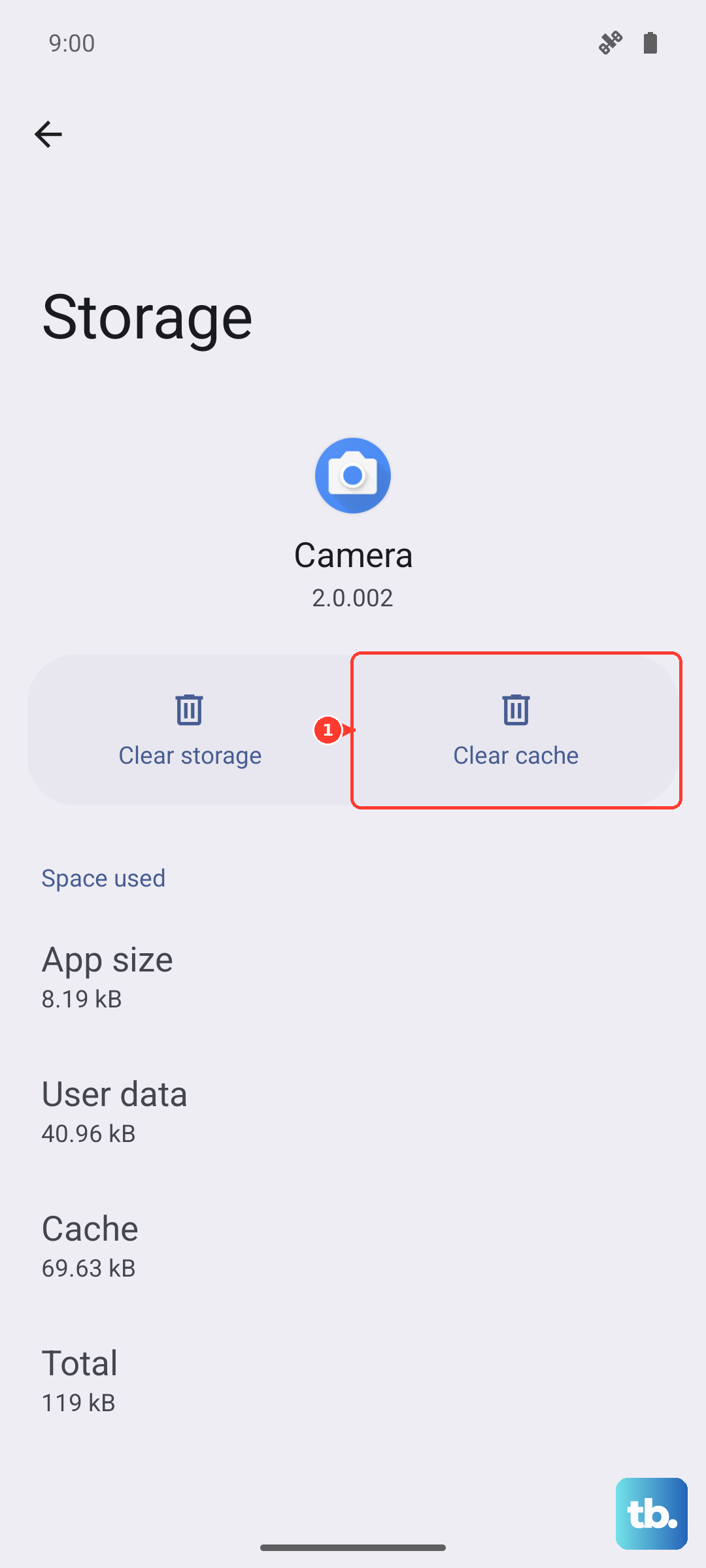
Temporary files stored by the Messages app can sometimes cause problems. Clearing the cache is safe and won't delete your conversations. Head to Settings > Apps, then find and tap on Messages.
Select Storage and then tap Clear cache. After doing this, open the Messages app again and see if the stuck MMS downloads.
Reset Your Network Settings
This will wipe all your network configurations, including Wi-Fi passwords, paired Bluetooth devices, and mobile data settings, and restore the defaults. It's a powerful step for persistent connection issues.
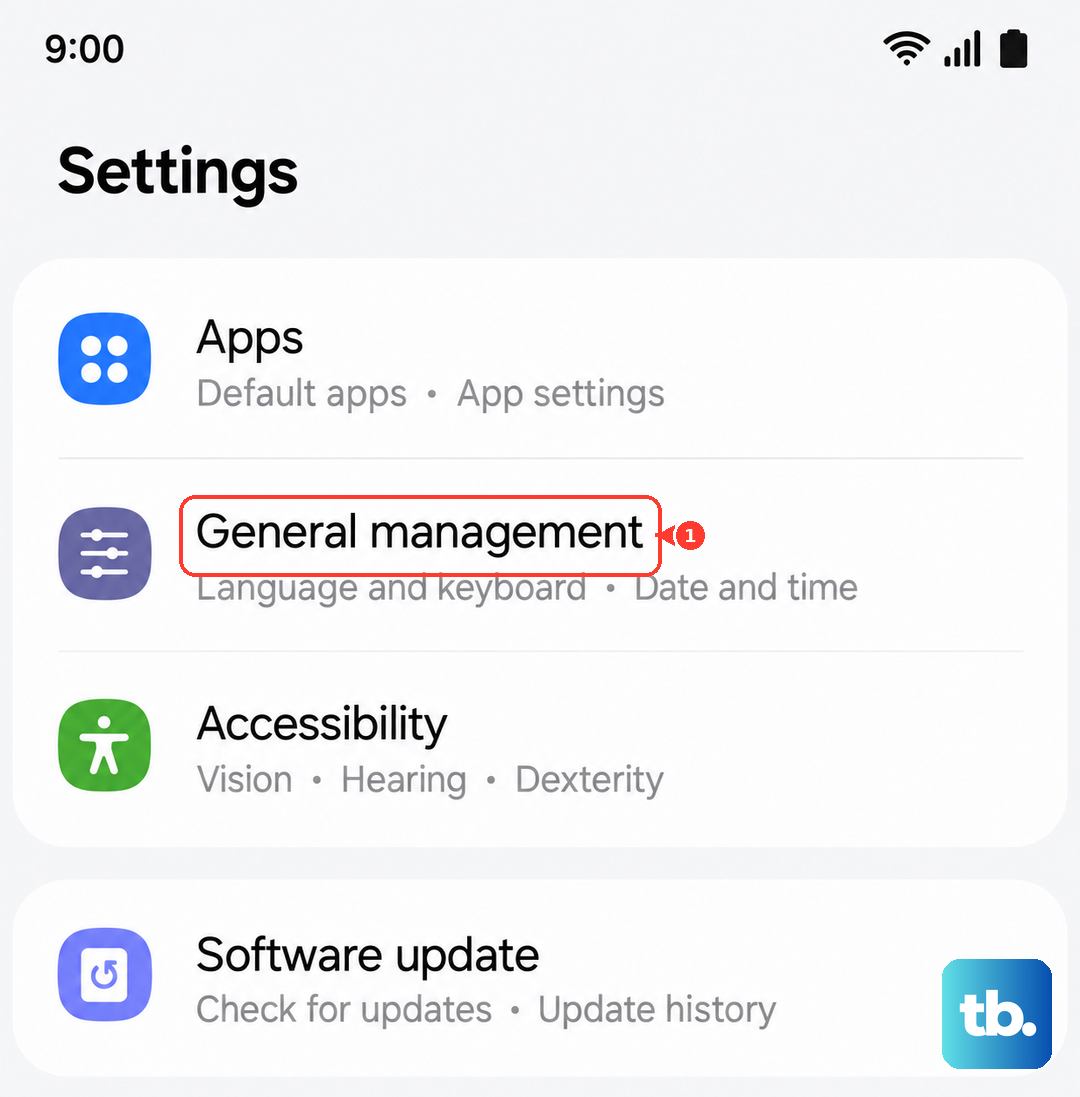
You can find this option at Settings > General management > Reset > Reset network settings. Confirm the reset, and your phone will reboot. You'll then need to reconnect to Wi-Fi networks and re-pair Bluetooth devices.
Check for a Software Update
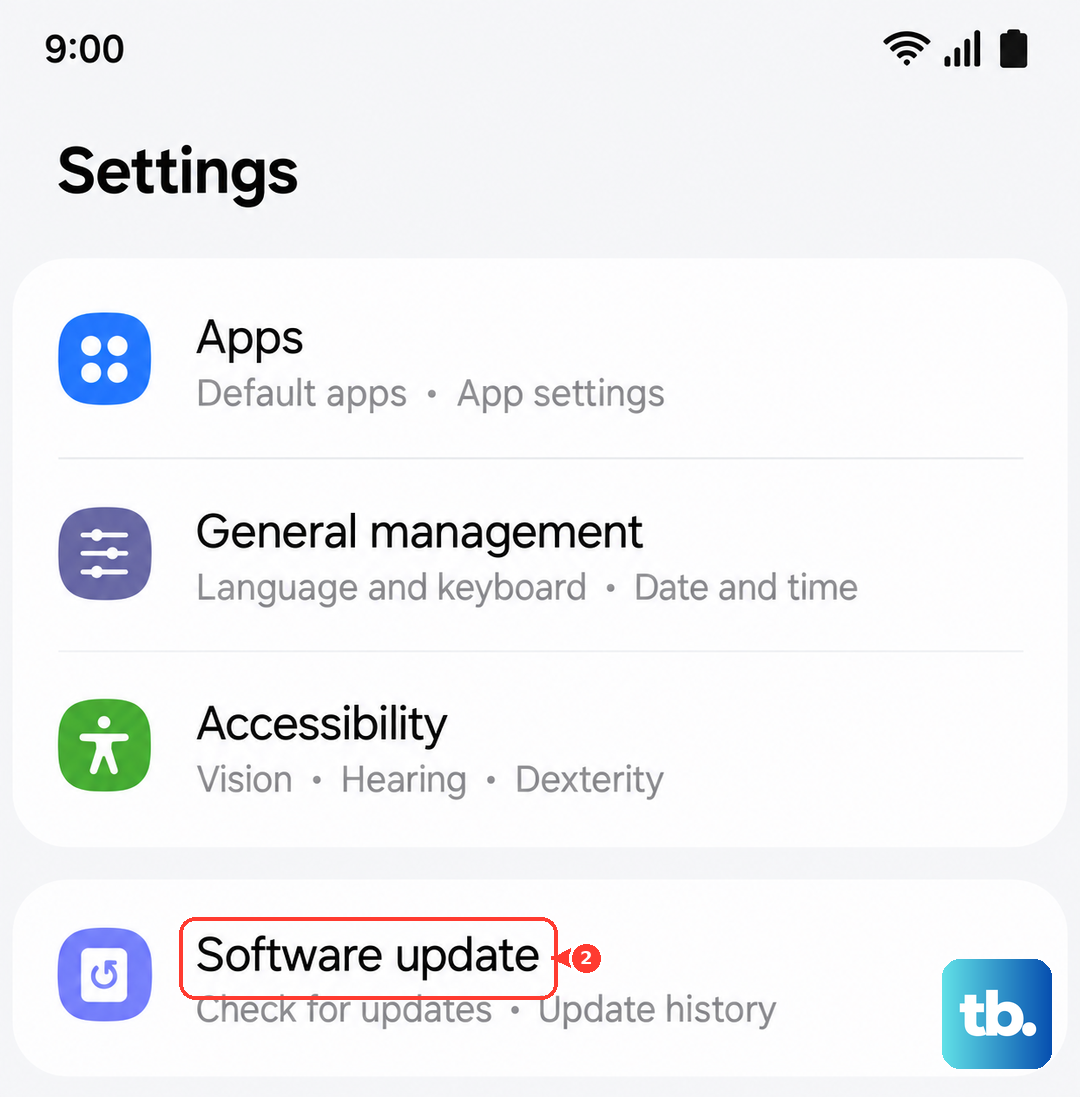
Outdated software can have bugs that affect messaging. Samsung regularly releases updates that fix these kinds of issues. To check, go to Settings > Software update > Download and install.
If an update is available, install it. I've seen minor One UI updates resolve specific MMS problems for other users, so it's always worth checking.
Try a Different Messaging App
This can help you figure out if the problem is with the Samsung Messages app itself or with your phone's system. Download a popular alternative like Google Messages from the Play Store and set it as your default.
If MMS downloads work fine in the new app, the issue is likely with the Samsung app's data or settings. You can stick with the new app or use this knowledge to focus your troubleshooting.
Ensure You Have Enough Storage
Your S24 needs free space to save incoming media files. If your storage is nearly full, downloads can fail. Go to Settings > Device care > Storage to see how much space is left.
If you're running low, consider deleting old downloads, clearing app caches, or offloading photos and videos to the cloud or a computer.
Contact Your Mobile Carrier
If you've tried everything here, the problem might be on your carrier's end. They can check if there's an outage in your area, if your line has any MMS blocks, or if they need to reprovision your service.
It's also a good idea to ask them to verify your APN settings one more time, as they can push the correct configuration directly to your phone over the network.