
If your Samsung Galaxy S24 is starting to feel sluggish, you're not alone. Even a brand new phone can slow down due to background processes, storage filling up, or a few software quirks. The good news is there are several straightforward things you can do to speed it back up.
I'd start with a simple restart. It's the quickest way to clear out temporary system glitches and stop any runaway apps. Just press and hold the Volume Down button and the Side button together for about 10 seconds until you see the Samsung logo appear.
Once it's back on, take a look at what's running. Swipe up from the bottom of the screen and hold to see your recent apps. Swipe each one away to close it. Having too many apps open, especially heavy ones like games or the camera, can definitely bog down performance.
Free Up Storage Space
One UI can start to lag when your internal storage gets too full. Head to Settings > Battery and device care > Storage. The phone will analyze your storage and suggest things to clean up, like cached data from apps.
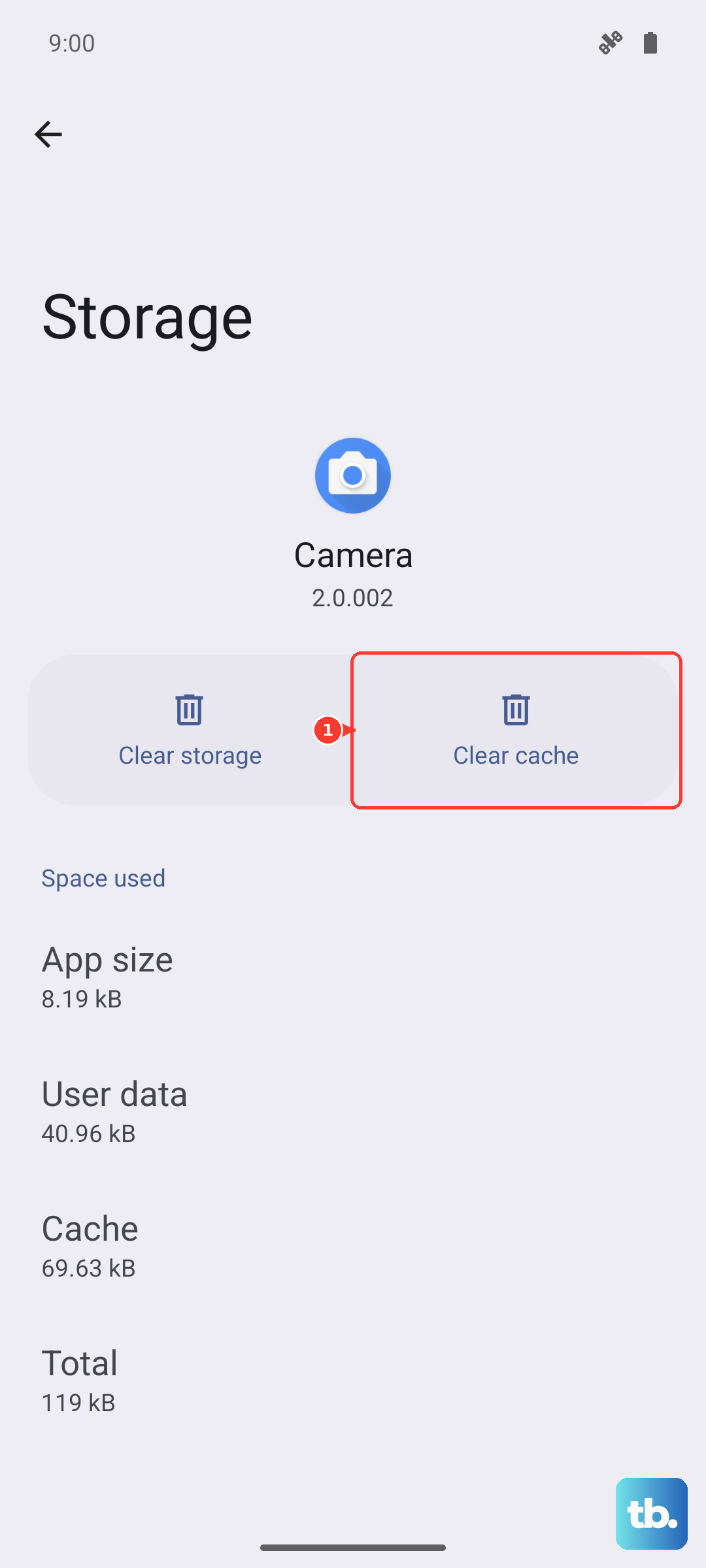
You can also manually offload apps you don't use often. Go to Settings > Apps, select an app, and tap Uninstall. For apps you want to keep data for, use Settings > Apps > [App Name] > Storage > Clear cache first, which is safer than clearing all data.
Check for Software Updates
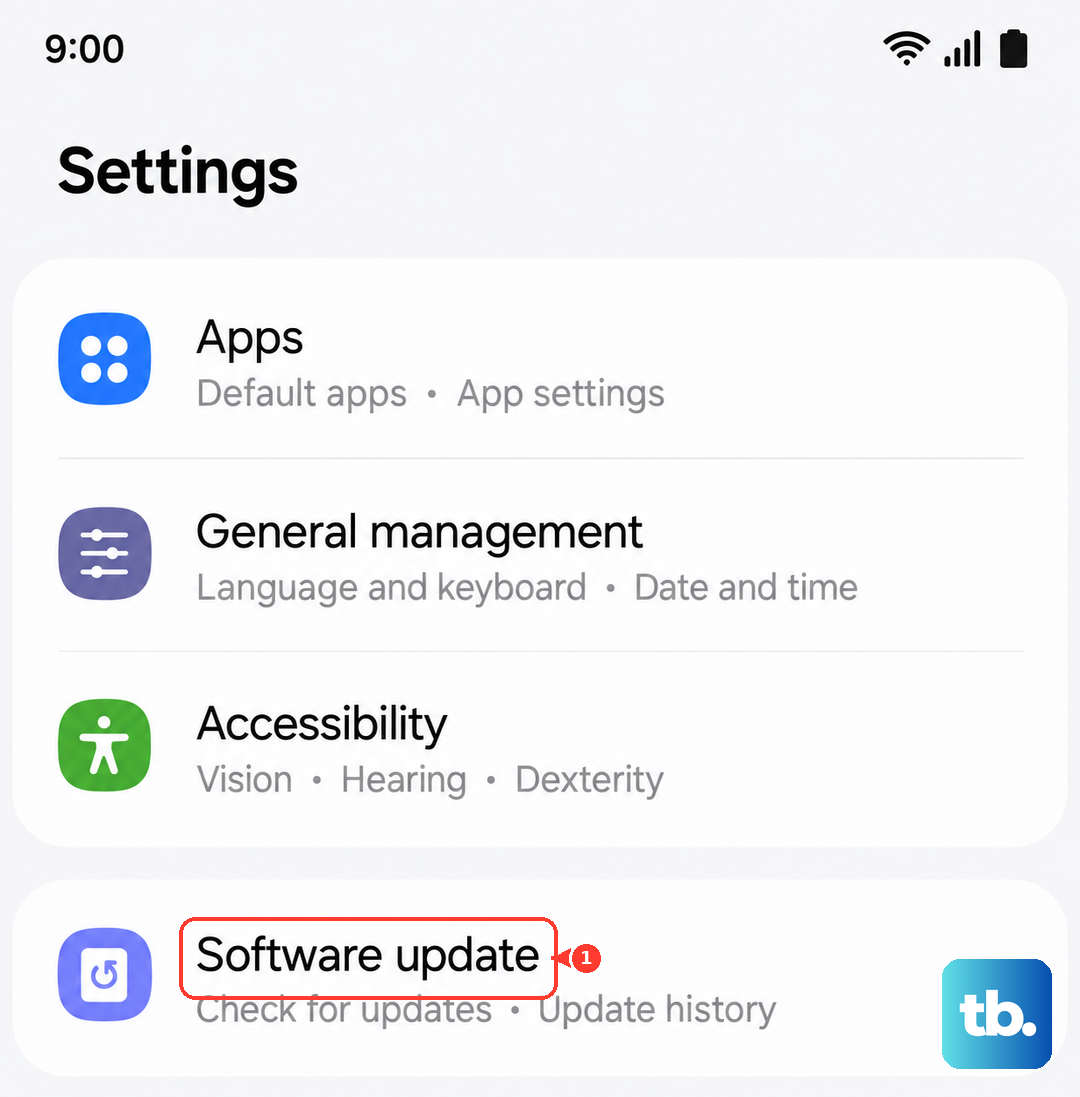
Samsung frequently releases updates that include performance improvements and bug fixes. It's worth checking if you're behind. Go to Settings > Software update and tap Download and install.
Make sure your apps are updated too. Open the Galaxy Store and tap the menu icon, then Updates. Also check the Google Play Store by tapping your profile icon and selecting Manage apps and device.
Manage Background Activity
Some apps are relentless about running in the background. You can put them to sleep to save resources. Go to Settings > Battery and device care > Battery > Background usage limits.
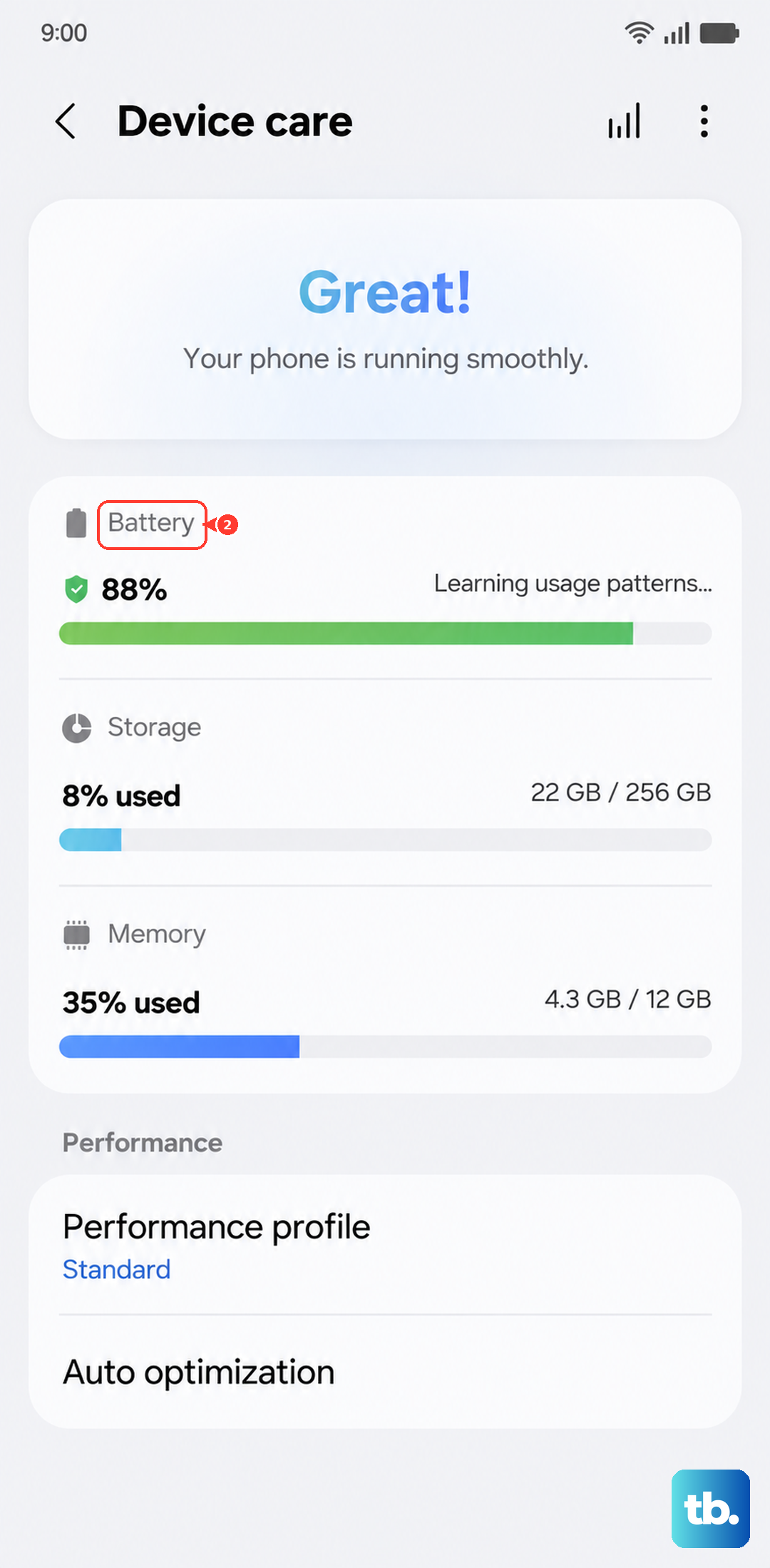
Here, you can enable Put unused apps to sleep automatically. For more control, tap Deep sleeping apps to add specific apps that you never need running in the background. This can make a noticeable difference in daily smoothness.
Optimize Your Home Screen and Animations
Live wallpapers and widgets that constantly update can drain processing power. Consider switching to a static wallpaper and removing widgets you don't actively use by long-pressing them and selecting Remove.
You can also speed up the feel of the interface by reducing animation scales. Enable Developer Options by going to Settings > About phone > Software information and tapping Build number seven times. Then, go back to Settings, find Developer options, scroll to the Drawing section, and set Window animation scale, Transition animation scale, and Animator duration scale to 0.5x or off.
Clear the System Cache
Over time, cached system data can become corrupted and cause slowdowns. Clearing the cache partition is a safe way to clean this out without touching your personal data. First, power off your phone completely.
Then, press and hold the Volume Up and Side buttons together. When you feel a vibration, release the Side button but keep holding Volume Up until you see the Android recovery menu. Use the volume buttons to navigate to Wipe cache partition and press the Side button to select it. Confirm, then select Reboot system now.
Review Battery and Performance Settings
Your S24 has a feature called "Performance profile." Go to Settings > Battery and device care > Battery > More battery settings. Here, you can set the Performance profile to Standard or High if it's on Light mode.
Also, check if Battery protection is enabled in the same menu. This limits charging to 85% to preserve battery health long-term, but it can make the phone feel like it's draining faster. If you need a full charge for a busy day, you can temporarily turn this off.
Check for Problematic Apps
Sometimes, one misbehaving app is the culprit. Go to Settings > Battery and device care and see if any apps are flagged for high battery usage. Tap on an app to see details and force stop it if needed.
You can also boot into Safe Mode to see if the slowdown is caused by a third-party app. Hold the power button, then tap and hold the Power off icon on screen until you see the Safe Mode prompt. If your phone runs smoothly in Safe Mode, a downloaded app is likely the issue. Uninstall apps you recently added one by one to find the offender.
Reset All Settings
If you've tried everything and the phone is still slow, a settings reset can help. This won't delete your photos, apps, or personal files, but it will revert all your system settings (like Wi-Fi passwords, ringtones, and display preferences) back to default. Go to Settings > General management > Reset > Reset all settings.
Enter your PIN if prompted and confirm. Your phone will reboot. Afterward, you'll need to reconfigure your preferences, but it often resolves deeper software conflicts causing lag.
For most people, a combination of closing apps, clearing cache, and managing background processes will get the Galaxy S24 back to its snappy self. These steps are usually all it takes to clear up temporary slowdowns.