
So your Samsung Galaxy S24 won't charge. You plug it in and nothing happens, or maybe you just get that frustrating "moisture detected" warning. It's a common headache, but the good news is these checks can help you fix common charging problems before arranging a repair.
Whether you're dealing with a dead battery, a finicky USB-C port, or a setting that's secretly limiting your power, let's walk through the fixes. We'll start with the quickest solutions first.
Force Restart Your Galaxy S24
This should be your very first move. A simple force restart can clear out temporary glitches in One UI that may interfere with the charging system.
For the Galaxy S24, press and hold the Volume down button and the Side button together for more than 7 seconds until the device restarts.
Once it boots back up, plug in your charger again. Check the bottom of the screen or your always-on display for the charging indicator.
Clean the USB-C Charging Port
Debris in the charging port is one of the most common causes of charging problems. Lint, dust, and pocket debris get packed into that tiny USB-C port every single day. Eventually, there's so much gunk that the cable's connector can't make proper contact.
Turn the phone off first for safety, then use a flashlight to inspect the port on the bottom of your S24. Visible lint or debris may be preventing the cable from making proper contact.
If you see debris, carefully remove it with a soft, dry brush. Avoid metal objects or liquids, and take care around the contacts inside the port. Once you're finished, reconnect the charging cable securely and check whether the phone charges.
Check Your Cable, Adapter, and Outlet
You need to figure out if the problem is with your phone or your gear. The best way is to test each component one by one with a known-good replacement.
Try a different USB-C cable first. If you have a Samsung 25W fast charging brick, use it. Also, try plugging the cable into a different wall outlet or even a USB port on your computer. Sometimes the issue is as simple as a faulty power strip.
Remove your phone case, especially if it's very thick or has a magnetic ring for a car mount. These can sometimes prevent the cable from seating fully or interfere with the connection.
Disable Battery Protection and Check for Updates
The Galaxy S24 has a feature designed to extend your battery's long-term health by limiting the maximum charge. If your phone seems to stop charging at 85%, Battery protection may be the cause.
Go to Settings > Battery > Battery protection. Maximum mode stops charging at your selected limit of 80%, 85%, 90%, or 95%. Select a different option or turn Battery protection off if you need a full 100% charge for the day ahead. You can also check battery information in Settings > Device care.
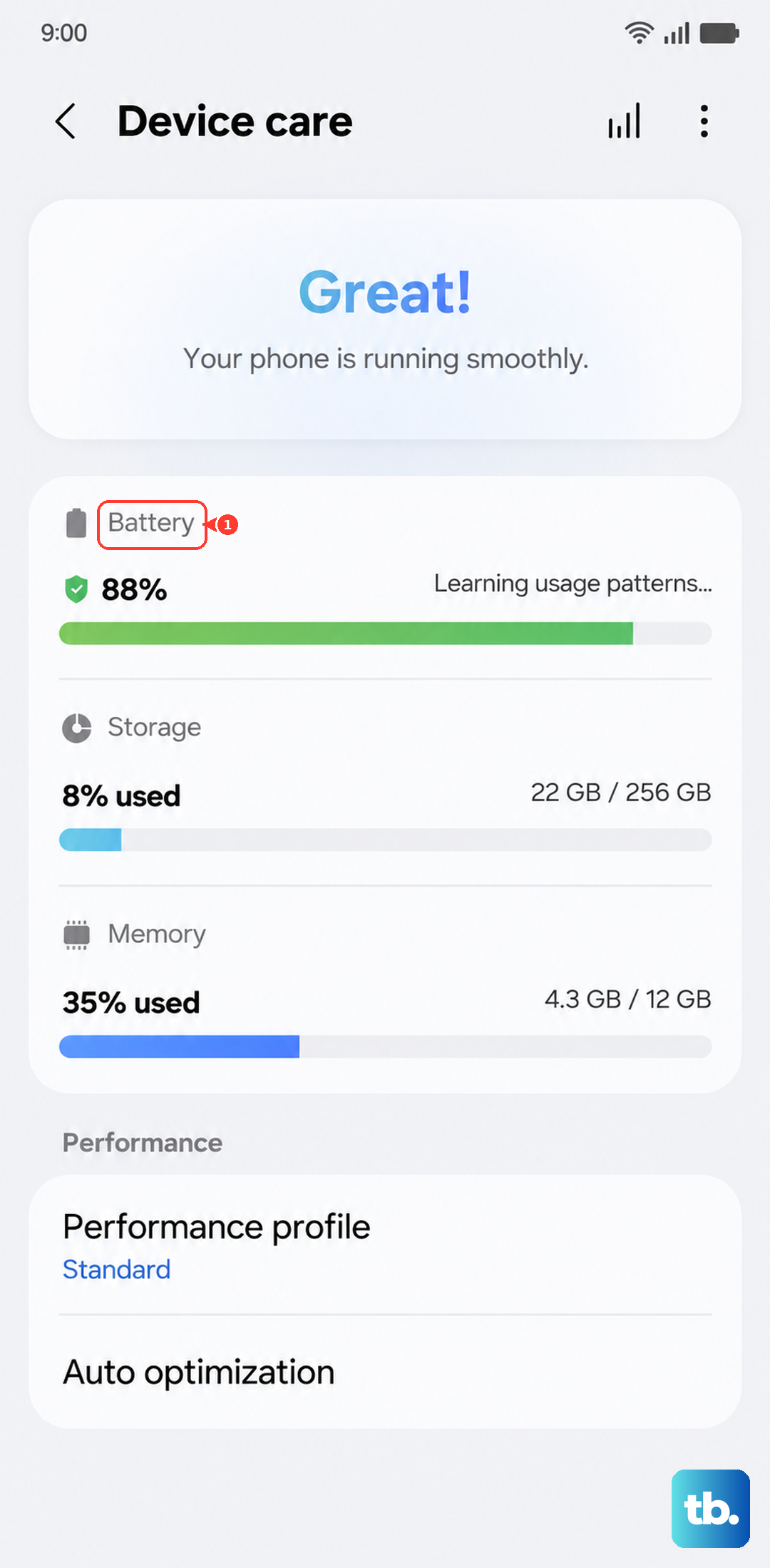
While you're in settings, check for a software update. Go to Settings > Software update and tap "Download and install." Software updates can include fixes that may help with charging problems.
Address the Moisture Detected Warning
Moisture detection can stop charging to protect your phone from damage. Even though your S24 is water-resistant, the charging port must be completely dry before you connect a charging cable.
If you see the "moisture detected" warning, unplug the cable immediately. Gently shake the phone to remove moisture from the port, then wipe it with a soft, clean cloth. Let it dry in a well-ventilated area using cool air before connecting the cable again.
If the moisture warning keeps appearing after the port is completely dry, restart the phone. You can also clear the cache of the USB settings system app: go to Settings > Apps, show system apps, select the USB settings app, then tap Storage > Clear cache.
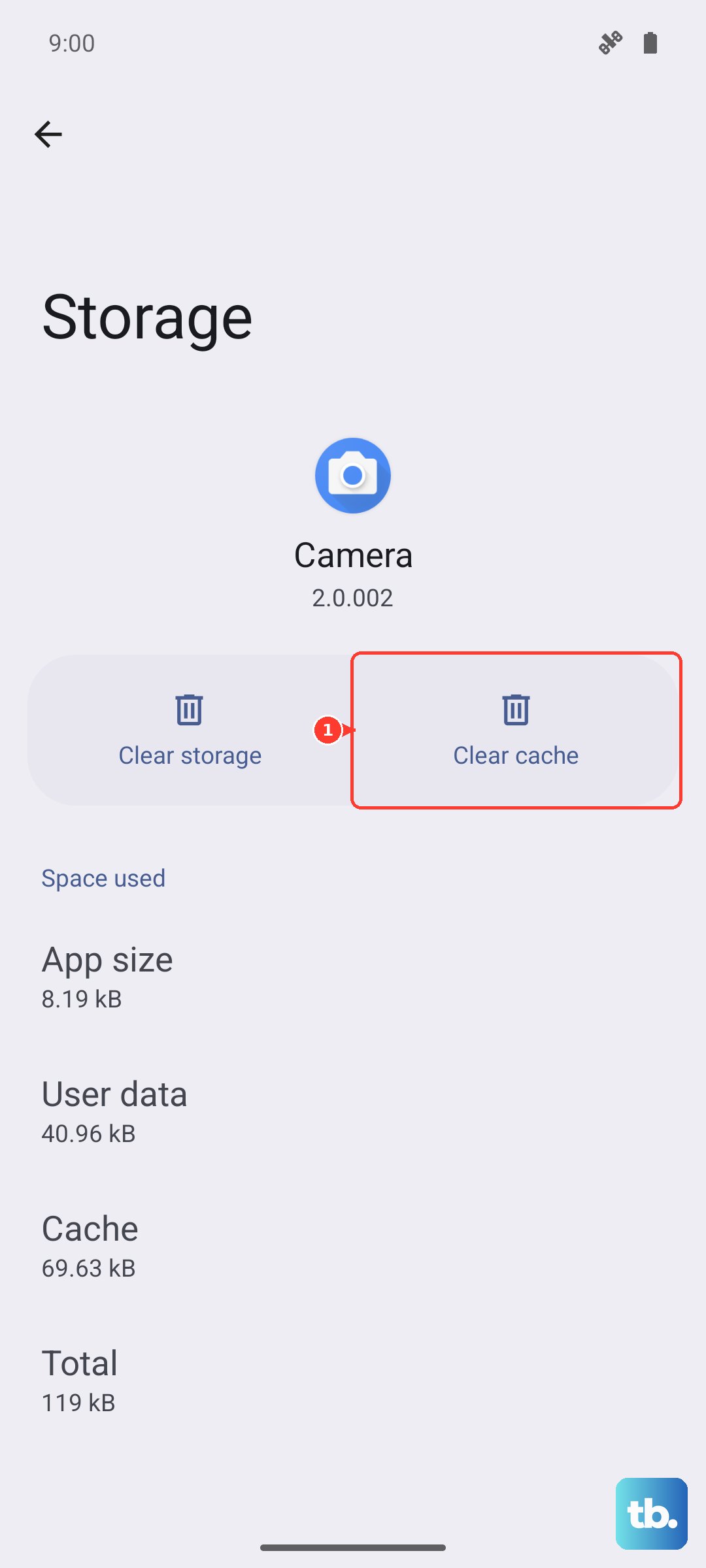
If charging still doesn't work after the port is dry and you've tried another compatible Samsung charger and cable, arrange a hardware inspection at a Samsung service center.
Try Wireless Charging
Your S24 supports wireless charging, which can help narrow down a wired charging problem. It supports Qi charging and Fast Wireless Charging 2.0 with a compatible wireless charger.
Place your phone centered on a compatible Samsung wireless charger, with its back touching the charging surface. Remove a thick case if necessary. If it charges wirelessly but still won't charge with a cable, check the USB-C port, cable, and adapter.
You can also use Wireless PowerShare to charge another device from your S24. Charge your S24 to at least 30% before using it, and adjust the devices' positions to keep their connection stable.
Charge with the Phone Turned Off
Sometimes a background app or process is causing enough battery drain to outpace the incoming charge, making it seem like the phone isn't charging. Turning the phone off eliminates all that activity.
Press and hold the Side and Volume down buttons together for a few seconds, then tap "Power off" and tap "Power off" again to confirm. Once the device is completely off, plug in your charger. You should see a large battery icon appear, indicating it's charging.
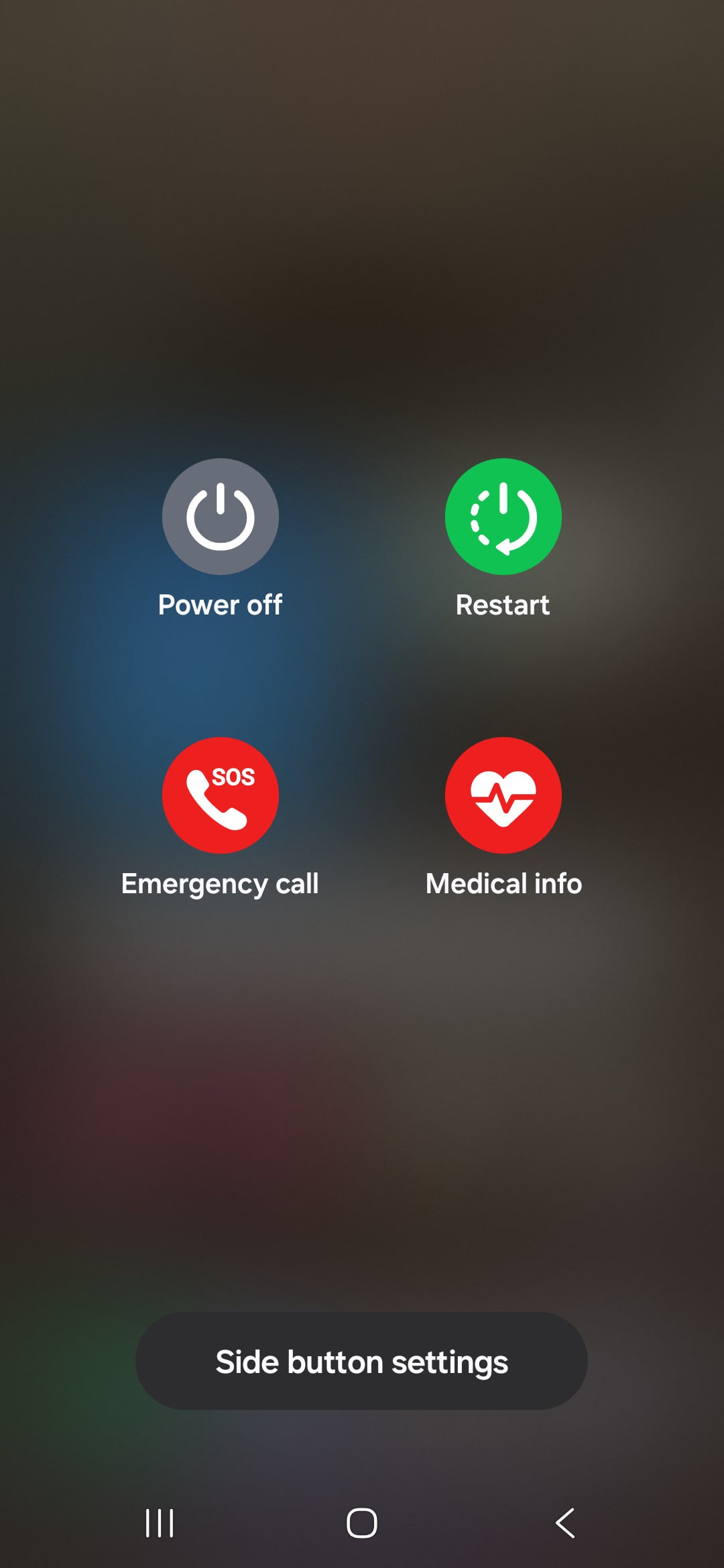
Leave it off and plugged in for at least 30 minutes if the battery was completely dead. A deeply drained battery needs a little time on the charger before it will show any signs of life or turn back on.
Consider the Charging Source and Speed
The Galaxy S24 supports 25W Super Fast Charging, but only with a compatible charger. If you're using an old 5W or 10W adapter from an older phone, it will charge, but very slowly.
For the fastest possible charge, use a compatible Samsung 25W adapter and cable connected to a wall outlet. Go to Settings > Battery > Charging settings and turn on "Fast charging." Your phone selects the fastest available speed based on the charger and battery status.
Also, be aware that charging slows down dramatically if the phone gets too hot. If you're fast charging while using the phone for navigation or gaming, it will likely throttle the power to protect the battery.