
If your Samsung Galaxy S24 camera app won't open, freezes, or takes blurry pictures, start with a simple restart. Press and hold the Volume Down button and the Side button together for about 10 seconds until you see the Samsung logo. I've seen this fix work for most temporary software glitches that cause the camera to be unresponsive.
To know whether you are fixing hardware or software, try a online camera test in the browser. A working preview narrows the problem down to the app you were using.
Key Points
- Restart and Update Your Phone: A force restart is the fastest way to clear a temporary camera app crash.
- Clear the Camera App's Data: Corrupted cache or settings within the app itself are a common culprit.
- Check for Physical Obstructions and Settings: A dirty lens or a misconfigured setting can ruin your photos.
- Boot Into Safe Mode: This will tell you if a recently downloaded app is interfering with the camera.
- Inspect for Moisture Detection Errors: The S24 can sometimes falsely trigger a moisture warning in the USB-C port, which disables connected accessories.
Give the phone a full minute to reboot completely before trying the camera again. If the app opens but is laggy or the viewfinder is black, the issue is likely software-based and can be fixed without a repair shop.
Clear the Camera App's Data
When a restart doesn't help, the next step is to clear the camera app's stored data. This resets the app to its default state without deleting your photos. Go to Settings > Apps > Camera.
Tap on Storage, then hit Clear cache first. This removes temporary files. If the problem persists, go back and tap Clear data. You'll need to grant the app permissions again the next time you open it, but this often resolves crashes and freezing.
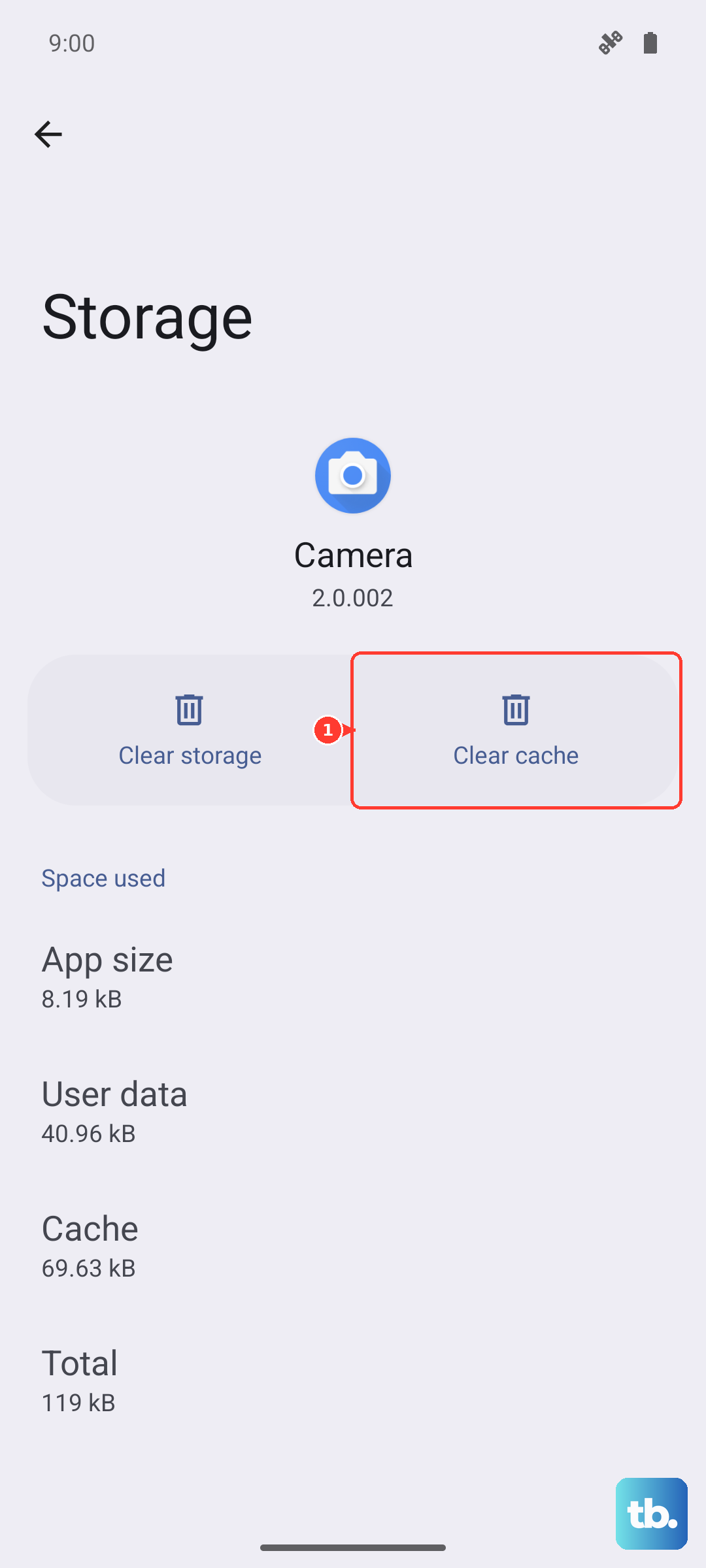
This process is different from just force-closing the app. It wipes out any corrupted settings or temporary files that might be causing the conflict, especially after a One UI update.
Check for Physical Obstructions and Settings
Take a close look at the camera lenses on the back of your phone. A small smudge of oil from your fingers can make every photo look hazy or blurry. Use a soft, dry microfiber cloth to gently clean all the lenses, including the front-facing camera.
Also, check if you have any special modes accidentally enabled. If you're in Pro mode or Night mode and the settings are off, your photos might look dark or strange. Tap the settings gear icon within the camera app and make sure nothing is set incorrectly, or simply swipe to switch back to Photo mode.
Remove any phone case that might be encroaching on the camera bump. A poorly designed case can partially cover a lens or the laser autofocus sensor, causing focus failures.
Boot Into Safe Mode
If the camera only fails in specific situations, like when using Snapchat or Instagram, a third-party app might be causing the conflict. Booting into Safe Mode temporarily disables all downloaded apps. Press and hold the power button until the power off menu appears.
Then, tap and hold the Power off icon on your screen until you see a prompt to reboot to Safe Mode. Tap it to confirm. If the camera works perfectly in Safe Mode, you know a downloaded app is the problem.
Start by uninstalling any recent camera-related apps, or apps that heavily use the camera, one by one. Test the main camera app after each removal to identify the culprit.
Inspect for Moisture Detection Errors
The Galaxy S24 has a known issue where it can falsely detect moisture in the USB-C port. This safety feature doesn't just block charging, it can also disable connected accessories and sometimes affect other systems. If you see a water droplet icon in your notification panel, even though the phone is dry, this is likely the cause.
First, power the phone off completely. Then, use a can of compressed air to gently blow into the USB-C port to dislodge any lint. You can also carefully use a dry toothpick to remove debris. Let the phone sit for an hour in a dry place, then power it back on.
If the warning persists, try clearing the cache partition. Turn off the phone, then press and hold the Volume Up and Side buttons together. When the Android Recovery screen appears, use the volume buttons to highlight Wipe cache partition and press the side button to select it. This won't delete any personal data.
After the process completes, select Reboot system now. This can clear the erroneous moisture flag. I'd start with this before considering more drastic measures, as it's a common fix for this particular S24 bug.