So your Samsung Galaxy S23 won't charge. You've plugged it in, maybe tried a different cable, and the screen stays stubbornly dark. It's a frustrating spot to be in, but I've found this is almost always something you can fix yourself without a trip to the repair shop.
Whether the USB-C port feels loose, your wireless charger isn't working, or the phone just shows a confusing moisture warning, we'll walk through the solutions. Let's start with the quickest fix that works more often than you'd think.
Force Restart Your Galaxy S23
This should always be your first move. A simple force restart clears out any temporary software glitches that might be blocking the charging system. It takes about 10 seconds and doesn't erase any of your data.
For the Galaxy S23, press and hold the Volume Down button and the Side (power) button simultaneously. Keep holding them both until you see the Samsung logo appear on the screen, then let go. Once it boots back up, plug it in and check for the charging indicator.
Clean the USB-C Charging Port
This is the single most common fix for charging problems. Over months of use, pocket lint and dust get packed deep into the USB-C port. Eventually, there's so much debris that your cable can't make a proper connection.
Grab a bright light and look closely into the port on the bottom of your phone. If you see a mat of grey lint, you've found the culprit. Turn the phone off first for safety. Then, use a wooden toothpick or a plastic flosser pick to gently scrape the debris out. Avoid metal tools, as they can scratch the delicate gold contacts inside.
You can also try a quick blast of compressed air from a can, holding it a few inches away. After cleaning, plug your cable back in. It should click in firmly without any wobble if the port is clear.
Check Your Cable and Charger
You need to rule out a faulty accessory. The Galaxy S23 supports up to 25W wired charging, but it can be picky. Start by trying a different USB-C cable, preferably the original Samsung one or another high-quality brand.
Next, try a different wall adapter. Plug your cable into a computer's USB port, a different outlet, or another charger block. Sometimes the issue is just a bad power source. Also, remove your phone case, especially if it's very thick or has a metal ring, as it can sometimes interfere with the connection.
Address the Moisture Detection Warning
This is a known quirk with Samsung phones. If you see a water droplet icon and a warning that says "Moisture detected in USB port," the phone has disabled wired charging as a safety measure. This can sometimes trigger falsely, even if the phone hasn't been near water.
First, make sure the port is completely dry. Gently shake the phone with the port facing down and leave it in a dry, warm place for a few hours. You can try turning the phone off and back on to clear the warning. In the meantime, you can still charge your S23 using a Qi wireless charger, which bypasses the port entirely.
Try Wireless Charging
If you have a wireless charger, this is a great diagnostic tool. The Galaxy S23 supports standard Qi charging and Samsung's faster 15W wireless charging. Place your phone on the charger (remove thick cases first).
If it charges wirelessly but not with a cable, you've confirmed the problem is with your USB-C port or cable. If it won't charge wirelessly either, the issue is more likely with the phone's battery or software.
Update Your Software
Samsung has released several updates for One UI (their Android skin) that specifically address charging bugs and battery drain issues. If you're experiencing slow charging or the phone not recognizing a charger, an update might fix it.
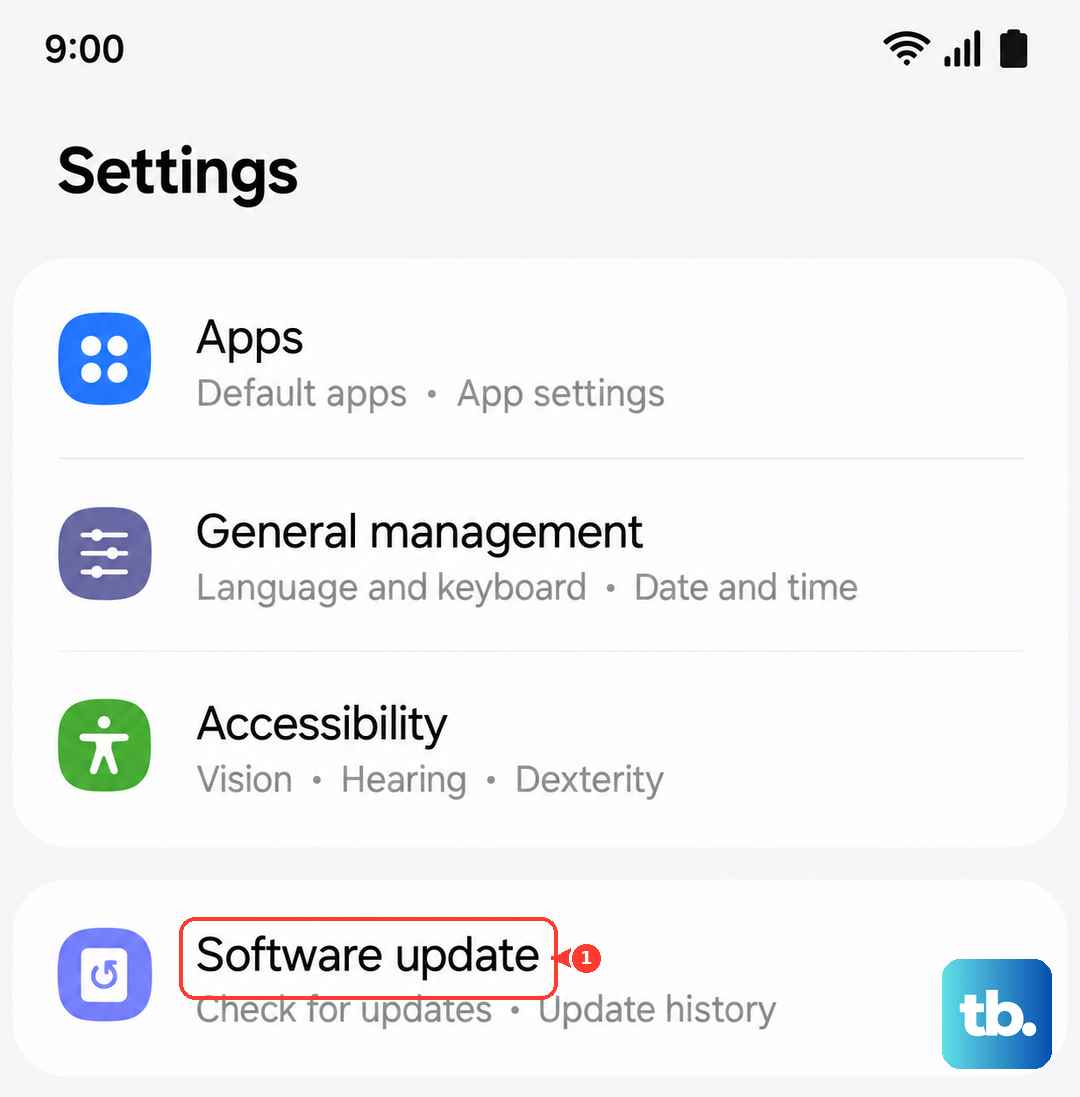
Go to Settings > Software update > Download and install. If an update is available, install it and restart your phone. I've seen updates resolve quirky charging behavior, especially after the move to Android 14 and One UI 6.
Boot Into Safe Mode
If a recent app install coincided with your charging troubles, that app could be the cause. Booting into Safe Mode temporarily disables all third-party apps. Press and hold the Side button until the power menu appears, then tap and hold the "Power off" option on your screen.
Tap "Safe mode" when prompted. If your phone charges normally in Safe Mode, you know a downloaded app is causing conflict. You'll need to uninstall apps one by one (starting with the most recently installed) to find the culprit.
Check for Extreme Battery Drain
If your battery is completely, utterly dead, it might not show any sign of life immediately when plugged in. Leave it connected to a wall charger (not a computer) for at least 30 minutes. After that, try the force restart method again while it's still plugged in.
You can also check your battery health. Go to Settings > Battery and device care > Diagnostics. You can run tests on the battery status here. If your battery's health is severely degraded, it may struggle to accept a charge.
Reset All Settings
This is a more involved step, but it won't delete your personal data like photos or messages. It resets all your system settings (Wi-Fi, Bluetooth, display, etc.) back to default, which can clear out a misconfigured setting affecting power management.
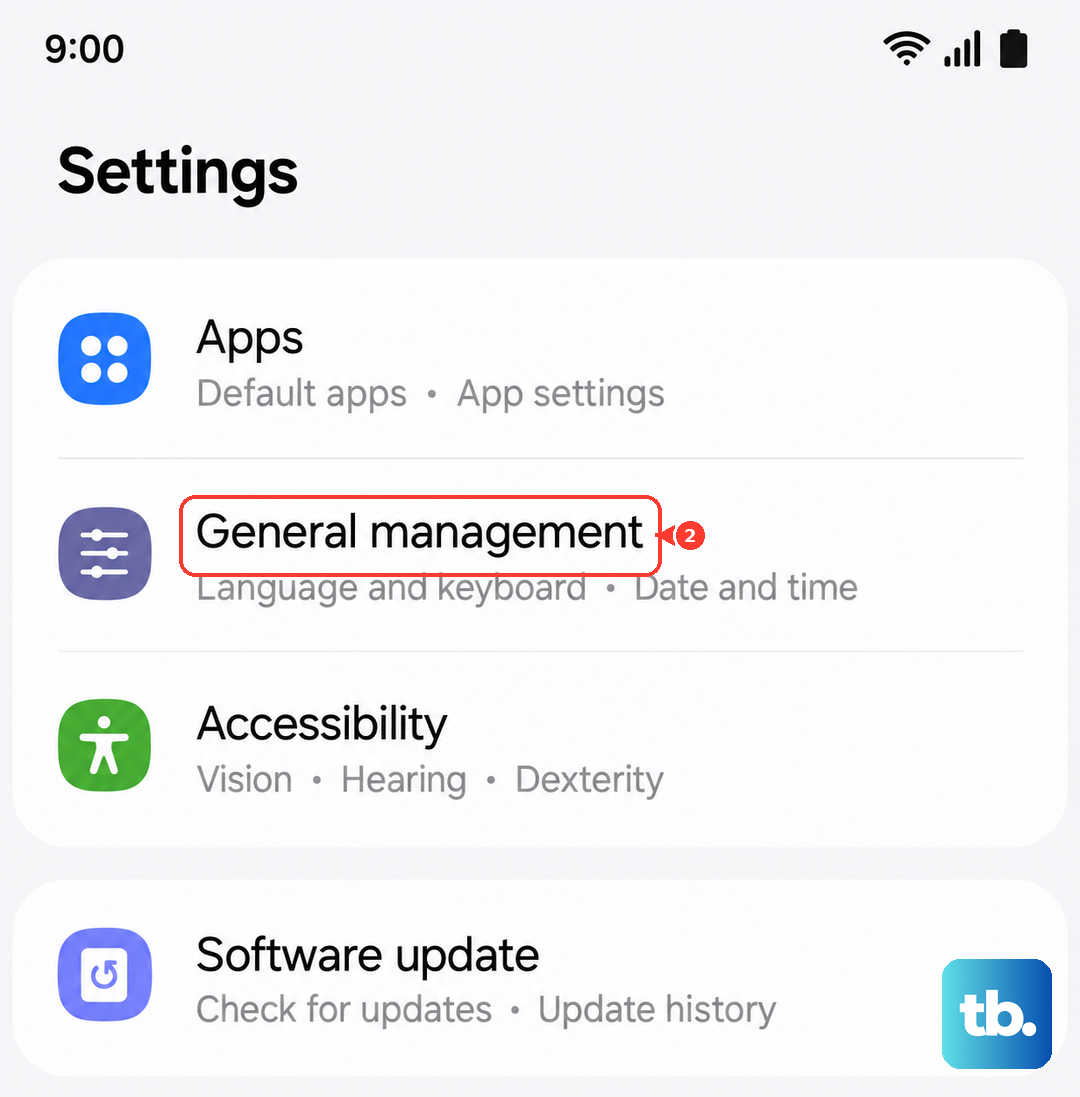
Go to Settings > General management > Reset > Reset all settings. Enter your PIN if asked. After the phone restarts, you'll need to reconfigure things like your wallpaper and connections, but it can resolve deep software glitches.