
If your Samsung Galaxy S23's fingerprint scanner suddenly stops recognizing you, it's a real roadblock. The ultrasonic sensor under the screen is generally reliable, but software hiccups, dirty screens, or a recent update can throw it off. Let's get it working again.
Start With a Quick Restart
Before anything else, give your phone a fresh start. Press and hold the Volume Down button and the Side button together for about ten seconds. You'll see the Samsung logo appear as it reboots.
This clears out any temporary glitches in the system that might be confusing the fingerprint sensor. Once it's back on, try unlocking with your finger again.
Clean Your Screen and Your Finger
This sounds obvious, but it's the most common fix. The S23's sensor reads your fingerprint through the glass, so any smudge, oil, or moisture on the screen can block the signal.
Use a soft, microfiber cloth to thoroughly clean the entire lower portion of your screen where you place your thumb. Make sure your own finger is clean and completely dry, too. Even a little lotion or sweat can cause a misread.
Check Your Screen Protector
Not all screen protectors play nice with ultrasonic sensors. If you recently installed a new one, especially a thick tempered glass model, it could be the culprit.
Try removing the protector temporarily to see if the fingerprint reader springs back to life. If it does, you'll need a protector marketed specifically for use with ultrasonic fingerprint sensors. I've found the thin, film-style protectors usually cause fewer issues than thick glass ones.
Re-register Your Fingerprint
Sometimes the stored data gets corrupted. Deleting your old print and setting it up again often solves the problem. Head to Settings > Biometrics and security > Fingerprints.
Enter your PIN, password, or pattern. Tap on the fingerprint giving you trouble and select Remove. Now, tap Add fingerprint and follow the prompts. Press lightly and rotate your finger slowly to capture the edges during enrollment.
Update Your Software
Samsung has released several updates for the S23 series that include fixes for biometric sensors. An outdated system can definitely cause this kind of problem.
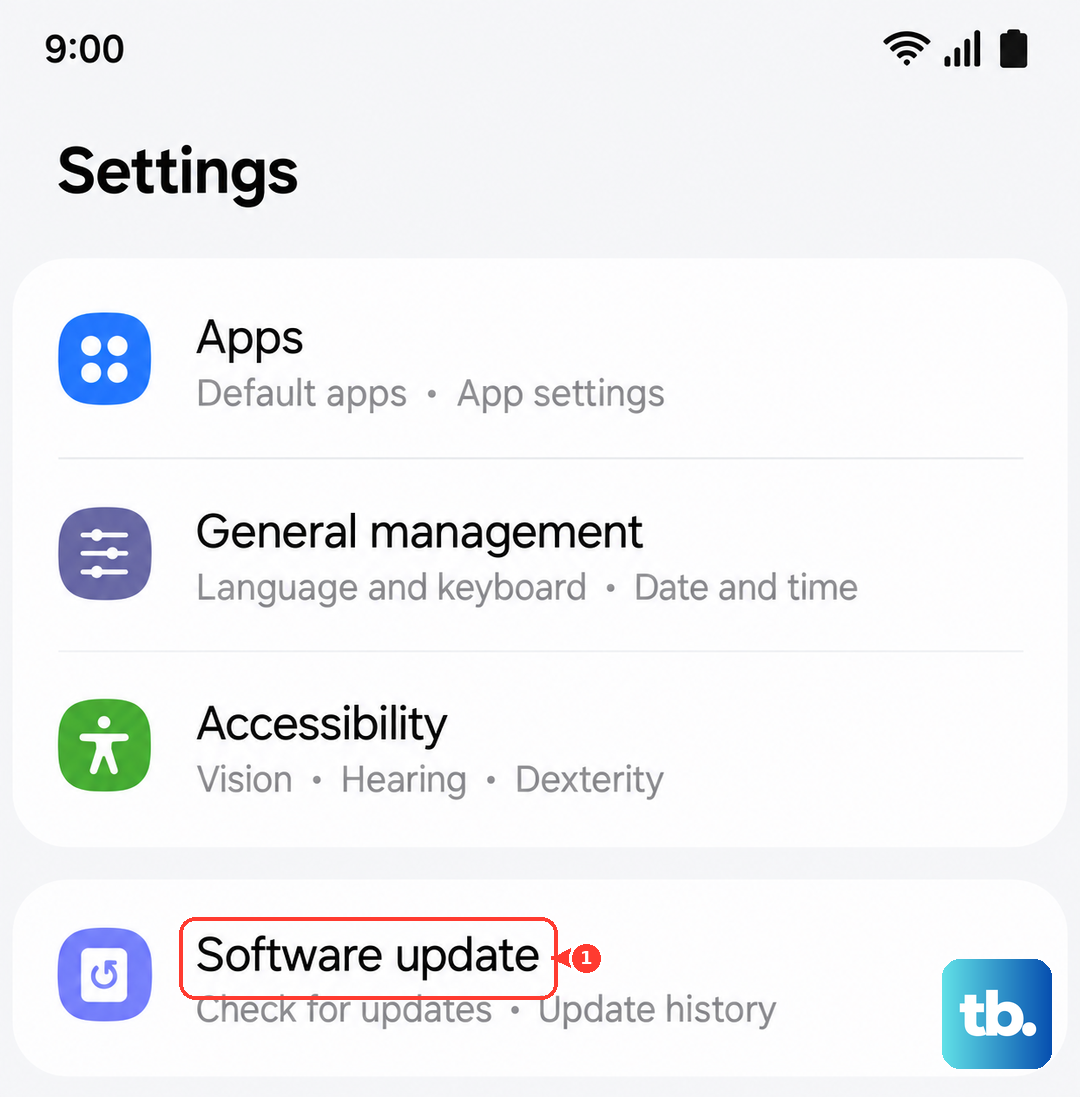
Go to Settings > Software update > Download and install. If an update is available, let it install completely. After the phone restarts, test your fingerprint. It's a good habit to check here monthly.
Boot Into Safe Mode
A third-party app could be interfering with the security system. Booting into Safe Mode temporarily disables all downloaded apps. Press and hold the power button until the power menu appears.
Then, tap and hold the Power off option. You'll see a prompt to reboot to Safe Mode. Tap it. If your fingerprint works perfectly in Safe Mode, you know a downloaded app is the cause. You'll need to uninstall recent apps one by one to find the offender.
Clear the System Cache
Corrupted cache files in the system partition can cause all sorts of strange behavior, including sensor failures. This doesn't delete any personal data. First, turn off your S23 completely.
Now, connect it to your computer with a USB-C cable. Immediately press and hold the Volume Up button and the Side button. When you see the Android recovery menu, release the buttons. Use the volume keys to highlight Wipe cache partition and press the side button to select it. Confirm, then select Reboot system now.
Check for Fingerprint Sensor Gestures
There's a feature that lets you swipe down on the fingerprint sensor to open the notification panel. In rare cases, this can cause a conflict. It's easy to turn off.
Navigate to Settings > Advanced features > Motions and gestures. Look for Finger sensor gestures and toggle it off. Restart your phone and see if the basic unlock function improves.
Ensure Your Screen is On
The S23's fingerprint sensor requires the screen to be awake to read your print. If you have a screen protector on, sometimes a harder press is needed to wake the sensor area.
Tap the screen to wake it up first, then place your registered finger on the sensor icon. You should feel a subtle vibration when it reads successfully. If the screen is off and completely black, the sensor typically isn't active.
Register the Same Finger Twice
For better accuracy, especially if you have a dry skin or a faint fingerprint, register the same finger twice as separate entries. During setup, use a slightly different angle or pressure for the second enrollment.
This gives the system more data points to recognize you. You can label them "Right Thumb 1" and "Right Thumb 2" to keep track. Many users report this dramatically improves their success rate.