
If your Samsung Galaxy S23 feels unusually warm to the touch, you're not alone. It's a common issue that can pop up during charging, gaming, or even just regular use. While some warmth is normal, excessive heat can slow down your phone, drain the battery faster, and in rare cases, trigger a safety shutdown. Let's walk through the most effective ways to cool it down.
Before diving deep, try the quickest fix first. Restart your phone. Press and hold the Volume Down button and the Side key (power button) together for about 10 seconds until you see the Samsung logo. This simple step can clear out temporary software glitches that might be causing a process to overwork the processor.
Check for Problematic Apps and Background Activity
Often, a single misbehaving app is the culprit. It might be stuck in a loop or constantly syncing data in the background, making your phone's processor work overtime. Start by checking your recent apps. Swipe up from the bottom of the screen and hold, then close any apps you're not using.
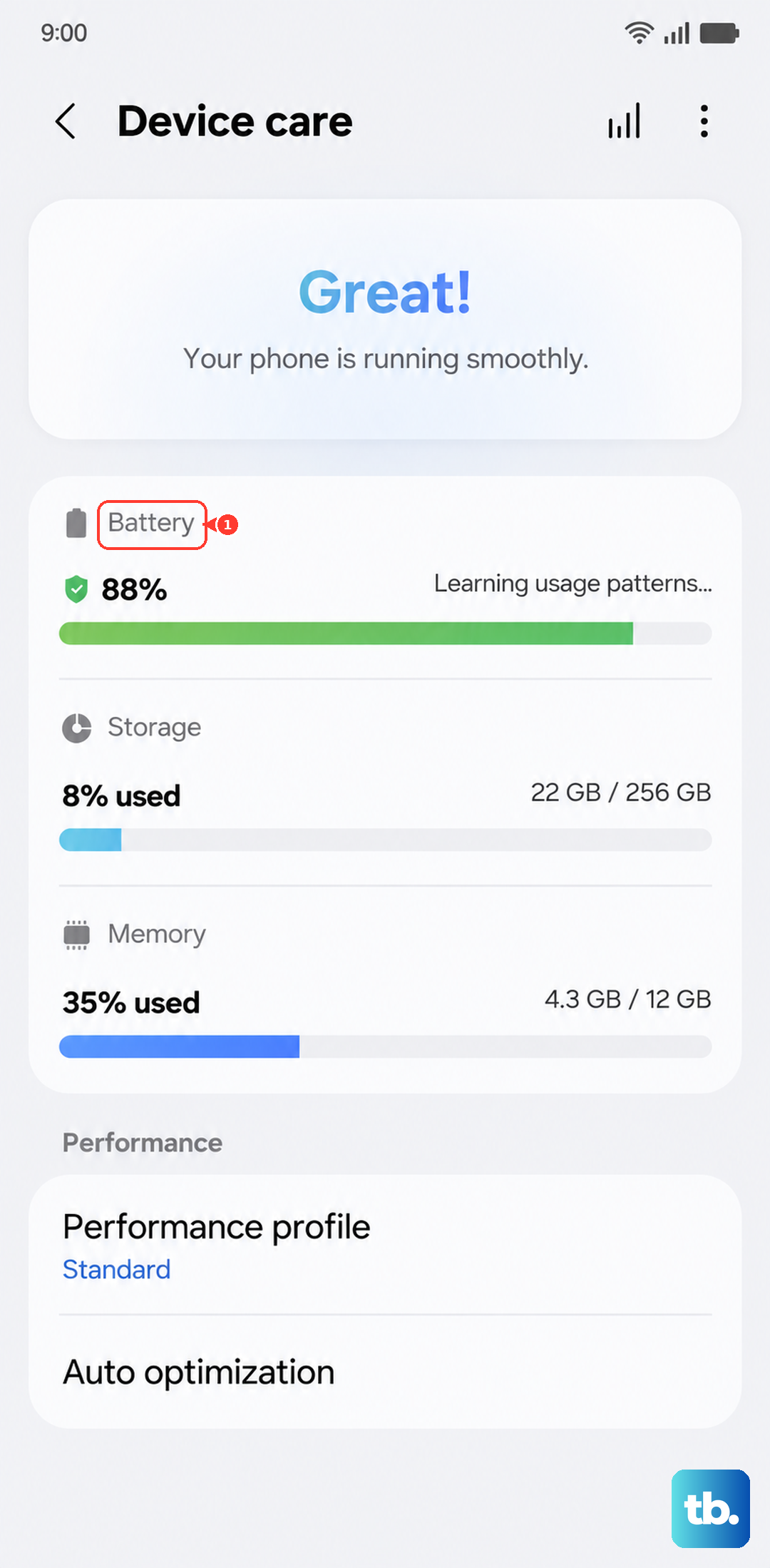
For a deeper check, go to Settings > Battery and device care > Battery. Tap on the graph to see which apps have been using the most power recently. If you see an app you don't recognize or one using a suspiciously high percentage, it might be the source of the heat.
If you suspect an app but can't pinpoint it, boot into Safe Mode. This temporarily disables all third-party apps. Press and hold the power button, then tap and hold the "Power off" option on your screen until you see the Safe Mode prompt. If your phone runs cool in Safe Mode, you know a downloaded app is to blame. You can then uninstall apps one by one to find the offender.
Manage Your Phone's Performance and Display Settings
Your S23 is powerful, but you don't always need it running at full speed. One UI has settings to help balance performance and temperature. Head to Settings > Battery and device care > Battery > More battery settings. Here, you can enable "Adaptive battery" to let your phone learn your usage patterns and optimize app activity.
Also, consider switching to a power-saving mode. You can find this in the quick settings panel by swiping down twice from the top of the screen. Power saving mode will limit background activity and slightly reduce CPU performance, which can significantly cut down on heat generation during everyday tasks.
The display is another major heat source. Lowering the brightness can have an immediate effect. Also, check your screen timeout and consider reducing it. A long timeout means your screen stays on and warm longer if you forget to lock it. You can find these in Settings > Display.
Update Your Software and Review Charging Habits
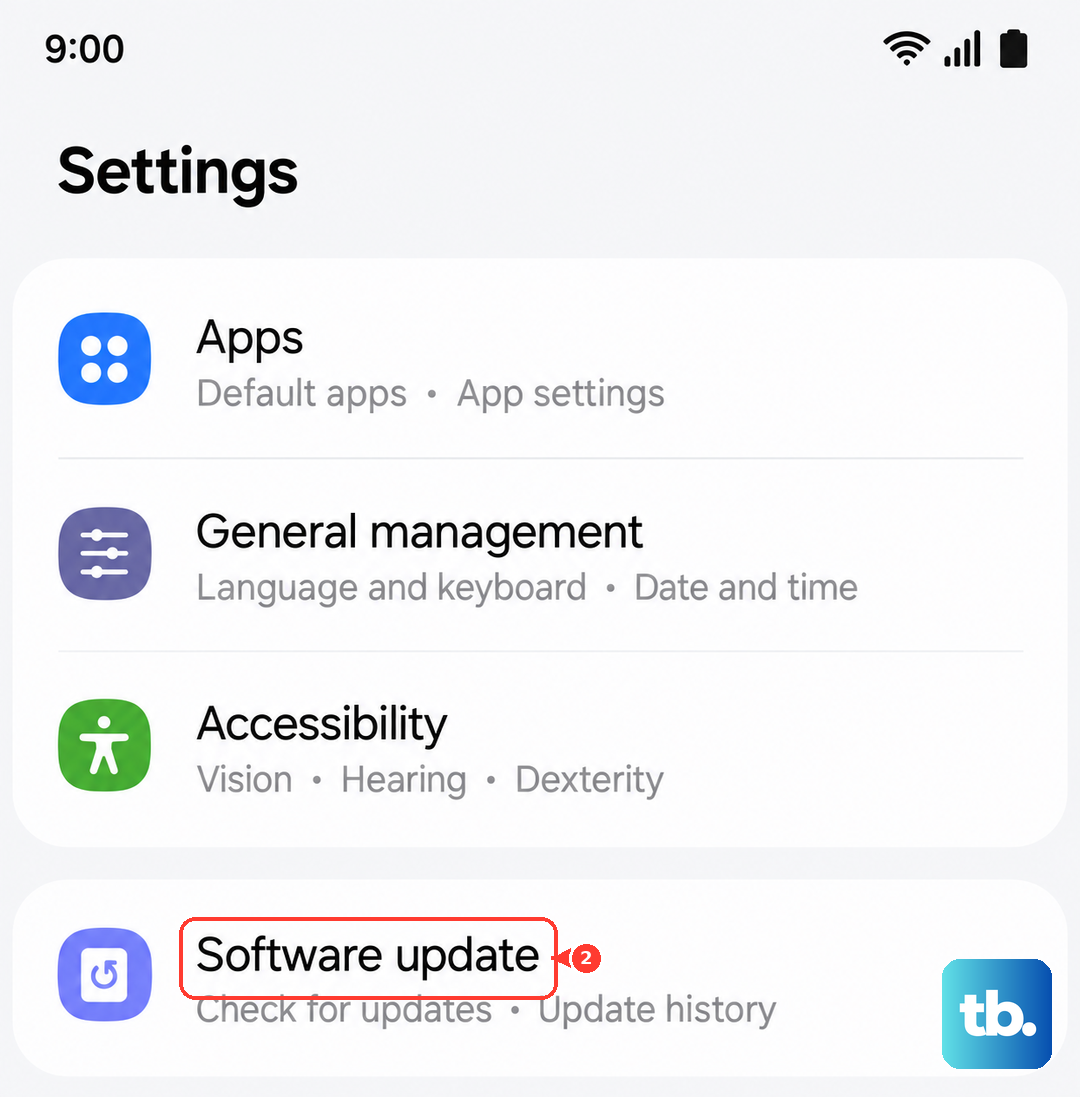
Samsung has released several updates for the S23 series that specifically address thermal management and battery optimization, especially following the Android 14 update. It's always worth checking. Go to Settings > Software update > Download and install.
Charging is a common time for phones to get warm. Make sure you're using a compatible charger. The S23 supports up to 25W wired fast charging, but using a higher-wattage charger from another brand can sometimes cause inefficient charging and extra heat. I'd recommend sticking with an official Samsung 25W charger or a reputable third-party one that supports PPS (Programmable Power Supply).
Also, be mindful of where you charge. Never charge your phone on a soft surface like a bed or couch, as this traps heat. Place it on a hard, flat surface like a nightstand. If it's getting very hot, try turning it off while charging, or at least avoid using it for intensive tasks like gaming during that time.
Address Environment and Connectivity Factors
Your phone's environment plays a huge role. Using your S23 in direct sunlight or a hot car will cause it to heat up rapidly. The same goes for leaving it in a pocket while you're active. If it's hot outside, try to keep your phone in the shade.
Certain connectivity features can also generate heat if they're struggling. If you have a weak cellular signal, your phone's modem works harder to maintain a connection, which uses more power. Consider switching to Wi-Fi if you're in a spot with poor reception. Similarly, if you're not using Bluetooth, GPS, or Mobile Hotspot, turn them off.
Finally, give your phone a break during intensive sessions. Extended periods of gaming, video recording, or using AR apps will naturally make any phone warm. If you feel it getting hot, take a five-minute pause. Close the game or camera app and let the processor cool down. Using a thin, breathable case instead of a thick, insulating one can also help heat dissipate more easily.