
If your Samsung Galaxy S23 is completely black and won't respond, the first thing to try is a force restart. This is different from a normal restart and can clear temporary glitches that freeze the phone. Press and hold the Volume Down button and the Side button (power button) together for about 10 seconds, until you feel a vibration or see the Samsung logo appear on the screen.
Let go of the buttons once you see the logo. The phone should continue booting up normally. I've found this works for about 80% of sudden black screen issues, especially if the phone was acting sluggish just before it died.
Check Your Charger and Cable
Your S23 might have a completely drained battery. If the force restart did nothing and the screen stays black, plug it into a wall outlet with the official 25W Samsung charger and cable. Let it charge undisturbed for at least 30 to 45 minutes.
Don't rely on the charging symbol appearing right away. The battery can be so flat that it needs a significant trickle charge before any indicator lights up. Try a different USB-C cable and a different power adapter if you have one, as faulty accessories are a common culprit.
Be aware that the Galaxy S23 can be picky with fast charging. For the full 25W Super Fast Charging, you need a compatible PPS (Programmable Power Supply) charger. A basic 5W or 10W charger will still work, but it will charge much more slowly, which might explain why a brief plug-in didn't help.
Look for Signs of Life
While the phone is plugged in, look very closely at the screen in a dark room. Sometimes, the phone is on but the display has failed. See if you can spot any extremely faint backlight glow.
Also, gently feel the phone after it's been charging for 10 minutes. If it's getting slightly warm, that's a good sign that power is reaching the battery. If it's completely cold, the charging circuit, port, or battery itself might have an issue.
Listen for any sounds, like a vibration if you press the side button, or a notification sound if someone calls you. These audio cues can tell you the phone's motherboard is on, even if the screen isn't working.
Boot Into Safe Mode
If the phone turns on but gets stuck on the Samsung logo or during startup, a recently installed app could be causing a conflict. Booting into Safe Mode temporarily disables all third-party apps.
First, force restart the phone as described earlier. The moment you see the Samsung logo appear on the screen, release the Side button but keep holding the Volume Down button. Keep holding it until the animation finishes and you see "Safe mode" in the bottom-left corner of the screen.
If the phone boots successfully in Safe Mode, you know a downloaded app is the problem. You can then go to Settings > Apps and uninstall apps you recently added, or ones you suspect might be causing trouble, before restarting normally.
Clear the System Cache
Corrupted temporary system files can prevent a clean boot. Clearing the cache partition in recovery mode won't delete your personal data like photos or messages, so it's a safe next step.
With the phone off, connect it to a computer with a USB-C cable. Then, press and hold the Volume Up button and the Side button simultaneously. When the Samsung logo appears, let go of the Side button but keep holding Volume Up until the blue "Android Recovery" menu appears.
Use the Volume Down button to highlight "Wipe cache partition." Press the Side button to select it. Confirm the action on the next screen. Once it's done, select "Reboot system now." This process can resolve boot loops after a failed software update.
Address Software Update Issues
The Android 14 and One UI 6 update for the S23 series introduced some bugs for a number of users, including unexpected battery drain that could complicate charging. Samsung has released several maintenance updates to fix these issues.
If your phone is turning on but behaving erratically, check for a software update immediately. Go to Settings > Software update > Download and install. Installing the latest patch can resolve underlying system errors that cause instability.
If the update process itself was interrupted and caused the phone to fail, you might need to use Samsung's official Smart Switch software on a Windows or Mac computer to try and reinstall the firmware, which can often recover the device without a full reset.
Inspect the USB-C Port
The USB-C port on your S23 is your lifeline for power and data. Over time, it can get packed with lint from your pockets, preventing the cable from seating fully. Shine a flashlight into the port and look for any compacted debris.
You can carefully use a plastic toothpick or a can of compressed air to clean it out. Never use metal, like a paperclip, as you could damage the delicate charging pins inside. A clean port often solves intermittent charging problems.
Also, the S23 has a moisture detection feature. If it falsely detects liquid in the port, it will disable charging. You'll typically see a water droplet icon in the notification panel if this happens. To clear it, power the phone off completely and leave it in a dry, warm place for a few hours before trying to charge it again.
Consider a Factory Reset
If all else fails and the phone can at least reach the recovery menu, a factory data reset is the final software step. This will erase everything on your phone, apps, accounts, photos, messages, and return it to its original out-of-the-box state.
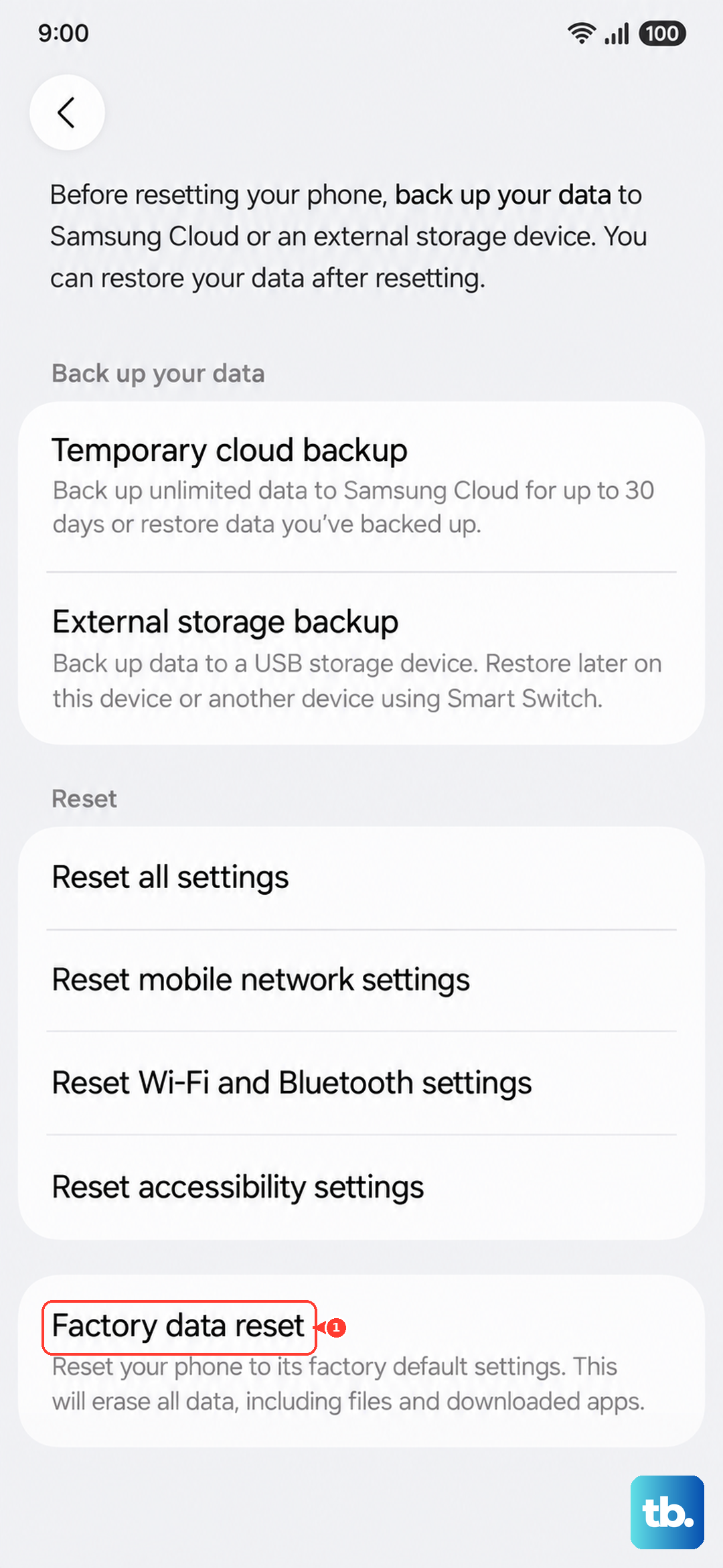
This is a last resort. You can initiate it from the same Android Recovery menu used to wipe the cache. Navigate to "Wipe data/factory reset" and confirm. If the phone's hardware is functional, this will eliminate any deep-seated software corruption. After the reset, you can set it up as new or restore from a previous Samsung Cloud or Google One backup, if you had one enabled.