
So your Motorola Moto G Power (2025) won't charge. You plug it in and nothing happens, or maybe the charging icon flickers and disappears. It's a frustrating spot to be in, especially since this phone doesn't come with a charger in the box, so you're already using whatever cable and adapter you have on hand.
Don't worry, though. This is almost always something you can fix yourself. Let's run through the solutions, starting with the quickest and most common fix for this specific model.
Force Restart Your Moto G Power
This should be your very first move. A simple software hiccup can sometimes block the charging system, and a force restart clears it right out. For the Moto G Power (2025), it's straightforward.
Just press and hold the Power button for 10 seconds or more. Keep holding it until you feel a vibration or see the Motorola logo appear on the screen. Once it boots back up, plug it in again and check for the charging indicator.
Clean the USB-C Charging Port
This is the single most common culprit for any phone that won't charge, and the Moto G Power is no exception. Lint and pocket debris get packed into that USB-C port over time, preventing the cable from making a solid connection.
Grab a flashlight and take a close look inside the port. If you see any fuzz or dirt, you'll need to clean it out. First, power the phone off completely for safety.
Then, use a wooden or plastic toothpick to gently scrape around the edges and dislodge the gunk. Avoid metal tools like paperclips, as they can scratch the delicate gold contacts inside. A can of compressed air can help blow out loose particles, but hold it upright to avoid spraying moisture.
Check Your Cable and Charger
Since the Moto G Power (2025) doesn't include a charger, you're relying on your own gear. The problem could easily be a worn-out cable or an underpowered adapter. You need to test each component separately.
First, try a different USB-C cable if you have one. Make sure it's a quality cable capable of handling data and fast charging, not just a cheap, thin one. Next, try a different wall adapter. The phone supports up to 30W wired charging, so using a higher-wattage USB-PD charger will give you the fastest speeds.
Also, try plugging into a different wall outlet. Sometimes a faulty outlet or power strip is the issue. Finally, remove your phone case. A thick or poorly aligned case can prevent the USB-C plug from seating all the way into the port.
Wait for a Deeply Drained Battery
If you let the battery run down to absolute zero, the phone might not show any signs of life immediately when you plug it in. This is normal behavior for lithium-ion batteries.
Leave it connected to a known-good wall charger (not a slow computer USB port) for at least 30 minutes. Don't touch it or try to turn it on during this time. After a half-hour, check for a charging light or icon on the black screen. If you see nothing, try the force restart again while it's still plugged in.
Check for Software Updates
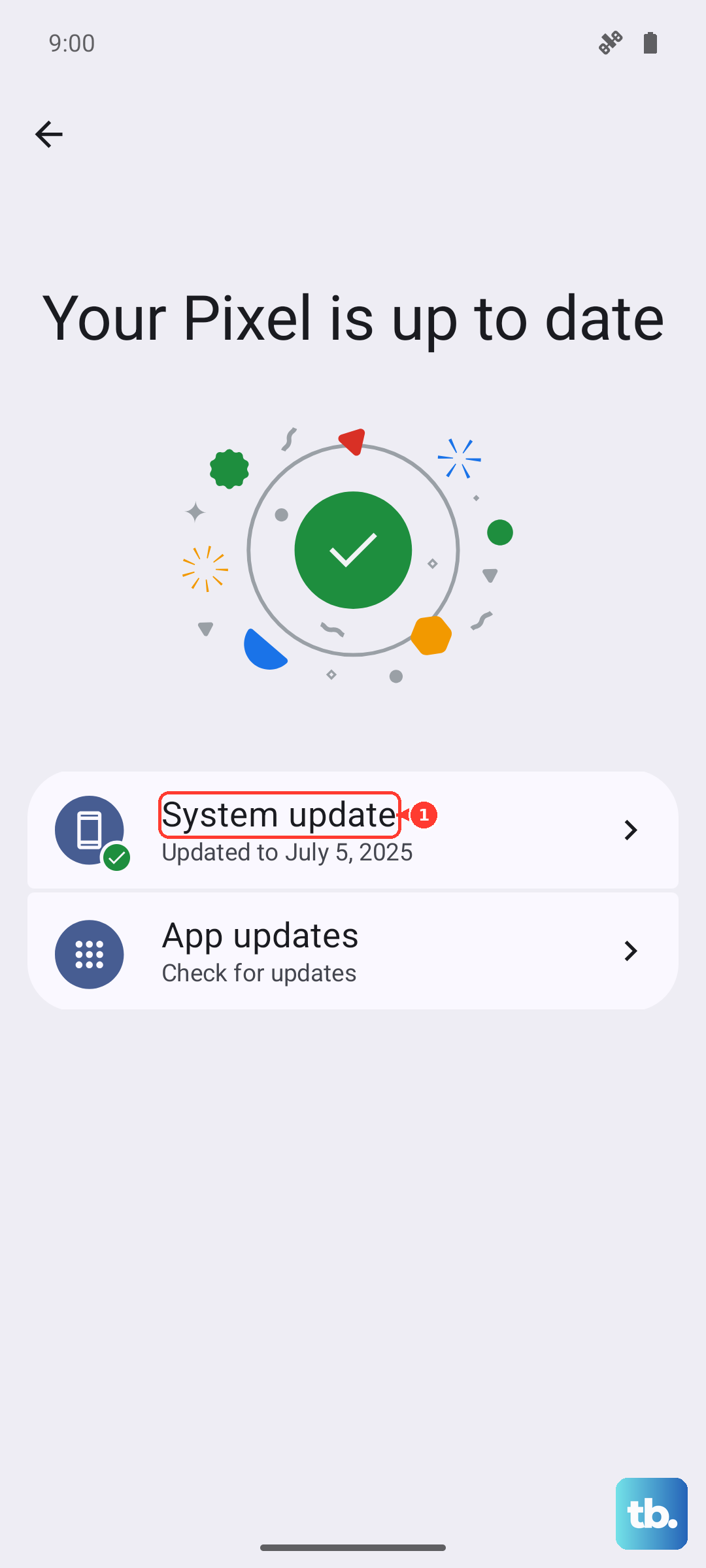
Since your phone runs Android 15, occasional software bugs can interfere with charging. Motorola releases updates to patch these kinds of issues. It's a good idea to make sure you're running the latest software.
Go to Settings > System > System update. Tap "Check for update" and install anything that's available. If your phone won't turn on to check, you might need to charge it for a longer period first or connect it to a computer.
Charge with the Phone Powered Off
Sometimes a misbehaving app or background process can prevent proper charging. A simple test is to turn the phone off completely. Hold the Power button and select "Power off" from the menu.
Once the screen is fully black, plug in your charger. If you see a battery icon or a large charging symbol, you'll know the hardware is fine and a software issue was blocking it. This method also often results in slightly faster charging since no system resources are being used.
Consider Battery Health and Storage
The Moto G Power has a 128GB base storage model. If you've filled that up completely, it can cause general system sluggishness and odd behavior, though it's less likely to directly stop charging. Still, managing your storage is good practice for overall health.
Remember, you can expand storage using the microSD card slot. For the battery itself, while it's designed to last, all batteries degrade over years of use. If your phone is old and you've ruled out every other cause, the battery itself may be nearing the end of its life.
Try a Different Power Source and Cable Combo
Let's be systematic. You need to isolate whether the issue is the phone, the cable, or the power source. I'd start by borrowing a friend's known-good 30W USB-PD charger and cable, if possible.
Plug that combo into your Moto G Power. If it charges, then your original charger or cable is faulty. If it still doesn't charge, the problem is almost certainly with the phone's port or battery. Since this model has a MIL-STD-810H durability rating, it can handle drops, but a hard impact could still damage the internal charging circuitry or loosen the port.











