
If your brand new iPhone 17e is making videos stutter or freeze during playback, it's a jarring experience on a fresh device. This can happen for a few reasons, but given it's a 2026 model running iOS 26, early software bugs are a distinct possibility alongside the usual suspects.
Quick Fix: Force Restart and Update
For any new device glitch, a force restart is the best first step. On the iPhone 17e, you press and release the Volume Up button, then press and release the Volume Down button, and finally press and hold the Side button until you see the Apple logo. This clears the system's memory without touching your data.
Right after that, head to Settings > General > Software Update. Apple is likely pushing out early stability patches for the iPhone 17e and iOS 26, and an update could directly address video playback performance.
Check Your iPhone 17e's Storage
Even on a new phone, storage can fill up fast with 4K videos. When space gets critically low, the system struggles to read and write video files smoothly, causing lag. Navigate to Settings > General > iPhone Storage to see your available space.
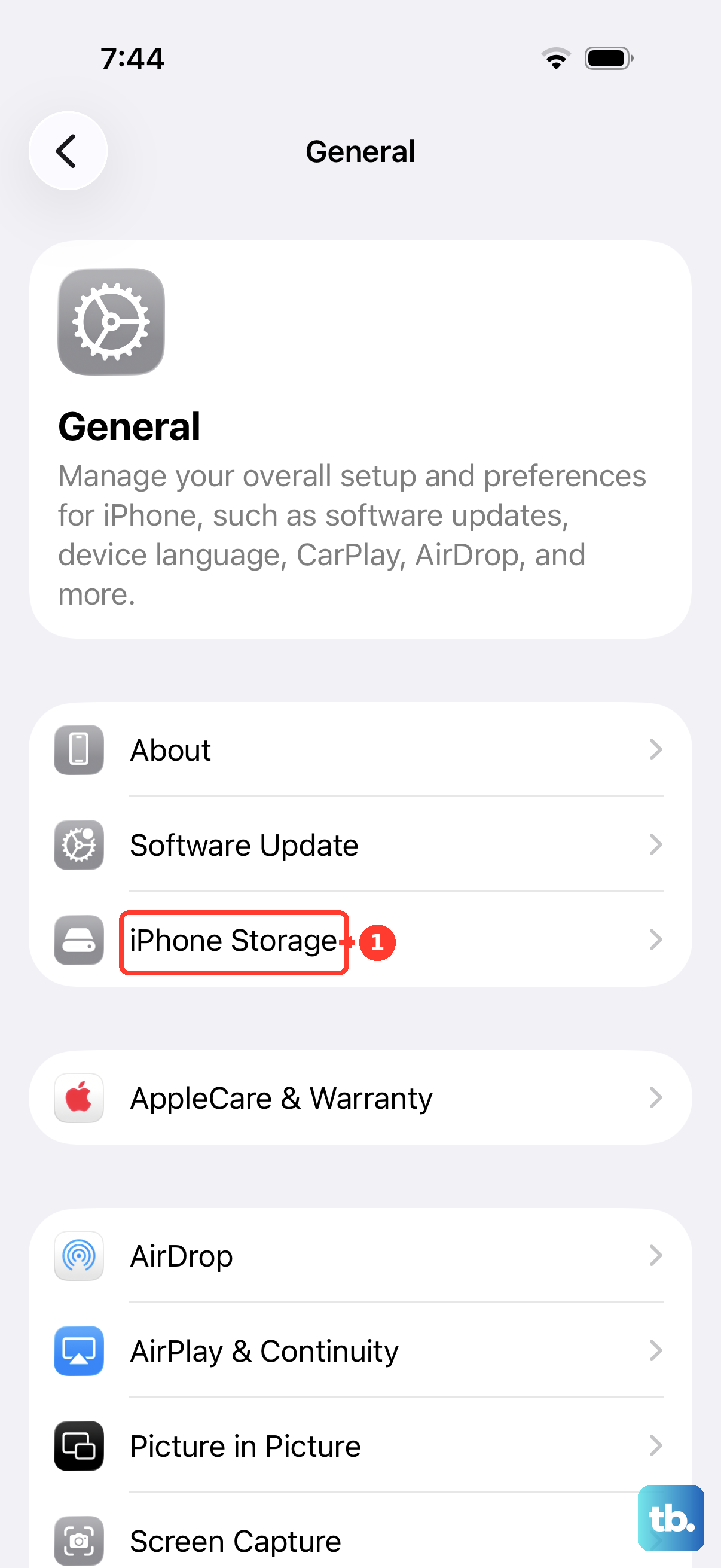
If you're below a few gigabytes free, consider offloading unused apps or enabling iCloud Photos. The iPhone 17e uses the same USB-C port as the Pro models, so transferring large video files to a computer to clear space is also very fast.
Isolate the Problem: App or System?
First, figure out if the lag is everywhere or just in one app. Does it happen in the native Photos app, YouTube, and Netflix, or only in a specific social media app? If it's just one app, the issue is likely with that app's early iOS 26 compatibility.
Try updating the problematic app through the App Store. If that doesn't help, delete and reinstall it. This gives the app a clean slate, which often resolves playback bugs introduced after a major OS update.
Manage Background Activity and Heat
The iPhone 17e's A19 chip is powerful, but it can run warm during intensive tasks. If you're charging the phone with a 20W adapter while trying to play a high-resolution video, the combination of heat and background processes might cause the system to throttle performance, leading to lag.
Close any apps you aren't using by swiping up from the bottom. Try playing the video while the phone is unplugged and cooler. I've seen similar thermal throttling affect video playback on other models, and letting the device cool down often makes an immediate difference.
Review Your Network Connection
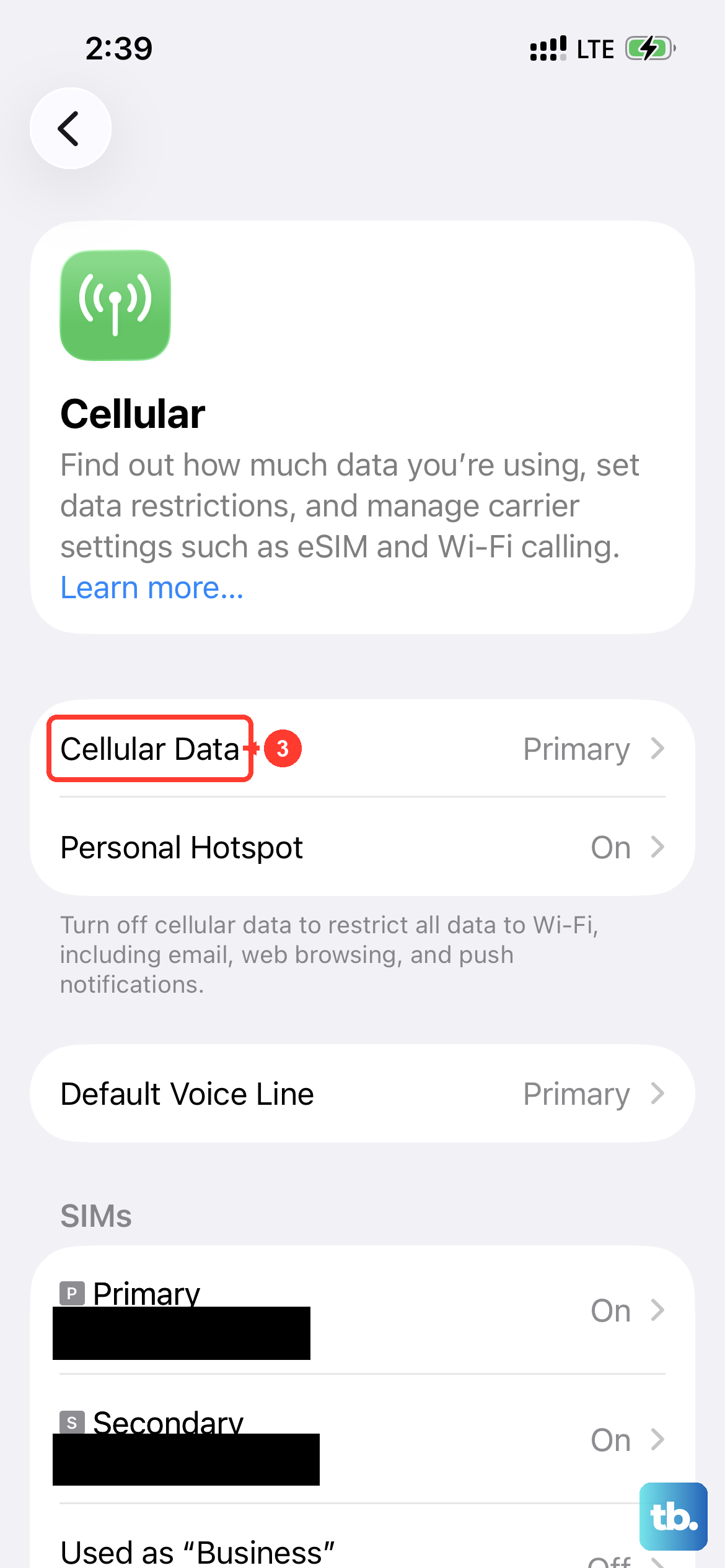
For streaming videos, a weak connection is a prime culprit. The iPhone 17e features the new C1X cellular modem, which should be excellent, but it's still susceptible to poor Wi-Fi. Try playing a video stored locally on your phone (like one you recorded) to rule out the internet.
If the local video plays fine, your network is the issue. Toggle Airplane mode on and off to reset the radios, or try switching between Wi-Fi and cellular data to see which is more stable.
Reset All Settings
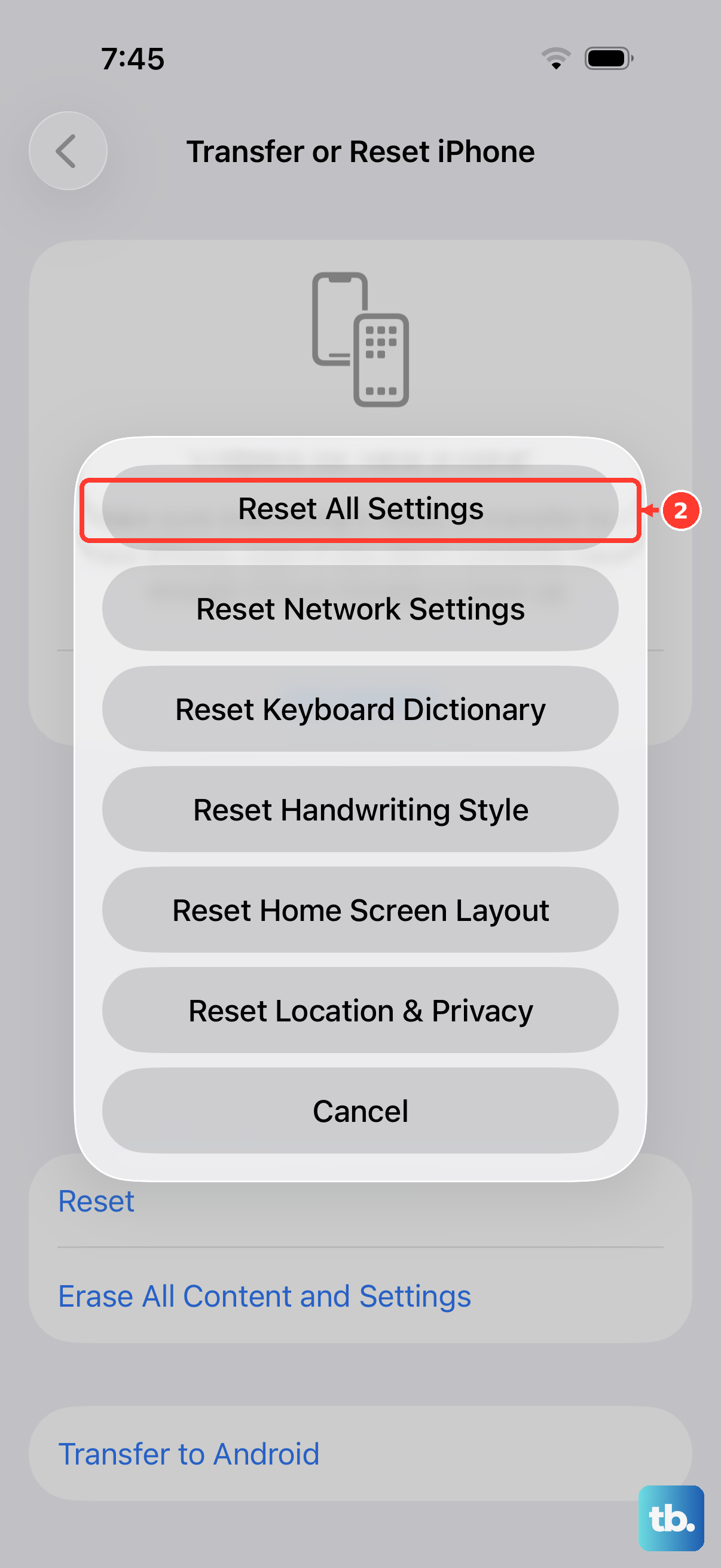
If the lag persists across every app and file, a deeper software setting might be misconfigured. Resetting all settings will revert your Wi-Fi passwords, wallpaper, and privacy preferences back to default, but it won't delete your photos, apps, or personal data.
You can do this by going to Settings > General > Transfer or Reset iPhone > Reset > Reset All Settings. This is a common fix for persistent media playback issues after a major iOS update, which is essentially what your iPhone 17e is running on.
Check for Display Settings Misconceptions
Remember, the iPhone 17e is the budget model in the lineup. It does not have a ProMotion display with a 120Hz refresh rate. Videos are locked to standard refresh rates, which some people coming from higher-end displays might initially perceive as lag or stutter.
This isn't a fault, it's a hardware limitation. You can double-check your motion settings by going to Settings > Accessibility > Motion > Limit Frame Rate and ensuring it is turned off to get the full 60Hz the display supports.
Consider a Factory Reset (With a Backup)
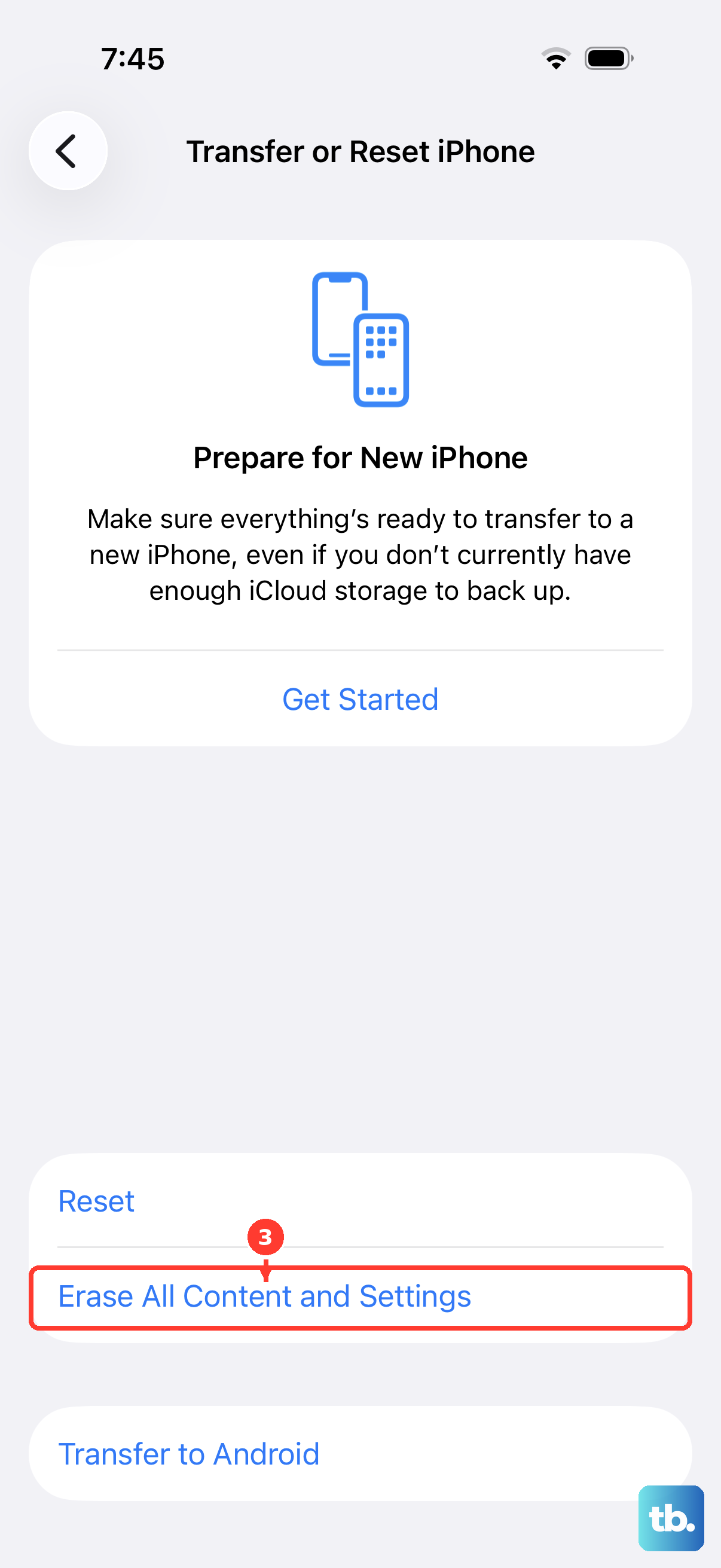
As a last resort before contacting support, you can try a factory reset. Since the iPhone 17e is so new, this is less about clearing years of clutter and more about getting a perfectly clean install of iOS 26. This will erase everything on your phone.
Make absolutely sure you have a recent iCloud or computer backup first. Then, go to Settings > General > Transfer or Reset iPhone > Erase All Content and Settings. After the phone restarts, you can set it up as new to test video playback immediately, or restore your backup.