
Seeing that "Storage Full" warning pop up on your brand new iPhone 17e is a real letdown, especially when you just got it. The good news is, it's almost always fixable without losing your important stuff. Let's walk through the best ways to free up space on your phone.
Check Your iPhone 17e's Storage Breakdown
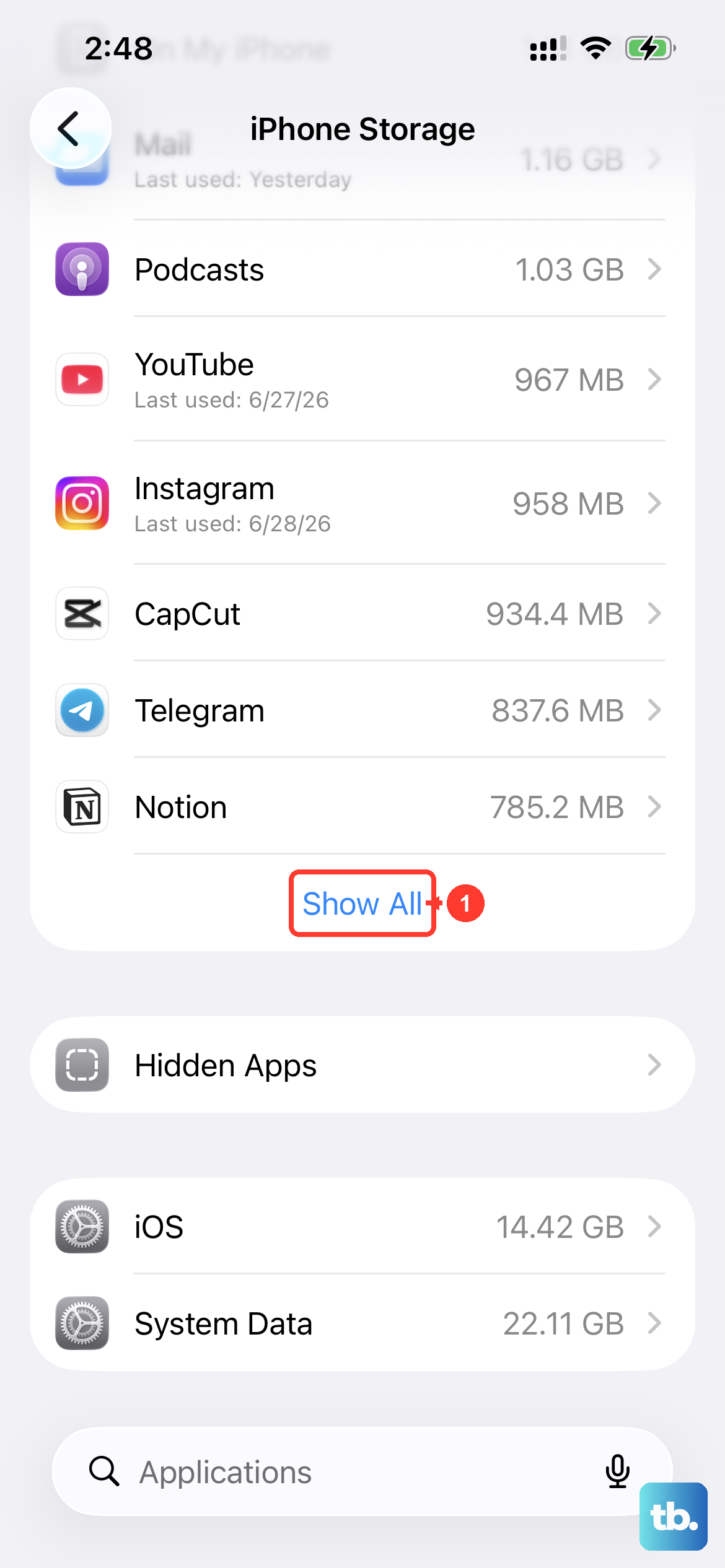
First, let's see what's actually eating up all that space. Head to Settings > General > iPhone Storage on your iPhone 17e. Give it a moment to load the full breakdown. You'll see a color-coded bar and a list of apps sorted by size. This is your roadmap for what to tackle first.
Offload Apps You Don't Use
Your iPhone 17e can automatically handle some of this for you. Right on that iPhone Storage screen, look for the Offload Unused Apps recommendation and turn it on. This clever feature removes the app itself but keeps all your documents and data saved. When you tap the app icon again later, it downloads right back, good as new. You can also do this manually for any app by tapping on it in the list and choosing Offload App.
Clear Out Old Messages and Attachments
Text message threads, especially group chats, are notorious for hoarding photos and videos. To clean them out, go to Settings > General > iPhone Storage and tap on Messages. You'll see categories like Photos, Videos, and GIFs. Tap into each one and review what you can delete. For a more permanent fix, set messages to auto-delete: go to Settings > Apps > Messages > Keep Messages and select 30 Days or 1 Year.
Delete and Reinstall Large Social Media Apps
Apps like Instagram, TikTok, and Facebook build up huge caches of temporary data. In your iPhone Storage list, if you see an app where the "Documents & Data" size is much larger than the "App" size, that's the cache. The quickest fix is to delete the app entirely and then reinstall it from the App Store. You'll log back into your account, and all that wasted space will be gone.
Optimize Your Photo Library
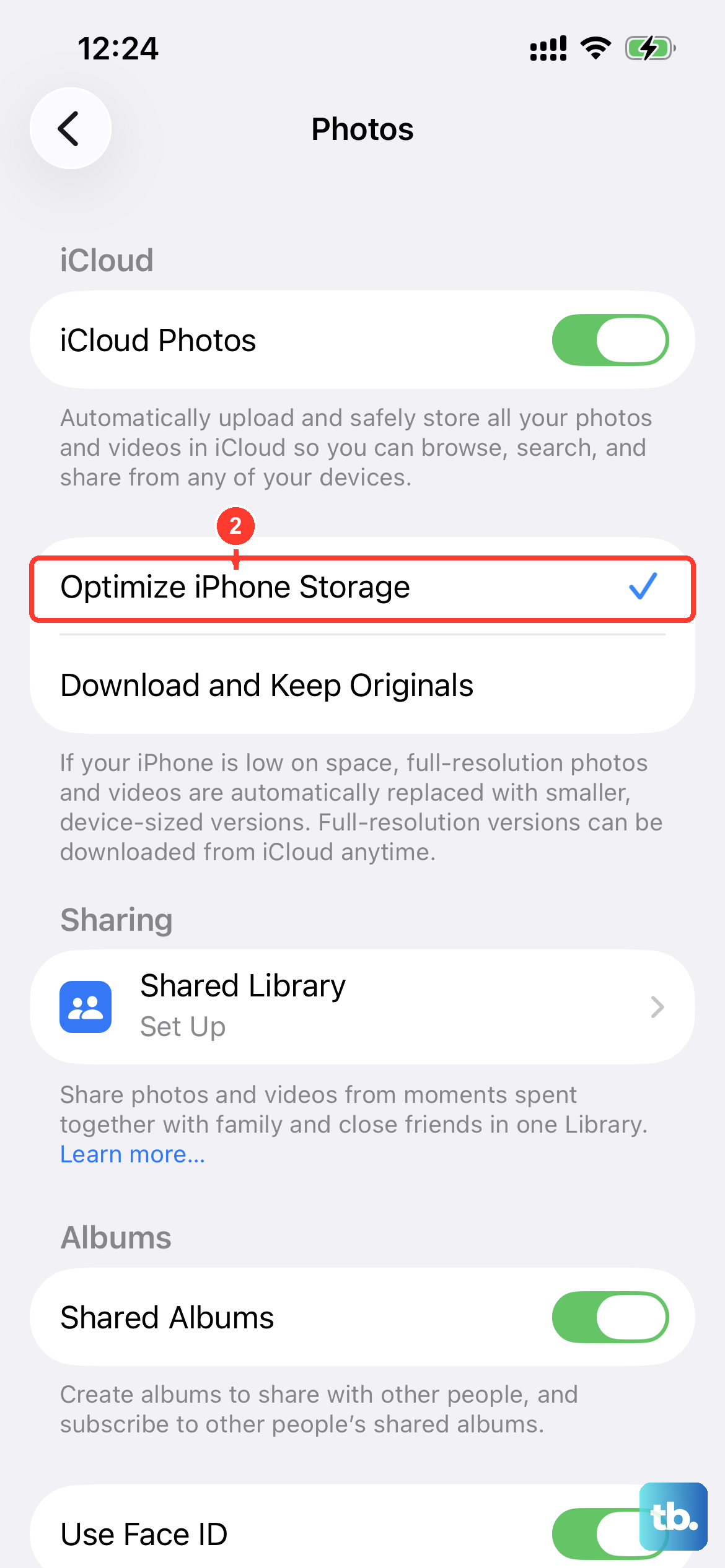
Photos and videos are almost always the biggest space hogs. To let iCloud handle the heavy lifting, go to Settings > Photos and turn on Optimize iPhone Storage. This keeps full-resolution versions in the cloud while storing smaller, device-friendly versions on your iPhone 17e. Also, take a few minutes to delete blurry shots, old screenshots, and duplicate photos. Don't forget to then empty the Recently Deleted album in the Photos app.
Clear Safari's Website Data and Cache
Safari saves bits and pieces of every website you visit. Over time, this cache can grow quite large. To wipe it clean, go to Settings > Apps > Safari and tap Clear History and Website Data. This instantly frees up space and can also help if websites are acting sluggish on your phone.
Remove Downloaded Music, Podcasts, and Shows
If you download content for offline use, those files stay put until you delete them. Open apps like Apple Music, Spotify, Netflix, or the Podcasts app and look for your downloads section. Delete albums you've listened to, podcasts you've finished, or shows you've already watched. In Spotify, you can go to Settings > Storage and tap Remove all downloads for a clean sweep.
Check for iOS 26 System Data Issues
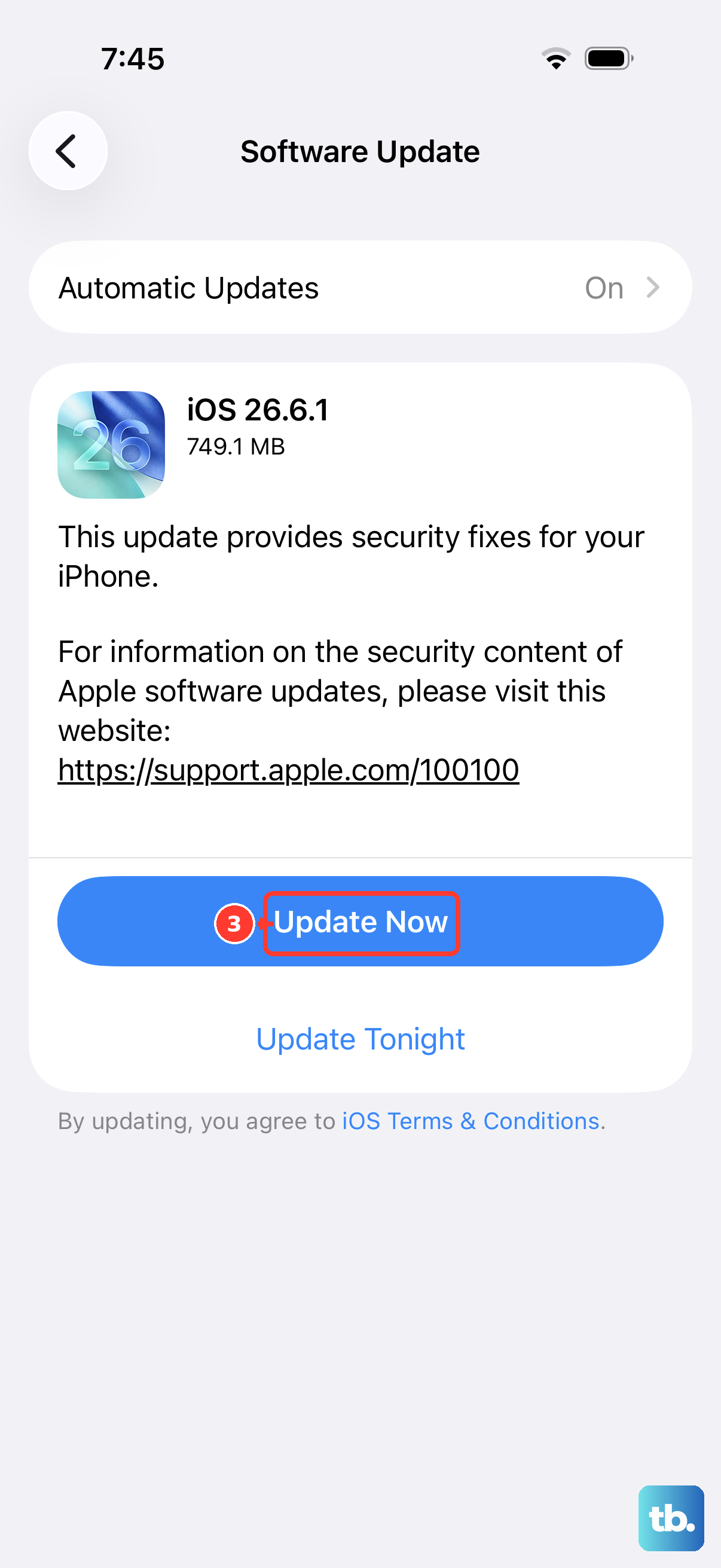
Since the iPhone 17e launched with iOS 26, there's a known bug where the "System Data" category can balloon in size after an update. In Settings > General > iPhone Storage, scroll down and look at the System Data section. If it's showing 20GB or more, that's likely the culprit. A simple restart can sometimes fix it. If not, the system usually cleans itself up within a day or two as it finishes background tasks. Apple is aware of this and a fix should come in a software update soon.
Manage Your iCloud Storage Plan
If you're constantly battling for space, it might be time for more iCloud storage. With a larger iCloud+ plan, your photos, messages, and backups live in the cloud, freeing up precious space on your device. You can check your current plan and upgrade by going to Settings > [Your Name] > iCloud > Manage Account Storage.