
Press and release the Volume Up button, then press and release the Volume Down button. Finally, press and hold the Side button. Keep holding it until you see the Apple logo appear, then you can let go. This force restart is the single most effective fix for an unresponsive screen on any iPhone, including the 17e.
Before trying the fixes, map the problem with a online touch test in your browser. Dragging a finger across the grid reveals exactly which areas of the screen respond and which do not.
It forces the device to shut down and reboot from scratch, clearing out any temporary software glitch that's locking up the touchscreen. I'd start with this one every single time.
Clean the Screen and Your Hands
It sounds simple, but a surprising number of touch issues come from a dirty screen or wet fingers. Use a soft, lint-free cloth to wipe the entire screen clean. Make sure your hands are completely dry, as moisture can confuse the capacitive touch sensors.
Also, remove any screen protector you might have installed. While rare, a poorly applied or low-quality protector can interfere with the touch sensitivity, especially on the edges of the display.
Check for a Software Update
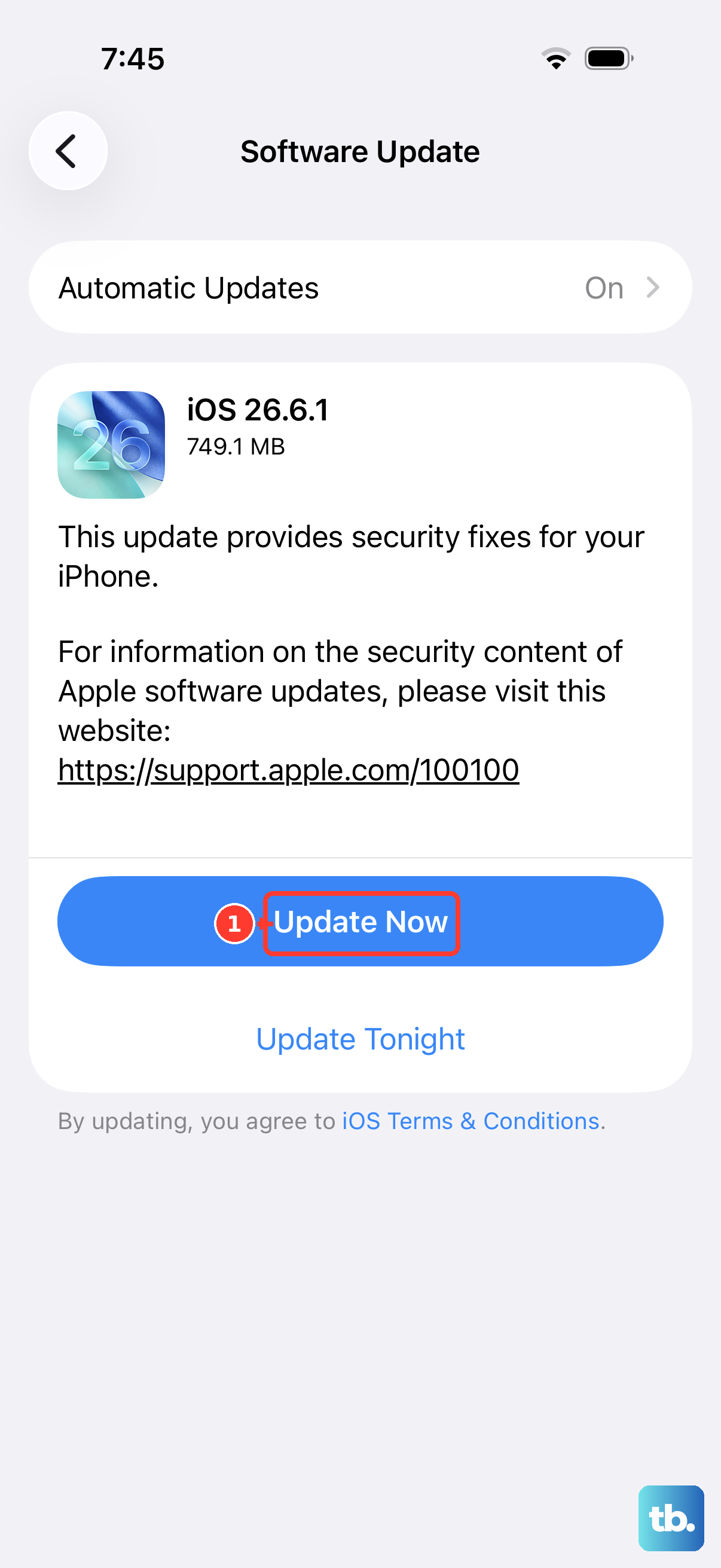
Since the iPhone 17e is a brand new device, early software bugs are a real possibility. Go to Settings > General > Software Update. If an update is available, install it.
These updates often contain patches for performance and stability issues reported in the first few months after a phone's release. Make sure your phone is connected to Wi-Fi and has at least 50% battery or is plugged into a charger before starting the update.
Close All Apps and Free Up Memory
Sometimes, a single misbehaving app can hog system resources and cause the entire interface to lag or freeze. Swipe up from the bottom of the screen and hold in the middle to enter the app switcher. Swipe up on every app preview to close them all.
After that, give your phone a moment and try using the screen again. If you were in a specific app when the screen stopped responding, that app is the likely culprit. You might want to check for an update to that app in the App Store.
Disable and Re-enable AssistiveTouch
If you use AssistiveTouch (the virtual home button), try turning it off. Go to Settings > Accessibility > Touch > AssistiveTouch and toggle it off. Test your screen, then toggle it back on if you need it.
This resets the touch accessibility layer. In some cases, a conflict here can make parts of the screen seem unresponsive to normal taps and swipes.
Check for Overheating
The iPhone 17e's A19 chip can run warm during intensive tasks. If the device is too hot, iOS will automatically throttle performance and may disable certain features, potentially affecting touch response, to protect the hardware.
If the phone feels very warm to the touch, move it to a cooler place, out of direct sunlight, and stop using it for a few minutes. Let it cool down completely and then try the force restart again.
Reset All Settings
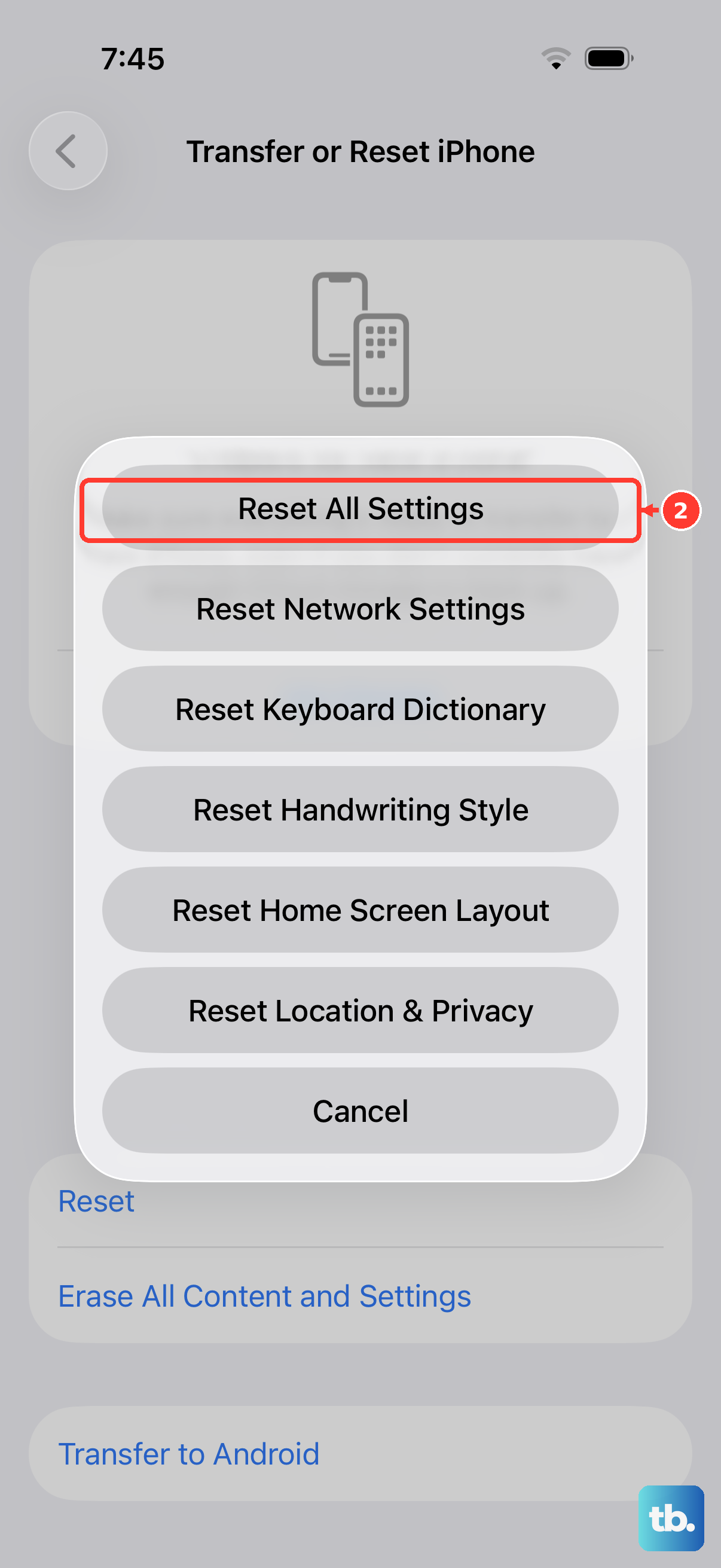
This is a stronger software reset that won't delete your personal data like photos or messages. It will, however, reset all your preferences back to default, things like Wi-Fi passwords, wallpaper, and display settings.
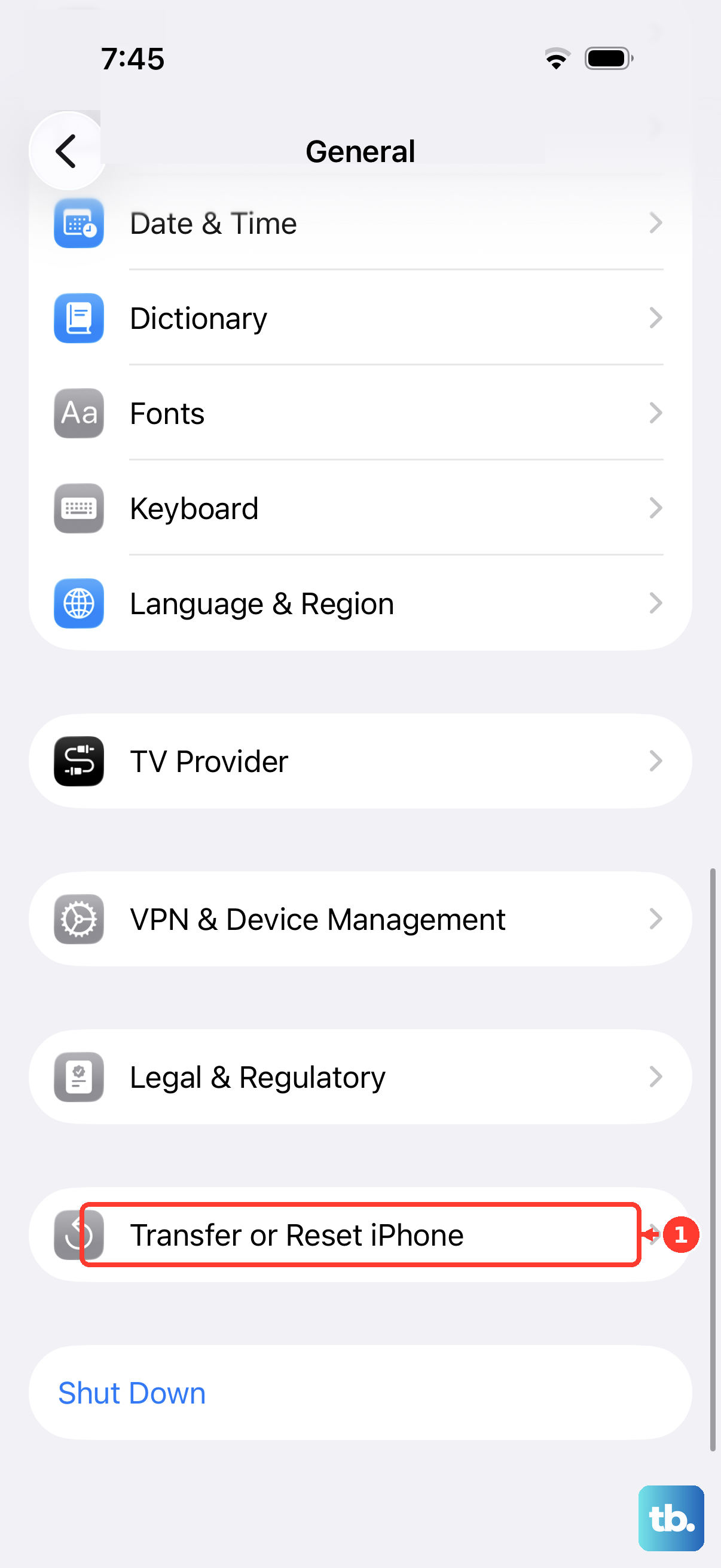
To do it, go to Settings > General > Transfer or Reset iPhone > Reset > Reset All Settings. Enter your passcode and confirm. After the phone reboots, you'll need to reconfigure your preferences, but this often clears deeper software conflicts.
Restore Using a Computer
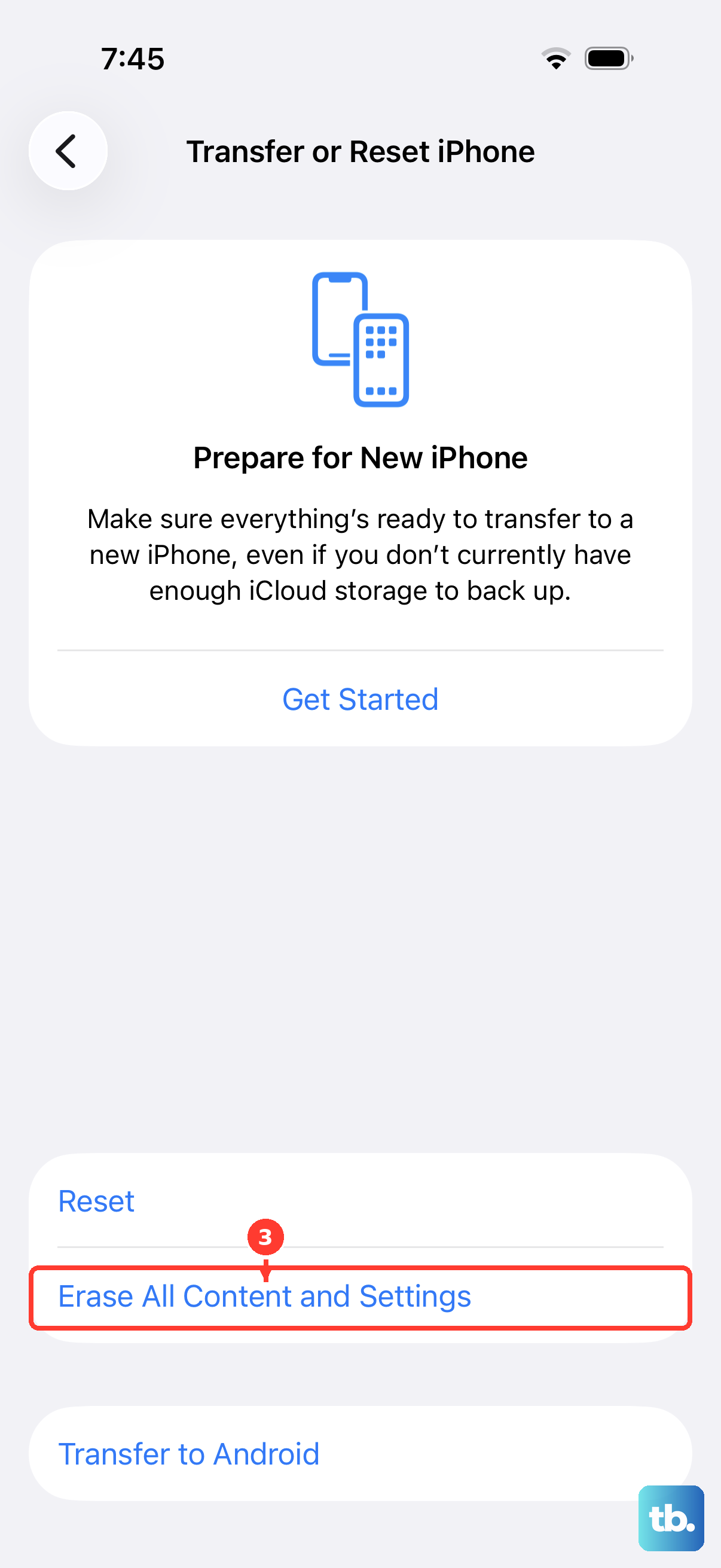
If the screen is still unresponsive after all other steps, you'll need to connect to a computer. This process will erase all content and settings, so ensure you have a recent backup in iCloud or on your computer.
Connect your iPhone 17e to a Mac or PC using a USB-C cable. On a Mac with macOS Catalina or later, or a PC with iTunes, force the phone into Recovery Mode. Quickly press and release Volume Up, press and release Volume Down, then press and hold the Side button until you see the recovery mode screen.
On the computer, choose to "Restore" the device. This will install a clean, fresh copy of iOS 26. After it's complete, you can set up the phone as new or restore from your backup to see if the problem is resolved.