


Seeing "No Service" or searching for signal on your brand new iPhone 17e is a real buzzkill. It's the first budget model with the new C1X cellular modem, which is great, but early software bugs can sometimes mess with the connection. The good news is you can almost always get your bars back with a few simple steps.
I'd start with the classic force restart. It's different on the iPhone 17e than older models. Quickly press and release the Volume Up button, then do the same with the Volume Down button. Finally, press and hold the Side button until you see the Apple logo appear, then let go. This clears out any temporary glitches in the modem or iOS 26 without touching your data.
Check for a Carrier Settings Update
Your carrier periodically sends small configuration files to your phone to optimize the network. An outdated one can cause problems. Go to Settings > General > About. If an update is available, a prompt will appear right there.
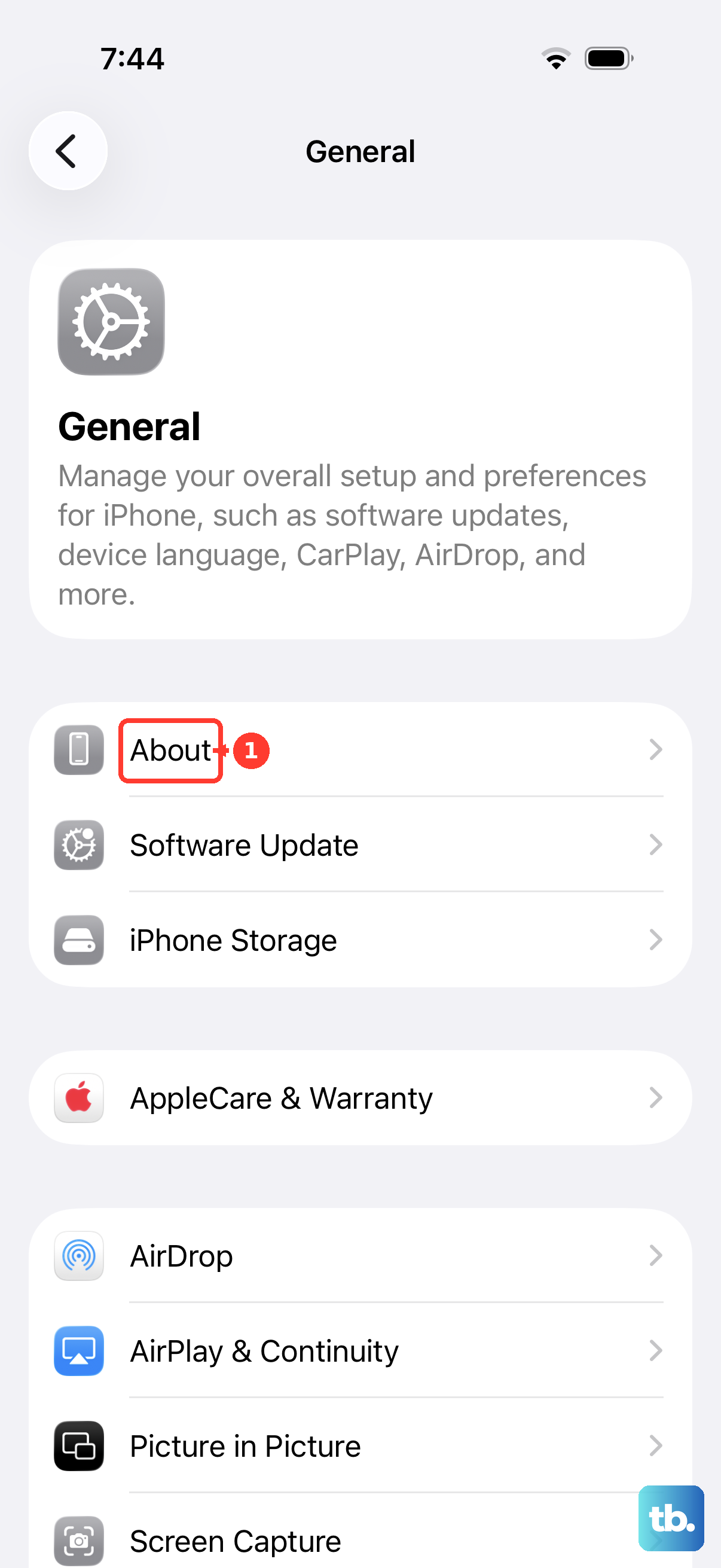
Tap "Update" if you see it. This takes just a few seconds and doesn't require a restart. It's a fix that often gets overlooked but can resolve signal issues immediately, especially on a new device.
Toggle Airplane Mode and Cellular Data
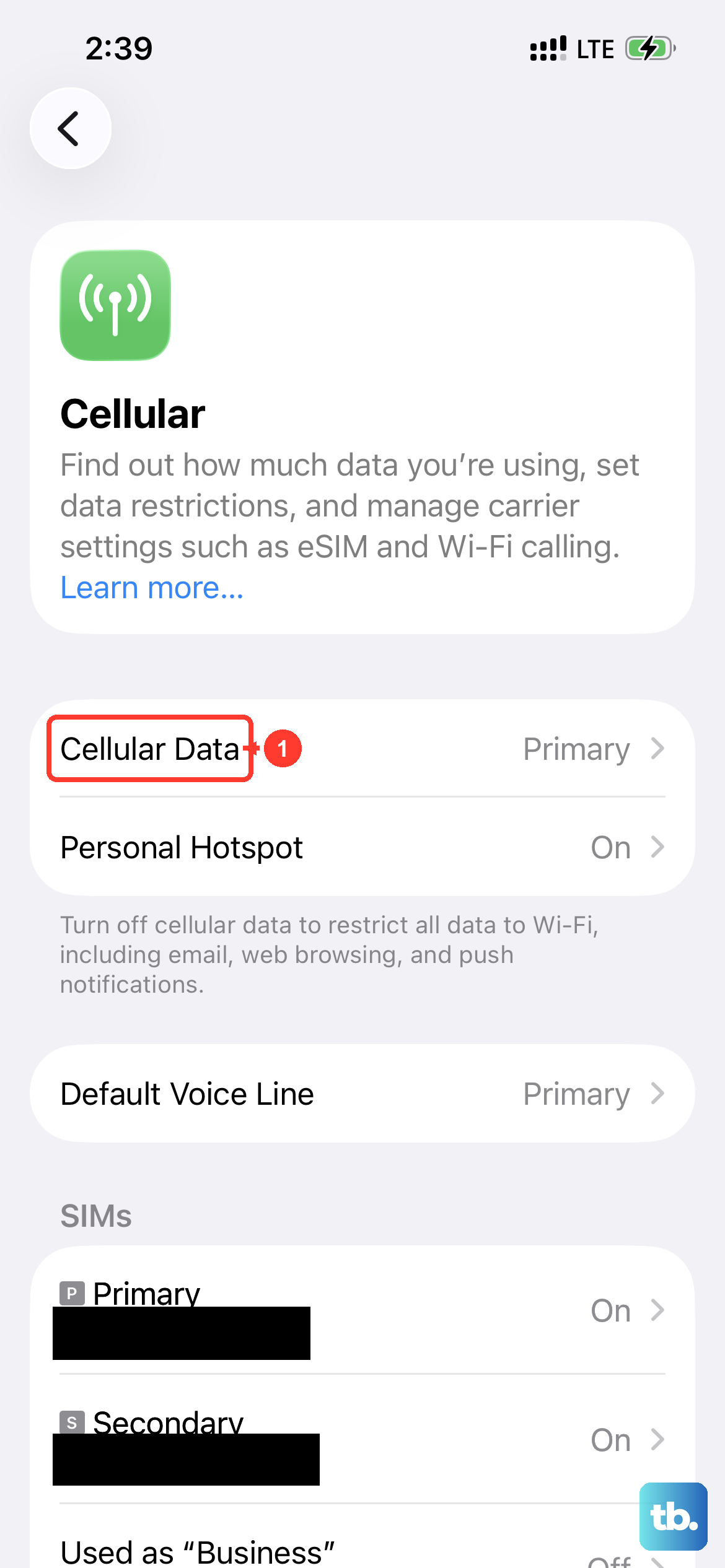
This is the digital equivalent of turning it off and on again, but for your radios. Swipe down from the top-right corner to open Control Center and tap the airplane icon to turn Airplane Mode on. Wait about ten seconds, then tap it again to turn it off.
While you're there, also tap the cellular data icon (it looks like two interlocking circles) to turn it off and back on. This forces your iPhone 17e to re-register on the cellular network from scratch, which can kickstart a stuck connection.
Re-insert Your SIM Card or Check eSIM
If you're using a physical SIM, a slightly loose connection can cause "No Service." Grab the SIM eject tool that came in the box (or a small paperclip) and pop out the tray on the left side of the phone. Take out the SIM card, blow gently on the tray to remove any dust, and reseat the card firmly.
If you're using an eSIM, you'll need to go into your settings. Open Settings > Cellular and tap on your eSIM plan. Try turning it off, waiting a moment, and turning it back on. If the problem persists, you may need to contact your carrier to re-provision the eSIM, which they can usually do over the phone.
Manually Select Your Network Operator
Sometimes your phone gets stuck trying to connect to a weak tower from a different carrier. You can force it to look for your specific carrier. Go to Settings > Cellular > Network Selection.
Turn off "Automatic." After a moment, a list of available networks will appear. Select your carrier's name from the list. Give it a minute to register. If it connects, you can turn "Automatic" back on later, but this manual step often solves the issue.
Reset All Network Settings
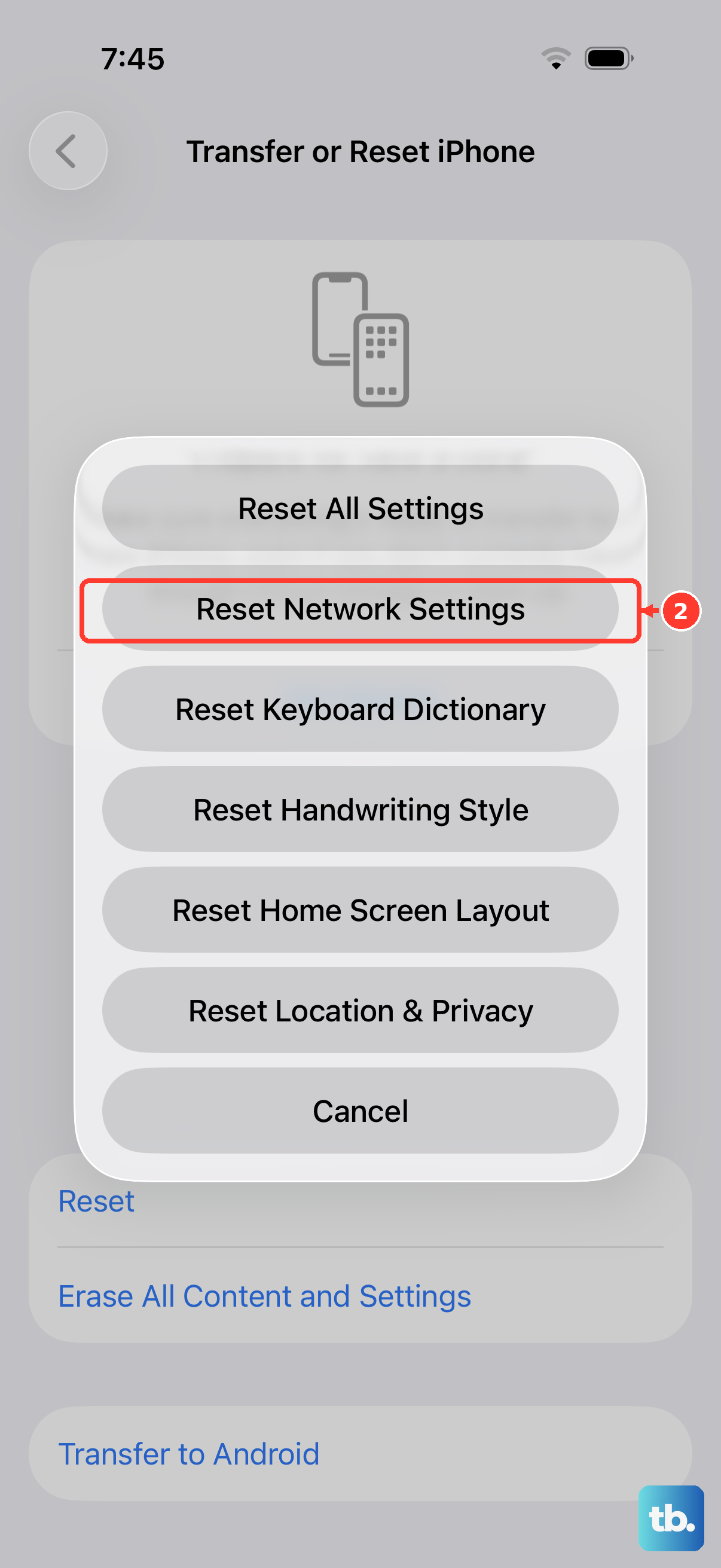
This is a stronger step that wipes all your network-related configurations and starts fresh. It will erase saved Wi-Fi passwords, Bluetooth pairings, and VPN settings, but it won't touch your personal data like photos or messages.
To do it, go to Settings > General > Transfer or Reset iPhone > Reset. Then, choose "Reset Network Settings." You'll need to enter your passcode and confirm. Your iPhone 17e will restart, and you'll have to re-join Wi-Fi networks afterward, but it's a very effective fix for persistent cellular issues.
Update iOS to the Latest Version
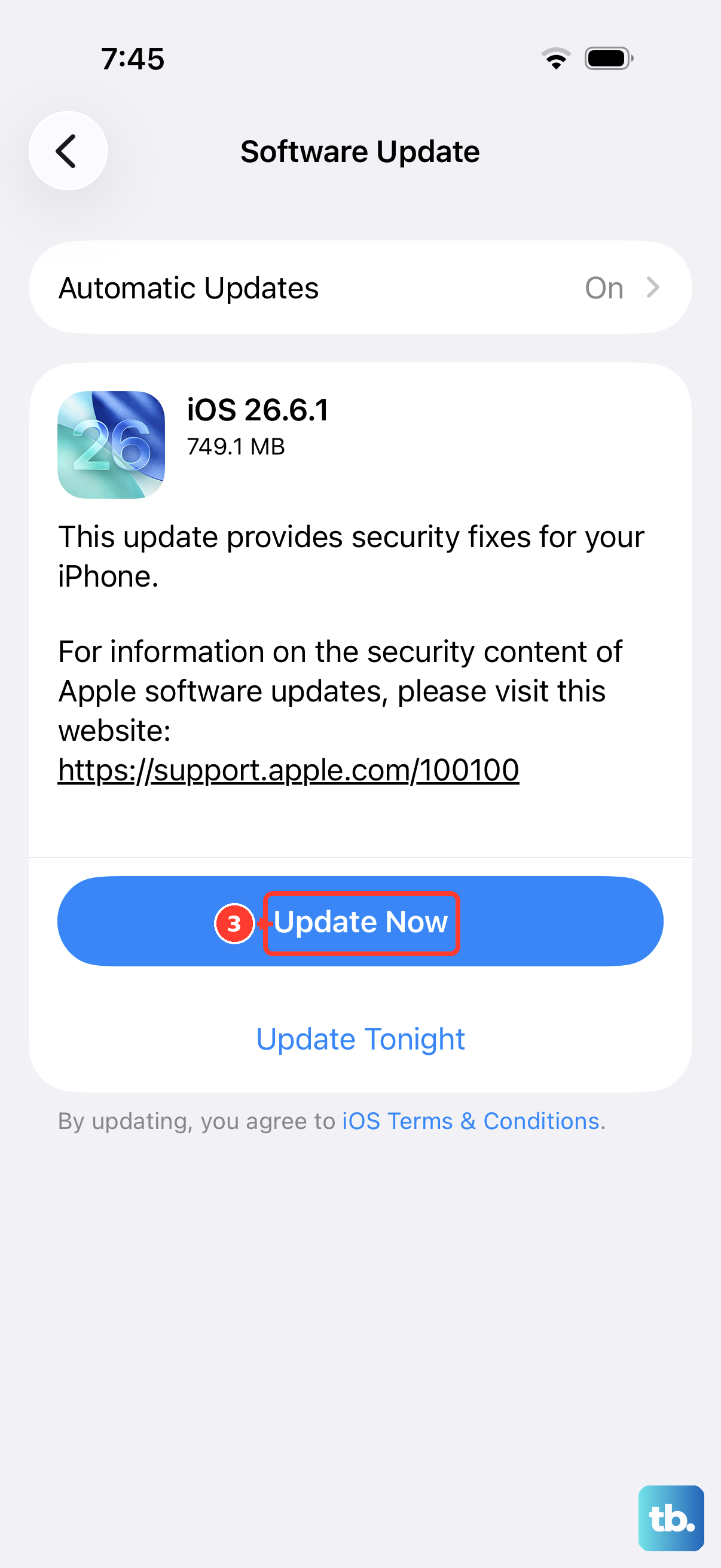
Since the iPhone 17e is a new 2026 model running iOS 26, Apple is actively releasing software updates to squash bugs, including ones that might affect the new C1X modem. Keeping your phone updated is crucial.
Open Settings > General > Software Update. If an update is available, tap "Download and Install." Make sure your phone is connected to Wi-Fi and has at least 50% battery or is plugged in. These updates frequently include important baseband (modem) improvements.
Check for a Service Outage
Before you dig deeper, it's worth making sure the problem isn't on your carrier's end. Service outages happen, especially during network upgrades or after severe weather.
Try visiting your carrier's website on Wi-Fi or using a friend's phone to check their outage map. You can also search social media sites like Twitter for your carrier's name and "outage" to see if others in your area are reporting the same "No Service" problem.
Review Your Cellular Plan and Data
It sounds simple, but it's worth verifying your account is in good standing. Sometimes an unpaid bill can lead to suspended service. If you've recently switched plans or carriers, there might be a provisioning error on their side.
Give your carrier's customer service a quick call. They can check your account status, reprovision your line, and confirm there are no blocks or restrictions causing the signal loss. They can also check if your specific iPhone 17e model is fully compatible with their network bands.
Try a Different Location
Cellular signal is highly dependent on your physical location. The C1X modem is efficient, but it can't pull signal from a tower that's too far away or blocked. Concrete buildings, basements, and rural areas are common dead zones.
If you have "No Service" in one spot, try moving to a window or going outside. Drive or walk a few blocks away. If your service returns, you know the issue is purely environmental and not with the phone itself. In areas with consistently poor coverage, enabling Wi-Fi Calling in Settings > Cellular > Wi-Fi Calling can be a lifesaver.