
If your iPhone 17e feels unusually warm, it's often a sign it's working hard. The A19 chip is powerful for a budget model, but demanding tasks can make the phone warm, especially while charging. Warmth is also normal during initial setup, restoring a backup or completing a major software update.
If your phone is hot right now, stop intensive activities like games or video editing and move it away from direct sunlight to a cooler place. If a temperature warning appears, turn off the phone and allow it to cool down before using it again. If charging is on hold while you're using it, lock the screen or put it to sleep.
Your phone can cool down when an intensive activity ends. Warmth during demanding tasks is normal, and you can keep using it if no temperature warning appears.
Check What's Running in the Background
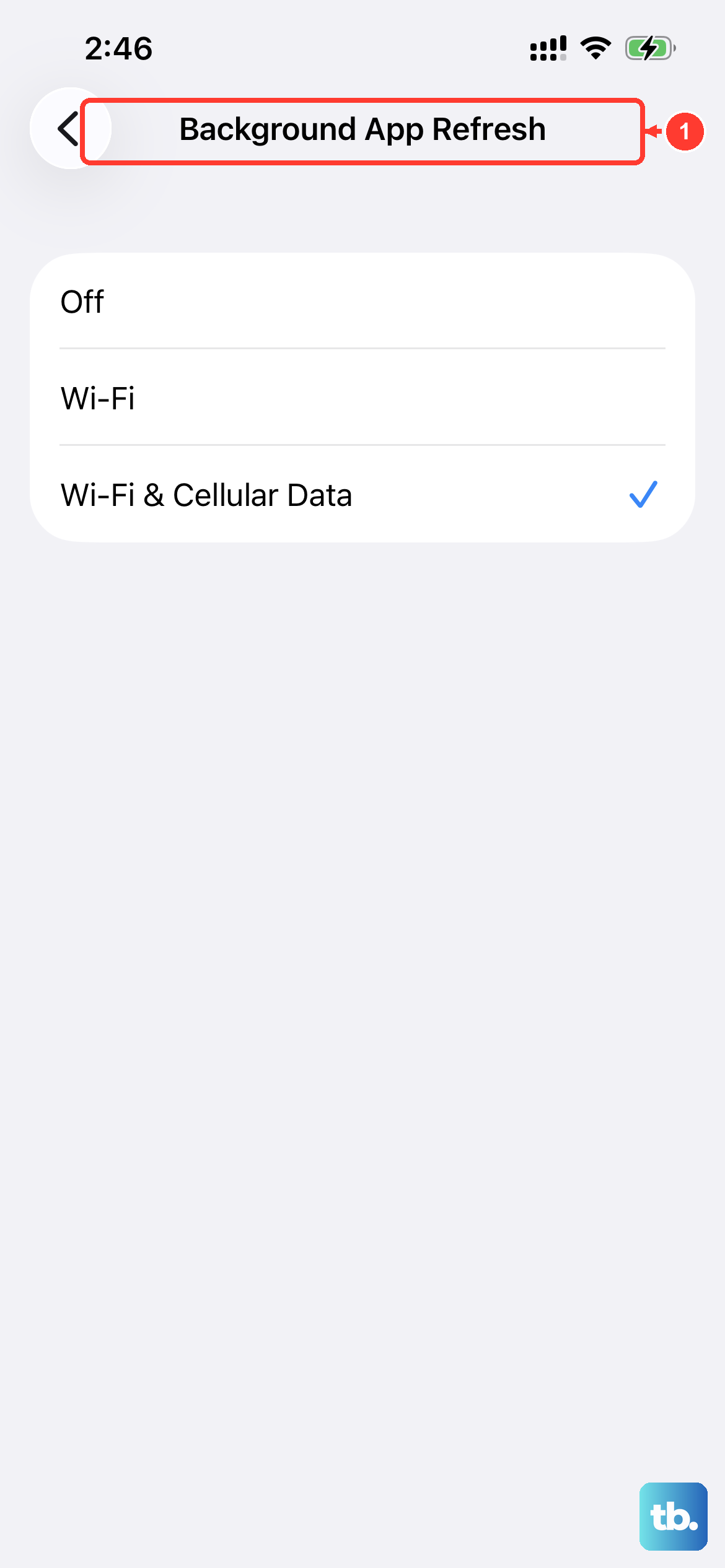
Background app refresh and location services can contribute to battery use and warmth. A weak cellular signal can also make the phone work harder and get warm.
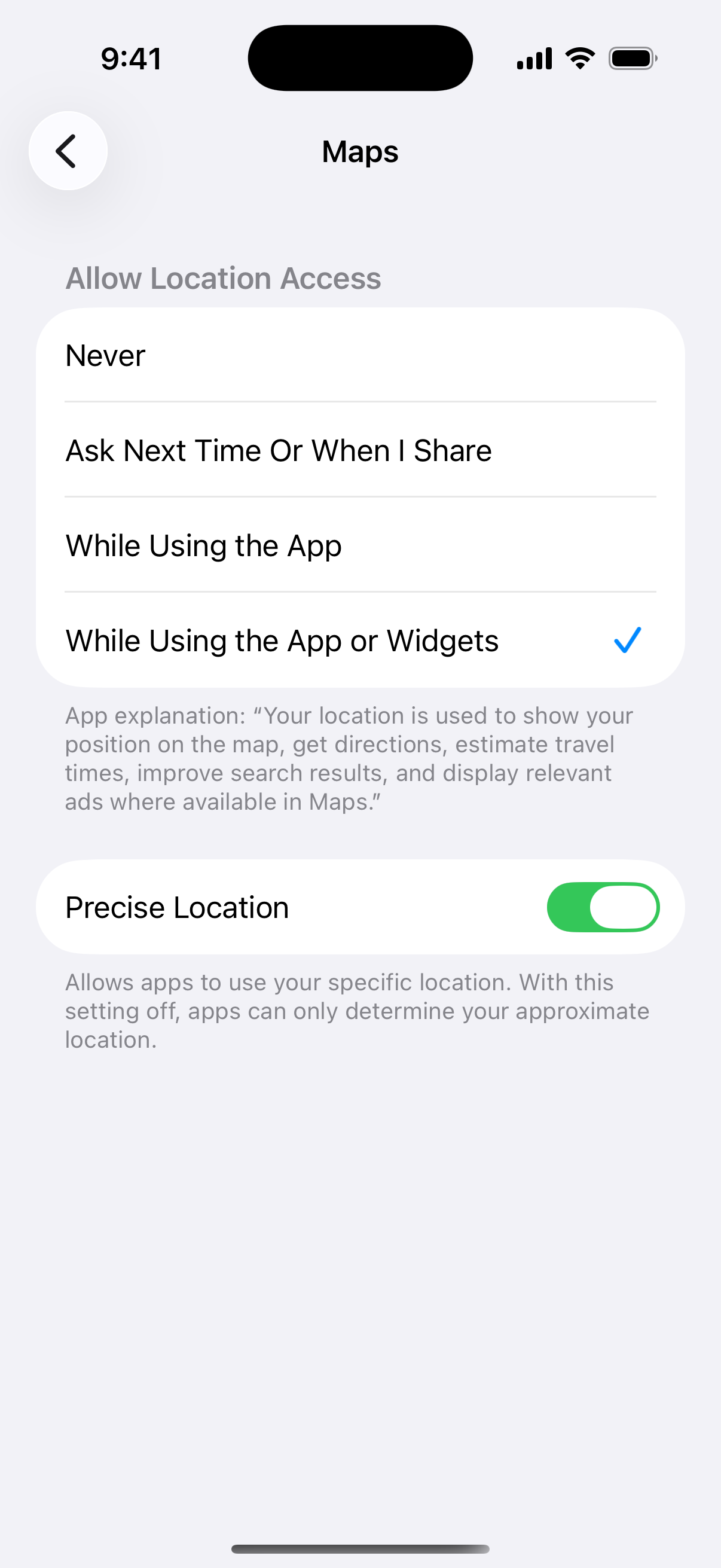
Go to Settings > General > Background App Refresh. You can turn this off entirely or just for specific, non-essential apps. Next, check Settings > Privacy & Security > Location Services. Look for apps using location "Always" and consider changing them to "While Using" or "Never."
If you're in an area with poor cell service, try enabling Airplane Mode for a few minutes to see if the phone cools down. If it cools down, cellular activity may be contributing to the warmth.
Manage Your Charging Setup
Your iPhone can feel warm during wireless charging. If it gets too hot or too cold, charging may slow or stop until it returns to a normal temperature. A Charging On Hold message appears on the Lock Screen and in Settings > Battery.
For fast wired charging, use a 20-watt or higher USB-C power adapter and a USB-C cable. The iPhone 17e comes with a USB-C cable but no power adapter. If you're using MagSafe, ensure you're using a certified MagSafe or Qi2 charger. If charging is on hold because the phone is hot, move it to a cooler place away from direct sunlight and lock the screen. If your iPhone gets hot while charging, take it out of its case first, since some cases can trap heat.
Also, never charge your phone on a soft surface like a bed or under a pillow. Always place it on a hard, flat, and cool surface to allow heat to dissipate. Charging while using the phone intensively, like gaming, can make it warmer.
Update iOS and Your Apps
Keep your iPhone 17e on the latest version of iOS and keep your apps updated. Software updates can include bug fixes, but completing a major update can also temporarily make the phone warmer. Back up your phone before updating, then connect it to power and Wi-Fi.
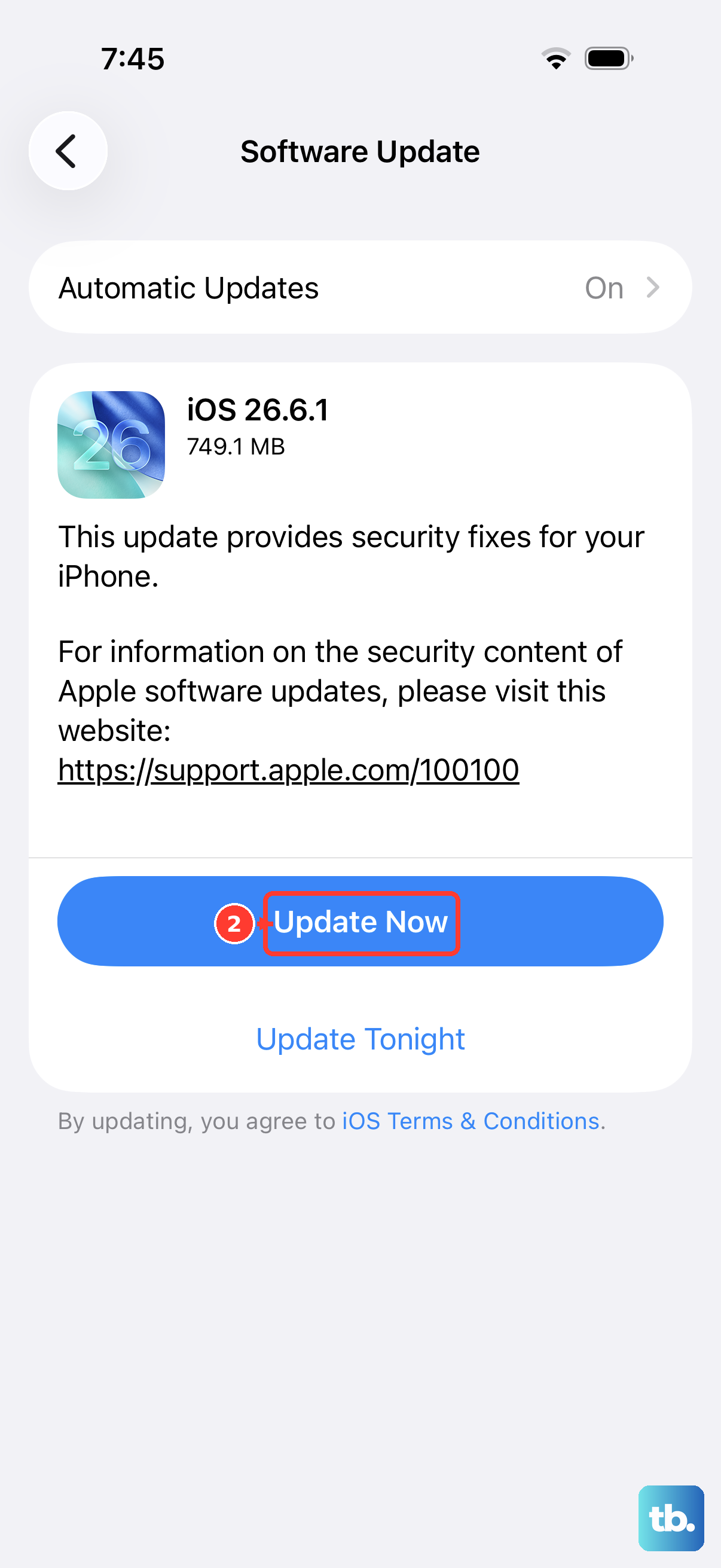
Go to Settings > General > Software Update to check for and install any available updates. It's also a good idea to head to the App Store and update all your apps. Developers are constantly optimizing for new hardware and iOS versions.
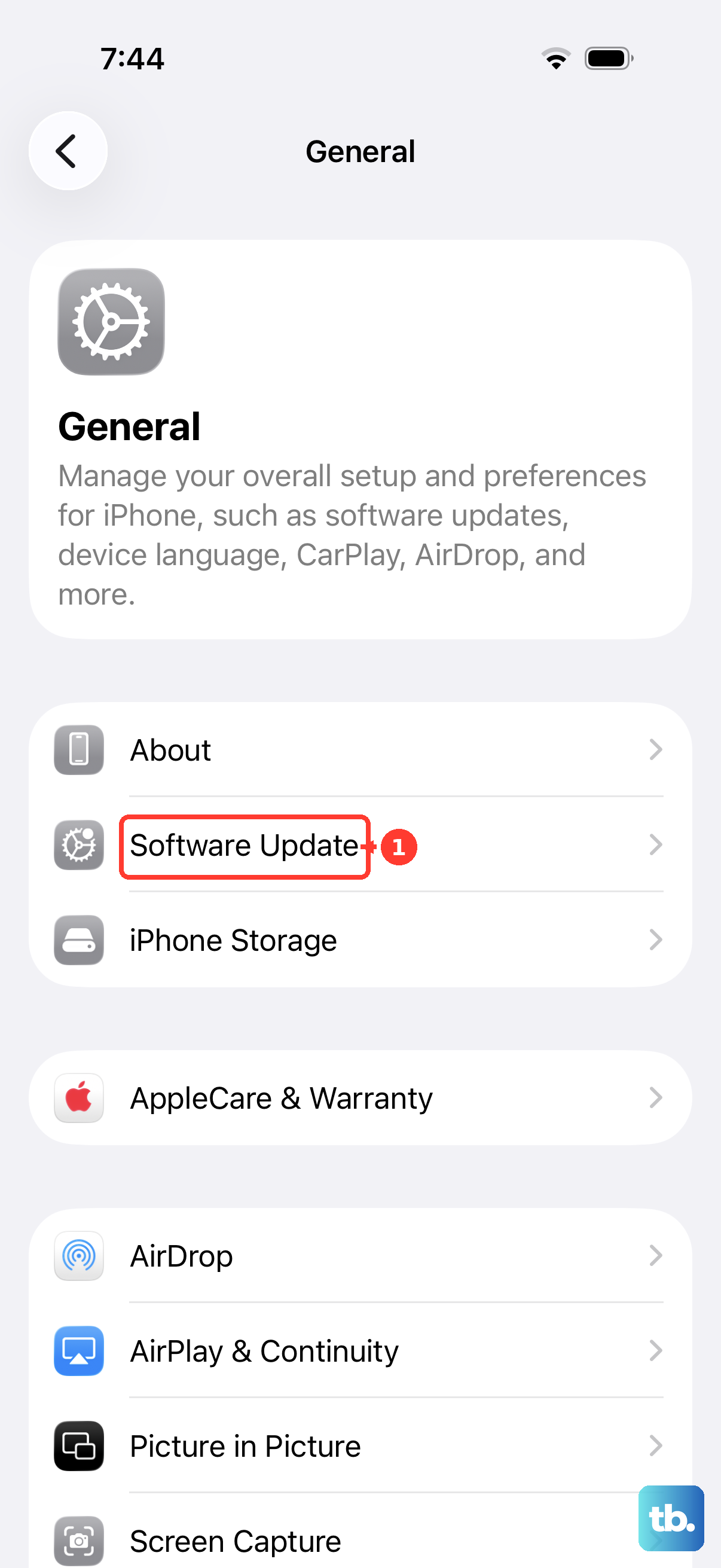
After a major update, your phone may feel warm while the update finishes. This is normal, and it will cool when the process is complete. If no temperature warning appears, you can keep using the phone.
Perform a Force Restart
If your iPhone 17e is hot and unresponsive, a force restart can clear out any temporary software hiccups. This is different from just turning it off and on.
Quickly press and release the Volume Up button. Then quickly press and release the Volume Down button. Finally, press and hold the Side button. Hold it until you see the Apple logo appear, then let go.
This doesn't erase any data, and it often resolves issues where an app or process is stuck and causing the processor to overwork.
Reset All Settings
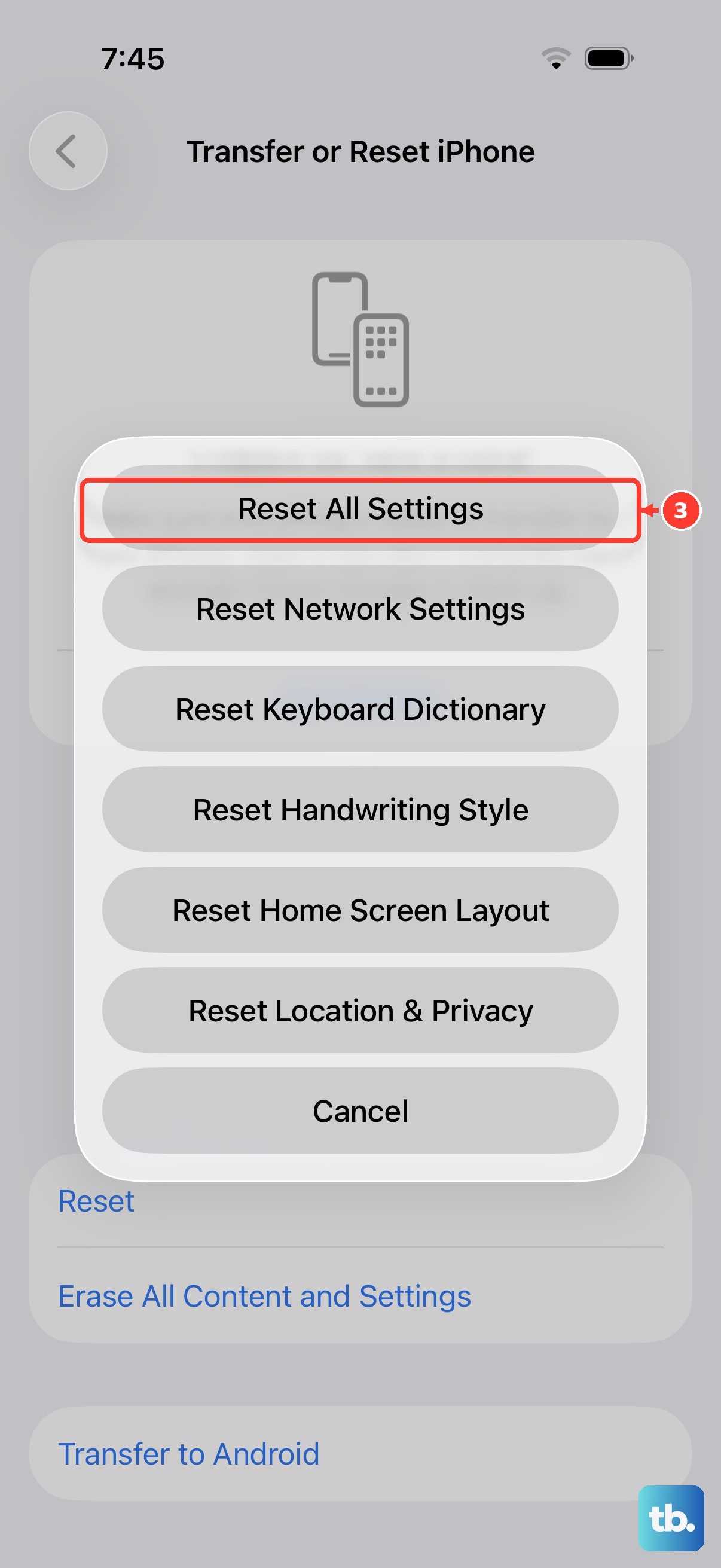
If the overheating persists and you've tried everything else, a settings reset can help. This will revert all your system settings (like Wi-Fi passwords, wallpaper, and privacy permissions) back to their defaults without deleting your personal data or apps.
Go to Settings > General > Transfer or Reset iPhone > Reset. Then, tap Reset All Settings. You'll need to enter your passcode and confirm. After the phone restarts, you'll have to reconfigure things like Face ID and notifications, but it can eliminate a misconfigured setting causing trouble.
After resetting, you'll also need to rejoin Wi-Fi networks, re-pair Bluetooth devices and any Apple Watch, and set up Face ID again. Photos, messages, apps and app data stay on the phone.