
If your iPhone 17 Pro Max battery is draining faster than it should, the first thing to check is your battery health. Head to Settings > Battery > Battery Health. You'll see your battery's maximum capacity as a percentage.
Maximum capacity shows how much charge your battery can hold compared with when it was new. The iPhone 17 Pro Max battery is designed to retain 80% of its original capacity at 1000 complete charge cycles under ideal conditions. If you see a "Service" message here, the battery may need service.
Software or settings can also affect battery life. Return to the main Battery page and check Daily Usage, then tap View All Battery Usage to see the last eight days. This is your best clue. Check which apps use the most battery and whether their usage includes Background Activity.
Manage Background Activity and Location
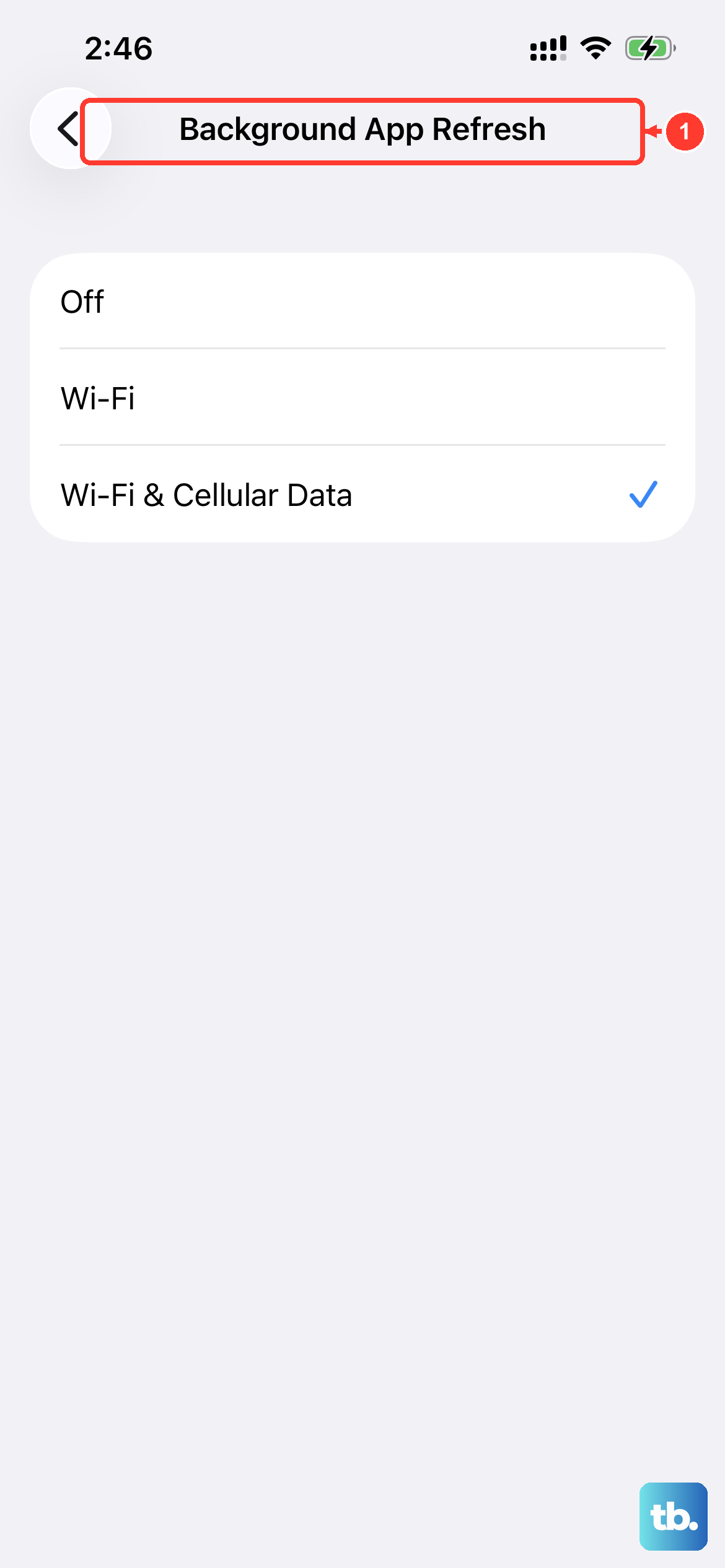
Background App Refresh is a common drain, especially for social media and news apps. You can turn it off completely or limit it to Wi-Fi only by going to Settings > General > Background App Refresh. Turn it off for any app that doesn't absolutely need live updates.
Location Services can be another big one. Go to Settings > Privacy & Security > Location Services. Review the list and set apps to "While Using" or "Never" instead of "Always" where it makes sense. Don't forget to check the System Services section at the bottom, too.
For your email, changing the fetch schedule can help. Go to Settings > Apps > Mail and tap Fetch New Data. If you don't see it there, look under Mail Accounts. Turning "Push" off and setting a fetch schedule like "Hourly" or "Manually" stops your phone from constantly checking for new messages.
Optimize Your Display Settings
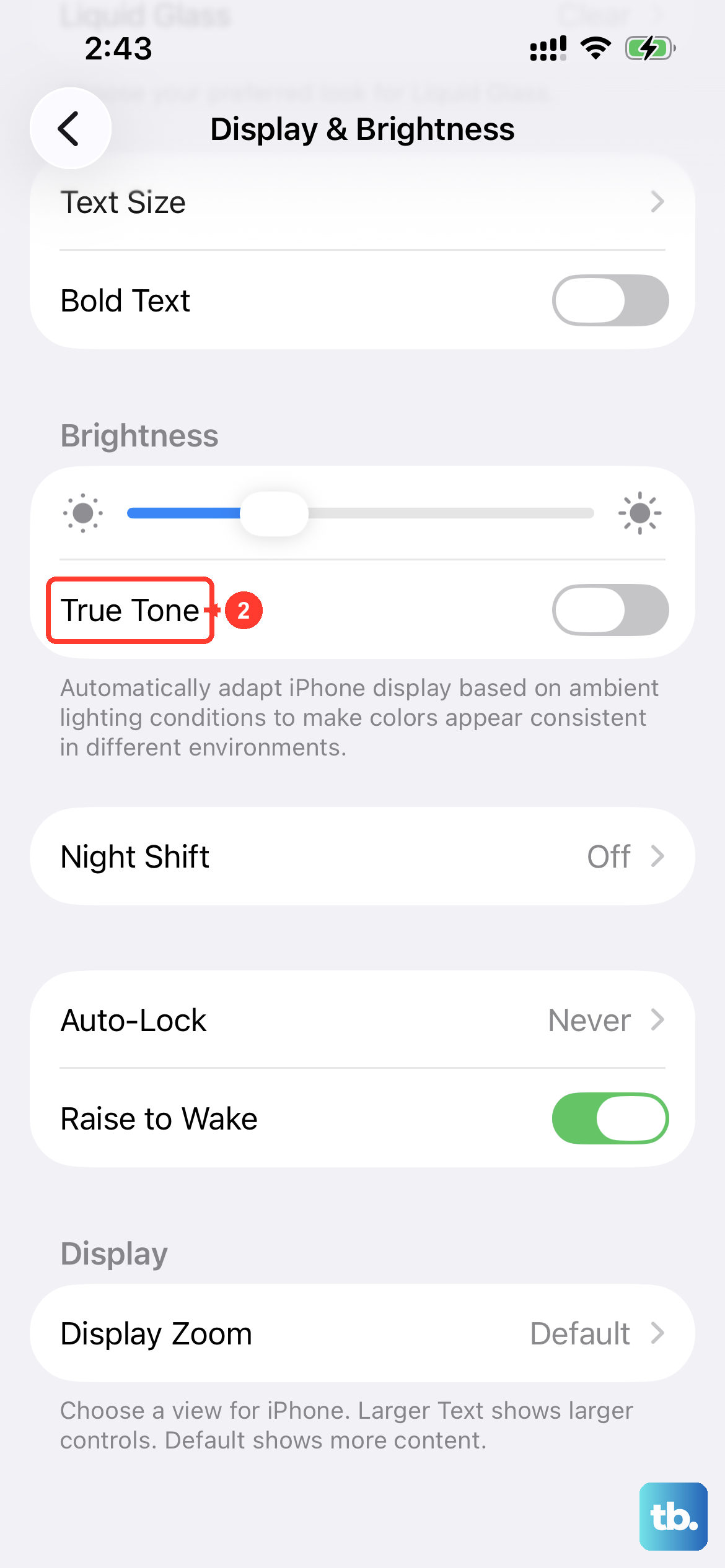
The iPhone 17 Pro Max's display is stunning but power-hungry. A simple fix is to reduce the auto-lock time. Go to Settings > Display & Brightness > Auto-Lock and set it to 30 seconds or 1 minute.
Also in that menu, make sure Dark Mode is enabled. On these OLED screens, black pixels use less power. Check Settings > Battery for brightness suggestions, too. Tap a suggestion to go to the related setting.
Manually lowering your brightness from the Control Center can make a huge difference. If auto-brightness is off, check for an Enable auto-brightness suggestion in Settings > Battery.
Update Your Software and Apps
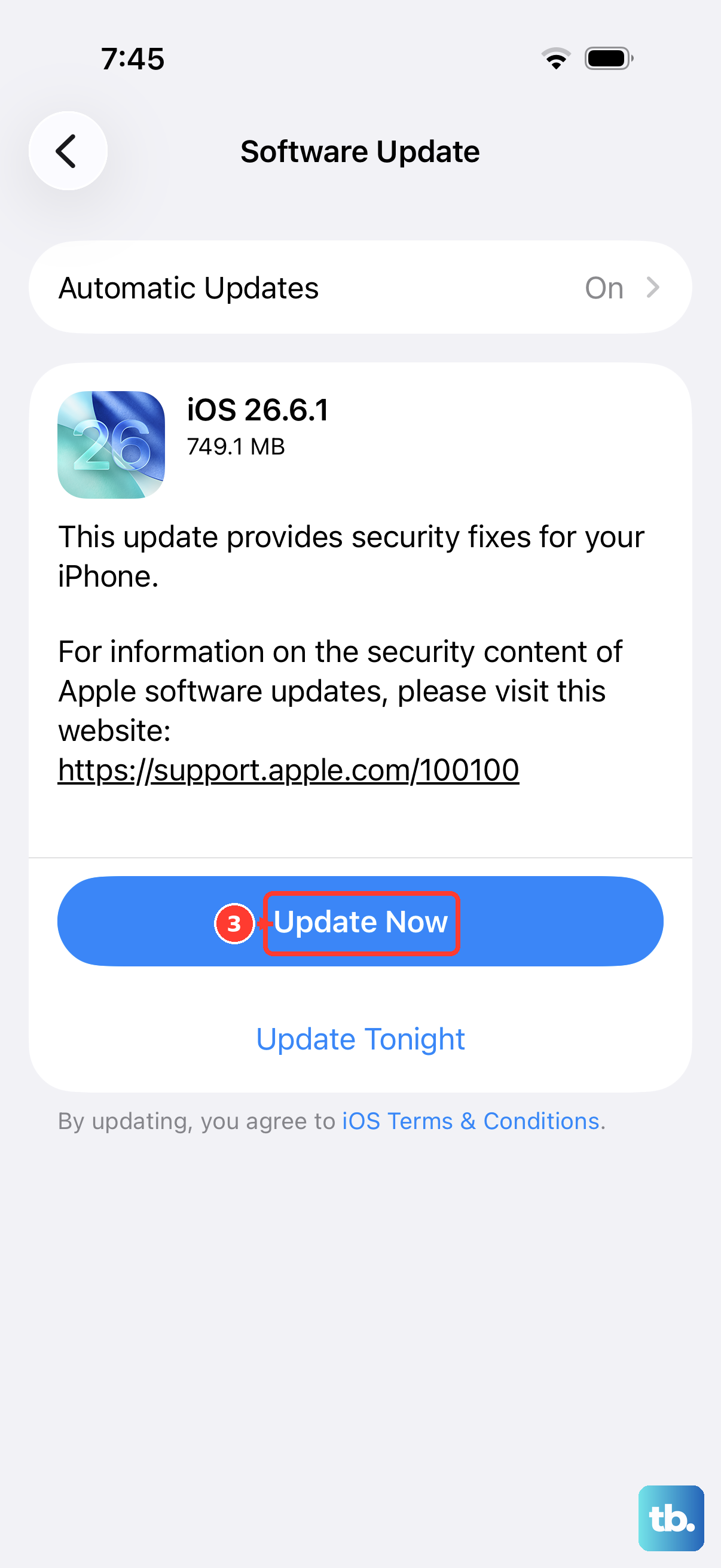
This is a classic fix for a reason. Software bugs in iOS or in a specific app can cause abnormal battery drain. First, check for a system update by going to Settings > General > Software Update.
Next, update all your apps. Open the App Store, tap the My Account button at the top, tap App Updates, then tap Update All. Developers often release patches for battery efficiency issues.
If you recently updated and the drain started immediately afterward, update-related tasks may still be running in the background. Check Settings > Battery for the Ongoing iOS Update Insight. Wait a few days, then check battery life again.
Use Low Power Mode and Review Widgets
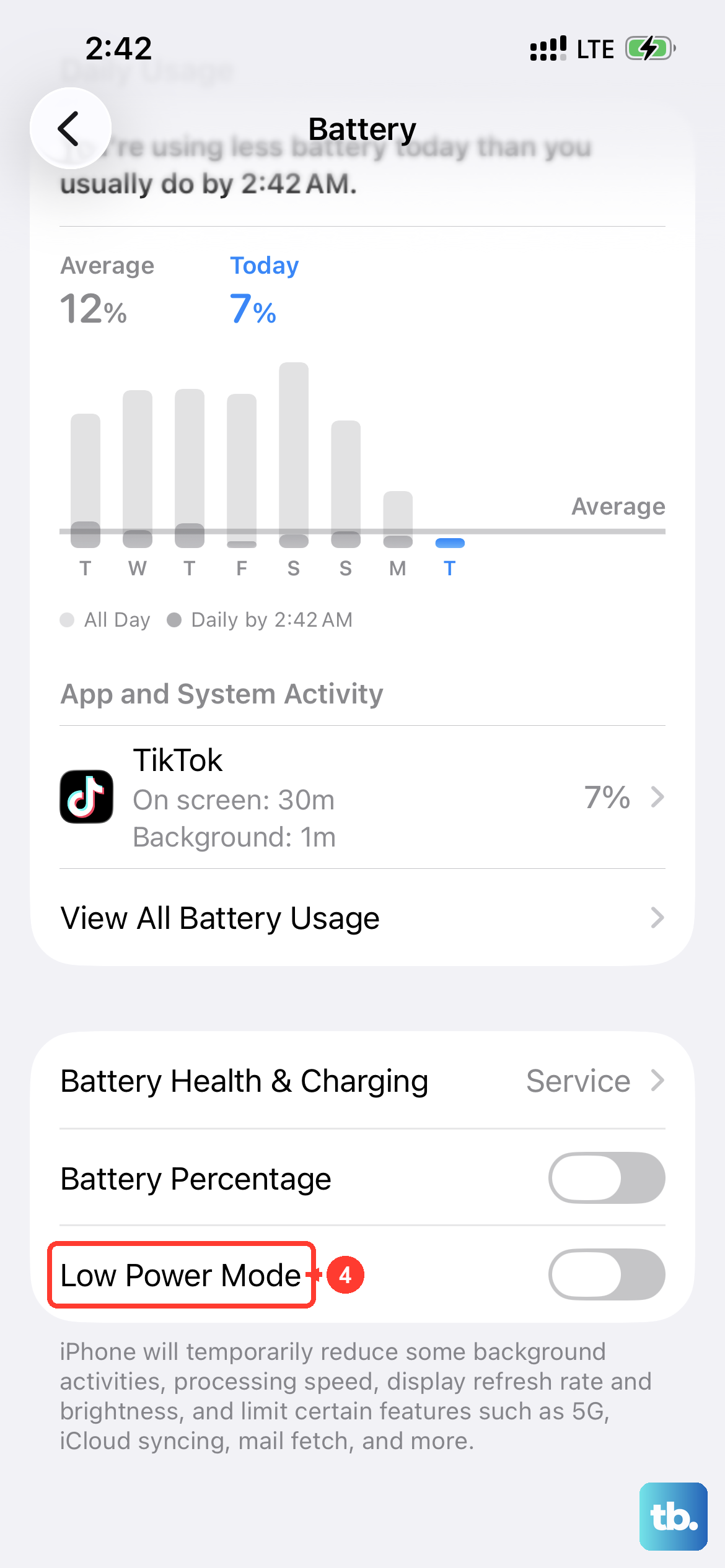
Don't be shy about using Low Power Mode, even before you hit 20%. You can turn it on manually in Settings > Battery > Power Mode or ask Siri to do it. It throttles performance and pauses background activity, which can easily get you through a long day.
Take a look at your Home Screen and Today View widgets. Each one that provides live information (like weather, stocks, or activity rings) is periodically updating. Removing widgets you don't actively use can shave off a small but meaningful amount of background drain.
Similarly, go through your apps and delete any you haven't opened in months. Also check Settings > Battery for apps whose notifications wake the phone, and reduce notifications you don't need.
Perform a Force Restart
If your battery is draining unusually fast and the phone feels warm, a minor software glitch might be the cause. A force restart can clear this up without deleting any data. On the iPhone 17 Pro Max, you press and quickly release the Volume Up button, then press and quickly release the Volume Down button.
Finally, press and hold the Side button. Continue holding until you see the Apple logo appear, then you can let go. This is different from just turning the phone off and on.
Reset All Settings
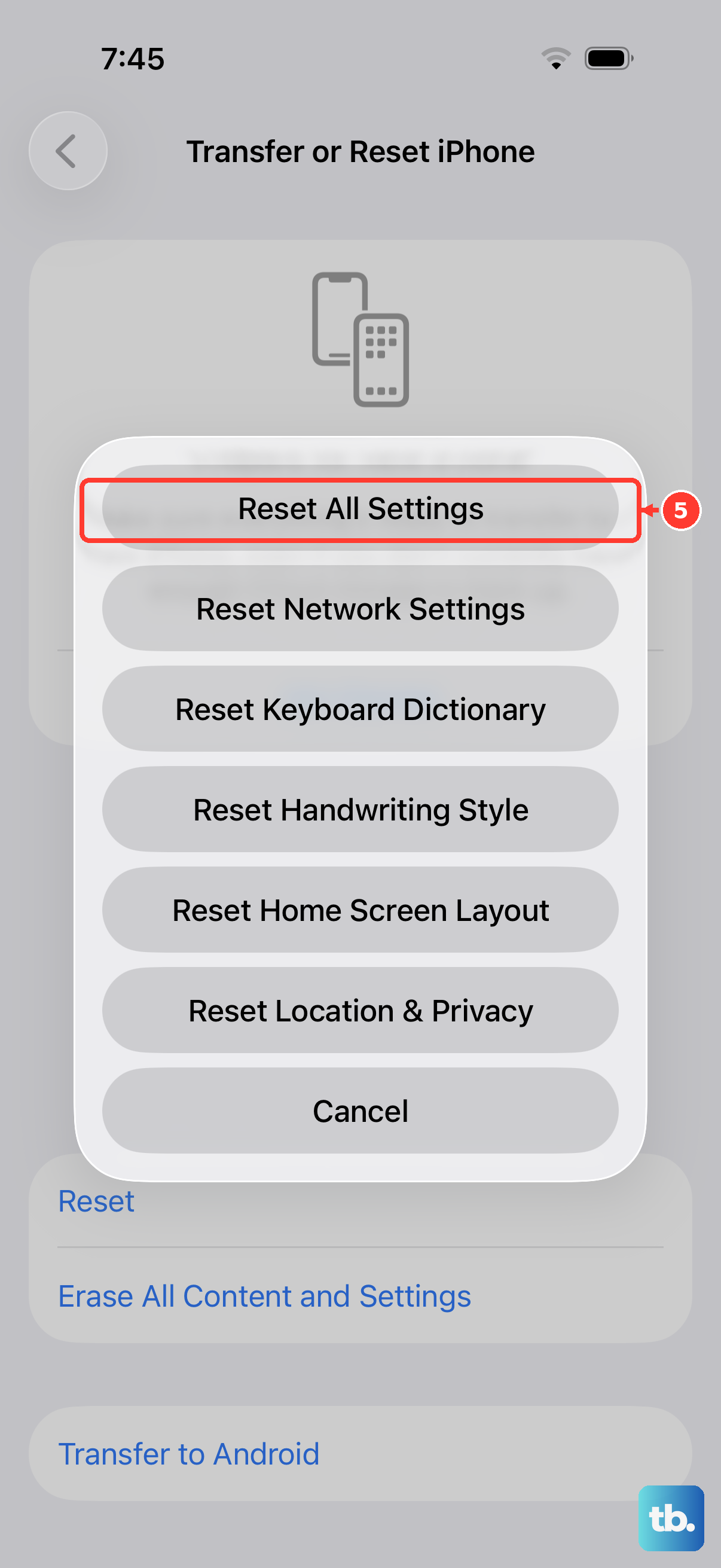
If you've tried everything and the drain persists, a deeper reset might help. Go to Settings > General > Transfer or Reset iPhone > Reset. Then, choose Reset All Settings.
This will not erase your photos, messages, or apps. It will, however, reset all your system preferences like Wi-Fi passwords, wallpaper, and display settings back to default. It's a hassle to set everything up again. Afterward, check battery usage to see whether the drain has improved.
Battery life depends on how much you use your iPhone 17 Pro Max and which apps you use, so plan charging around your daily needs. For the fastest recharge, use the Apple 40W Dynamic Power Adapter with a USB-C cable. With MagSafe, you can get up to 25W with a compatible charger and a 30W power adapter or higher.