
When your iPhone 17 gets stuck trying to update, it's a roadblock you need to clear fast. You might see the download stuck, an error message, or the install just failing to start. Here's how to get it updated.
The first thing to try is a restart. Press and quickly release the Volume Up button, then the Volume Down button, and finally press and hold the Side button until you see the Apple logo. This force restart can clear out a temporary software glitch that's blocking the update process. After it boots up, head straight to Settings > General > Software Update and try again.
Check Your Wi-Fi and Apple's Servers
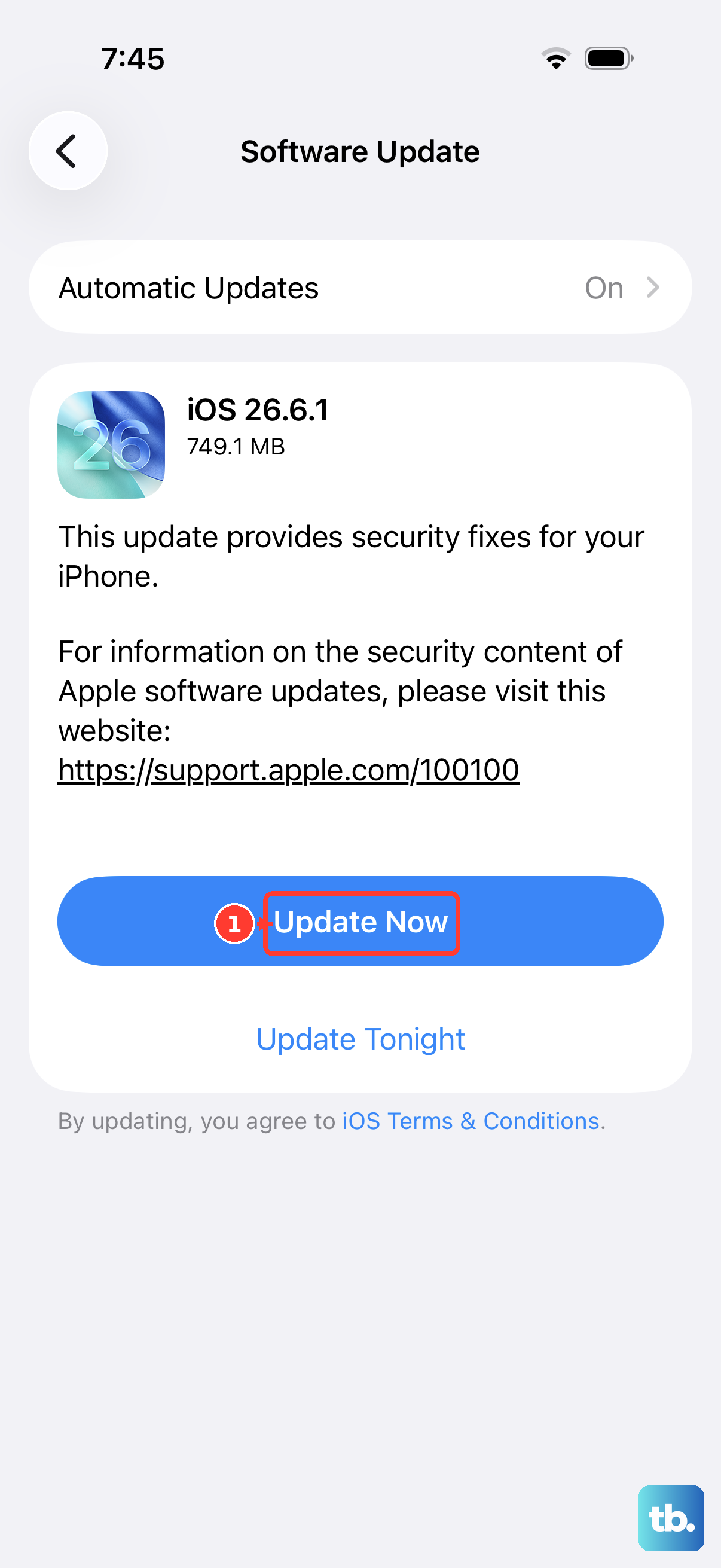
iOS updates require a solid Wi-Fi connection. Make sure you're not on cellular and test your internet speed. If it's slow, try restarting your router. It's also worth checking Apple's System Status page at apple.com/support/systemstatus to see whether Apple is reporting a problem, especially right after a new iOS release.
Demand spikes right after a big release, and that can cause failures. If many people are downloading at once, wait a few hours and try again.
Free Up Space on Your iPhone 17
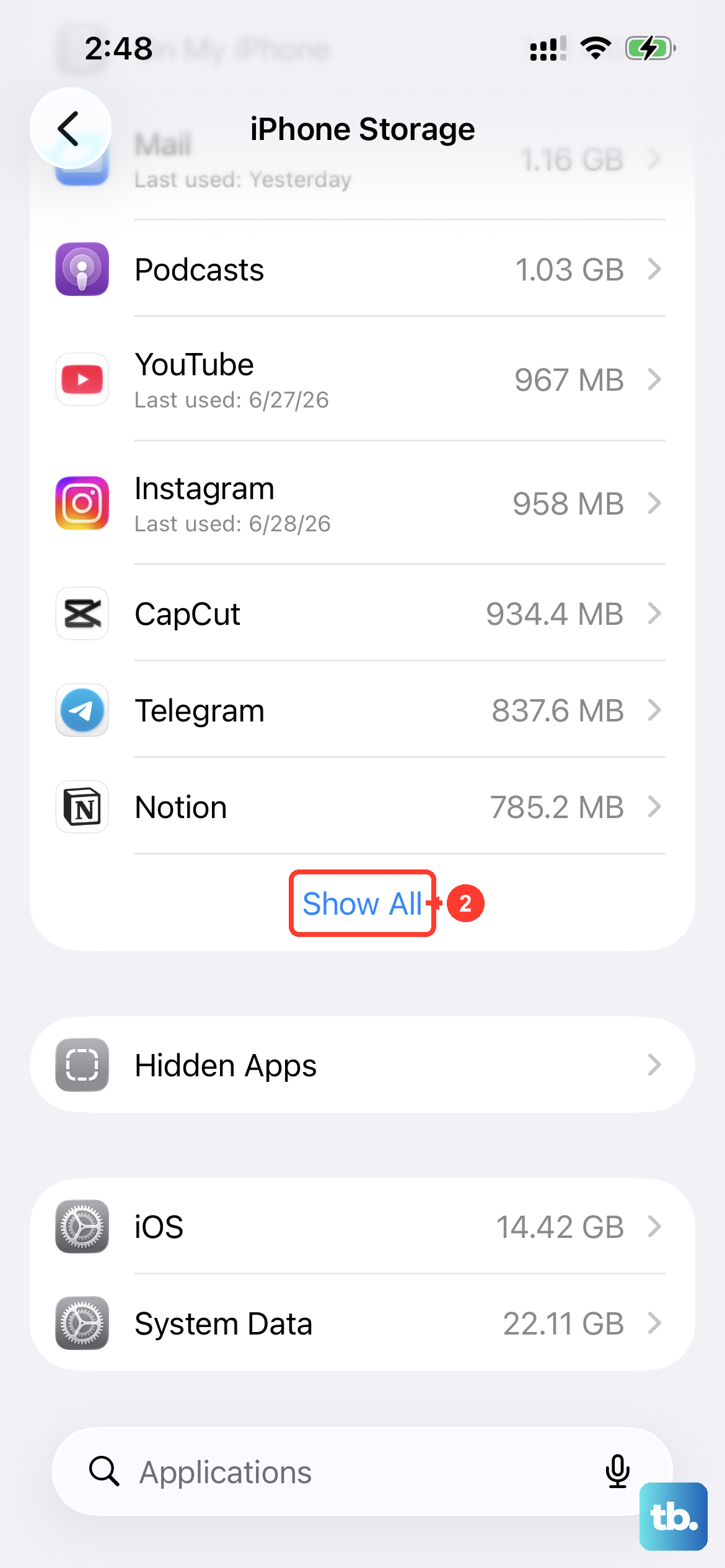
Your phone needs breathing room. A major iOS update needs enough free space to download and install. Go to Settings > General > iPhone Storage to see what's available.
If you're low, the quickest fix is to offload unused apps. This removes the app but keeps its documents and data. You can also review large attachments in Messages or move photos to iCloud. Clearing this space often resolves a stalled download immediately.
Delete a Corrupted Update File
Sometimes a partial or corrupted download is the culprit. In Settings > General > iPhone Storage, scroll down and look for the iOS update file in the app list. Tap on it and select Delete Update.
This completely removes the failed download from your device. Once it's gone, go back to the Software Update screen. Your iPhone 17 will now attempt to download a fresh, clean copy of the update, which usually solves the problem.
Reset Your Network Settings
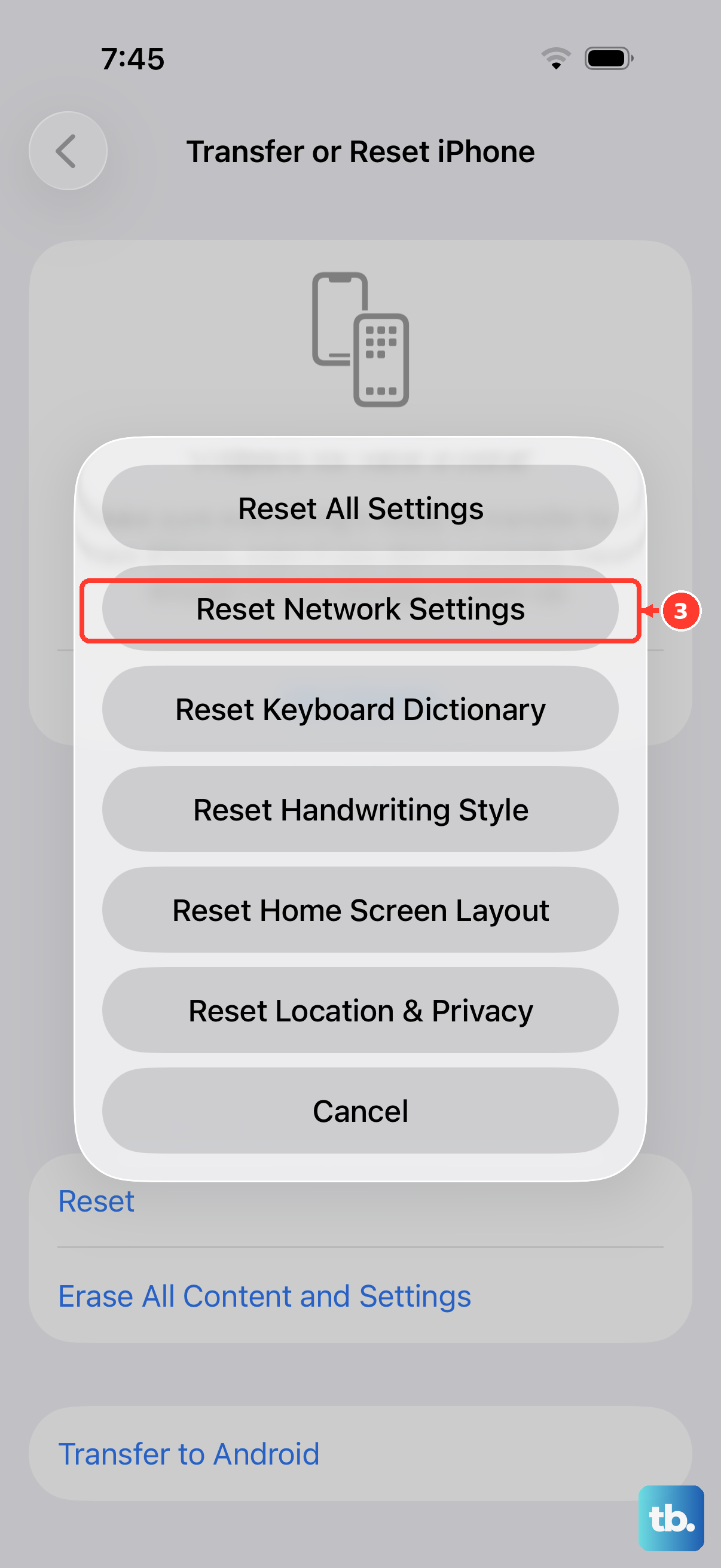
If your connection seems fine but the update still won't go, a network configuration problem might be to blame. Go to Settings > General > Transfer or Reset iPhone > Reset and tap Reset Network Settings.
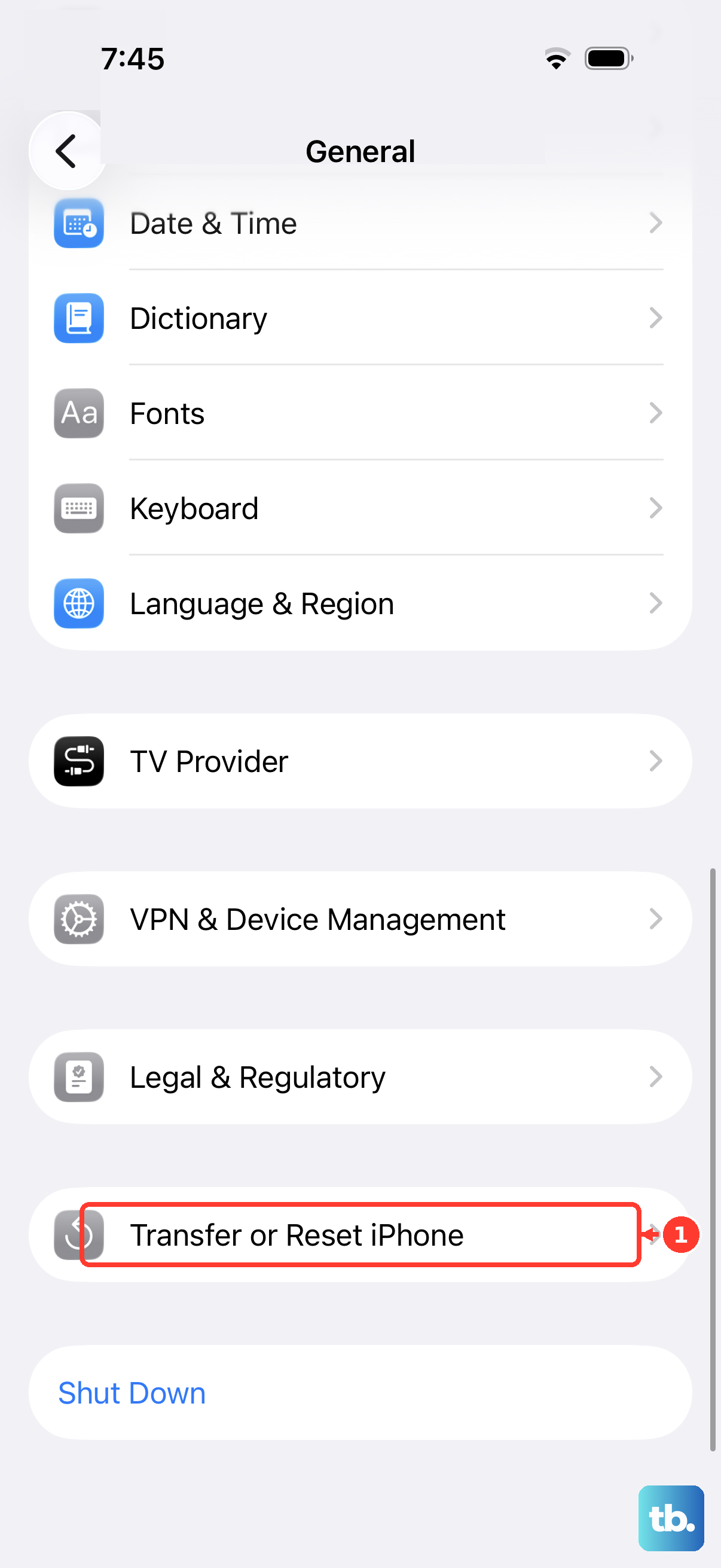
This will erase all saved Wi-Fi networks, passwords, and cellular settings. You'll need to reconnect to your Wi-Fi afterward. It's worth trying for persistent "Unable to Check for Update" errors when other fixes haven't worked.
Update Using a Computer
When the over-the-air update just won't cooperate, using a computer is your best bypass. Connect your iPhone 17 to a Mac or PC with its USB-C cable. On a Mac, use the Finder; on a Windows PC, use the Apple Devices app. Find your device and look for the update option.
This method downloads the iOS update file directly to your computer and then installs it on your phone. It helps when your iPhone is short on space or its Wi-Fi is unreliable, and it often gets a stubborn update through.
Check for Software Conflicts
In rare cases, a third-party app can interfere. VPNs, security apps, or certain content blockers might disrupt the connection to Apple's update servers. Try restarting your phone and, before opening any other apps, go directly to Settings to start the update.
If you suspect a specific app, you can temporarily uninstall it, attempt the update, and then reinstall the app afterward. This isn't common, but it's still a possibility worth checking if other fixes haven't worked.
Verify Your iPhone 17 is Supported
This might seem obvious, but it's worth confirming. iOS 27 supports the iPhone 17, of course, but if you're managing an older device for someone, it's good to check. Go to Settings > General > About to see your exact model name and number.
Apple publishes official compatibility lists for each iOS version. If the device is too old, the update simply won't appear as an option in your settings. There's no workaround for an unsupported device.