


Seeing the "SIM Not Provisioned MM2" error pop up on your iPhone 17 Pro is a real roadblock. It cuts you off from calls and data right when you need them. This message means your phone can't properly connect your SIM card to your carrier's network.
Let's get you back online. The very first thing I'd try is a simple restart. It sounds basic, but it clears out temporary software glitches that can cause this exact error. Just power your iPhone 17 Pro down completely and turn it back on.
Toggle Airplane Mode to Refresh the Connection
If a restart didn't do the trick, try toggling Airplane Mode. This forces your iPhone's modem to disconnect from and then reconnect to the cellular network. Swipe down from the top-right corner to open Control Center and tap the airplane icon.
Wait about 15 seconds, then tap it again to turn Airplane Mode off. Give your phone a moment to search for the signal. This quick refresh often resolves temporary network handshake issues that trigger the MM2 error.
Check Your SIM Card Activation and Account Status
This is the most common root cause. If this is a brand new SIM card or you just switched to a new plan, it might not be fully activated on your carrier's end. Even an existing line can be suspended if a bill was missed or a prepaid balance ran out.
Your best move here is to contact your carrier directly. They can check your account status in real-time and confirm if the SIM is properly provisioned in their system. You can usually do this through their mobile app, website, or a quick call to customer service.
Reinsert the SIM Card in Your iPhone 17 Pro
A SIM card that isn't seated perfectly in the tray can cause connection problems. The iPhone 17 Pro uses a nano-SIM tray located on the left side of the device. You'll need the SIM ejector tool that came in the box or a small paperclip.
Turn off your phone first. Gently push the tool into the small hole next to the tray to eject it. Carefully remove the SIM card, inspect the gold contacts for any dust or damage, and then firmly reseat it. Push the tray back in until it's flush and power your phone on.
Update Your iPhone to the Latest iOS Version
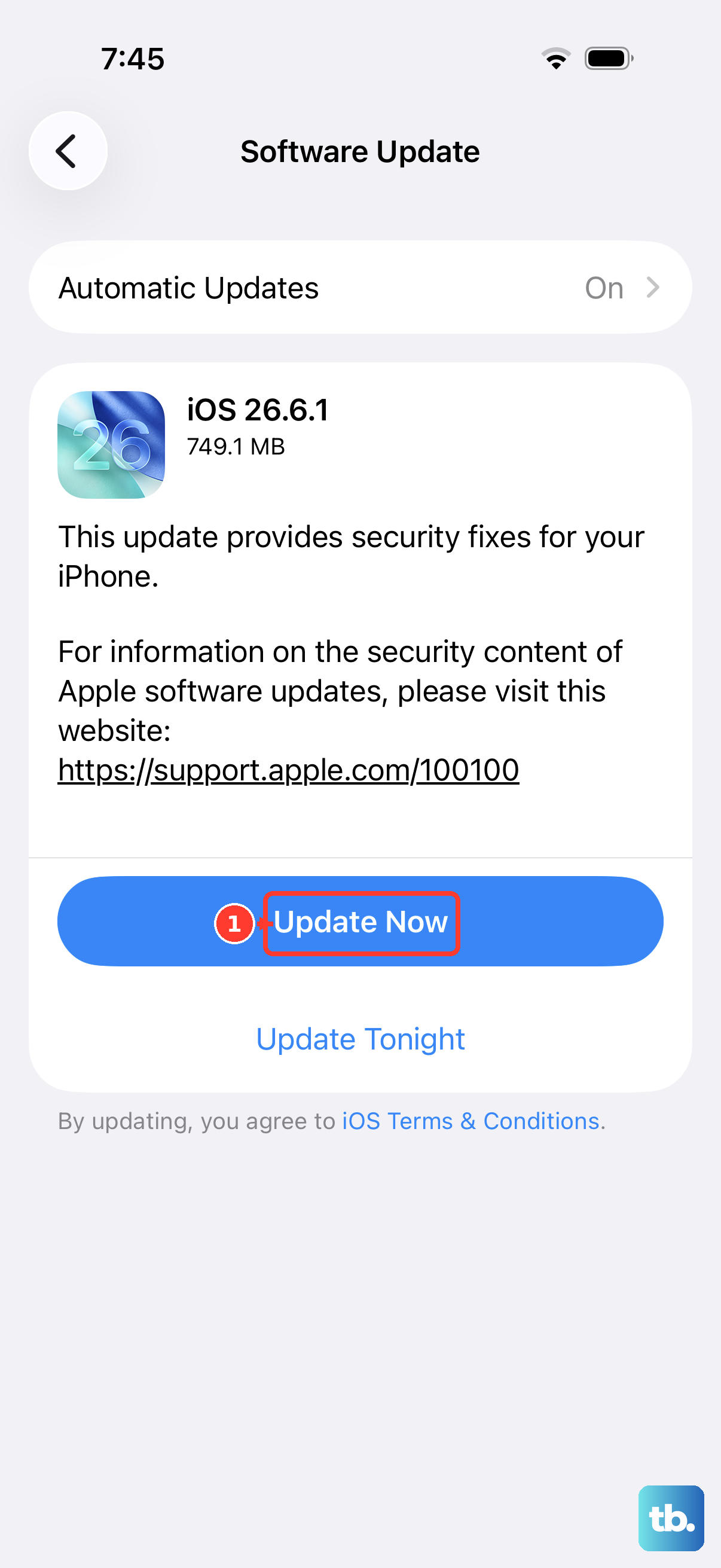
Carriers frequently push network configuration updates through iOS updates. An outdated version of iOS 26 could be missing a critical patch needed to communicate with your provider's network properly.
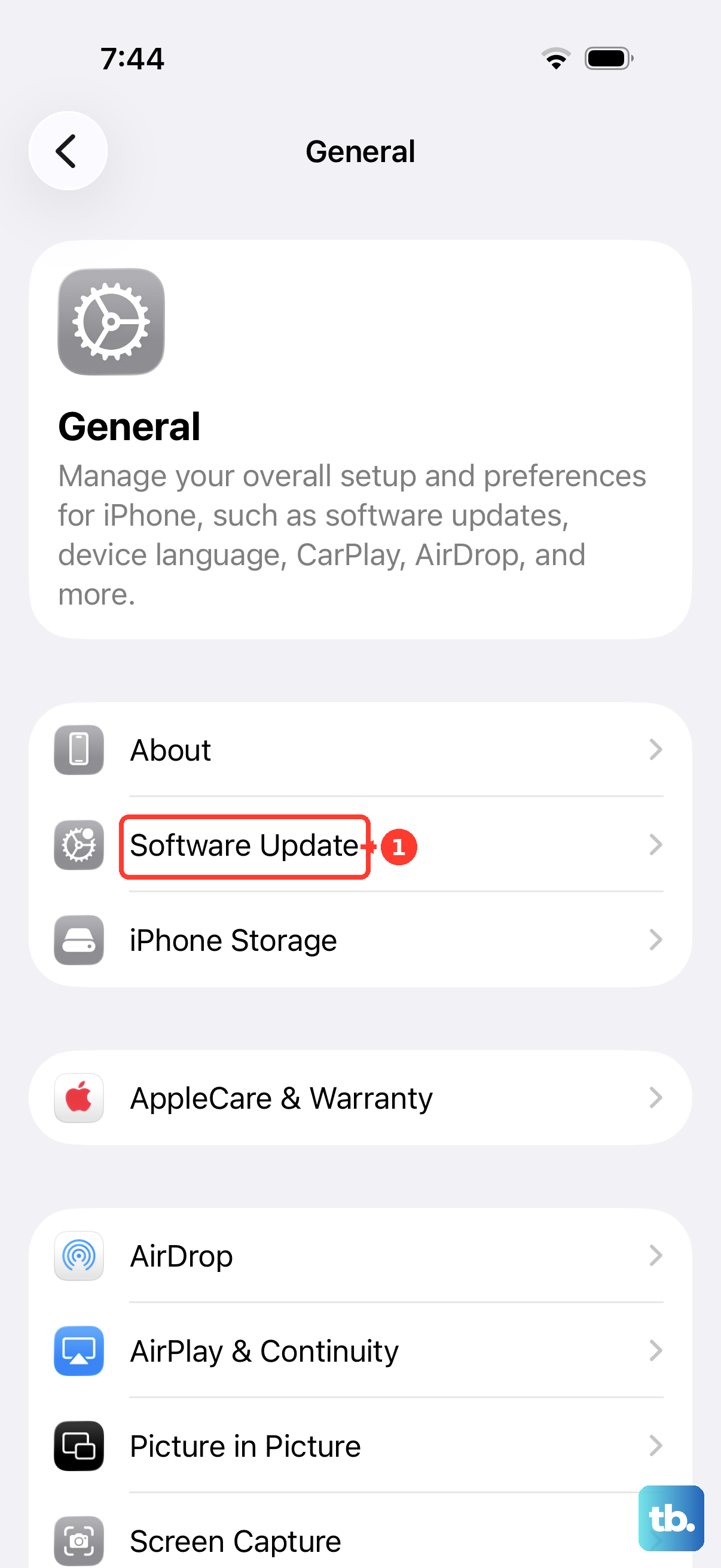
Go to Settings > General > Software Update. If an update is available, download and install it. Make sure your iPhone 17 Pro is connected to Wi-Fi and has sufficient battery, or plug it into your charger during the update process.
Reset the Network Settings on Your Device
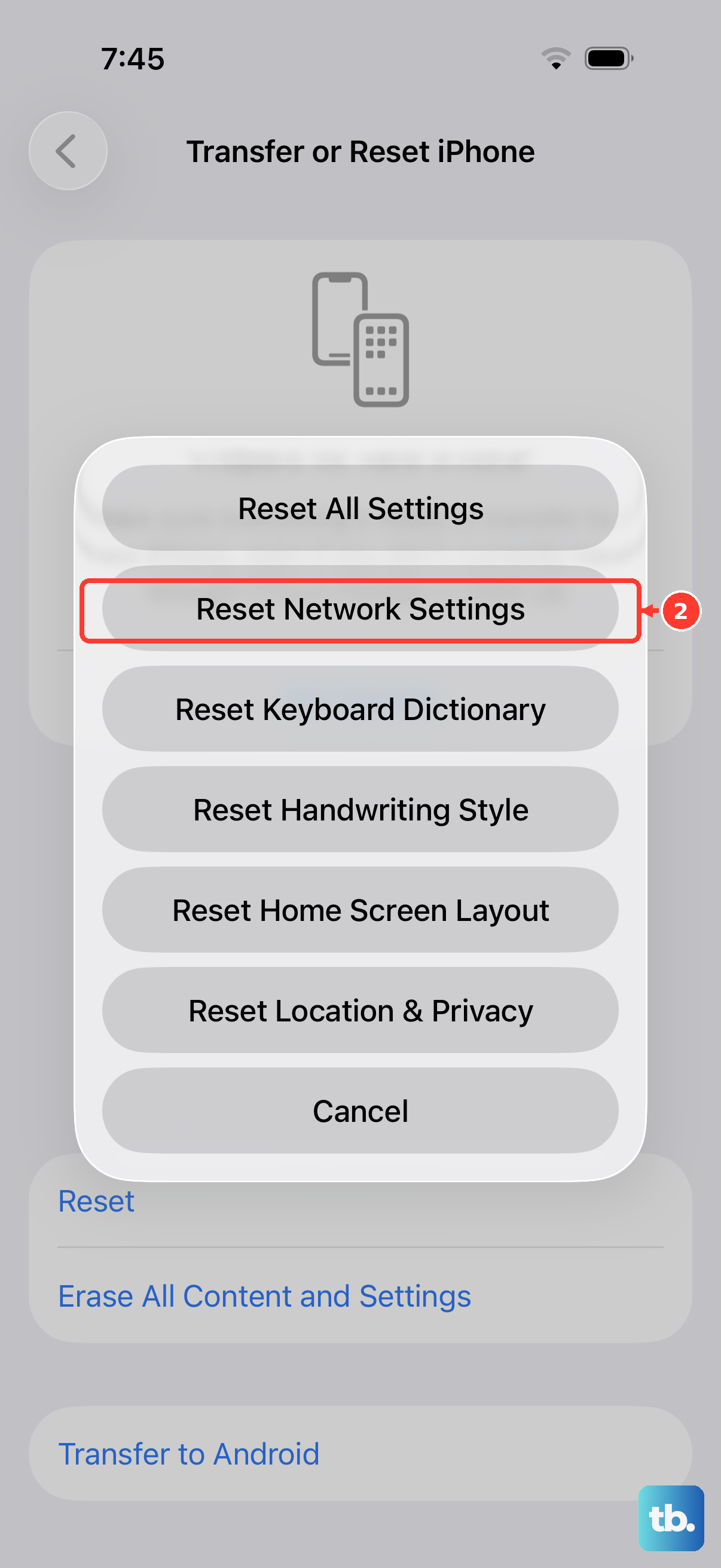
This step clears all your saved network preferences, including Wi-Fi passwords, VPN settings, and cellular network configurations. It's a strong fix for persistent provisioning errors. You won't lose personal data like photos or messages.
To do this, open Settings, tap General, and scroll down to Transfer or Reset iPhone. Tap Reset and then select Reset Network Settings. You'll need to enter your passcode and confirm the action. Your iPhone 17 Pro will restart and you'll need to reconnect to Wi-Fi networks afterward.
Manually Select Your Carrier Network
Sometimes the automatic network selection gets stuck. You can manually tell your iPhone which carrier to use. Navigate to Settings > Cellular > Network Selection.
Turn off the "Automatic" toggle. Your phone will search for available networks. After a moment, a list will appear. Select your carrier's name from the list. Wait a minute and see if the "SIM Not Provisioned" error clears.
Test the SIM Card in Another Phone
This test helps pinpoint where the problem lies. If you have access to another unlocked phone that uses a nano-SIM, power it off and insert your iPhone 17 Pro's SIM card. Turn that phone on.
If the SIM card works in the other device and gets service, the issue is likely with your iPhone 17 Pro's hardware or software. If the same error appears in the second phone, the problem is almost certainly with the SIM card or your carrier account.
If you've reached this point and the SIM still shows as not provisioned, your carrier will need to intervene. They can run deeper diagnostics on your line and, if necessary, issue a replacement SIM card. A new SIM is often the final solution for persistent MM2 errors.