
That "No SIM" or "Invalid SIM" message on your iPhone 17 Pro Max is a real roadblock. It usually means a simple connection issue between the SIM card and the phone's tray, but it can also be a quick software hiccup. Let's get you back online.
The first thing I'd try is a force restart. It's the go-to move for clearing up temporary iOS 26 glitches that can cause SIM detection problems. Press and quickly release the Volume Up button, then quickly press and release the Volume Down button. Immediately after, press and hold the Side button until you see the Apple logo appear on the screen, then let go.
While you're at it, check that Airplane Mode isn't accidentally on. Swipe down from the top-right corner of the screen to open Control Center and tap the airplane icon to turn it off if it's orange. Wait a few seconds, then tap it again to turn it back on and off once more to refresh the connection.
Check and Clean the Physical SIM
If a restart didn't help, the next step is a physical check. Power your iPhone 17 Pro Max off completely. Find the SIM ejector tool that came in the box (a paperclip works in a pinch) and gently push it into the small hole on the left side of the frame to pop out the SIM tray.
Carefully remove the SIM card and look at the gold contacts. You're checking for any visible scratches, dirt, or corrosion. Give the contacts a gentle wipe with a clean, dry, lint-free cloth. Use a can of compressed air to blow out any dust from the SIM tray slot itself before you reinsert everything.
When putting the tray back in, make sure the SIM card is seated correctly and the tray is aligned perfectly with the slot. Push it in until it's flush. A slightly misaligned tray is a common culprit for the "No SIM" error on these models.
Update Your Carrier Settings and iOS
Sometimes the software that lets your phone talk to your carrier's network needs an update. Go to Settings > General > About. If a carrier settings update is available, a prompt will appear right there. Tap to update it.
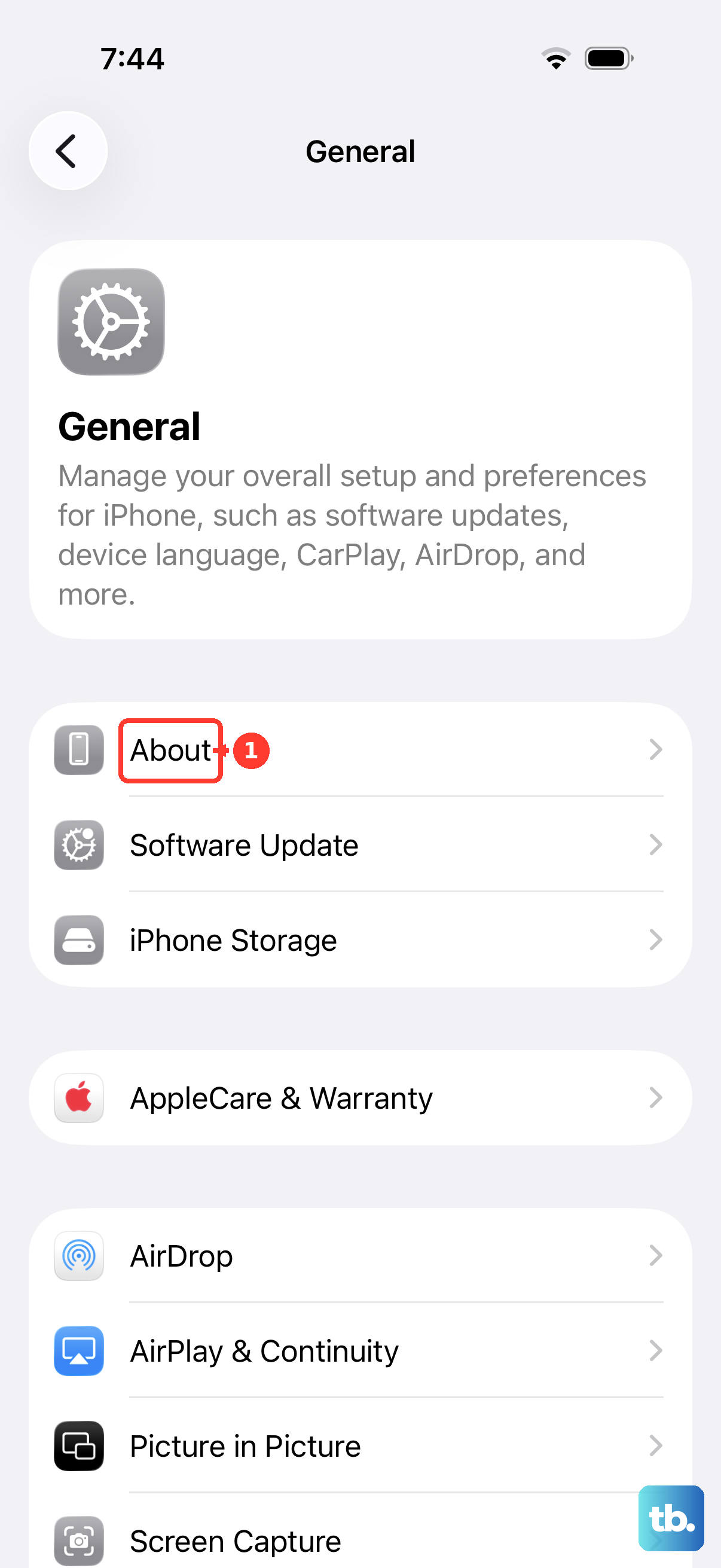
Next, check for a full iOS update. Head to Settings > General > Software Update. If iOS 26.1 or later is waiting, download and install it. These updates often include fixes for connectivity bugs that could be causing your SIM issue.
Reset Your Network Settings
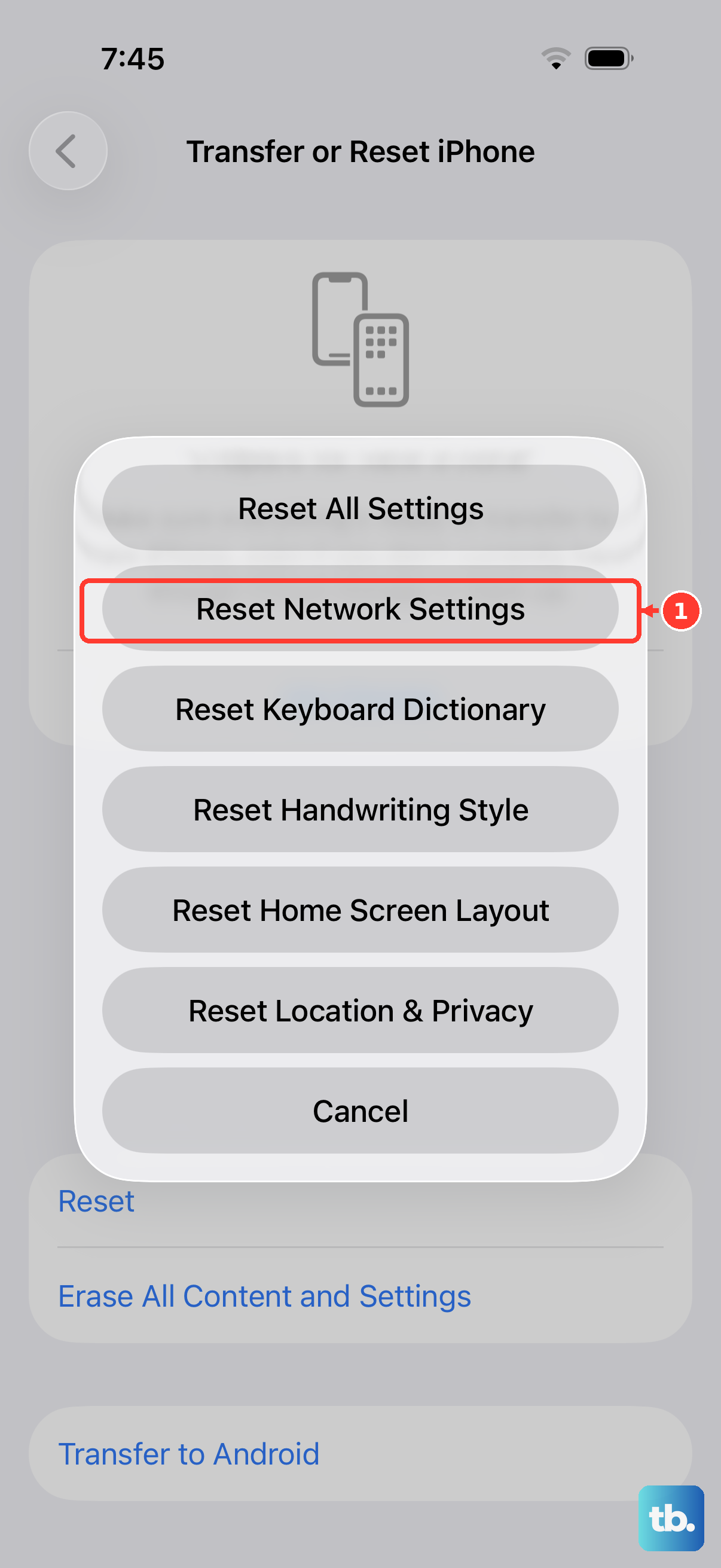
This is a deeper fix that clears out all your saved Wi-Fi passwords, Bluetooth pairings, and cellular network configurations. It won't touch your personal data like photos or messages, but you will have to reconnect to Wi-Fi networks afterward.
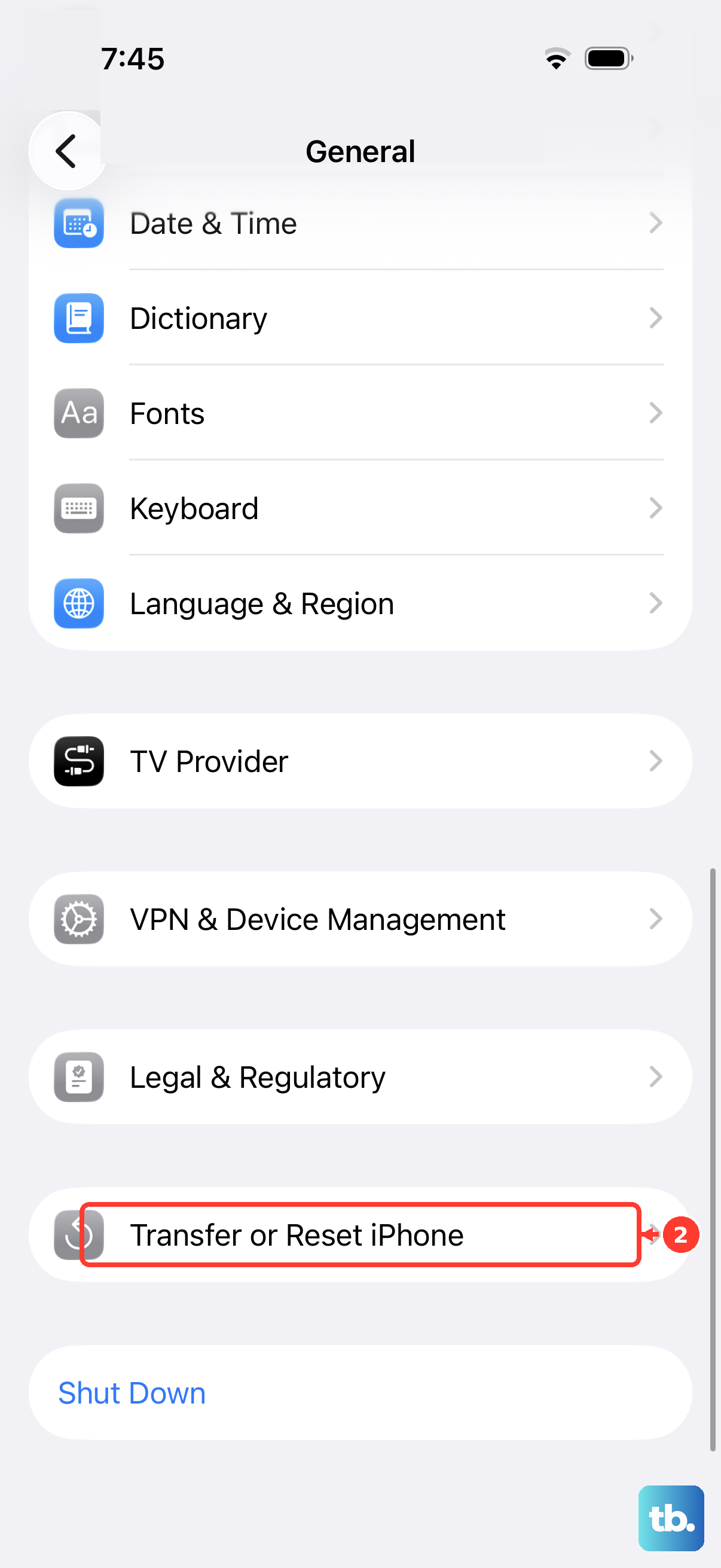
To do it, open Settings, tap General, scroll down and tap Transfer or Reset iPhone. Then, select Reset and choose Reset Network Settings. Enter your passcode if prompted and confirm. Your phone will restart and the network stack will be fresh.
Try Your SIM in Another Phone
This is the best way to figure out if the problem is with your SIM card or the iPhone itself. If you have access to another unlocked phone, power it off, insert your SIM, and turn it back on.
If the other phone also shows "No SIM" or can't find a network, the SIM card itself is likely faulty or deactivated. You'll need to contact your carrier (like Verizon, AT&T, or T-Mobile) for a replacement SIM. They can usually activate a new one for you quickly.
Contact Your Carrier for Support
If your SIM works in another phone, the issue is with your iPhone 17 Pro Max. Before assuming hardware failure, call your carrier. There could be a network outage in your area, or they might need to reprovision your line on their end.
They can also check if your account is in good standing and run a remote refresh on your line, which sometimes kicks a stubborn SIM back into recognition. It's a quick call that can save you a trip to the Apple Store.
Switch to an eSIM
The iPhone 17 Pro Max fully supports eSIM. If you're dealing with a repeatedly failing physical SIM or a problematic tray, converting to an eSIM is a great permanent solution. Contact your carrier and ask them to help you convert your physical SIM to a digital eSIM profile.
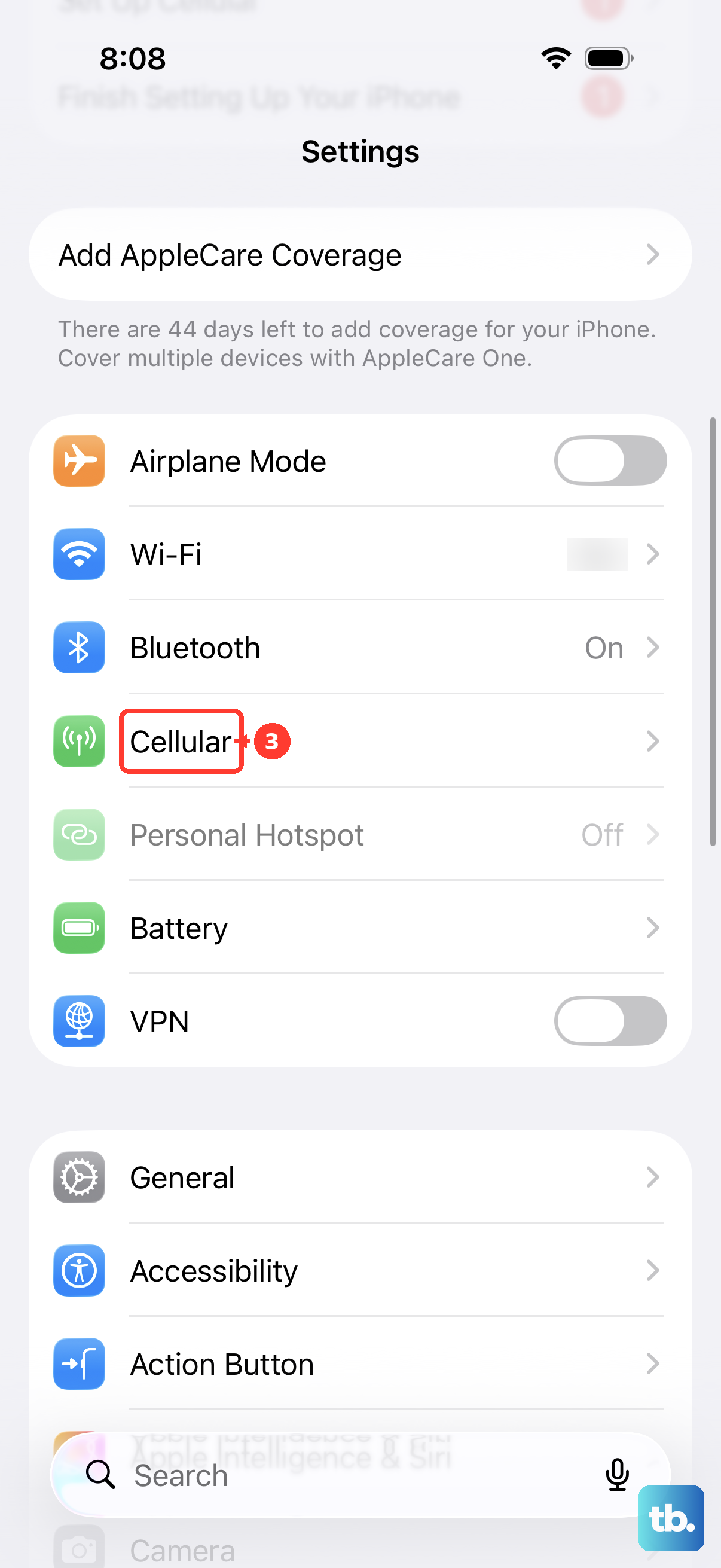
They'll guide you through the process, which typically involves scanning a QR code in your Settings > Cellular menu. Once activated, you can remove the physical SIM entirely, eliminating that point of failure.
Check for a Hardware Issue
If you've tried everything else, different SIMs, carrier refreshes, full resets, and the error persists, there may be a hardware problem. The SIM card reader or the internal connectors related to it could be damaged.
Since the iPhone 17 Pro Max is a current model, it should be covered by Apple's one-year limited warranty if you bought it new. You can start a support request through the Apple Support app or website to schedule a diagnostic at an Apple Store or with an Apple Authorized Service Provider.