
Seeing a "No Service" or "Searching..." message on your iPhone 17 Pro is frustrating. It means your phone can't register with your carrier's network, so calls, texts, and mobile data won't work. This can happen for a bunch of reasons, from a simple software hiccup to a more involved carrier issue.
Before you do anything else, try the quickest fix. Pull down from the top-right corner of your screen to open Control Center and tap the airplane icon to turn on Airplane Mode. Wait about 15 seconds, then tap it again to turn it off. This forces your iPhone's cellular modem to completely restart its search for a signal. If you see the bars reappear, you're all set.
Perform a Force Restart
If toggling Airplane Mode didn't help, a force restart is your next best step. It's more thorough than a standard restart and can clear temporary glitches affecting the modem. On the iPhone 17 Pro, you press and quickly release the Volume Up button, press and quickly release the Volume Down button, then press and hold the Side button. Keep holding it until you see the Apple logo appear, then let go.
This process doesn't erase any data. Once your phone boots back up, give it a minute to search for and register on the local network.
Check for a Carrier Settings Update
Carrier settings are small files that tell your iPhone how to connect to your specific provider's network. An outdated version can cause registration failures. To check, make sure you're connected to Wi-Fi, then go to Settings > General > About.
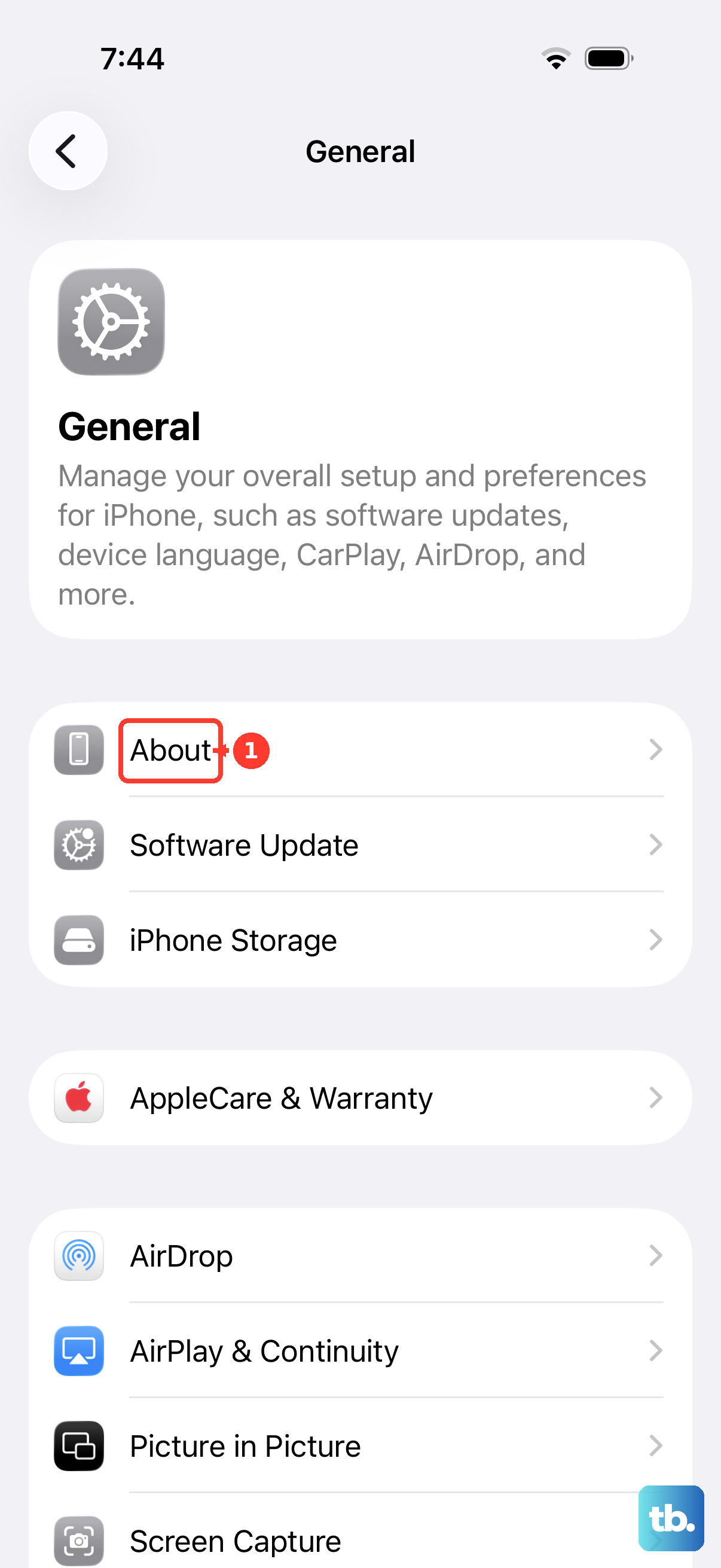
If an update is available, a prompt will appear on this screen. Tap "Update" if you see it. Your phone will reboot to apply the update. This is a common fix that many people overlook.
Reinsert Your SIM Card or Check eSIM
A loose or dirty SIM card can definitely cause this problem. If you're using a physical SIM, power off your iPhone, grab the SIM ejector tool, and pop out the tray. Carefully remove the SIM, give the gold contacts a gentle wipe with a soft, dry cloth, and reseat it firmly.
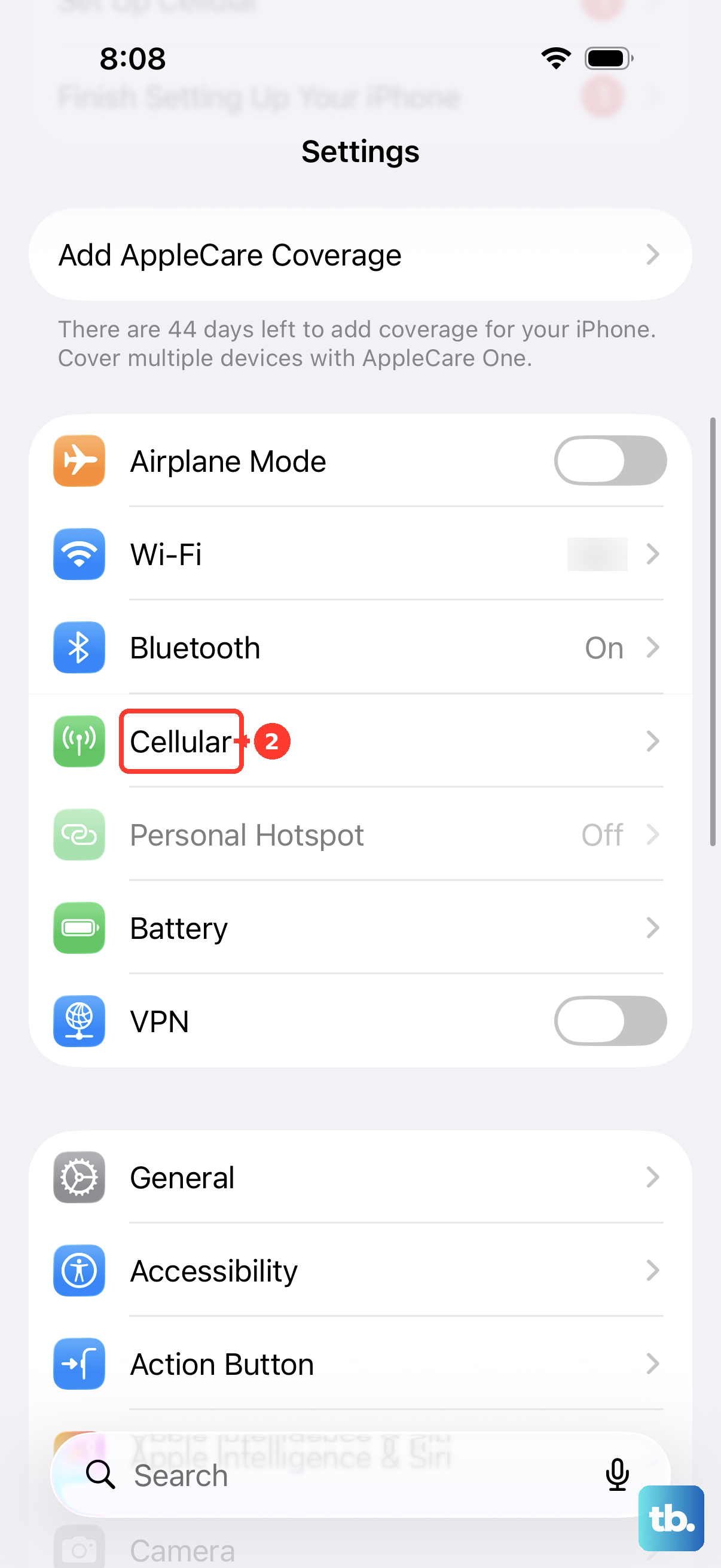
If you're using an eSIM, you can try turning it off and back on. Go to Settings > Cellular, tap your eSIM line, and toggle "Turn On This Line" off, wait a moment, then toggle it back on. This refreshes the digital SIM's connection.
Update to the Latest iOS Version
Apple and carriers are constantly patching network-related bugs in iOS updates. Running an old version of iOS 26 could be the root of your problem. Connect to Wi-Fi, then open Settings > General > Software Update.
Download and install any available update. I've seen this resolve persistent "No Service" issues on newer iPhones, especially after a major carrier network change.
Reset Your Network Settings
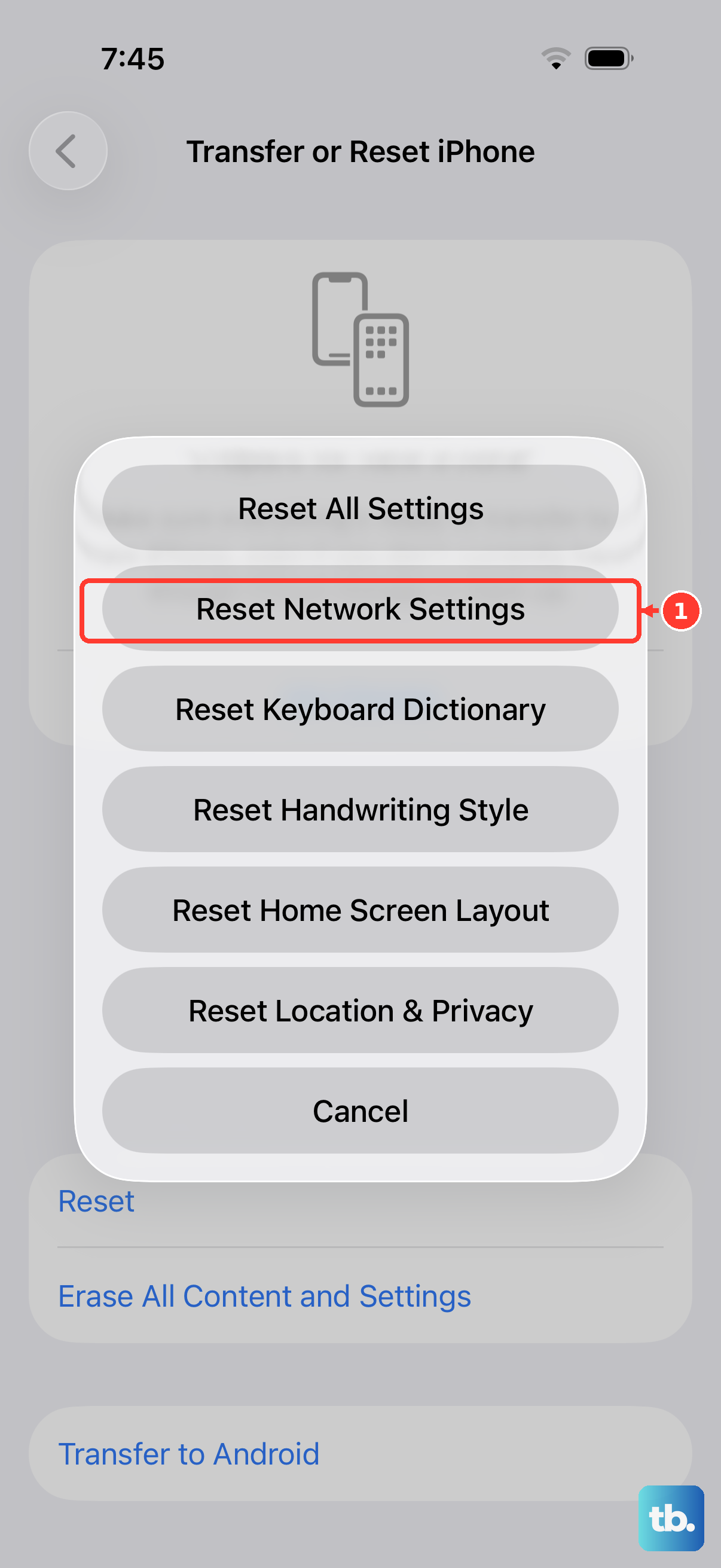
This step clears all your saved Wi-Fi networks, Bluetooth pairings, VPN configurations, and cellular settings. It's a clean slate for anything related to connectivity. Go to Settings > General > Transfer or Reset iPhone > Reset.
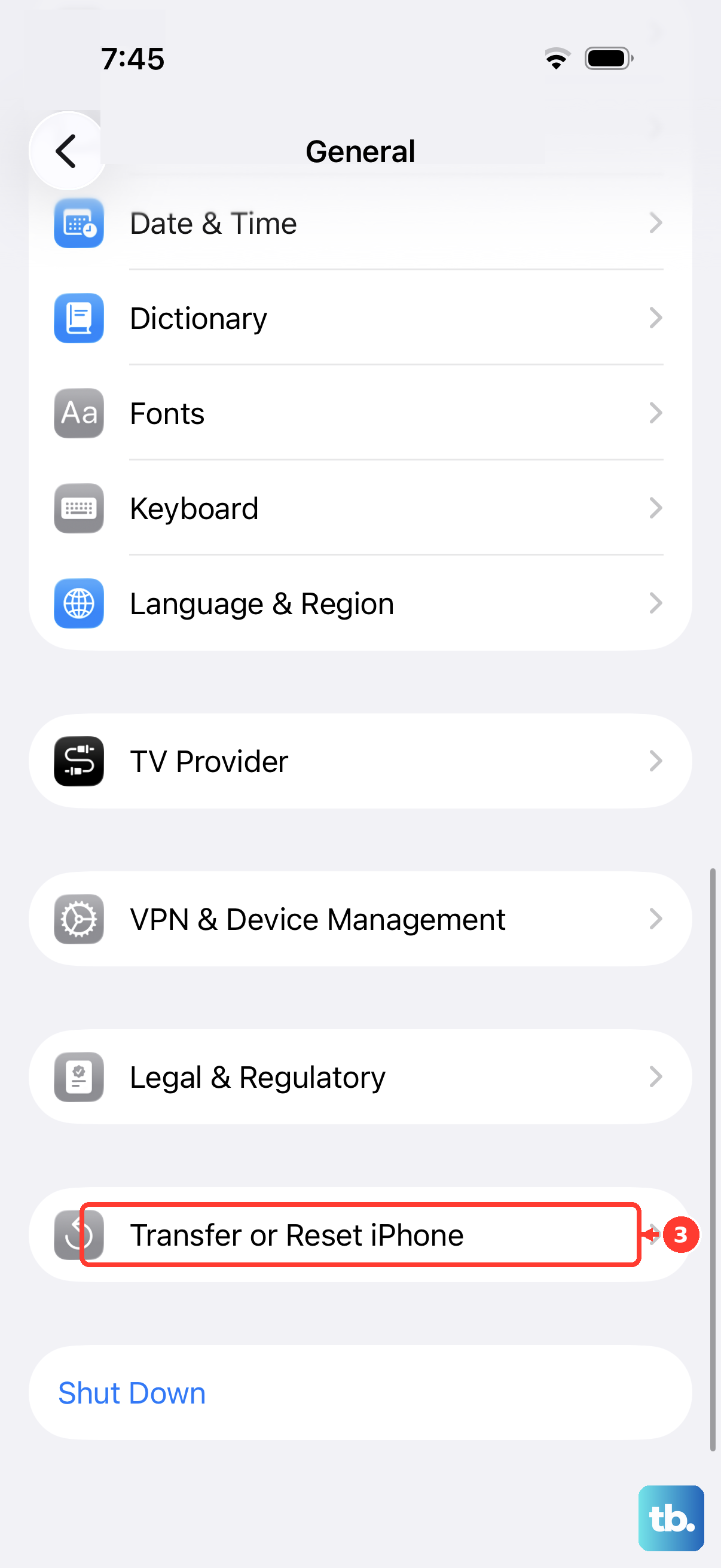
Tap "Reset Network Settings." You'll need to enter your passcode and confirm. Your iPhone will restart. Afterward, you'll have to rejoin Wi-Fi networks and re-pair Bluetooth devices, but it often fixes stubborn cellular registration problems.
Manually Select Your Network
Sometimes your iPhone gets stuck trying to connect to a weak or incompatible tower. You can tell it which network to use. Go to Settings > Cellular and tap "Network Selection." Turn off "Automatic."
Your phone will search for available networks in your area. A list will appear. Select your carrier's name from the list. Wait a minute to see if your service returns. If it doesn't, go back and turn "Automatic" selection on again.
Verify Your Carrier Account Status
It's worth confirming the issue isn't on your carrier's end. An unpaid bill, expired prepaid plan, or an account suspension will look exactly like a phone problem on your screen. Try logging into your carrier's account portal from a computer or another device.
You can also call your carrier's customer support from another phone. Ask them to verify your line is active and check for any outages in your specific area.
Try a Different SIM Card
This helps you figure out if the problem is with your SIM or the phone itself. If you can borrow a friend's SIM card from a different carrier (that you know works in their phone), pop it into your iPhone 17 Pro.
If the borrowed SIM connects to its network without issue, then your original SIM card is likely faulty or deactivated. You'll need to contact your carrier for a replacement. If the borrowed SIM also shows "No Service," the issue is with your iPhone.
Contact Apple Support
If you've tried everything here and your iPhone 17 Pro still won't register on any network, it's time for professional help. There could be a hardware issue with the cellular antenna or modem. You can start a support session directly through the Apple Support app on another device.
They can run remote diagnostics and guide you to the next steps, which may include a visit to an Apple Store or Authorized Service Provider for further inspection.