
When your iPhone 17 Pro Max's keyboard disappears or stops responding, it can really halt your day. This is a common glitch on iOS 26, but it's usually something you can fix yourself without much trouble.
Force Restart Your iPhone
This is the quickest fix and solves a surprising number of keyboard freezes. A force restart clears the phone's temporary memory without deleting any of your data.
On the iPhone 17 Pro Max, you press and quickly release the Volume Up button, then quickly press and release the Volume Down button. Finally, press and hold the Side button until you see the Apple logo appear on the screen.
Let go of the button and wait for your phone to reboot. Once it's back on, try opening an app like Messages or Notes to see if the keyboard pops up normally.
Close and Reopen the App
Sometimes the issue is with the specific app you're using, not the keyboard system-wide. If the keyboard works in some apps but not others, try force-closing the problematic app.
On your iPhone 17 Pro Max, swipe up from the very bottom of the screen and hold in the middle until you see your app switcher. Find the app card for the app giving you trouble and swipe it all the way up off the top of the screen to close it.
Wait a few seconds, then tap the app icon on your Home Screen to reopen it fresh. This often clears up any temporary communication hiccup between the app and the keyboard.
Toggle Off and On a Keyboard
If you have multiple keyboards enabled, like a third-party one or an emoji keyboard, a software conflict can cause the default one to fail. You can quickly reset this connection.
Go to Settings > General > Keyboard > Keyboards. You'll see a list of all the keyboards you have installed.
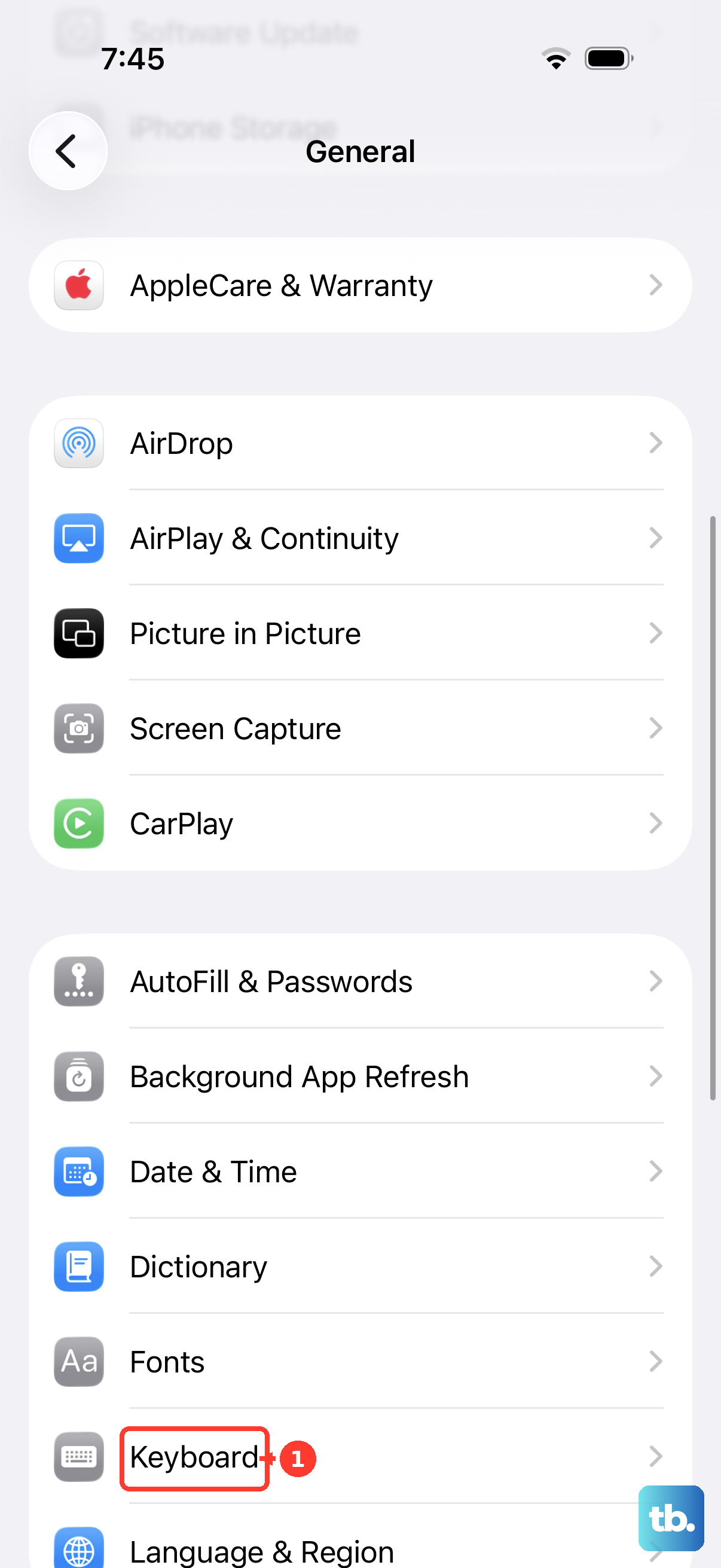
Tap Edit in the top-right corner, then tap the red minus icon next to a keyboard (like Emoji or a third-party one) and choose Delete. Don't worry, you can add it back. After removing it, test your main keyboard.
If it works, you can go back and tap Add New Keyboard to re-add the one you removed. This refresh often sorts out the underlying issue.
Update iOS
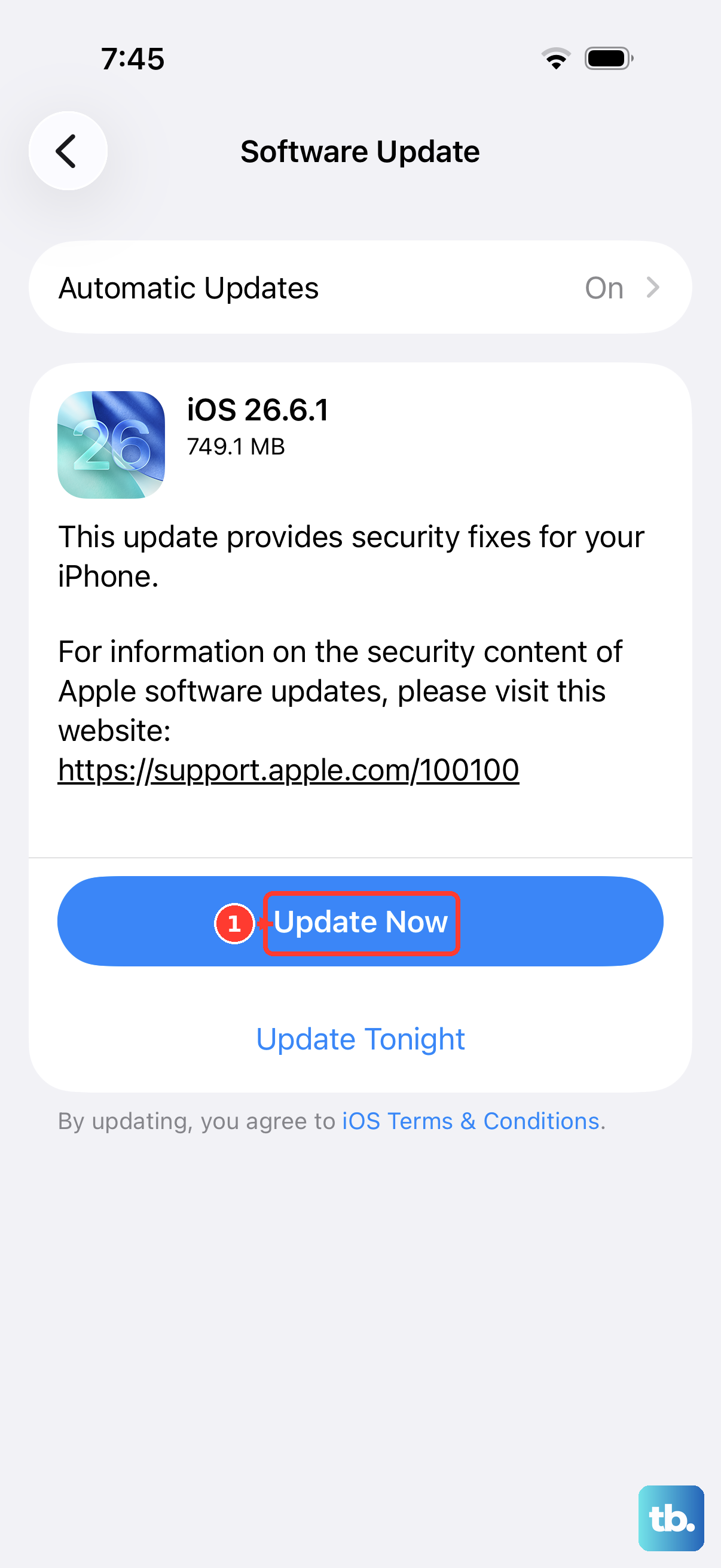
An outdated version of iOS 26 can have bugs that affect system components like the keyboard. Apple releases updates specifically to patch these kinds of problems.
Open Settings, tap General, and then select Software Update. Your iPhone 17 Pro Max will check for any available updates.
If one is listed, I'd recommend installing it. Make sure your phone is connected to Wi-Fi and has a good charge, or better yet, is plugged into your charger. The update will install and restart your phone, which often resolves the keyboard glitch.
Reset All Keyboard Settings
This resets all your keyboard-related preferences, like text replacement shortcuts, auto-correction strength, and predictive text, back to their factory defaults. It won't touch your personal data, photos, or apps.
To do this, navigate to Settings > General > Transfer or Reset iPhone. Tap on Reset at the bottom of that screen.
From the list of reset options, choose Reset Keyboard Dictionary. You'll need to enter your passcode to confirm. After the reset, your keyboard will behave like it's brand new, which can clear out any corrupted settings files causing the crash.
Check for a Third-Party Keyboard Conflict
If you've installed a keyboard like Gboard or SwiftKey, try switching back to the native Apple keyboard as a test. Open any app where you can type, then tap and hold the globe or emoji icon on the bottom-left of the keyboard.
A menu will pop up showing all your enabled keyboards. Select English (US) or whichever language represents the standard Apple keyboard.
If the Apple keyboard works fine, the issue is likely with the third-party keyboard app. Try force-closing that app from the app switcher, or check the App Store for an update to that specific keyboard.
Reset All Settings
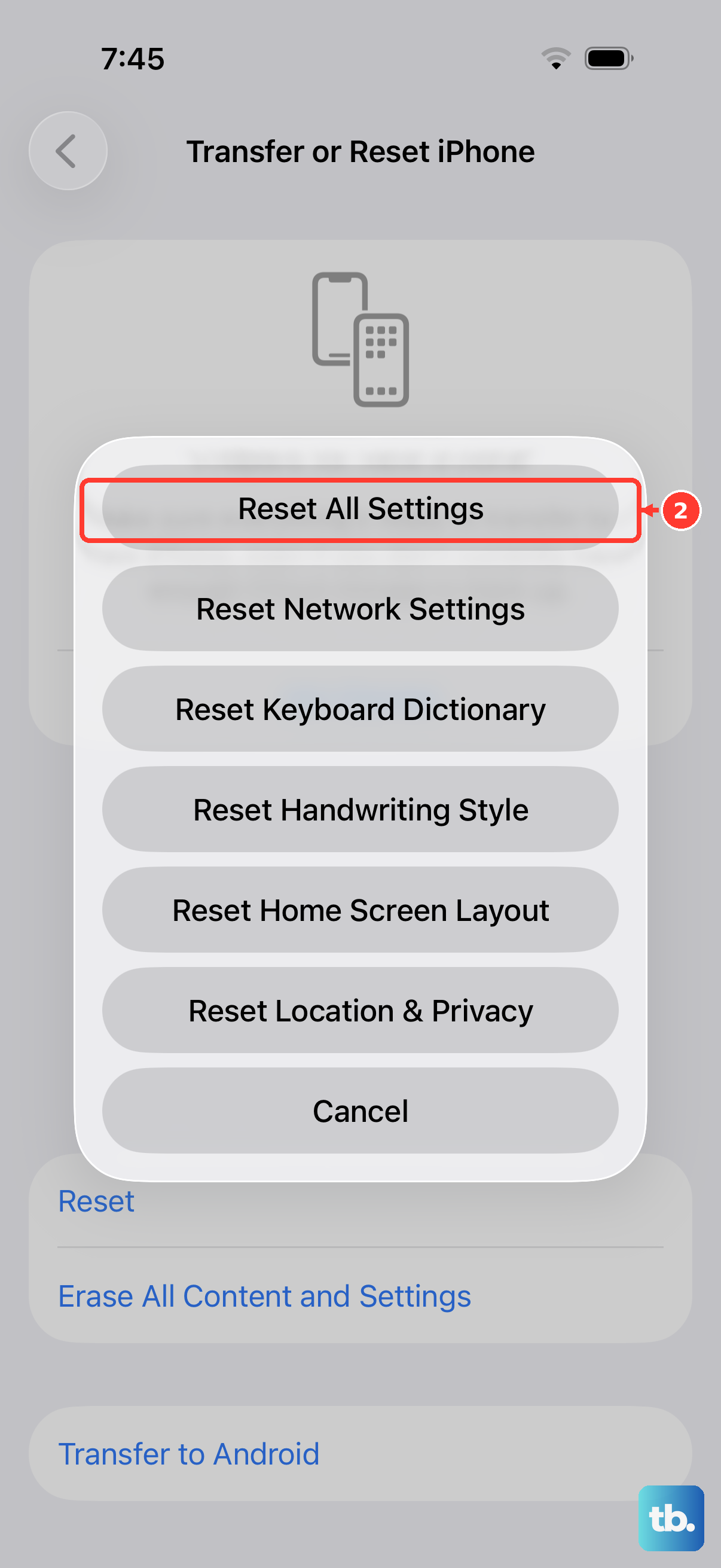
This is a broader step than just resetting the keyboard. It will return all your system settings, Wi-Fi passwords, wallpaper, privacy permissions, and display brightness, to their original defaults. Your photos, messages, and apps remain safe.
Go to Settings > General > Transfer or Reset iPhone > Reset. This time, tap Reset All Settings.
You'll be asked for your passcode and then to confirm the action. The phone will restart. After it boots up, you'll need to re-join Wi-Fi networks and adjust some preferences, but this can eliminate deep-seated configuration conflicts affecting the keyboard.
Check Available Storage
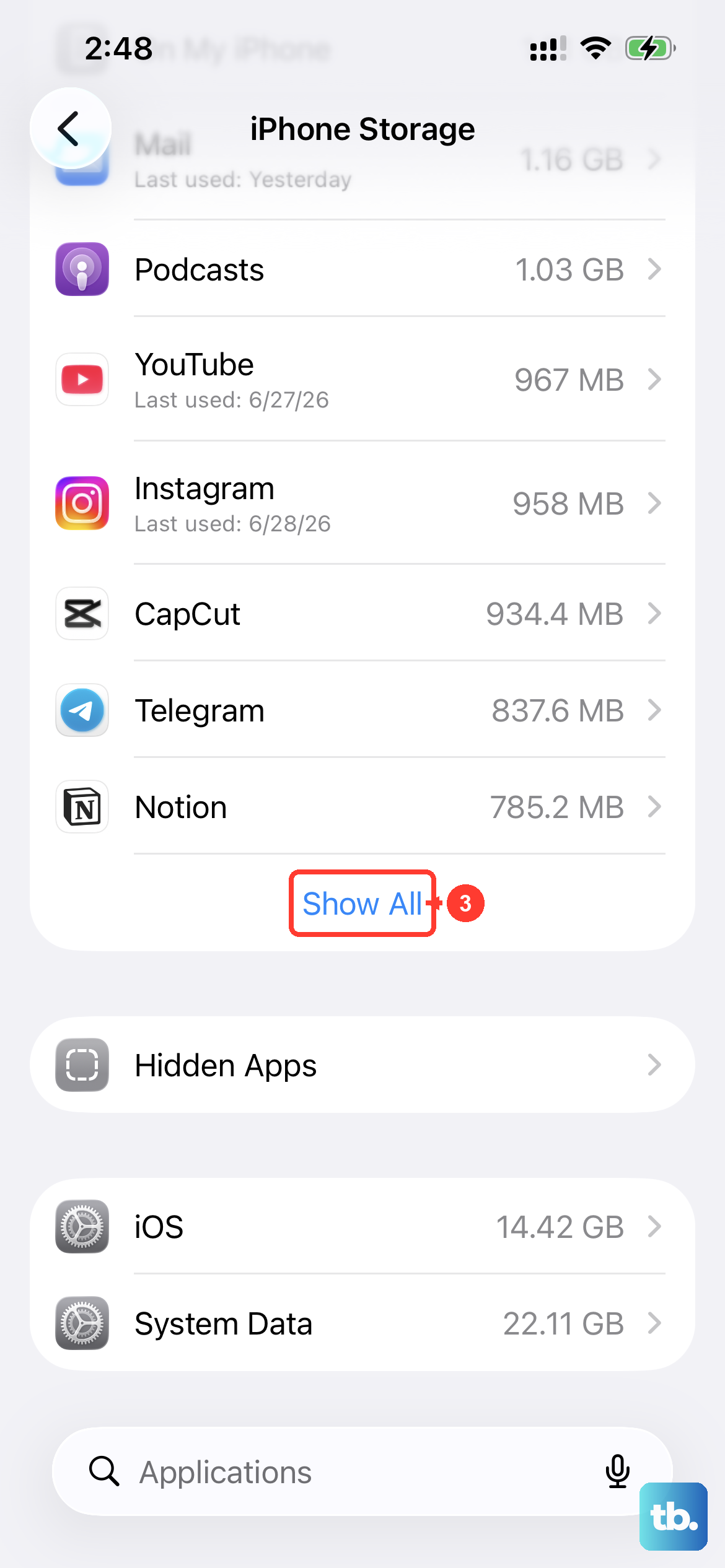
While it's less common, if your iPhone 17 Pro Max is critically low on storage, system functions can start to behave strangely. The keyboard needs a little free space to operate correctly.
Open Settings, tap General, and then select iPhone Storage. Look at the top of the screen to see your available space.
If you're down to just a few gigabytes free, try offloading some unused apps or moving photos to iCloud. Getting back to having 5-10GB free can sometimes help system stability, including for the keyboard.
Update or Reinstall Problematic Apps
If the keyboard only fails in one specific app, like Facebook or Chrome, that app itself might be the culprit. An outdated version could have a bug that breaks the keyboard integration.
Open the App Store and tap your profile icon in the top right. Scroll down to see if there are any pending updates for the app in question. If an update is available, install it.
If the app is already up-to-date and the problem persists, try deleting the app and reinstalling it. Just press and hold the app icon on your Home Screen, tap Remove App, and then choose Delete App. Reinstall it fresh from the App Store. This gives it a clean slate to work from.