
If your iPhone 17 shows a "Network Registration Failed" or "Not Registered on Network" error, you can't make calls, send texts, or use cellular data. This happens when your phone can't properly identify itself to your carrier's cell towers. It's a frustrating roadblock, but it's usually something you can fix yourself.
Before you do anything else, try the quickest fix. Open your Control Center by swiping down from the top-right corner of the screen and tap the Airplane Mode icon to turn it on. Wait about 15 seconds, then tap it again to turn it off. This forces your iPhone 17 to drop its current network connection and perform a fresh registration, which often clears up the error immediately.
Restart Your iPhone 17
A simple restart can resolve a surprising number of software hiccups, including network registration problems. When your iPhone 17 powers back on, it goes through its entire startup sequence and re-establishes communication with nearby towers from a clean slate. Just hold the Side button and either volume button, then slide to power off. Wait a minute, then press the Side button again to turn it back on.
Check for a Carrier Settings Update
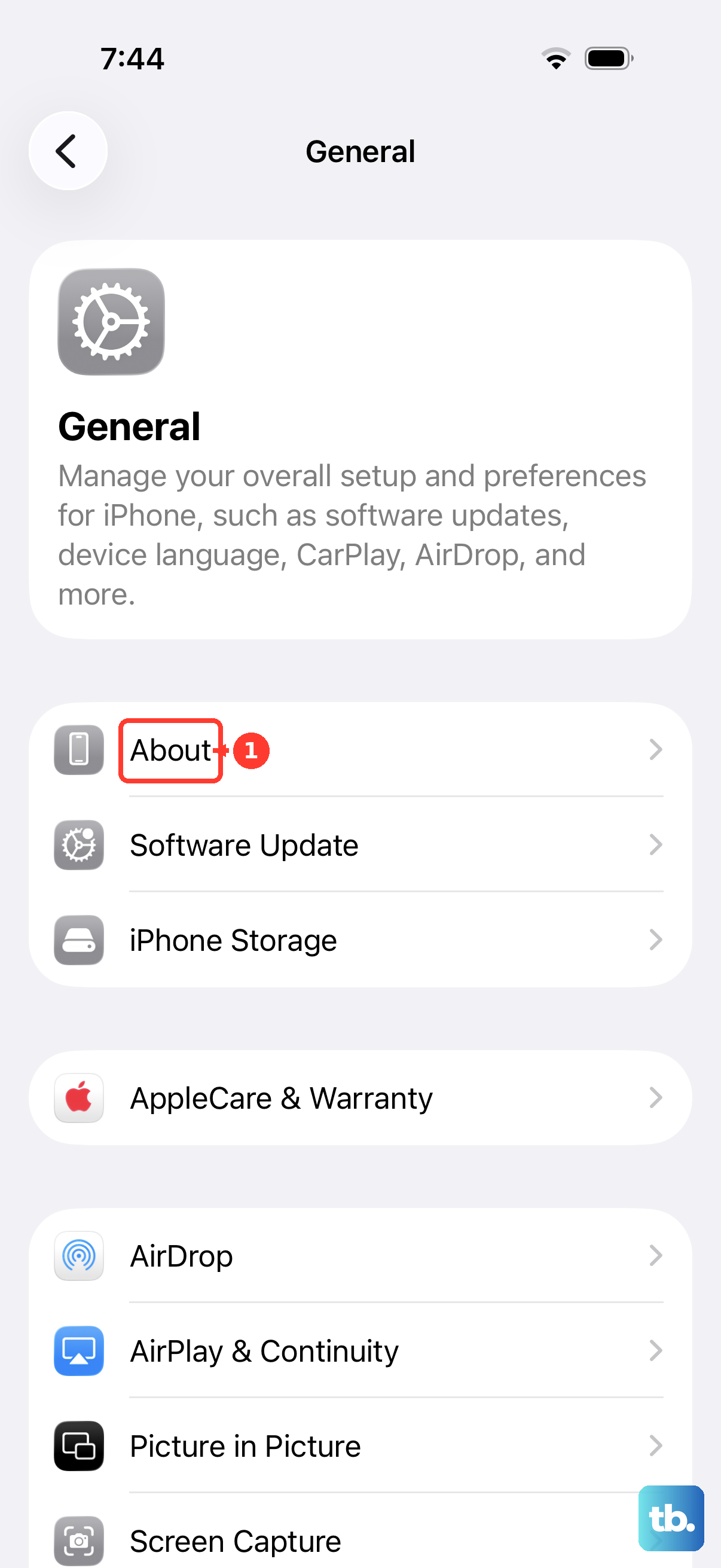
Carrier settings are small files from your provider that tell your iPhone 17 how to connect to their network. An outdated version can cause registration failures. To check, go to Settings > General > About. If an update is available, a prompt will appear on this screen. Tap "Update" if you see it. This process only takes a few seconds and doesn't require a restart.
Remove and Reinsert Your SIM Card
Even with eSIM being common, the iPhone 17 still has a physical SIM tray. If that SIM card isn't seated perfectly, it can lead to network errors. Grab the SIM eject tool (or a paperclip) and gently push it into the small hole on the SIM tray. Pull the tray out, remove the SIM card, and then firmly press it back into place. Blow any dust out of the tray slot before you slide it back into the phone.
Verify Your Account and Plan Status
Sometimes the issue isn't with your phone at all. If your account has been suspended for non-payment or your prepaid plan has expired, your carrier will block network access. I'd recommend using Wi-Fi to log into your carrier's website or app from another device to check your account status. You can also call customer service from a different phone to confirm everything is active.
Reset Your Network Settings
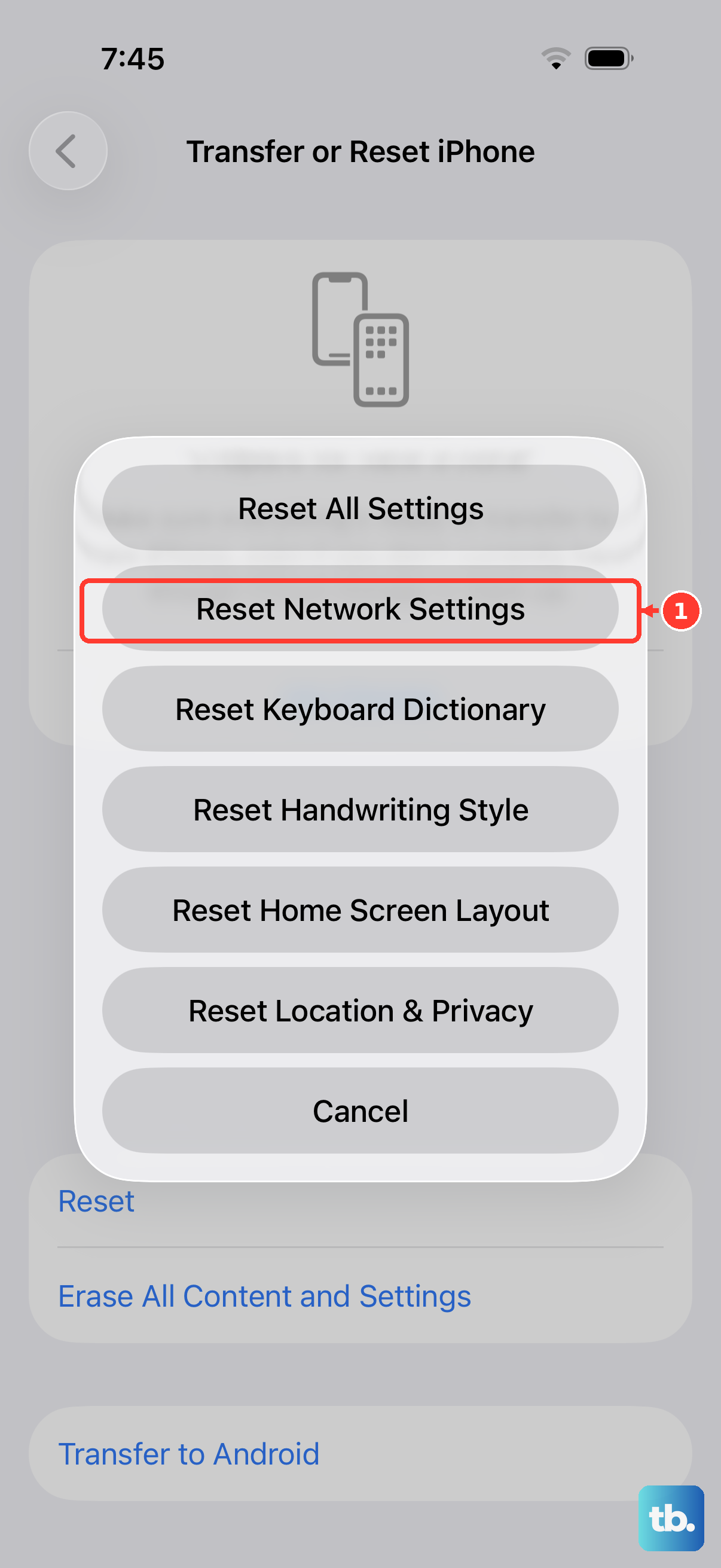
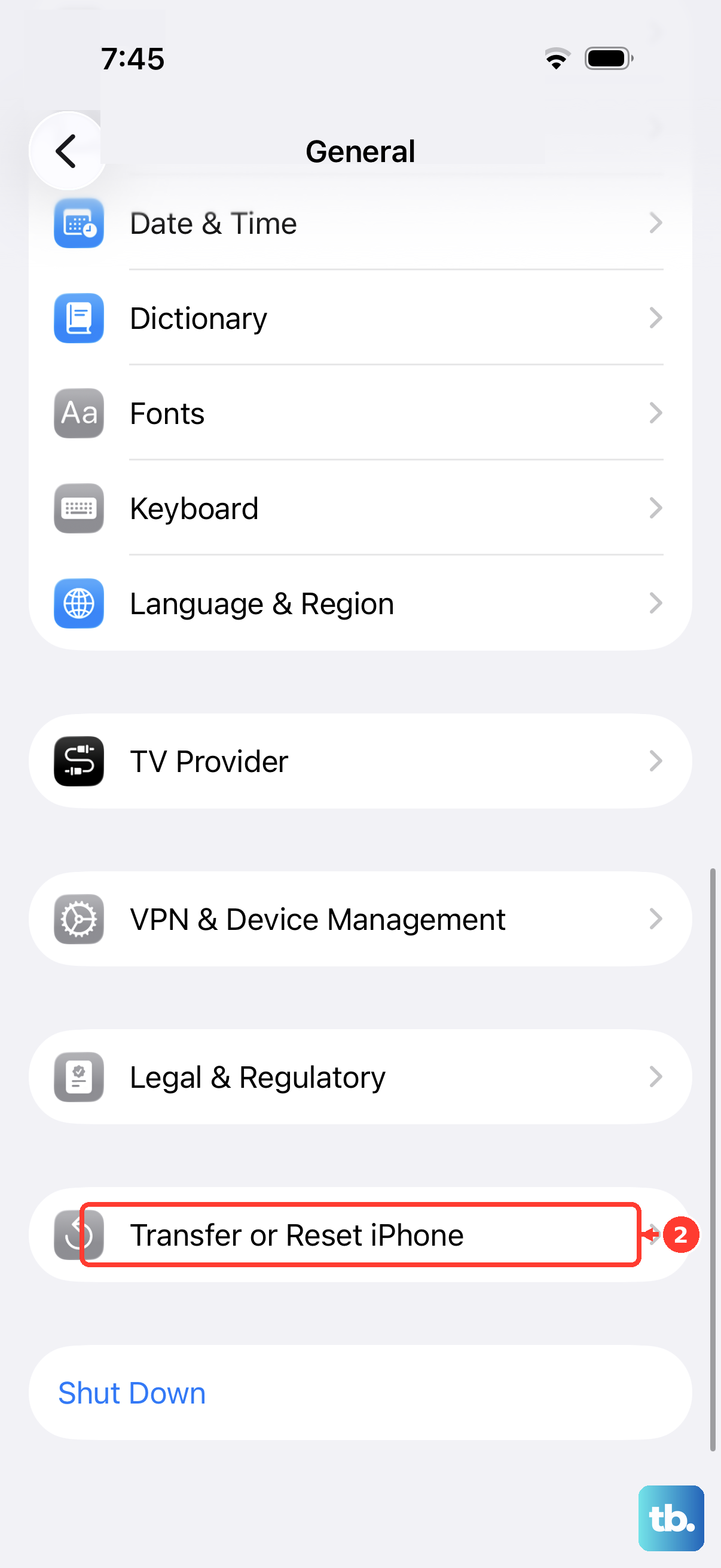
This is a more thorough step that wipes all your saved network information. It deletes your Wi-Fi passwords, Bluetooth pairings, and VPN configurations, but it also clears out any corrupted cellular settings causing the registration error. Go to Settings > General > Transfer or Reset iPhone > Reset. Then, tap Reset Network Settings. Your iPhone 17 will restart, and you'll need to rejoin Wi-Fi networks afterward.
Update to the Latest iOS Version
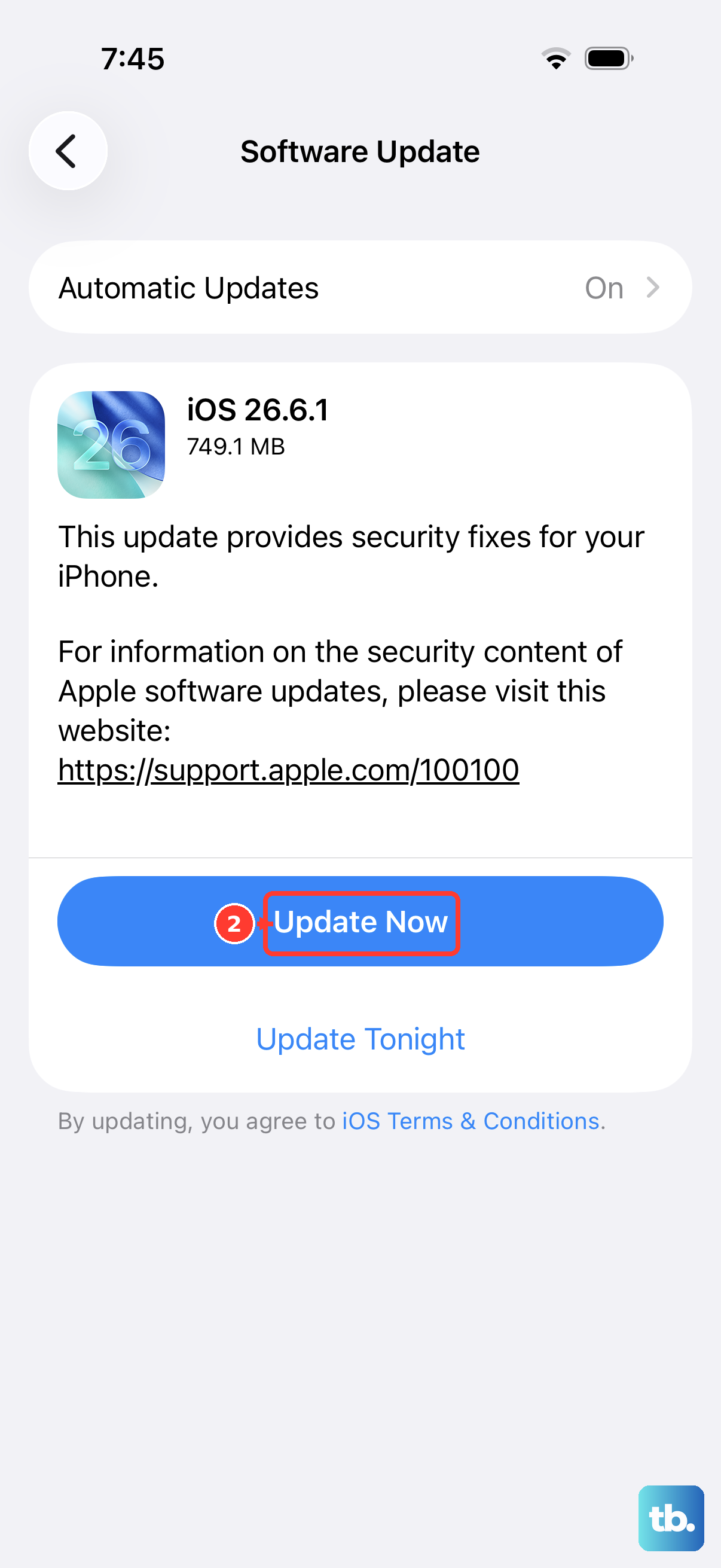
Apple frequently releases iOS updates that include bug fixes for cellular connectivity. If you're running an older version of iOS 26, it might have a known issue that's been patched. Open Settings > General > Software Update. If an update is available, tap "Download and Install." Make sure your iPhone 17 is connected to Wi-Fi and has sufficient battery life before starting the update.
Try Manually Selecting Your Network
Your iPhone might be trying to latch onto a weak or congested tower from your carrier. You can force it to search for a better one. Go to Settings > Cellular. Tap Network Selection and turn off "Automatic." Your phone will search for available networks. After a moment, a list will appear. Select your carrier's name from the list. If it connects, turn automatic selection back on later for convenience.
Check for a Physical SIM Card Issue
The SIM card itself could be damaged or worn out. The easiest way to test this is to try a different, known-working SIM card in your iPhone 17. If a friend's SIM from the same carrier registers on the network without issue, then your original SIM is likely faulty. You'll need to contact your carrier to get a replacement SIM card, which they can usually activate for you over the phone.
Perform a Force Restart
A force restart is different from a normal shutdown. It clears the device's memory and can fix deeper software glitches that a standard restart might not. On the iPhone 17, you do this by quickly pressing and releasing the Volume Up button, then quickly pressing and releasing the Volume Down button. Finally, press and hold the Side button until you see the Apple logo appear, then release it.
Contact Your Carrier for Further Support
If you've tried everything here and your iPhone 17 still won't register, your carrier needs to be involved. There might be an outage in your area, a problem with your specific line on their network, or a provisioning error. Call their technical support from another phone. They can run diagnostics on their end, reprovision your service, and confirm if the issue is with their network infrastructure.