
When your iPhone 17 restarts on its own, it's usually a software hiccup that you can fix yourself. I'd start with a force restart, as it clears out temporary glitches without touching your data.
It's a good idea to make sure you have a recent iCloud backup before trying anything more involved. You can check this in Settings > [Your Name] > iCloud.
Perform a Force Restart
This is the first thing to try. The process for the iPhone 17 is quick. Press and quickly release the Volume Up button, then press and quickly release the Volume Down button. Finally, press and hold the Side button until you see the Apple logo appear on the screen.
You can let go of the button once the logo shows up. This doesn't erase anything, it just gives the system a clean boot.
Update iOS and Your Apps
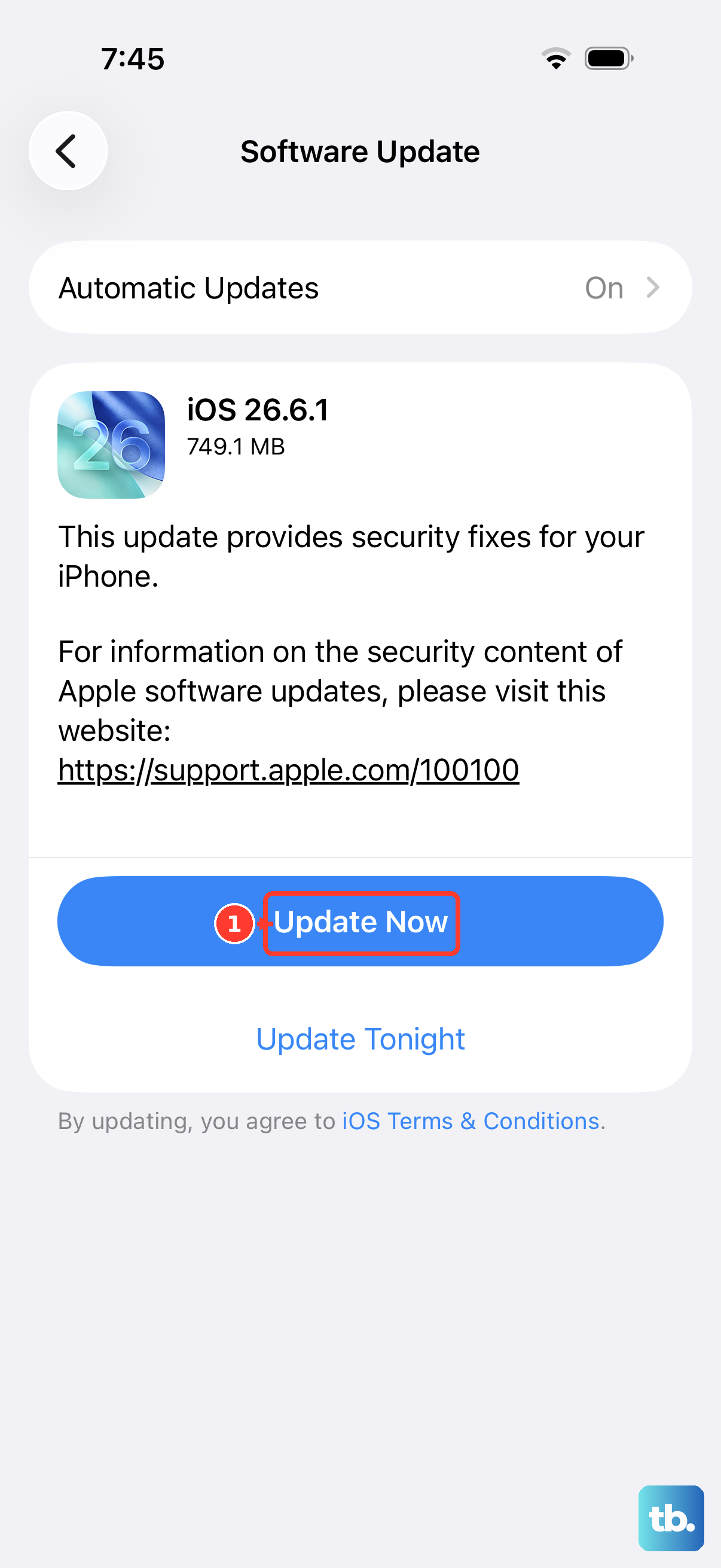
Running outdated software, especially on iOS 26, is a common trigger for instability. Head to Settings > General > Software Update to see if a new version is available.
Install it if there is one. After that, open the App Store, tap your profile icon in the top corner, and scroll down to update all your apps. Sometimes a single buggy app can cause system-wide issues.
Check for Problematic Apps
If the restarts started after installing a new app, that app might be the culprit. Try uninstalling any recently added apps to see if the problem stops.
You can also check your analytics data for clues. Go to Settings > Privacy & Security > Analytics & Improvements > Analytics Data.
Look for log entries that start with the name of an app you suspect. Finding a crash report tied to a specific app gives you a clear target to remove.
Free Up Storage Space on Your iPhone
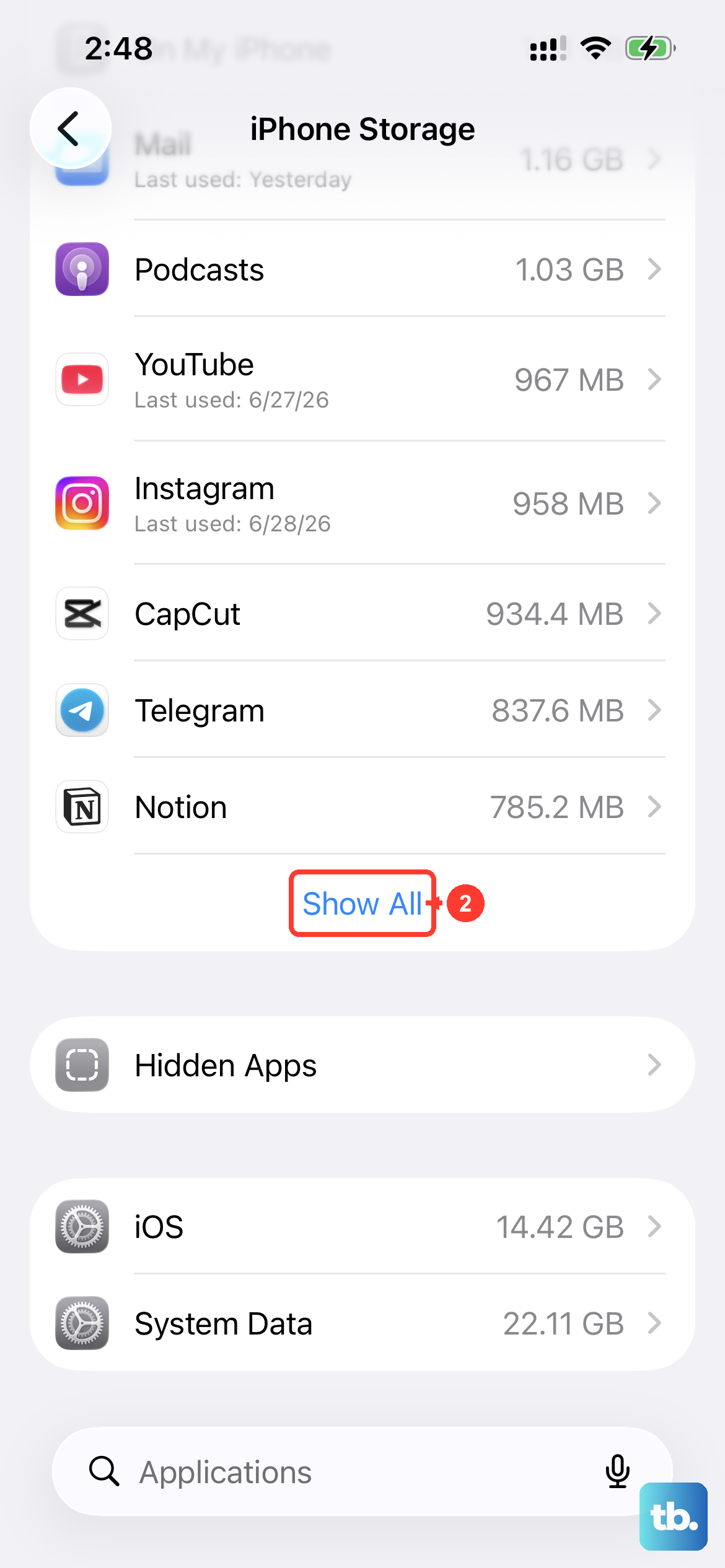
If your iPhone 17 is critically low on space, it can struggle to operate smoothly. Go to Settings > General > iPhone Storage to see your available capacity.
The system will offer recommendations here, like offloading unused apps or reviewing large attachments. Aim to keep at least a few gigabytes free for the system to work properly.
Reset All Settings
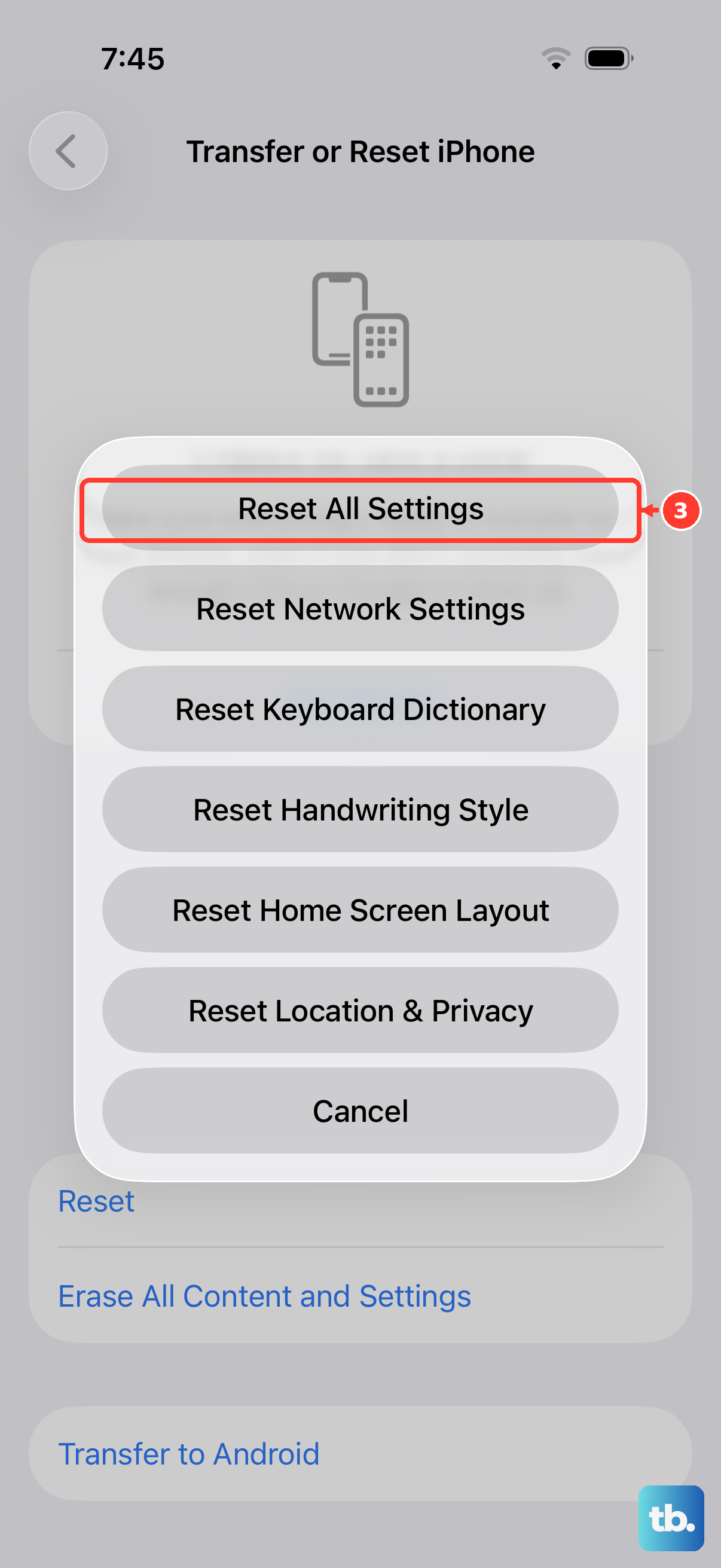
This step resets all your preferences, like Wi-Fi passwords, wallpaper, and display settings, back to factory defaults without deleting your personal data. It can resolve conflicts caused by a corrupted setting.
Navigate to Settings > General > Transfer or Reset iPhone > Reset. Then, tap "Reset All Settings" and enter your passcode to confirm.
Check for Overheating Issues
The iPhone 17 will automatically restart if its processor gets too hot to prevent damage. Think about when the restarts happen. Are you using a demanding app, charging with a thick case on, or is the phone sitting in direct sunlight?
If overheating is the cause, letting the phone cool down in a shaded spot should stop the restarts. Removing the case while fast charging with a 30W adapter can also help with heat dissipation.
Inspect the Physical SIM Card
While less common now, a faulty or dirty SIM card can cause communication errors that lead to a restart. Use the SIM eject tool to pop out the tray on the side of your iPhone 17.
Take out the SIM card and gently wipe the gold contacts with a soft, dry cloth. Blow any dust out of the tray slot before carefully reinserting the card and tray.
Restore via Recovery Mode
If your phone is stuck in a restart loop, you'll need to use recovery mode. First, connect your iPhone 17 to a Mac or PC with a cable.
Quickly press and release the Volume Up button, then quickly press and release the Volume Down button. Immediately press and hold the Side button.
Keep holding it even after the Apple logo appears. You'll eventually see the recovery mode screen (a cable pointing to a computer icon). On your computer, you'll be prompted to either Update or Restore. Choose Restore to install a fresh copy of iOS 26.
This will erase all data on the phone, so it's a last resort. Make sure you have that backup we mentioned earlier.
Perform a Factory Reset
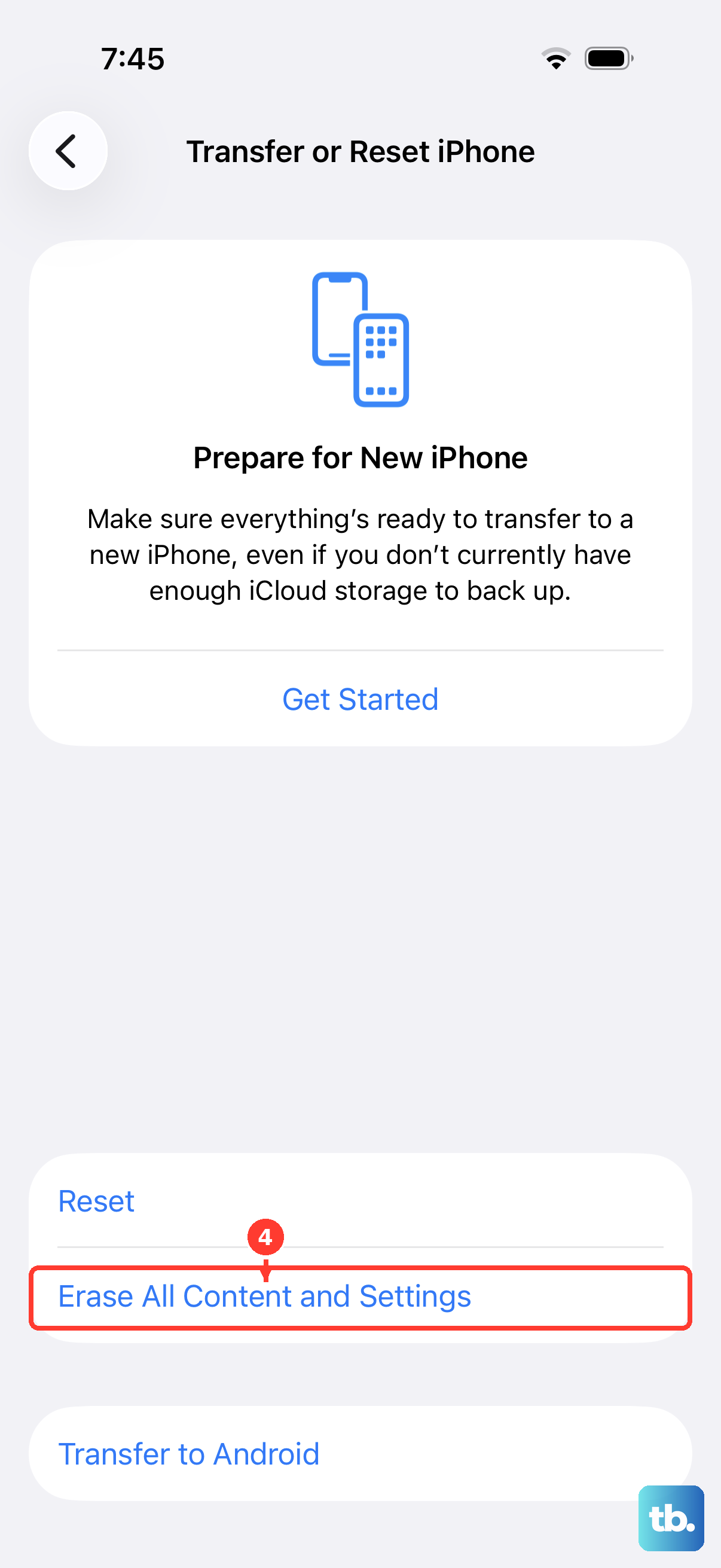
If software is definitely the issue and nothing else has worked, a full erase is the final step. This returns the phone to its original out-of-the-box state.
Go to Settings > General > Transfer or Reset iPhone and tap "Erase All Content and Settings." After entering your passcode and Apple ID password, the process will begin.
Once it's done, you can set it up as new to test, or restore from your backup. If the random restarts continue even on a fresh iOS install, it's time to consider a hardware check.